Managing File/Folder Members
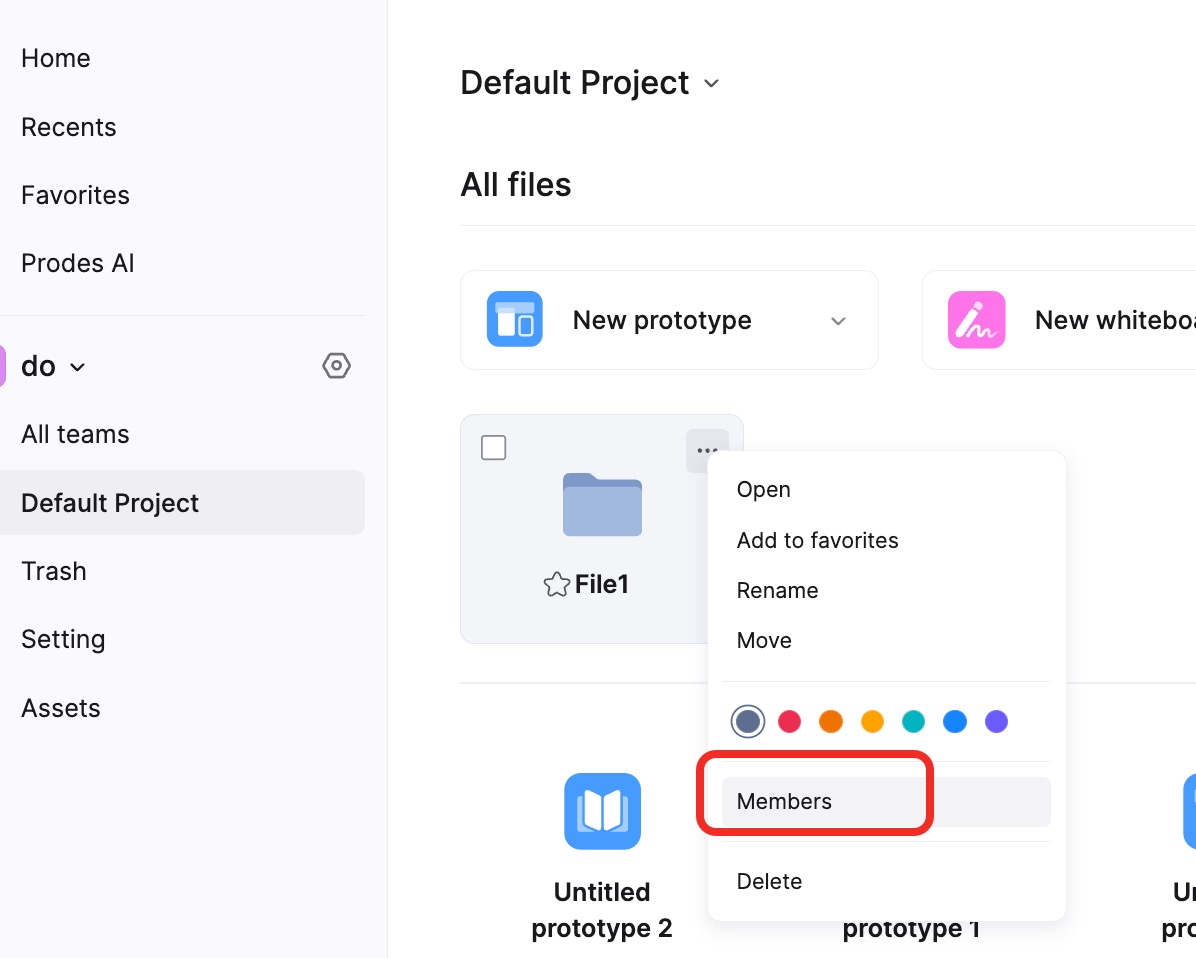
Add Folder Members
Only the folder creator or administrators have the permission to add collaborators to a folder.
Enterprise Owners and Super Administrators can voluntarily choose to join the folder and become administrators. Administrators possess folder member management permissions and file management permissions.
Steps:
Click the ellipsis (...) in the top right corner of the folder and select the Member Management button.
In the popup panel, click Add Collaborator.
Select Enterprise members who have not joined this folder, and assign permissions: Admin, Can Edit, or Can View.
Note: Folder members and permissions sync with Team member permissions by default, but independent permissions can also be set.
Remove Folder Members
Only folder/file administrators have the permission to remove folder members.
Steps:
Click the folder dropdown options and select the Member Management button.
Select the specific member in the popup panel, then click Remove to remove them from the folder.
Note:
- You can only remove members who were individually added to the folder with editing permissions but are not part of the Team itself (if inheritance applies).
- Folder members cannot voluntarily leave a folder. Apart from Team Administrators and the folder creator, other team members do not have setting permissions for the folder.
Add File Members
Only the file creator and administrators have the permission to add members to a file.
Steps:
In the Workspace, right-click the file you want to manage and select Share.
In the popup panel, click Collaborator Management in the top right corner.
Select members who are not part of the Team but whom you want to grant editing permissions to. Click Add and assign File Admin, Can Edit, or Can View permissions.
Remove File Members
Only the file creator or file administrators have the permission to remove file members.
Steps:
In the Workspace, right-click the file you want to manage and select Share.
In the popup panel, click Collaborator Management in the top right corner.
Select the member you want to remove and complete the removal operation.
Note:
- You can only remove members who were individually added to the file with editing permissions but are not part of the Team itself.
- Members cannot voluntarily leave a file. Apart from Team Administrators and the file creator, other workspace members do not have setting permissions for the file.
- The removal operations above use the Mockitt Prototype (V8) as an example. For other file types, you can right-click the file directly and select Member Management to perform add or remove operations.