Widget Scrolling Behavior
In Mockitt, you can easily control the position of elements on the page during scrolling. The available settings include Scroll with Page, Fixed to Top, Fixed to Bottom, and Sticky.
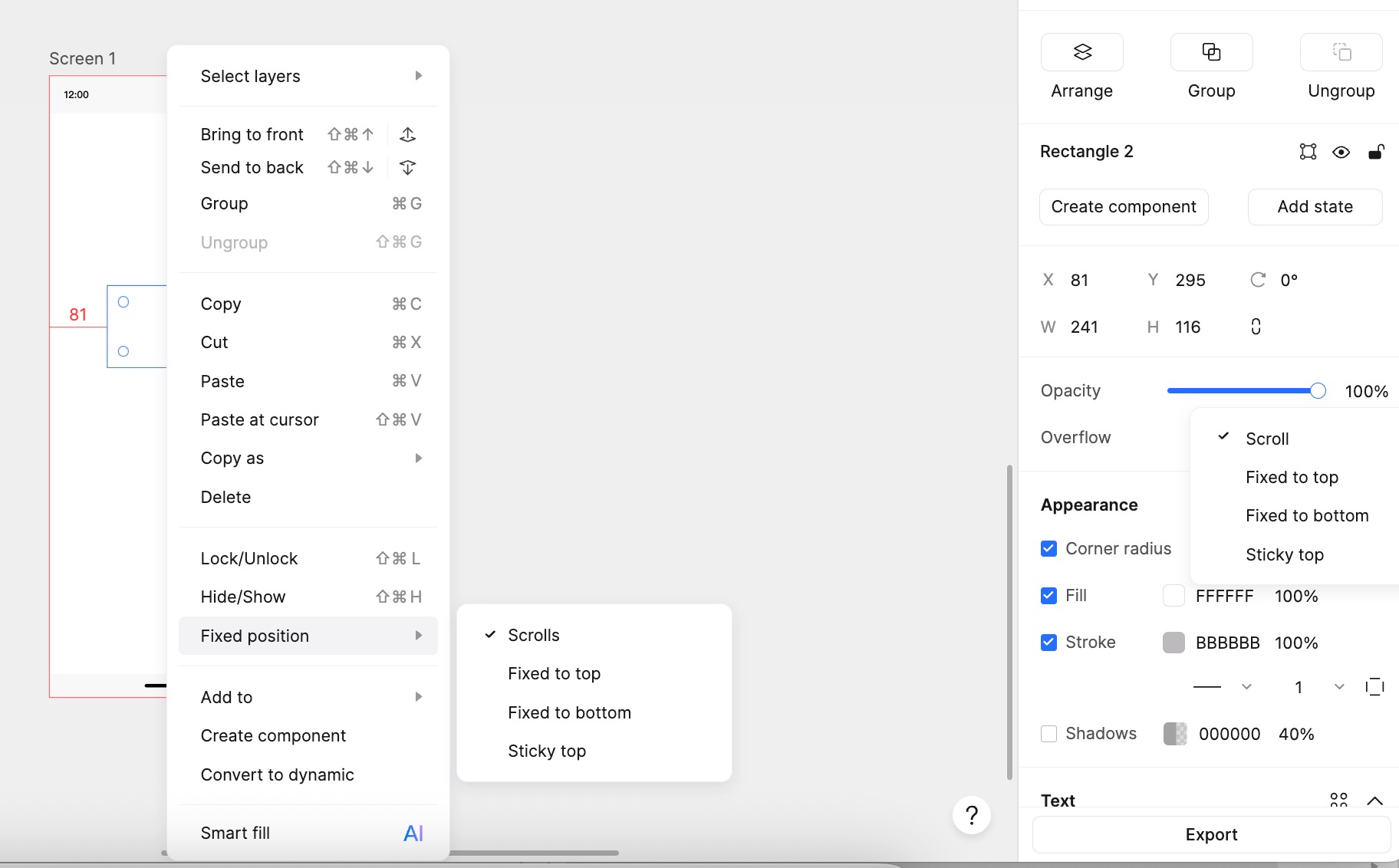
Setting Scroll Behavior
You can set the scroll behavior of a widget in two ways:
Right-click Menu: In Edit mode, right-click the target widget, select Fixed Position, and then choose the desired type.
Property Panel: Select the widget, find the Overflow option in the Appearance panel on the right, and select the type.
Scroll Types
1. Scroll with Page
When selected, the widget moves along with the page content as you scroll. It does not have a fixed position relative to the viewport.
2. Fixed to Top
The widget maintains a fixed distance from the top of the viewport, even when the page scrolls. Note: You must move the widget's layer to the very top of the current page's layer hierarchy to ensure it stays above other scrolling content.
3. Fixed to Bottom
The widget maintains a fixed distance from the bottom of the viewport, even when the page scrolls. Note: You must move the widget's layer to the very top of the current page's layer hierarchy.
4. Sticky
Sticky behavior means the element scrolls with the page until it reaches a specific position, at which point it becomes fixed.
- Set Sticky Position:
You can define a specific distance from the page top as the sticky threshold.
- The default position is 0 (the top of the page).
- You can manually enter a value in the right property panel.
- Positive and negative values are supported (Max value: 99999).
When you scroll the page and the element reaches this position, it will "stick" there.
- Virtual Indicator:
When you enter a value for the sticky position, a virtual ghost element will appear on the canvas to indicate where the element will stick. This virtual element is for visual reference only; it matches the size of the original element but cannot be manipulated manually on the canvas. It moves as you adjust the numerical value.
- Sticking and Unsticking:
- Stick: When the top edge of the widget reaches or passes the set sticky position during scrolling, it becomes fixed and no longer moves with the page.
- Unstick: When you scroll back up, and the widget's original position moves below the sticky threshold, it unfixes and starts scrolling with the page again.
Usage Example
Scenario: You have a navigation bar, and you want it to scroll with the content initially but stick to the top of the page once the user scrolls past a header.
- Set the navigation bar to Sticky.
- Set the sticky position (usually 0 if you want it at the very top).
- Effect: When the user scrolls down, the nav bar moves up until it hits the top of the screen, then it stays fixed. When scrolling back up, it remains fixed until the user reaches the original position of the nav bar, at which point it moves back down with the page.
Note: The sticky position is calculated relative to the Page, not the Fixed Region (Screen Fixed Area). By flexibly setting these behaviors, you can better control element positioning and improve the interactive experience of your prototype.