Preview
Preview Modes
Currently, Mockitt offers 3 preview modes: Grid and Presentation.
- Grid: In Overview mode, you can view the content of the entire page, including all elements and widgets in the prototype. This mode is suitable for checking the global effect and adjusting the page layout.
- Presentation: Presentation mode simulates the display effect on a real device. It displays the prototype according to the actual screen size of the device, allowing you to check interactions and animations.
- Inspect: Inspect mode you can inspect element attributes and CSS code. You can also switch code formats, including Swift, Android, Less, Sass, Stylus, etc.
Real Device Preview is a feature in Mockitt used to simulate the display on actual hardware. It allows you to check how the prototype looks and interacts on actual phones or tablets.
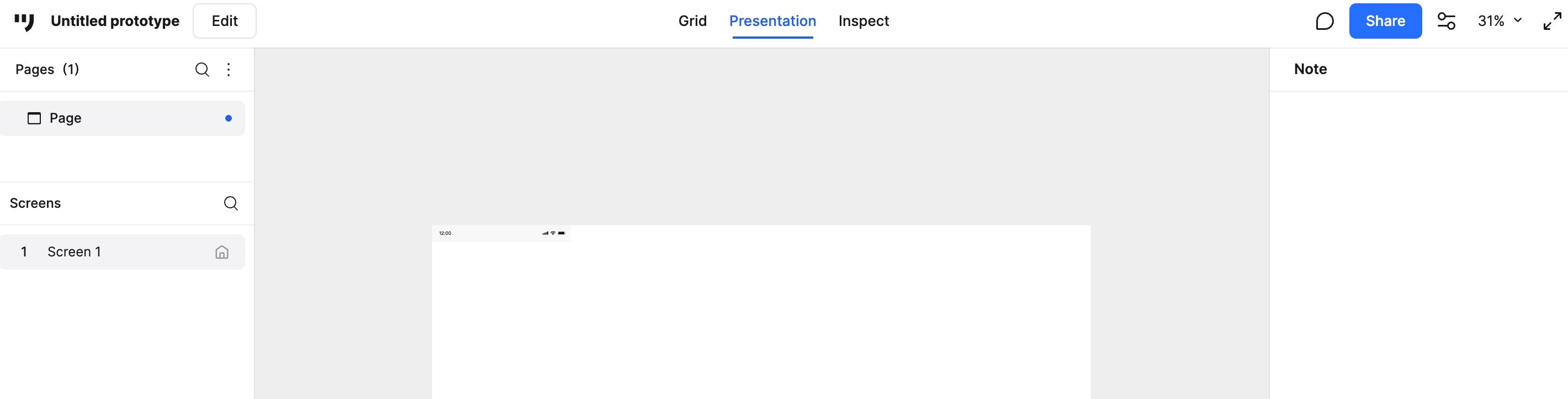
Entering Preview
In the Workspace, select a file and click the Presentation (Play) button in the top right corner, or use the shortcut Ctrl + P to enter presentation mode.
Features and Settings
In the top right corner of the preview interface, you will find several function buttons to help you adjust the display and operation of the preview.
View Settings
Click the View icon to toggle the visibility of the Left Panel, Right Panel, Annotations, Comments, etc. You can adjust the layout of the presentation interface according to your needs.
Zoom and Maximize
To the right of the View icon, you can adjust the zoom level of the page to view details. Next to that is the Maximize icon, which switches to full-screen mode.
Comments and Handoff
At the bottom of the preview page, there are buttons for Comments and Inspect (Code).
You can create and view comments by clicking the Comment button. It supports filtering comments by types such as "All", "Created by me", "Mentioning me", and "Resolved".
In Inspect mode, you can inspect element attributes and CSS code. You can also switch code formats, including Swift, Android, Less, Sass, Stylus, etc.
Other Methods for Real Device Preview
Direct Desktop Preview
Select the file in the Workspace, and click Presentation in the top right corner of the editor to preview the prototype directly on your computer.
Scan QR Code for Mobile Preview
Select the file in the Workspace and click Share. In the share settings interface, use your mobile phone's camera or browser to scan the QR code. This allows you to view the prototype on your phone, and the preview will automatically adapt to the screen size.
Offline Preview (PC)
You can download the HTML file and open it with a browser to demonstrate the prototype offline on a computer. HTML download is a paid feature available to Professional, Team, and Enterprise users.
Steps to use HTML files:
- In the top toolbar of the editor, click Export and select Download HTML.
- After downloading, unzip the file and double-click the
index.htmlfile to open it (Google Chrome is recommended).
FAQ & Notes
- Hide Page List: Click the Full Screen button in the top right corner of the presentation interface to hide the page list.
- Show/Hide Device Frame: Click the View button in the top right corner of the presentation interface to toggle the device frame.