Team Assets
Introduction
- Team Assets supports Shared Widgets, allowing you to add existing assets with one click for collaborative maintenance.
- It is a resource repository shared by enterprise members, facilitating the quick reuse of assets to improve efficiency and ensure a unified design style.
- When an image is uploaded to a folder, all collaborators of that file can use it.
- Team Assets has independent permission controls, allowing you to configure asset permissions for enterprise members individually.
How to Add Team Widgets/Images
You can move items from My Widgets/Images to Team Widgets/Images.
Select a Widget/Image on the canvas, right-click, and choose Add to Team Widgets/Images.
Note: If you cannot add assets, please contact the Enterprise Owner to set your role to Assets Admin in the Permission Management section of the Team Assets.
How to Manage Team Assets
From the Editor: Click Widgets or Images in the left toolbar, and select the Team tab to access the management panel.
From the Workspace:
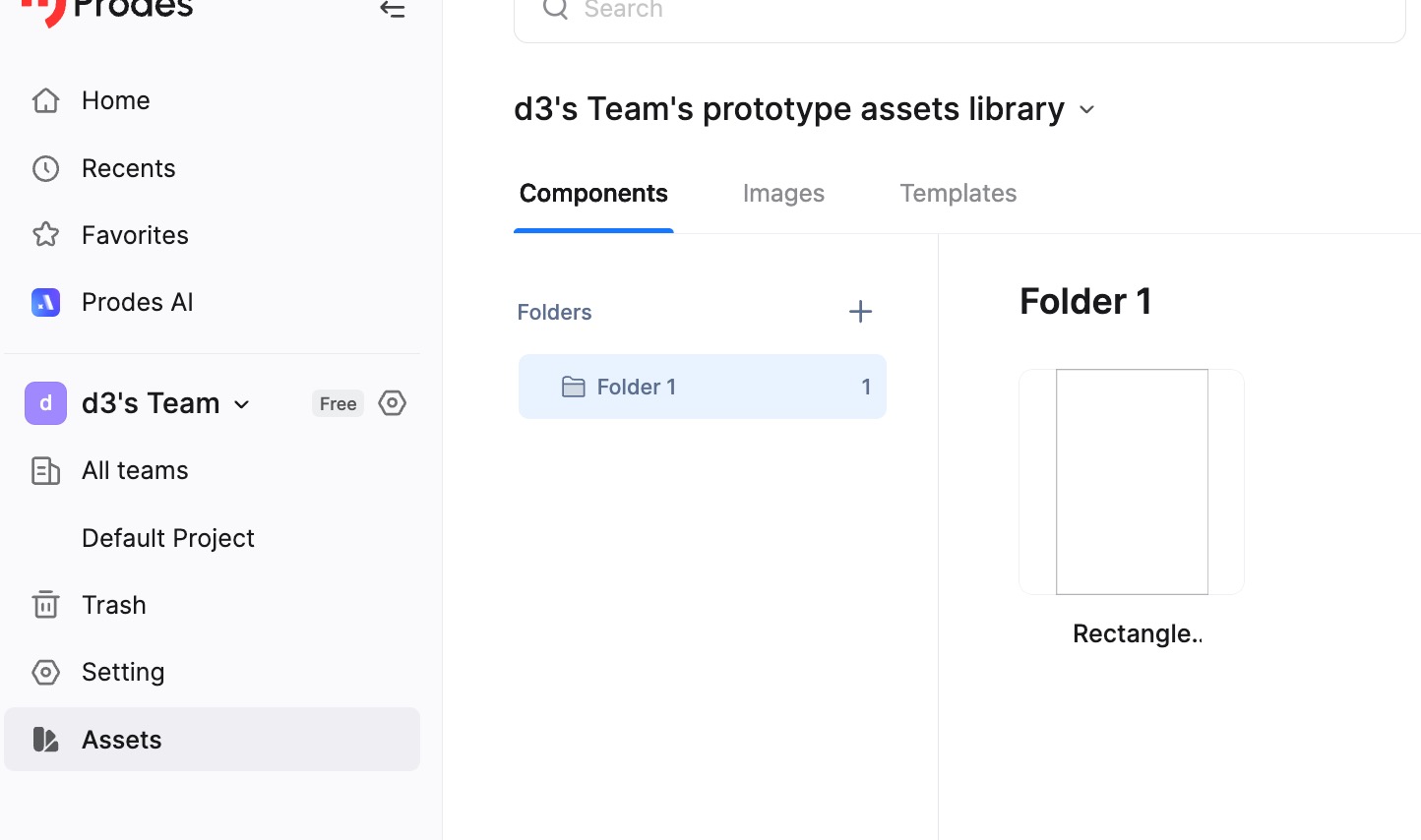
- In the Enterprise Workspace, click Assets in the left sidebar to view and manage the team's widgets and images.
- Note: This feature is currently not available in the Personal Workspace.
How to Manage Permissions
Permission Levels:
- Owner: Can manage member permissions; can manage assets and folders (upload, modify, etc.).
- Assets Admin: Can manage assets and folders (upload, modify, etc.).
- Member: Can only view, download, and use assets in the canvas.
To configure permissions, enter Team Assets from the Workspace and click Permission Management in the top right corner.