Editing Pages
In Mockitt, the Page is the core of your prototyping work. A Page can contain multiple screens and expand infinitely, supporting various needs such as requirement documentation, interface design, prototyping, and review handoff.
Basic Concepts
- Single Page, Multiple Screens: Mockitt supports creating multiple screens (artboards) on a single Page. The Page can expand infinitely, doubling your creative efficiency.
- Infinite Page: You can add multiple Pages within the same file to meet complex design requirements.
Page Operations
Adding Pages and Folders
To add a new Page, click the "+" icon at the top of the left sidebar. You can create new Pages and Folders. You can also organize your structure by dragging and dropping Pages into folders.
Page Icons and Colors
In the left sidebar, you can modify the icon style and color for Pages and Folders to distinguish types or statuses.
1. Folder Color
- Click the Folder icon to open the color menu and select a color.
- Click Reset to restore the default color.
- Clicking outside the menu closes it.
2. Page Icons
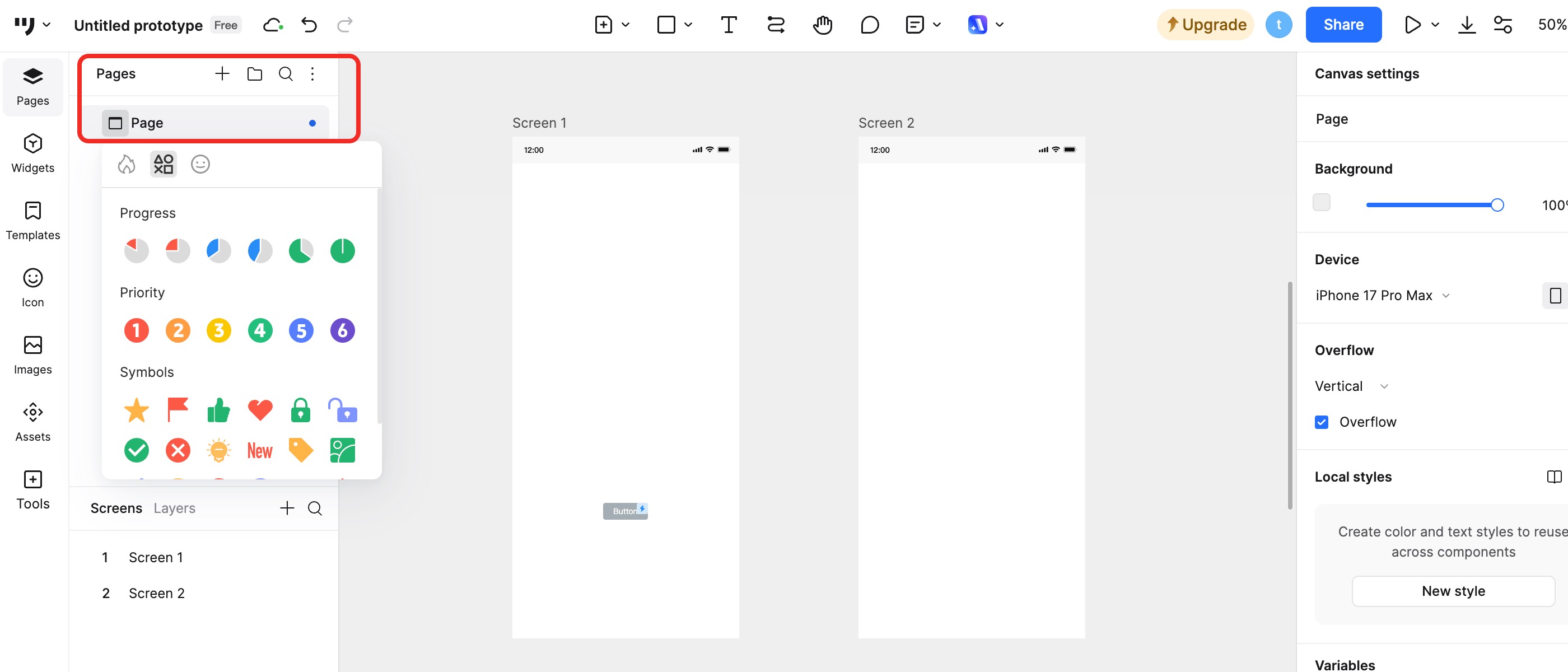
- Click the Page icon to open the icon panel. It includes Recent, Symbols, and Emojis.
- Recent: Displays recently used icons for quick access.
- Symbols: Provides progress indicators and other symbols to mark status or operations.
- Emojis: Offers a wide range of emojis for customization.
- Reset: Click the button in the top right of the panel to restore the default icon.
Deleting a Page
Right-click the Page in the left panel or click the More (...) icon, then select Delete.
If the Page contains sub-elements, you can choose to delete only the parent Page or both the parent and its content.
Restoring Deleted Pages
If you accidentally delete a Page, you can retrieve it from the Page Recycle Bin. Access the Recycle Bin from the dropdown menu next to the file name or next to the Page list header.
Note: Pages in the Recycle Bin are permanently deleted after 30 days.
Renaming a Page
Right-click the Page in the left panel and select Rename, or simply double-click the Page name to edit it.
Transferring Page to Another File
You can move a Page from one file to another. Right-click the Page in the left panel, select Move to, and choose the target file from the popup window.
Modifying Page Properties
Page Color
Click on a blank area of the Page canvas. In the Appearance panel on the right, use the color picker to change the background color.
Page Transparency
In the Appearance panel, adjust the transparency slider to change the opacity of the Page background.
Fold Line (Overflow Line)
The Fold Line marks the boundary of the visible area for the first screen. In the Appearance panel, you can toggle the visibility of the Fold Line to help position content relative to the device screen height.
Changing Presentation Device
To change the device frame for the prototype presentation: Click on a blank area of the Page canvas. In the Appearance panel on the right, select the desired device type from the dropdown menu.