Team Member Management
Introduction and Access
Overview
Through Member Management, Enterprise administrators can invite new members, while the Enterprise Owner can manage member permissions and assign seats.
Accessing Member Management
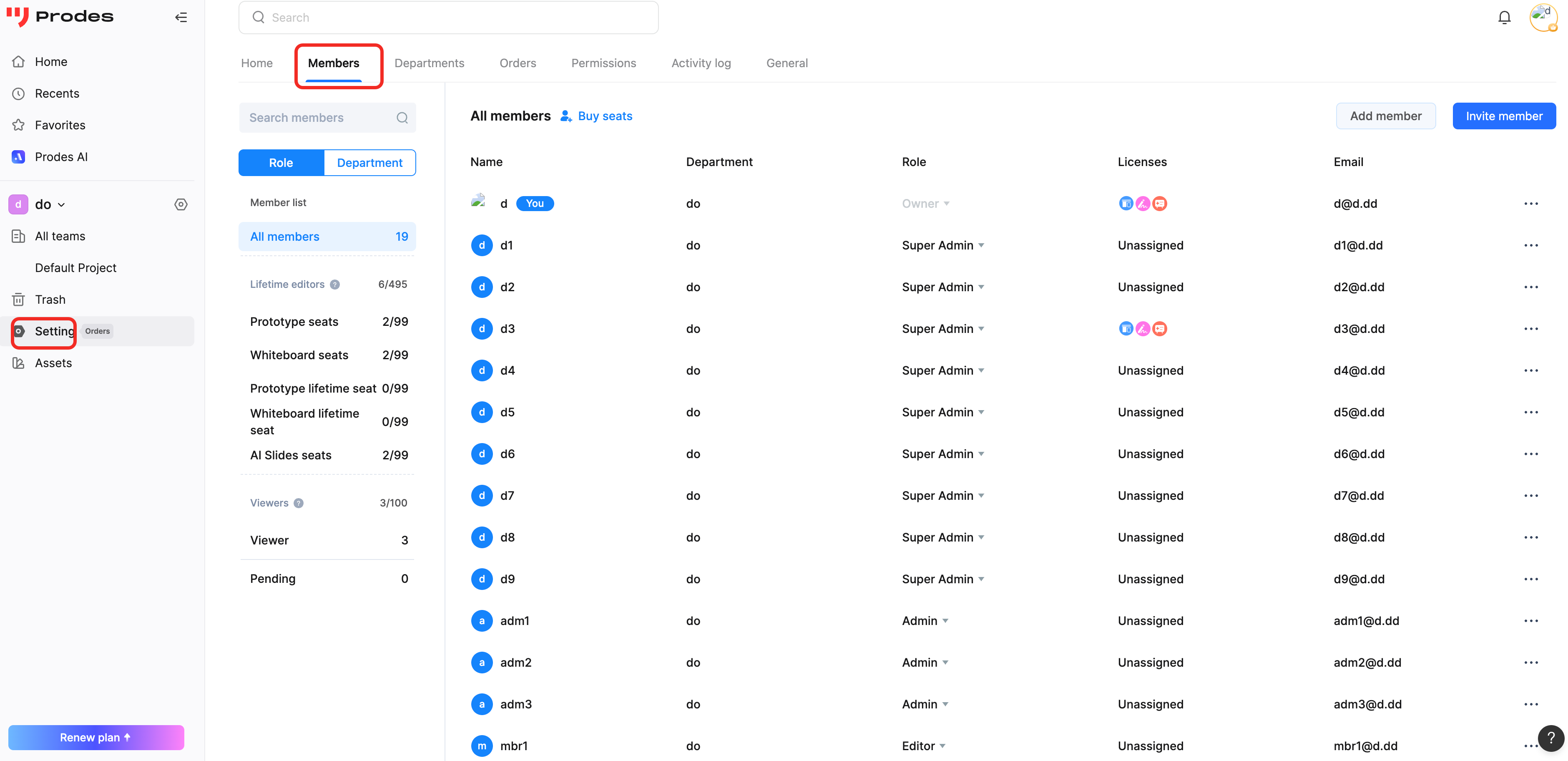
Click Space Management (Workspace Settings) in the left sidebar of the Workspace, then select Member Management on the right.
Alternatively, right-click All Teams in the left sidebar and select Member Management.
Invite Members
Modify Invitation Permissions
If you are the Enterprise Owner, you can modify who is allowed to invite new members by going to Workspace Settings > Permissions. You can choose between:
- Everyone: Allows all members within the Enterprise to invite external users.
- Owner + Super Admins + Admins: Only allows these specific roles to invite new members via link.
Invitation Steps
If you have permission to invite members, follow these steps:
Switch to the Enterprise you wish to manage, click Member Management in the top bar, then select Invite via Link or Add Member in the top right corner.
Add Member
Add Registered Mockitt Users: Click "Add Member" and enter the name and email of the user. Select the team they should join, assign an Enterprise Role, and allocate a Seat. Seats determine if the user can edit Prototypes or Whiteboard files. Once configured, click Save to invite. Note: Free/Trial Enterprises cannot adjust seat allocation; it defaults to 10 Prototype seats and 10 Whiteboard seats. If you select the "Reviewer" role, no seat allocation is required. If seats are currently full, you can select "Pending Allocation" to add the user to the Enterprise first and assign a seat later.
Add Unregistered Users: Enter the user's email, name, and role, then click Save. The user will be listed as an "Unregistered Member" and will automatically join the team upon registration.
Invite via Link
- Click Invite via Link, select the target team, role, and seat type. Copy the generated link and send it to the user. This allows for bulk invitations.
- Note: The link is valid for 7 days. You must generate a new link if the previous one expires.
Add Reviewer
- When adding or inviting members, you can assign the Reviewer role.
- Reviewers can only view and comment on files they are part of, as well as view Handoff data (slices and specs). They cannot edit files.
Modify Member Information
Only the Enterprise Owner, Super Admins, and Admins can modify member information.
Switch to the corresponding Enterprise, click Member Management in the left sidebar. Click Edit Profile in the menu to the right of the member's name to modify their details and role permissions.
Roles include: Owner, Super Admin, Admin, Collaborator, and Reviewer.
Set Team Permissions
Only the Enterprise Owner can modify Enterprise permissions.
Go to the Workspace homepage, click Workspace Settings in the left sidebar, and select the Permissions tab.
File Transfer Permission
- Use the dropdown menu to set who can transfer file ownership.
- Options: Owner Only, Owner + Super Admins, or Owner + Admins.
Handover Permission (Resignation)
- Allows Owners and Admins to transfer a specific member's files/folders to multiple designated members.
- Note: This is a paid feature. In Free/Team plans, files are defaulted to the Team Owner upon member removal.
Invite New Member Permission
- Use the dropdown menu to set who can invite new users.
- Options: Everyone, or Owner + Super Admins + Admins.
Transfer Enterprise Ownership
The Enterprise Owner can transfer the Owner role to another member. Once transferred, the original Owner becomes a standard member.
Click Member List under the Transfer Enterprise section, select the member you wish to transfer ownership to, and change their permission to Owner.
Note: Only Paid Plans (Team and Enterprise) support transferring ownership.
Dissolve Enterprise
- The Owner can dissolve the Enterprise 60 days after the subscription has expired.
Remove Team Members
Only the Owner, Super Admins, and Admins can remove members.
Go to Member Management, select the member you want to remove, click the dropdown button, and select Remove and Handover to delete the member and transfer their data.
Replace Team Members
- After removing a member from the Enterprise, you can add a new member to take their place (and seat).
- Please refer to the "Remove Team Members" and "Invite Members" sections above for specific steps.
Leave Team
You can voluntarily leave an Enterprise Workspace if the subscription has been expired for more than 30 days. This is done in Workspace Settings > Permissions.
Note: Personal Workspace files and Team files are independent. Leaving a team does not affect files in your Personal Workspace.
Once you leave, you will no longer be able to view data within that team. Please proceed with caution!
FAQ
1. Why can't I transfer ownership? Transferring ownership is a feature available only to Paid Plans (Team and Enterprise). You must upgrade your plan to use this feature.
2. Why can't I invite members? The Enterprise Owner may have restricted invitation permissions in Workspace Settings > Permissions.
- Everyone: All members can invite.
- Owner + Super Admins + Admins: Only admins can invite.
3. Why can't I dissolve the Enterprise? An Enterprise can only be dissolved 60 days after the subscription has expired.