File Handover
File handover is a critical step to ensure information security and workflow continuity, especially when members leave the company, transfer departments, or change roles.
In a Mockitt Team, file handover refers to transferring or assigning files, projects, tasks, and related information from one member to another. This process ensures the normal operation of the team and the smooth progress of projects, avoiding data loss and work interruption.
There are three scenarios for file handover:
Scenario 1: Files in a Team Created by the Company
When the handover occurs within a Team created under a company account, follow these steps to ensure a smooth and secure transfer.
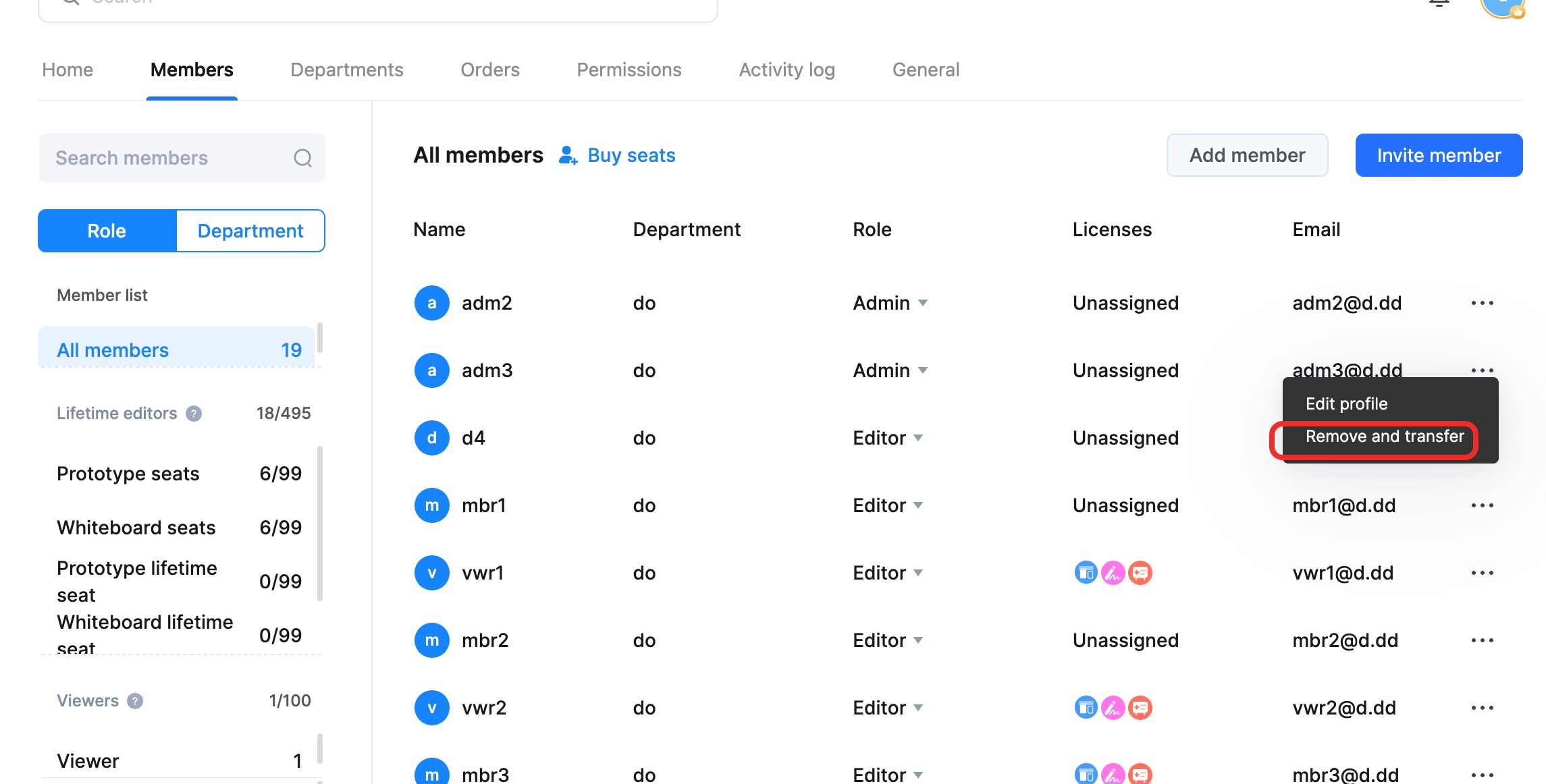
Switch to the corresponding Team, right-click Team Member Management in the bottom-left corner (or access it via Settings). In the member management interface, select the member you wish to remove, click the More button, and select Remove and Transfer.
- Free Workspace: Files are transferred to the Enterprise Owner by default.
- Enterprise Workspace: You can select specific files to transfer and designate a recipient. Click Confirm to complete the handover.
This ensures that files are safely transferred without permission conflicts.
Important Notes:
- After handover, all relevant files created by the removed member in that Team will be transferred to the recipient.
- Recipient not in the Team: They will automatically join the Team, inheriting the same role as the removed member.
- Recipient already in the Team: They will retain the higher of the two permission levels (their existing role vs. the removed member's role).
- You cannot transfer content to a Reviewer.
Special Note: Files within a Team belong to the Team Owner. Therefore, even if a member is removed without a specific handover process, the files created by them within the Team will not disappear.
Scenario 2: Files in a Team Created by the Departing Member
There are two ways to handle this situation.
Method 1 (Files Only)
Note: This method applies to files only, not folders.
- The departing member moves the necessary files to a Team created by the company account.
- The Team Administrator then performs the "Remove and Handover" operation as described in Scenario 1.
Method 2 (Entire Team)
- The departing member transfers the Owner permission of their Team to an Administrator account.
- Switch to that Team (now owned by the Admin).
- Access Member Management, select the departing member, click More, and select Remove and Handover.
- Select the files and the recipient, then confirm.
Scenario 3: Files in the Departing Member's Personal Workspace
If you need to hand over files located in a departing member's Personal Workspace, you must first move them to a Team environment.
- Admin: Switch to a Team created by the company.
- Admin: Invite the departing member to this Team.
- Departing Member: Move their files from their Personal Workspace to a folder within the Company Team.
- Admin (Owner): Remove the departing member from the Team and select Remove and Handover to transfer ownership of the files to a current employee.
Handover for Agency/Outsourcing Delivery
If you are an agency or contractor delivering work to a client:
- Confirm with the client that Mockitt will be used for the prototype.
- Export the project as a Source File (usually a specific Mockitt format).
- Send the source file to the client.
Note: The Source File Export feature is available for Lifetime Individual, Team, and Enterprise plans.