Components
Introduction
When prototyping, you may face a common issue: the same widget (or group of widgets) is needed in many places across multiple pages. When you need to modify it later, you want to update all of them at once. This is where Mockitt Components come in.
Features and Characteristics:
- Save Repetitive Elements: Mockitt allows you to convert any widget (static or dynamic) into a Component (Main Component). You can save frequently used elements as Components for reuse across multiple pages and canvases.
- Create Multiple Instances: You can drag a Component directly onto the canvas. The copy created on the canvas is called an Instance. It is linked to the Main Component and can be updated synchronously.
- Batch Updates: Components possess "Inheritance". If you modify the Main Component, all its Instances will automatically update to match the changes.
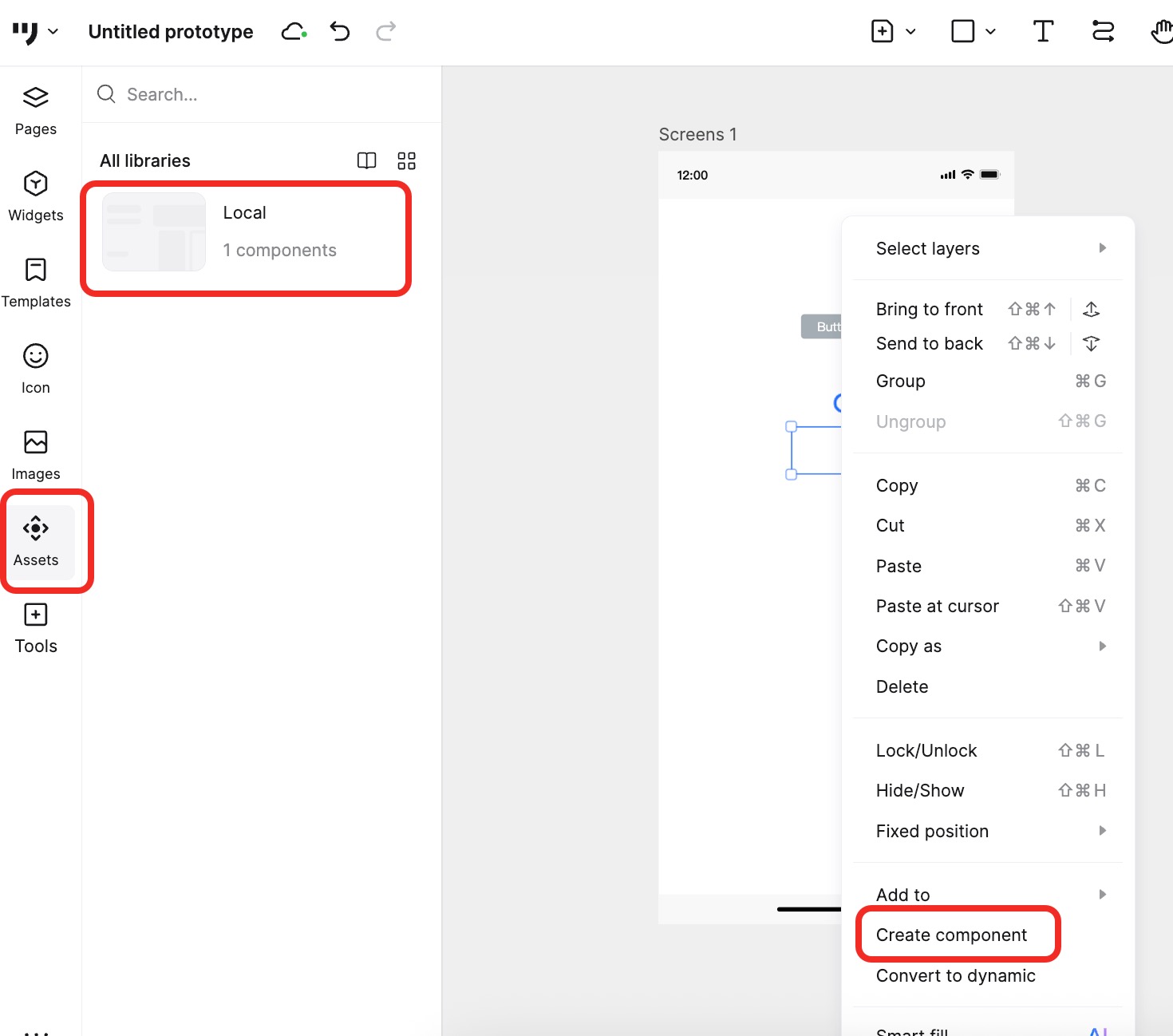
Creating Components and Instances
Create a Component
- Select a widget or group -> Right-click and choose Create Component.
- All Components created in the file will be stored in the Components panel in the left toolbar.
Manage Component Folders
- You can rename a Component using slashes to create folders (e.g., naming it "Navigation/Left Nav Style 1" puts it into a "Navigation" folder). Multi-level nesting is supported.
Create an Instance
- Drag a Component from the panel onto the canvas to create a new Instance of that Component.
Editing Components and Instances
Edit Main Component
There are three ways to enter the editing mode for a Main Component:
- Hover over the Component thumbnail in the left panel, click ... and select Edit.
- Right-click an Instance on the canvas and select Edit Main Component.
- Select an Instance and click Edit Main Component in the right property panel.
Note:
- Once modified, all instances of this Component in the file will be updated synchronously.
- After selecting an Instance, you can also set its default state in the right Appearance panel.
Edit Instance
Modify Properties: Double-click an Instance to select elements inside it and modify their properties.
- Overrides: The modified property will no longer inherit updates from the Main Component.
- Isolation: Modifying a single Instance does not affect the Main Component or other Instances.
- Re-updates: If an element in an Instance has been modified (overridden), it will not change even if the Main Component is updated later.
- Limitations: You cannot change the size or relative position of elements inside an Instance. You can only modify properties like color, stroke, font size, etc.
Instance Settings: Right-click an Instance or use the settings button in the right panel to access more functions:
Detach instance: Right-click the Instance and select Detach instance. It will become a standalone Dynamic Widget and will no longer be linked to the original Component.
Push changes to main component: Select an Instance with overrides (modifications), right-click, and select Push changes to main component. This applies your local changes to the Main Component and all other Instances.
Reset all overrides: Right-click the Instance and select Reset all overrides. This reverts the Instance to match the Main Component's default properties, restoring full inheritance.
Multi-state & Scrolling Components
Components function similarly to Dynamic Widgets. They support nesting, multiple states, and scrolling.
Set Multiple States:
- Enter the Component editing mode. Click the + sign at the top to add states to the Component.
- After setting up the states, return to the canvas and select the specific state you want the Instance to display via the property panel.
Set Scrolling:
- Enter the Component editing mode. Just like with Dynamic Widgets, set the overflow behavior (Vertical or Horizontal scroll) to achieve scrolling effects.
FAQ
Why didn't the Instance update after I modified the Main Component?
There is a strong inheritance relationship between the Main Component and its Instances. usually, when the Main Component is modified, all Instances update.
If an Instance does not update, please check if you have previously modified elements within that specific Instance.
If you have manually modified (overridden) a property of an element in an Instance, that specific property will no longer sync with the Main Component.
To fix this, you can right-click the Instance and select Reset all overrides. This will restore the Instance to match the Main Component's properties and re-establish inheritance.