Pen Tool
The Pen Tool is a powerful free-drawing instrument in Mockitt. It allows you to create irregular shapes to meet various design needs. With the Pen Tool, you can draw straight lines, curves, and both closed and open paths, giving you the flexibility to build complex graphics within your prototype.
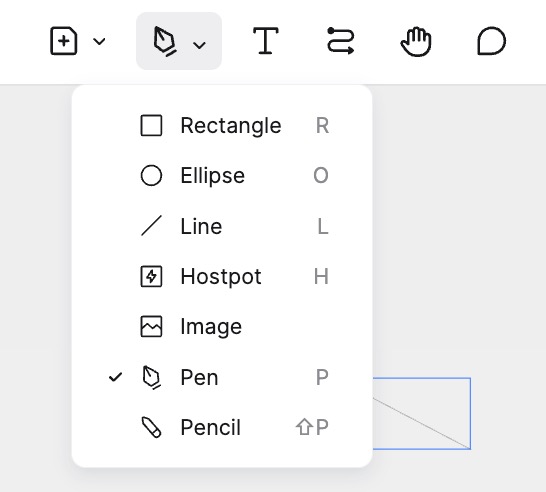
Activate Pen Tool
- Toolbar: Click the Pen (P) icon in the top toolbar. The cursor will change to the Pen creation mode. You can then drag or click on the canvas to draw.
- Shortcut: Press the shortcut key
P. The cursor will change to creation mode, allowing you to start drawing immediately.
Drawing Anchors
On the canvas, you can create new anchor points:
- Click to draw a straight line.
- Click and Drag to draw a curve.
During the drawing process, you will see a preview line between your mouse and the previous anchor point, helping you adjust the shape.
Finish Drawing
There are several ways to complete your drawing:
- Close the Path: Click on the starting anchor point. The shape will close, and the path editing will end.
- Press Esc: Pressing
Esconce cancels the current anchor placement; pressing it again ends the path editing. - Press Enter: Pressing
Enterends the path editing. - Right Panel: Click the Done (or Finish Editing) button in the right property panel.
Note:
- If the shape is open, pressing
Enterwill automatically close the path (connect the first and last points). - When a closed shape is created, it will have a fill effect by default.
Edit Path (Vector Editing)
To edit an existing shape, select the component and enter Path Editing mode using one of these methods:
- Right Panel: Click the Edit Path button in the Appearance panel.
- Double-click: Quickly double-click directly on the path/shape.
Note:
- Standard shape widgets (Rectangle, Circle, Polygon, Star, Triangle) can be converted to custom paths by double-clicking them. However, they will lose their specific shape properties. For example, a Star will lose the ability to adjust the number of points parametrically.
- In the right panel, clicking Open Path will convert a closed shape into an open path.
- Clicking Close Path will connect the endpoints of an open path.
Add, Delete, and Move Anchors
Add Anchor:
- Click on Path: Click anywhere along the path line to insert a new anchor point (default is a straight corner).
- Shift Key: Hover over a line segment while holding
Shiftto find the exact midpoint, then click to add an anchor.
Delete Anchor:
- Closed Shape: Select an anchor and press
BackspaceorDelete. The path will remain closed. - Open Shape: Select an anchor and press
Backspace. The anchor and connected segments will be removed.
Move Anchor:
- Drag: Simply click and drag an anchor point to adjust the shape.
Anchor Types
The anchor type determines how the path curves through the point.
- Straight (Corner): Created by a single click. No bezier handles.
- Symmetric (Mirrored): Created by clicking and dragging. Handles are mirrored.
- Switching Types: You can switch types using the right property panel or shortcuts.
Shortcuts for Anchor Types:
- Disconnect Handles: Hold
Cmd(Mac) /Ctrl(Windows) while dragging a handle. - Toggle Straight/Symmetric: Double-click the anchor point.
- Type Shortcuts: Select an anchor and press keys
1,2,3, or4to switch between Straight, Mirrored, Asymmetric, and Disconnected types.