Interaction Triggers & Actions
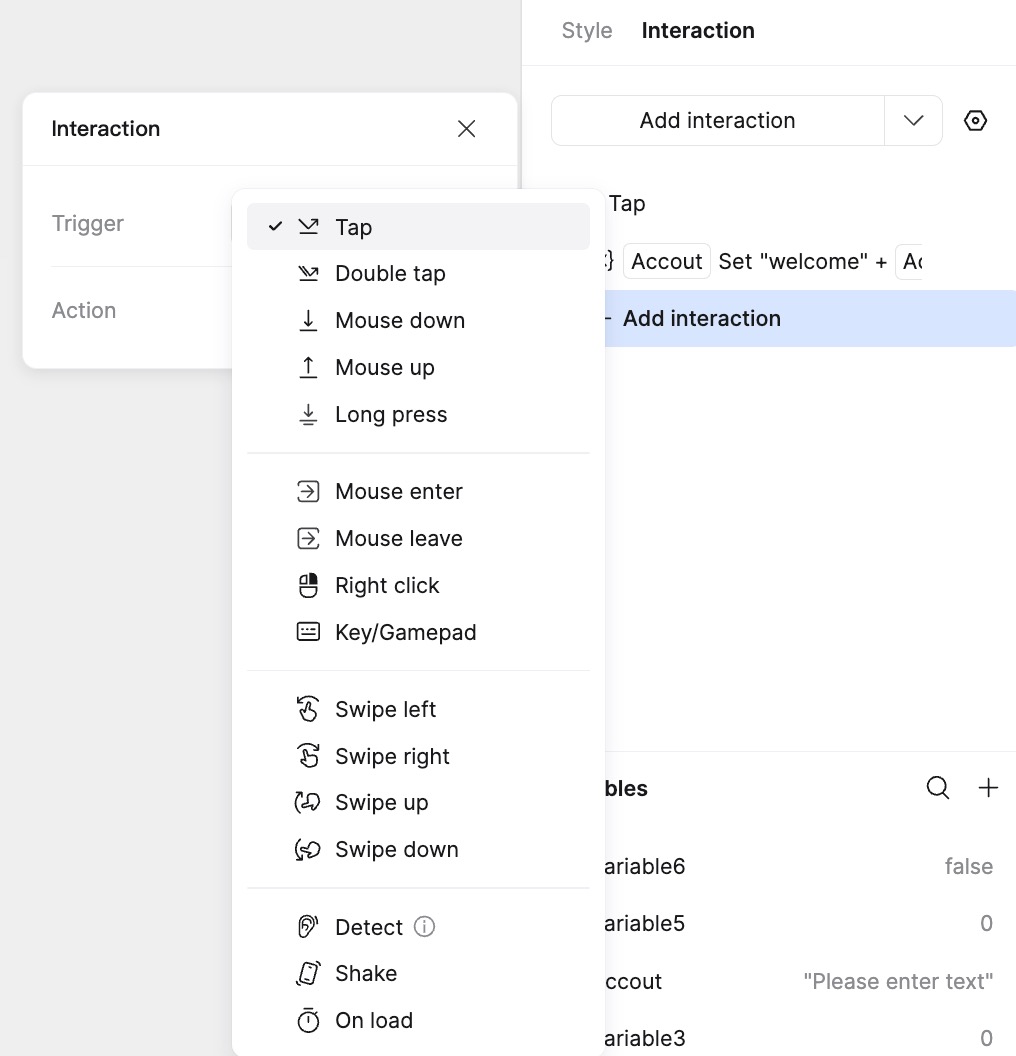
Interaction design in just three steps:
Select the widget or element → Select Trigger → Add Action
🔹 1. Interaction Triggers
Users can set the following triggers:
| Trigger | Description | Use Case |
|---|---|---|
| Click / Tap | Single mouse click or finger tap | Button operations, icon clicks |
| Double Click | Quick consecutive clicks | Image zoom in/out |
| Long Press | Press and hold for more than 0.5s | Show context menu / delete function |
| Mouse Down | When mouse or finger is pressed down | Game character jump / continuous action |
| Mouse Up | When mouse or finger is released | End continuous action |
| Mouse Enter (Hover) | Cursor enters the widget area | Show tooltips |
| Mouse Leave | Cursor leaves the widget area | Hide tooltips |
| Right Click | Mouse right-click (PC only) | Open context menu |
| Key Press | Press a specific keyboard key | Form submit (Enter) / Close (ESC) |
| Swipe Left/Right | Horizontal screen swipe | Carousel switch / Page navigation |
| Swipe Up/Down | Vertical screen swipe | Refresh content / Scroll page |
| Listen | Real-time monitoring of property changes (Variables, width, height, text, opacity, etc.) | Instant search feedback |
| Shake | Shake the mobile device | Random function / Refresh content |
| On Load | Page/Widget loading complete | Auto-play animation / Initialize data |
💡 Tips:
- Prioritize
Swipegestures for mobile, andHovereffects for PC.Long PressandListenare suitable for scenarios requiring continuous response or monitoring.Listenexecutes subsequent actions whenever the target variable or property value changes.
🔹 2. Event Actions
The following operations can be executed after a trigger:
| Action | Description | Typical Use Case |
|---|---|---|
| Go to Page | Switch to a specific page | Navigation menu jump |
| Back | Return to the previous page | "Back" button |
| Open Link | Open external webpage/email link | "Contact Us" link |
| Switch State | Change widget style/state | Button active state / Tab switching |
| Scroll To | Automatically scroll to a specific position | "Back to Top" function |
| Show/Hide | Control widget visibility | Expand options / Hide tooltips |
| Transform | Control target element's size, position, rotation | Card flip |
| Open Overlay | Show popup/dropdown menu | Login box, Filter menu |
| Close Overlay | Close the currently open overlay | "X" close button on popup |
| Swap Overlay | Switch between multiple overlays | Tutorial step guide |
| Set Variable | Store user operation data | Record filter conditions / Save selection status |
| Condition | Execute different operations based on conditions | Form validation / Permission check |
⚡ Advanced Tips:
- Action Chain: A single trigger can execute multiple actions (e.g.,
Submit Form → Go to Page → Show Success Notification).- Smart Conditions: Use
Conditionto create dynamic interactions (e.g.,IF Stock > 0 : Show Buy Button ELSE Show Out of Stock Label).- Multiple Triggers: Multiple triggers can exist simultaneously. If delays are consistent, they execute in top-to-bottom order. Otherwise, they execute according to the set delay time.