Page Interactions
Creating connections between pages is the core of prototyping. By setting up page jumps, you can simulate the flow of a real application.
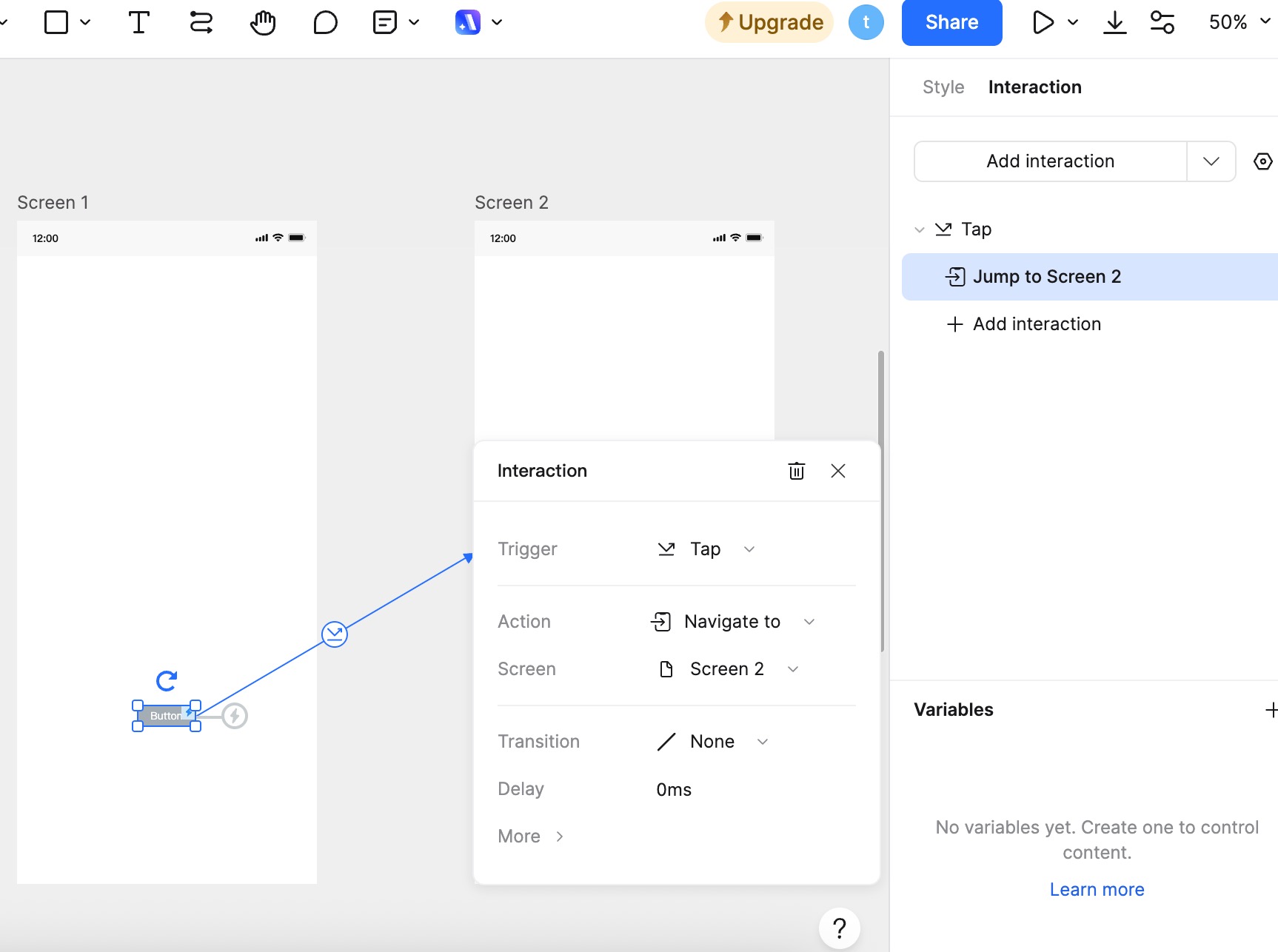
Creating Page Jumps
Mockitt offers two simple ways to create links between pages.
Method 1: Dragging the Link Line (Recommended)
- Select Widget: Select the widget (e.g., a button) that will trigger the jump.
- Drag Link: A Lightning icon will appear on the border of the selected widget. Click and drag this icon.
- Connect: Drop the line onto the target page in the left Page List or directly onto another screen on the canvas.
- Finish: A connection line is created, and the interaction settings panel will open automatically.
Method 2: Using the Interaction Panel
- Select Widget: Select the widget you want to make interactive.
- Add Interaction: In the right property panel, go to Interactions and click New Interaction.
- Configure: Set the Trigger to Click (or Tap) and the Action to Navigate to. Then, select the specific target page from the dropdown list.
Setting Transition Animations
To make the prototype feel realistic, you can add transition animations to page jumps.
After creating a link, the Interaction Settings panel will appear. Here you can configure the Animation:
- Push: The new page pushes the current page out (e.g., Push Left, Push Right).
- Slide: The new page slides over the current page.
- Fade: The pages dissolve into each other.
- None: Instant switch without animation.
- Smart Animate: Automatically animates matching layers between two pages for smooth transitions.
You can also adjust the Duration and Easing curve for the animation.
Back to Previous Page
In many apps, a "Back" button returns the user to the previous screen.
- Select the "Back" button widget.
- Add an interaction.
- Set the Action to Back.
Note: This action returns the user to the immediate previous page in their browsing history during the presentation.
External Links
You can link a widget to an external website (e.g., a help center or landing page).
- Select the widget.
- Add an interaction and set the Action to Open Link.
- Enter the URL (must start with
http://orhttps://). - Choose whether to open it in the Current Window or a New Window.
Timed Navigation (Auto-Jump)
You can set a page to automatically jump to another page after a specific time (e.g., a splash screen moving to the home page).
- Select the Page itself (click the page name).
- Add an interaction and set the Trigger to On Load.
- Set the Action to Go to Page and select the target page.
- Set a Delay (e.g., 2000ms for 2 seconds).
When the presentation loads this page, it will wait for the specified time and then automatically navigate to the target page.