Quick Preview
The Quick Preview feature in Mockitt allows you to instantly preview elements and animations while you edit the prototype. You can view the page and interaction effects in real-time without leaving the editing interface, enabling faster design adjustments and optimization.
Synchronization between the editor and the Quick Preview window is real-time, so you can immediately see the effects of your changes.
Page Preview in Editor
You can quickly preview the current page while editing by following these steps:
Click the Preview Button: The presentation button has been updated to a Quick Preview button. Click it to open the preview popup for the current page.
Use Preview Features: Inside the preview popup window, you can:
- Use the Previous and Next buttons to switch between pages within the same Canvas.
- Click View to toggle Highlight Interactions or switch between Dark/Light background themes.
- Click Open in Presentation Mode to open the current page in a full presentation tab.
Dynamic Widget / Component Preview
You can preview Dynamic Widgets and Components (Main Components) directly:
Use Preview Button: Click the Preview button (Play icon) on the Dynamic Widget or Component to open the preview popup.
Operate Preview Popup: In the popup, you can switch states and adjust view settings. The size and content of the popup sync with the editor in real-time.
My Widgets / Team Widgets Preview
To preview assets from "My Widgets" or "Team Widgets":
Open Widgets Panel: In the left toolbar, click Widgets and select My or Team to access your library.
Select Widget: Find the specific widget you want to preview, click More (...), and select Edit to enter the widget editing mode.
Start Quick Preview: In the top right corner of the widget editing page, click the Preview button to open the preview window showing the widget's appearance and interactions.
Switch Widgets: You can switch to preview other widgets using the dropdown in the top left corner of the Quick Preview window.
Exit Editing: When finished, click the Exit button in the top left corner to return to the main canvas.
AI Widget Preview
For AI-generated widgets:
Use Preview Button: Click the Preview button in the top right corner of the AI Widget to open the popup.
Operate Preview Popup: You can refresh the generation or adjust view settings. The content syncs with the editor in real-time.
Quick Preview in Overview Mode
You can also use Quick Preview while in Overview Mode:
- Select Page: In Overview Mode, click on the specific page you want to preview.
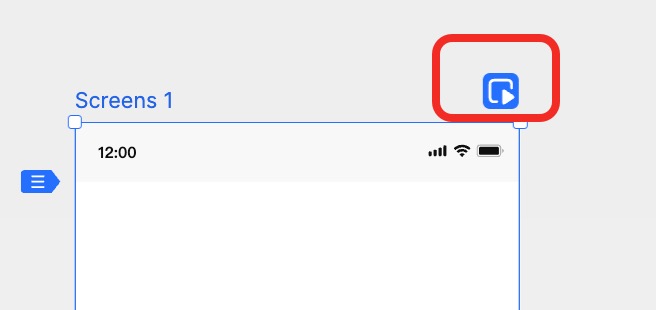
- Start Quick Preview: Click the Quick Preview button in the top right corner of the page frame.
- Switch Pages: Use the Previous/Next buttons in the popup to navigate through pages.
- Adjust View: Click the View button to toggle interaction highlights or background colors.
- Open in New Tab: Click Open in Presentation Mode to launch the full presentation in a new browser tab.