Export & Handoff
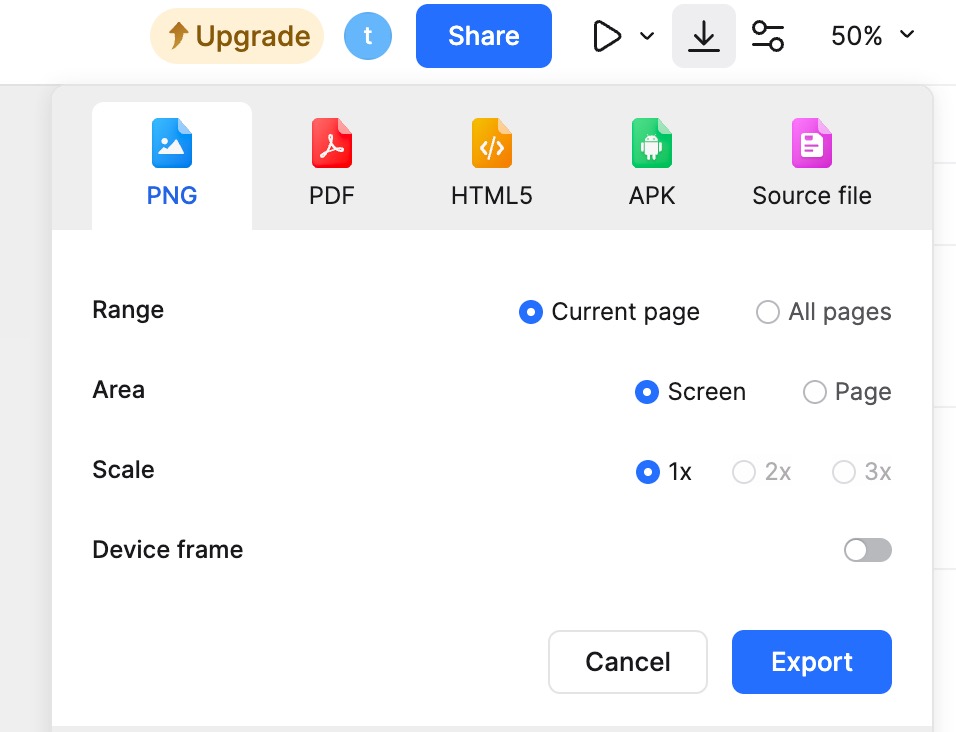
Mockitt provides various export functions to facilitate team collaboration and design handoff. Whether you need Images, PDFs, HTML demo packages, or Android APKs, Mockitt has you covered.
Note: Mockitt is a cloud-based product, and data is stored in the cloud. There are no offline source files in the traditional sense; exported files are intended for presentation and handoff. To edit the same prototype on a different device, simply log in to your Mockitt account. If you need to hand over source files to others, you can use the Export Source File feature or the Enterprise File Transfer feature.
Export PNG
Steps:
- Click the Export button in the top toolbar of the editor.
- Select PNG.
- Configure the settings based on your needs: Export Scope, Type, Scale, and Device Frame.
- Click Export to download the PNG file.
- Scope: Choose to export the Current Canvas or All Canvases.
- Type: Choose to export the Page (viewport) or the entire Canvas.
- Scale: Supports 1x, 2x, and 3x.
- Device Frame: Choose whether to include the device shell in the image.
Note: Free Plan users (including trials) can export PNGs/PDFs with a Mockitt watermark. A paid subscription is required to remove the watermark.
Export PDF
Steps:
- Click the Export button in the top toolbar.
- Select PDF.
- Configure the settings: Scope, Type, Scale, and Device Frame.
- Click Export to download the PDF file.
- Scope: Choose to export the Current Canvas or All Canvases.
- Type: Choose to export the Page or Canvas.
- Scale: Supports 1x and 2x.
- Device Frame: Choose whether to include the device shell.
Export Offline Demo (HTML)
Mockitt supports exporting HTML offline demo packages, allowing you to view and present files without an internet connection.
This is a Paid Feature available to Professional and Team Plan users. It is not supported on the Free Plan.
Steps:
- Click the Export button in the top toolbar.
- Select Download HTML.
- After downloading and unzipping, open the
index.htmlfile in a browser to start the offline presentation.
Export Android APK
You can export an APK file to simulate the product's performance on an Android device and preview the prototype directly on the mobile desktop. Please note that commercial fonts will not be packaged into the APK file.
This is a Paid Feature currently available to Team Plan users.
Note: The exported APK is strictly a demonstration file. It cannot be used as an actual functional app and the code cannot be reused for development.
Steps:
- Click the Export button in the top toolbar.
- Select APK.
- Follow the prompts to complete the export and download the APK file.
- Install the APK file on an Android device to preview the prototype.
Export Source File
You can export the Mockitt prototype project as a source file with the extension .mdrp.
The exported source file can be imported into other Workspaces.
Eligibility: This is a member-only feature. It is supported for Lifetime Individual, Team, and Enterprise members.
Permissions: Only Owners and Admins of a Team/Enterprise can export source files. Collaborators cannot export source files.
Steps:
- Click the Export button in the top toolbar.
- Select Source File.
- Download the
.mdrpfile. - To import, go to the Workspace, click the Import button in the top right, and select Mockitt Source File.
Export Annotations
- Exporting Canvas: When exporting the entire canvas (e.g., to Image or PDF), you can choose whether to include annotations. This option includes Card Annotations (Notes) but excludes Sticky Notes.
- Exporting Single Page: Annotations cannot be exported when exporting a single page view.
- Exporting Offline Demo: The HTML export includes all annotation content (both Notes and Sticky Notes) by default.
Export Widget Images (Slices)
You can export specific widgets or elements from the page. This is simple and supports batch exporting. Select the widget you want to export and click Export in the bottom right corner of the Appearance panel to save it locally.
- Batch Export: Hold
Shiftand click to select multiple widgets, then click Export. - Format: You can choose to export as PNG or PDF, and select multiple scales (e.g., 1x, 2x, 3x) simultaneously.
Export from Handoff Mode
In Presentation/Handoff mode, developers and designers can export asset slices directly to view details. In the Preview window or Share link, switch to Overview mode in the top bar. Select the desired component and click Export to save the image.
Important Notes
- Mockitt is a cloud-based product; all data is stored in the cloud. Exported files are copies for presentation or backup.
- The exported APK is for demonstration purposes only and cannot be compiled into a real application.
- Files exported by Free Plan users will contain a Mockitt watermark.