Multimedia Widgets
Mockitt provides a variety of built-in multimedia widgets to enrich your prototype's content presentation.
Through multimedia widgets, you can add images, carousels, web pages, videos, audio, QR codes, maps, and chat bubbles to improve the interactive experience.
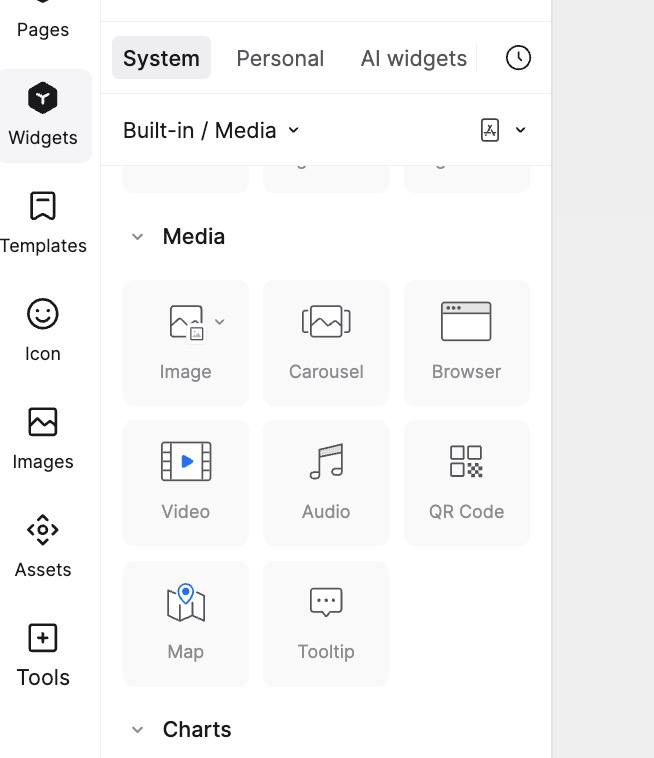
Image Widget
The Image widget allows you to upload images to your prototype and perform various operations such as inserting, splitting, cropping, and exporting. You can also customize the size and proportions.
Insert Image
Drag an Image widget from the multimedia category. In the Appearance panel on the right, you can upload an image.
- Supported formats: PNG, GIF, JPG, JPEG.
- File size limits: Free Plan < 2MB, Professional/Team Plan < 5MB, Enterprise Plan < 10MB.
- You can also drag local images directly onto the canvas or select them from the Assets Library.
Split Image
- After inserting an image, click the Split Image button in the Appearance panel, or right-click the image and select Split.
- Choose Cross, Horizontal, or Vertical splitting modes.
- Click on the desired position to split the image.
- Drag the handles that appear between the split parts to adjust the spacing.
Note: Splitting works for single or multiple images. If multiple images are selected, the split line will cut through all of them.
Crop Image
Double-click the image or click the Crop button in the right property panel.
- Crop Shapes: Supports Rectangular and Circular cropping.
- Scale: Hold the Shift key while resizing to scale proportionally.
- Stretch/Fill: Select the image and choose between Stretch or Fill modes in the right panel.
Export Image
Mockitt supports exporting images in PNG format.
- Export from Editor: Select the image widget and click Export in the bottom right corner. To batch export, hold Shift, select multiple images, and click Export.
- Export from Handoff Mode: In the Preview or Handoff link, switch to Overview mode, select the image, and click Export.
Carousel Widget
The Carousel widget automatically plays a sequence of images. You can set the scrolling direction, auto-play duration, and indicator styles.
Edit Carousel Images
- In the Appearance panel, go to the Carousel Images section. You can upload images from your local drive or the Assets Library.
- Click the + button to add images, or the Trash icon to remove them.
- Drag the thumbnails to reorder the images.
Carousel Settings
Scroll Direction: Set the scrolling to Horizontal or Vertical. The indicators will automatically adjust their position.
Auto-play / Click to Switch:
- Auto-play: Set the time interval for automatic transitions.
- Click to Switch: You can set interactions for each image. Click the Lightning icon on the image thumbnail to set a jump to another page or state when that specific image is clicked.
Indicators & Radius:
- Toggle the visibility of indicators and customize their color.
- Set the corner radius for the carousel widget.
Carousel Interactions
You can assign interaction events to individual images within the carousel using the Lightning icon in the property panel (e.g., clicking the first image jumps to Page A).
Web Page Widget
The Web Page widget allows you to embed external websites into your prototype. Note: Mockitt can only preview websites that support the HTTPS protocol and allow iframe embedding (some sites block this via security policies).
Usage
Drag the Web Page widget to the canvas and enter the target HTTPS URL in the property panel. Adjust the widget size. Click Preview to interact with the webpage (supports scrolling and clicking).
Use Cases
You can embed various content, such as flowcharts, mind maps, or live maps, by pasting their share links into the Web Page widget.
Precautions
If a webpage does not display during preview, it is likely due to the target website's security settings (X-Frame-Options) preventing embedding.
Video Widget
The Video widget is used to embed video content. Mockitt supports:
- HTTPS Video Links: YouTube, Vimeo, etc.
- Direct Video Files: Links ending in .mp4, .webm, or .ogg.
Embed Video
Paste the video link into the widget's property panel. You can configure settings like Auto-play, Loop, Mute, and Hide Controls (availability depends on the video source).
Getting Video Links
For most video platforms (like YouTube or Vimeo), look for the "Share" or "Embed" option to copy the video address. Paste this address into the Mockitt Video widget.
Audio Widget
You can play audio by providing a link to an audio file.
- Supported Formats: MP3, WAV, AAC, OGG.
- Requirement: The link must be HTTPS.
- Settings: Auto-play, Loop, Continue playing after page change, Hide player.
QR Code Widget
The QR Code widget functions as a real-time QR code generator.
- Enter any HTTP/HTTPS URL, and it will generate a scannable QR code.
- You can use this to link to other Mockitt project previews.
- Supports customizing foreground and background colors and exporting the QR code image.
Chat Bubble Widget
The Chat Bubble widget allows you to quickly simulate chat interfaces. In the Appearance panel, you can adjust the bubble's direction (left/right), appearance style, and text formatting.