File & Folder Management
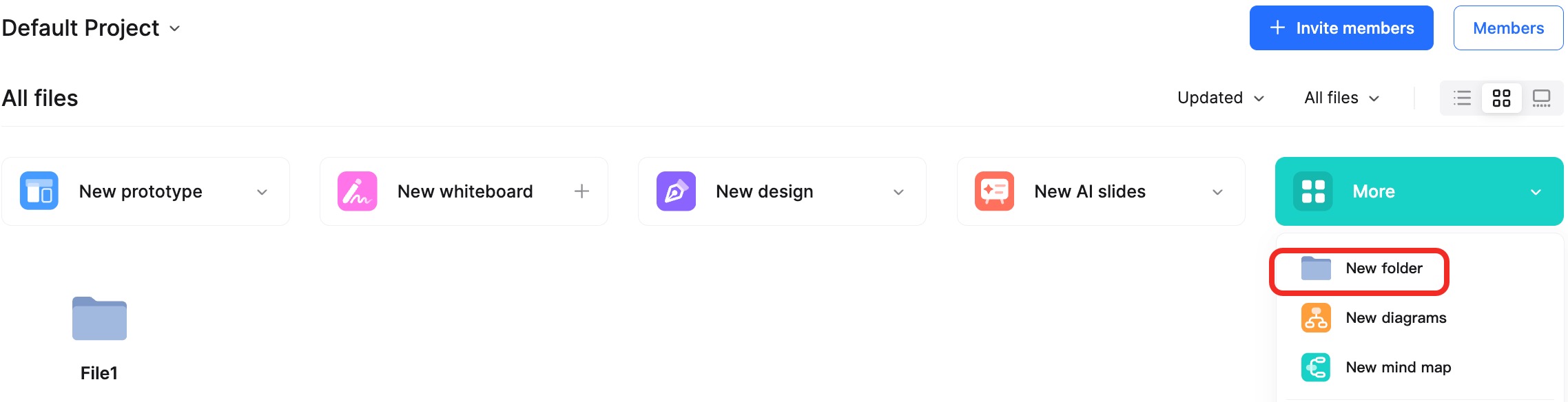
Create File/Folder
Files and folders are organized within Teams. You can create new folders and various types of files within any Team you belong to.
Select any Team, then click the New button in the top right corner to create a file or folder.
You can also click Import Axure File to import external Axure files.
Note: Folders can be nested up to a maximum of 5 levels. You can create various file types within these folders.
View File/Folder
By default, all members of a Team have permission to view the folders and files created within that Team's workspace.
You can also configure specific member permissions for individual folders or files.
Edit Folder
Click the ellipsis (...) in the top-right corner of a folder, or right-click the folder to access the editing options.
From here, you can rename the folder, move it to a different location, change the folder color, or set specific permissions for folder members.
Note: Only Administrators can perform this action.