Workspace
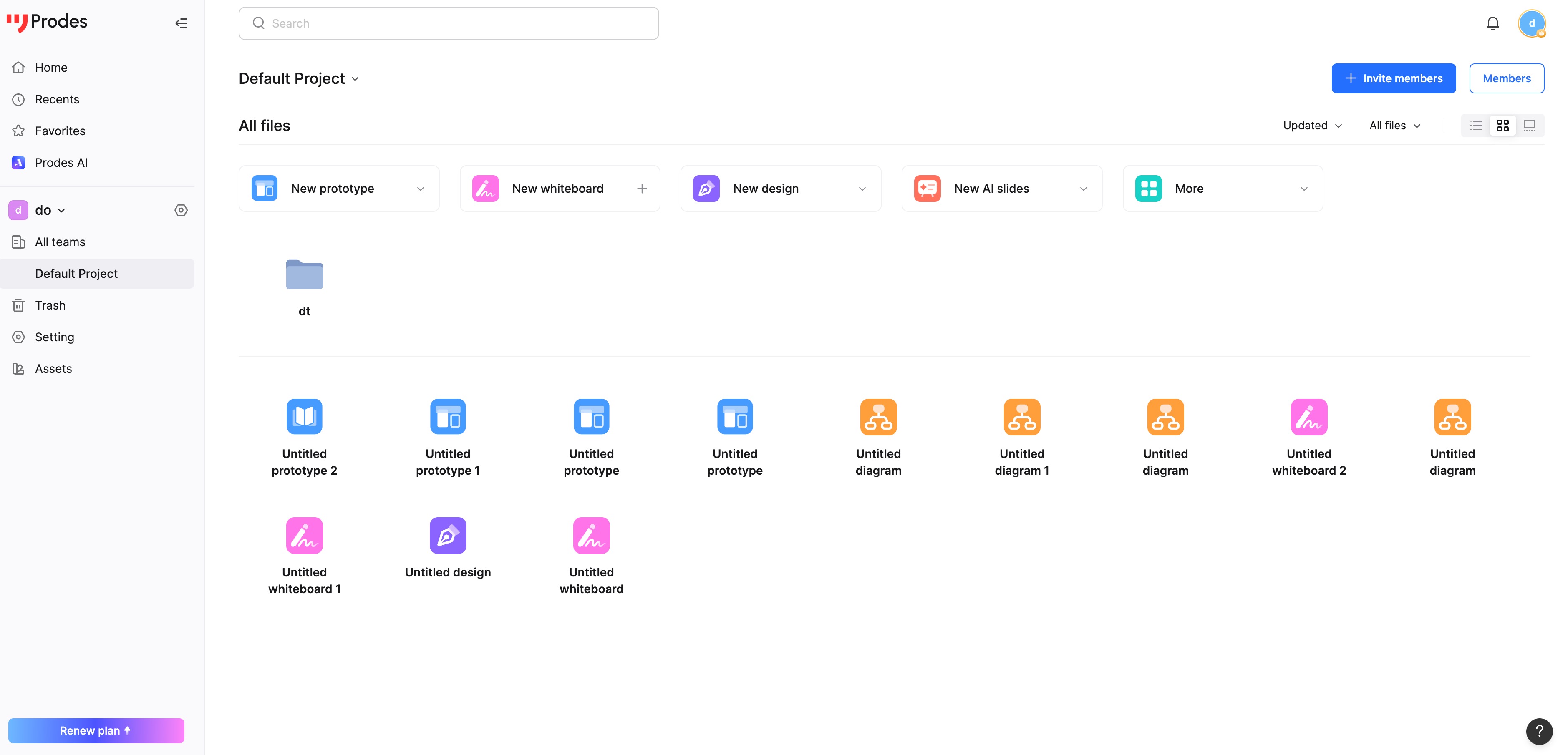
Workspace Overview
The Workspace is the starting interface when you log in to Mockitt. From here, you can access your Personal Workspace or the collaborative spaces within an Enterprise.
The Enterprise Workspace is a platform provided by Mockitt for centralized management of team files and collaboration. It aims to help team members efficiently create, edit, and manage teams and files, fostering collaboration and communication.
Key Features:
- File Management: Team members can create files in the Workspace, including Prototypes and Whiteboards, as well as view and edit file information.
- Permission Management: The Workspace supports permission controls. Team administrators can set member roles and permissions to protect project security.
- Seat Assignment: The Workspace supports seat allocation. Team administrators can assign specific editable seat types to members. Members need the corresponding seat to create or edit specific file types (Prototype or Whiteboard).
- Recycle Bin: Team members can view and restore deleted files. Please note that files deleted for more than 30 days cannot be recovered.
Interface Introduction
Upon entering the Workspace, you will see an intuitive and feature-rich layout.
- Top Navigation Bar: Provides quick access to Teams within the Workspace, creating new Teams, etc.
- Left Sidebar: Contains shortcuts for Home, Recent Files, Favorites, Workspace Switcher, Team List, Trash, Workspace Management, Community, and Team Library.
- Bottom of Sidebar: Displays current membership rights and plan details.
Integration and Features
Home
- Access entry points for creating Mockitt Prototypes and Mockitt Whiteboards, along with relevant templates.
Recent Files
- Recent Files records the files you have recently accessed or edited. This allows you to quickly locate projects you were just working on, making file management more efficient.
- You can enter the editing interface directly by clicking on a file in the list.
Favorites
- When browsing files or folders, click the Star icon to add them to your Favorites list.
- You can favorite frequently used files or folders for quick access later.
Team Assets
- The Team Assets is a resource repository shared by enterprise members. It helps team members quickly reuse assets, improving work efficiency and ensuring a unified design style across team products.
- You can view and manage the components and images within the Team Library and manage asset permissions from this interface.
Team Management
- You can create multiple Enterprise Workspaces to meet the collaboration needs of different organizations.
- Within an Enterprise Workspace, you can create multiple Teams and set different access permissions for different members to achieve efficient management. For example:
- Create teams based on functions: Admin Group, Operations, HR, etc.
- Create teams based on product lines: Frontend, Middleware, Backend, etc.
- Create teams based on responsibilities: Tools Group, Platform Group, etc.
FAQ
1. Why can't I view files favorited by others?
The "Favorites" feature in the Team Workspace is designed as a personal tool. Each team member can only view and manage their own favorited files. This is to protect personal privacy and data security. Therefore, you cannot directly view files favorited by other team members.
2. Why are there multiple Teams in the Enterprise Workspace, but I can only see one?
This usually happens because the administrator only granted you access to a specific Team when inviting you to the Enterprise. In the Workspace, each Team has independent permission settings.
If you need access to other Teams, please contact your administrator and request an invitation or permission to access those specific Teams. The administrator can adjust your permissions so you can view and manage content in other Teams.
Please note that each Team in the Workspace can have independent permissions and access controls to ensure members only access what they need, protecting the team's security and privacy.