Create New Page
Create a Page
You can create a page in three ways:
Click the New Page button (or "Page" icon) in the top toolbar.
Use the shortcut key A to quickly create a page on the canvas.
Use shortcuts
Ctrl + CandCtrl + Vto duplicate a page.- Click the page name in the top-left corner of the page frame to select it.
- Press
Ctrl + Cto copy andCtrl + Vto paste. - The pasted page will appear horizontally next to the original page.
Right Properties Panel
Page Appearance
In the Appearance panel on the right, you can set the page dimensions and background color.
You can also toggle the visibility of the Grid in the Appearance panel.
Page Orientation
When a page is selected, you can set the orientation to Landscape or Portrait in the Appearance panel.
Note: Orientation settings are only available for Mobile device frames. Web/Desktop frames default to landscape and cannot be changed.
Page Height (Scrolling Page)
Select the page, hover over the bottom edge of the frame, and drag downwards to increase the page height. You can also enter a specific height value in the Appearance panel.
If the page height exceeds the device screen height, the content will scroll vertically during the presentation.
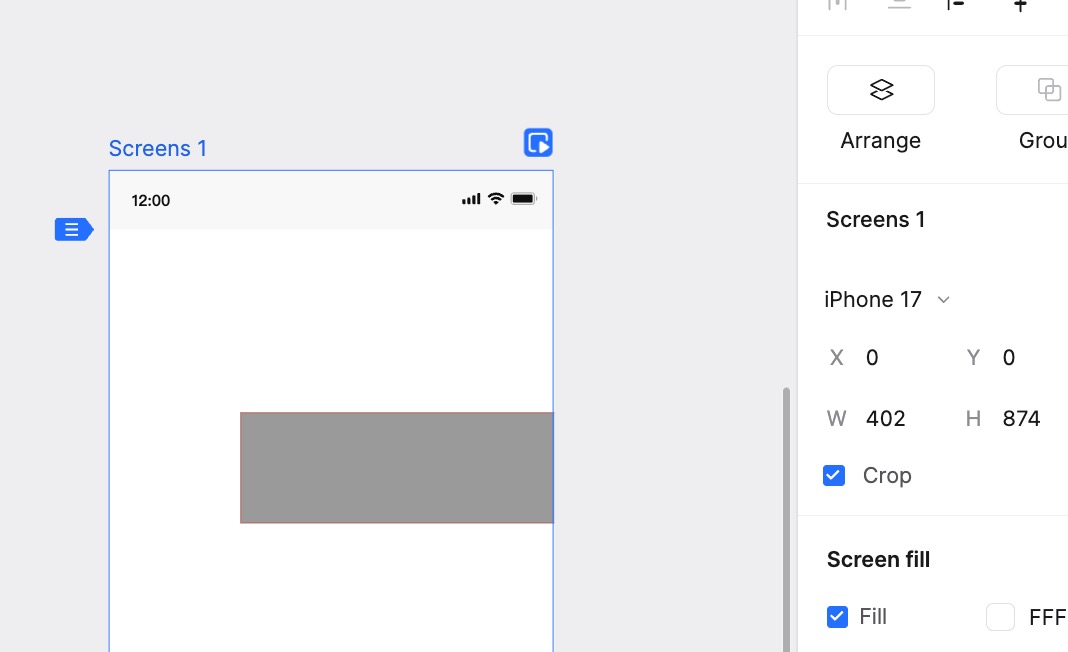
Clip Content
When a page is selected, you can toggle Crop Content in the right panel.
- Enable Crop: Hides any content that extends beyond the page boundaries. This is useful for keeping the workspace tidy and ensuring the final output matches the device size.
- Disable Crop: Displays all content, even if it sits outside the page frame, allowing you to view and adjust overflow elements.
Fixed Region
The Fixed Region feature allows you to anchor specific parts of the page (like a header or footer) so they remain visible while the rest of the content scrolls.
Select Fixed Region: When a page is selected, two adjustable handles appear on the left side of the page frame. Drag them to define the top or bottom areas that should remain locked during scrolling.
Input Value: Alternatively, you can directly enter values in the Fixed Region section of the right property panel.
Left Page List
Reorder Pages
Hover over a page in the left sidebar list and drag it up or down to change its order.
Note: If dragging does not work, please ensure you are using a modern browser like Chrome or the Mockitt desktop client.
Lock/Unlock Page
In the left sidebar, right-click a page and select Lock or Unlock to manage editing permissions.
- Lock Page: Right-click the page and select "Lock". Once locked, you cannot move or edit the page on the canvas.
- Unlock Page: To regain editing access, right-click the page again and select "Unlock".
Show/Hide Page
In the left sidebar, right-click a page and select Show or Hide to control its visibility on the canvas.
- Hide Page: Select "Hide" to remove the page from the canvas view without deleting it. This helps declutter your workspace.
- Show Page: To view the hidden page again, find it in the list (it will appear grayed out), right-click, and select "Show".