Adjust Chrome Browser Font Size Limit
Modify Minimum Font Size
In Google Chrome, if you try to set a font size smaller than 12 pixels, you may notice that the text remains at 12 pixels and does not get smaller.
This is not a bug in Mockitt, but a default setting in the Chrome browser itself, which enforces a minimum font size.
By default, Chrome sets the minimum font size to 12 pixels. This means that any text smaller than 12 pixels will automatically display as 12 pixels.
If you wish to display fonts smaller than 12 pixels, please follow these steps:
Open Settings: Click the menu icon in the top-right corner of the browser and select Settings.
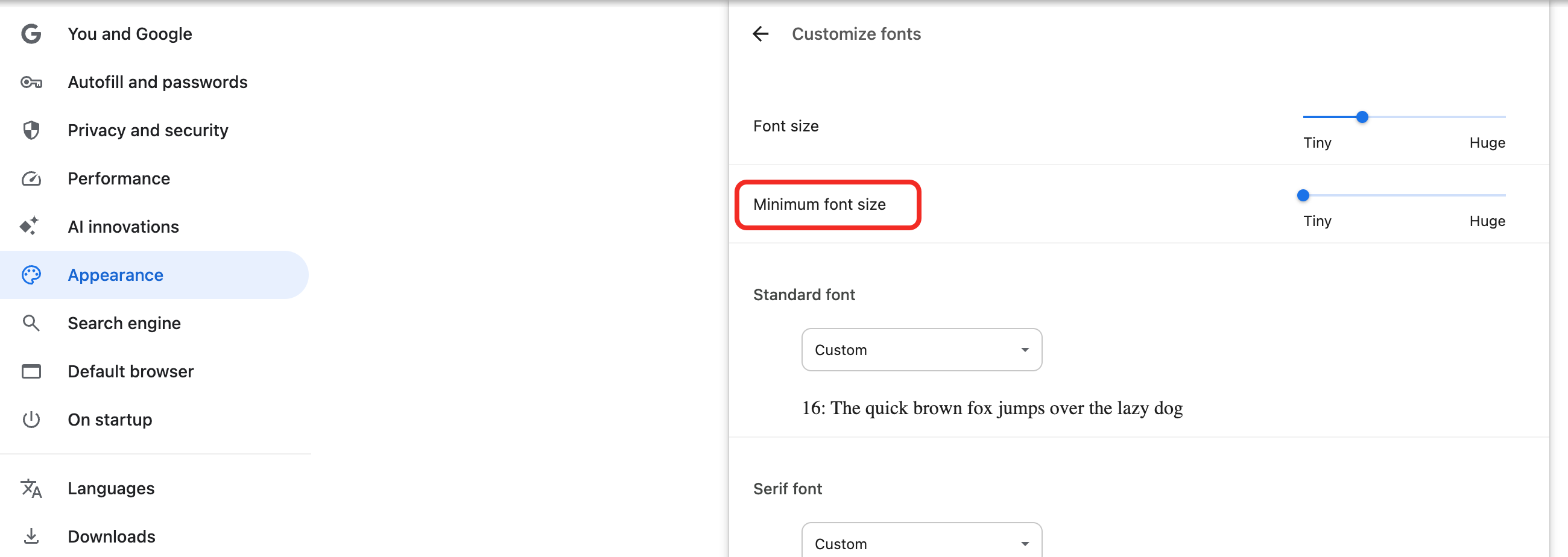
Go to Appearance: Select Appearance from the left sidebar, then click on Customize fonts.
Adjust Minimum Font Size: Scroll down to find the Minimum font size slider and adjust it to a smaller value (e.g., Tiny or 10px) according to your needs.
After completing the setup, refresh Mockitt. You should now be able to view font sizes smaller than 12 pixels.
Using Smaller Fonts
Once the browser setting is updated, you can simply type your desired font size in the property panel on the right side of the Mockitt editor. Even if the size is smaller than 12px, it will display correctly.