Editing Annotations
In Mockitt, annotations are a powerful and easy-to-use feature. You can use them to add comments, suggestions, instructions, or mark specific areas within your prototype design.
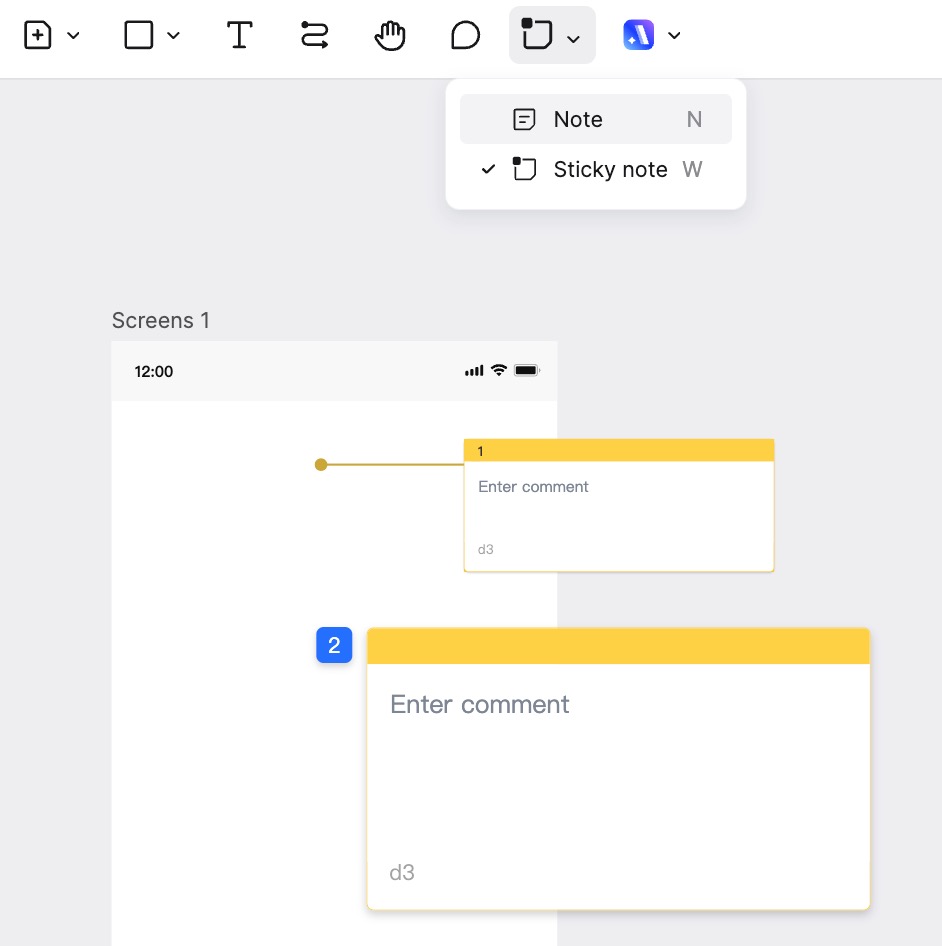
Adding Annotations
Mockitt provides two main types of annotations: Note and Sticky Note.
- Note: Used for adding detailed explanations or comments. Use the shortcut N to add one quickly. Notes have a strong visual presence, making them hard to miss, and are suitable for emphasizing functional specifications.
- Sticky Note: Used for quickly marking specific points. Use the shortcut W to add one quickly. Compared to Notes, Sticky Notes are smaller and more concise. Placing the pin/drop shape directly on a widget creates a strong binding; if the widget is moved, the annotation moves with it.
Modifying Annotations
- Modify Text Format: You can enter text within the annotation, adjust text formatting, and add images or hyperlinks.
- Modify Color: You can adjust the background color of the annotation card to distinguish it from other content on the page.
- Right-click Menu: Right-click on an annotation to access various options, including Copy, Paste, Delete, Lock/Unlock, and more. You can also adjust the layer order to manage the annotation's position relative to other elements on the canvas.
- Order and Position: After selecting the Annotation tool in the top toolbar, you can adjust the order of annotations in the right property panel. Note that adjusting the order here changes the arrangement in the annotation list, not the visual position on the page.
Annotations in Presentation Mode
- View Annotations: Annotations are visible in Presentation Mode, allowing team members to review them easily.
- Export Annotations: You can export annotations separately for sharing or archiving purposes.
Hiding Annotations
You can choose to hide annotations in both the Editor and Presentation Mode to make the page look cleaner.
- Find View Options: Locate the View button on the right side of the top toolbar. This controls the display content of the page.
- Hide Annotations: Click View to open the dropdown menu and uncheck or select the option to Hide Annotations. All annotations on the page will be hidden.
- Restore Annotations: To view them again, return to the View menu and select the option to show annotations.
Annotation Connection Status
In Mockitt, the visual style of the connecting line changes based on whether the annotation is linked to a page.
- Solid Dot: When an annotation is linked to a page, the starting point of the connecting line appears as a solid dot.
- Hollow Dot: If the annotation is not linked to any page, the starting point appears as a hollow dot.
In Edit Mode, you can see all annotations and their connection status. In Presentation Mode, typically only annotations linked to pages are displayed. To view all annotations, you can switch to the Overview mode.
Author and Date Display
You can choose whether to display the author's name and the date within the annotation.
Note: Author information is displayed by default.
How to toggle: In the annotation editing state, click the management settings (usually an icon in the annotation toolbar) to toggle the visibility of the author and date information.