Inspect Mode
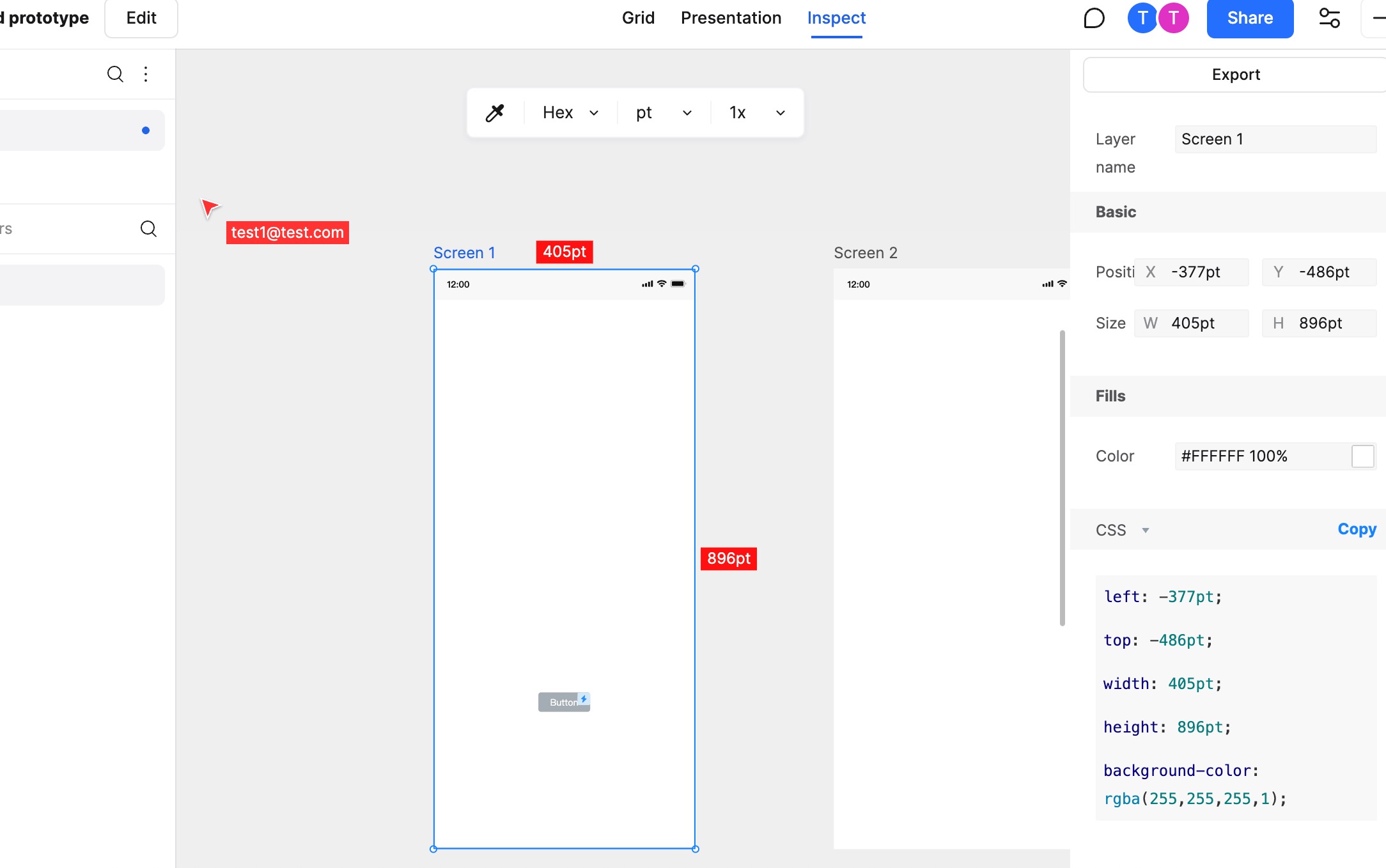
Inspect Mode is an efficient collaboration tool provided by Mockitt for product managers, designers, and developers. It facilitates the quick viewing and copying of detailed design element information and code, significantly improving handoff efficiency.
Entering Inspect Mode
- Open Presentation: Click the Presentation (Play) button in the top right corner of the editor.
- Select Overview: In the presentation interface, click Overview in the top bar.
- Enter Inspect Mode: In the Overview interface, click the Inspect tab on the right sidebar to switch to Inspect Mode.
Viewing and Copying Information
In Inspect Mode, you can view detailed information for each element, including layer name, basic properties, fill, border, and code, with support for multiple code formats.
View Element Properties
- Select Element: Click on any element on the page canvas.
- View Information: In the right Inspect panel, you can view the details of the element:
- Layer Name: Displays the name of the element.
- Basic Properties: Includes position (X, Y coordinates) and size (Width, Height).
- Fill: Displays fill color information (Hex/RGBA).
- Border: Includes border color, position, and line width.
View and Copy Code
At the bottom of the Inspect panel, you can view and copy the code corresponding to the element. Mockitt supports various code formats that you can switch between as needed.
Switch Code Format: In the Inspect panel, you can switch between the following formats:
- CSS: Standard CSS code.
- Swift: Code format for iOS development.
- Android: Code format for Android development.
- Less: CSS preprocessor language.
- Sass: Another CSS preprocessor language.
- Stylus: Advanced CSS preprocessor language.
Copy Code: Click the copy button next to the code area to copy the code to your clipboard for easy pasting into your development environment.
Copy Text Content
In Inspect Mode, you can also quickly copy text content from the prototype:
- Select Text Widget: Click on a specific text widget on the page.
- Copy Text: Click on the text content displayed in the "Content" section of the right Inspect panel to copy it to the clipboard.
The versatility and ease of use of Inspect Mode can greatly improve the efficiency of development teams and ensure smooth project handoff.