Assets
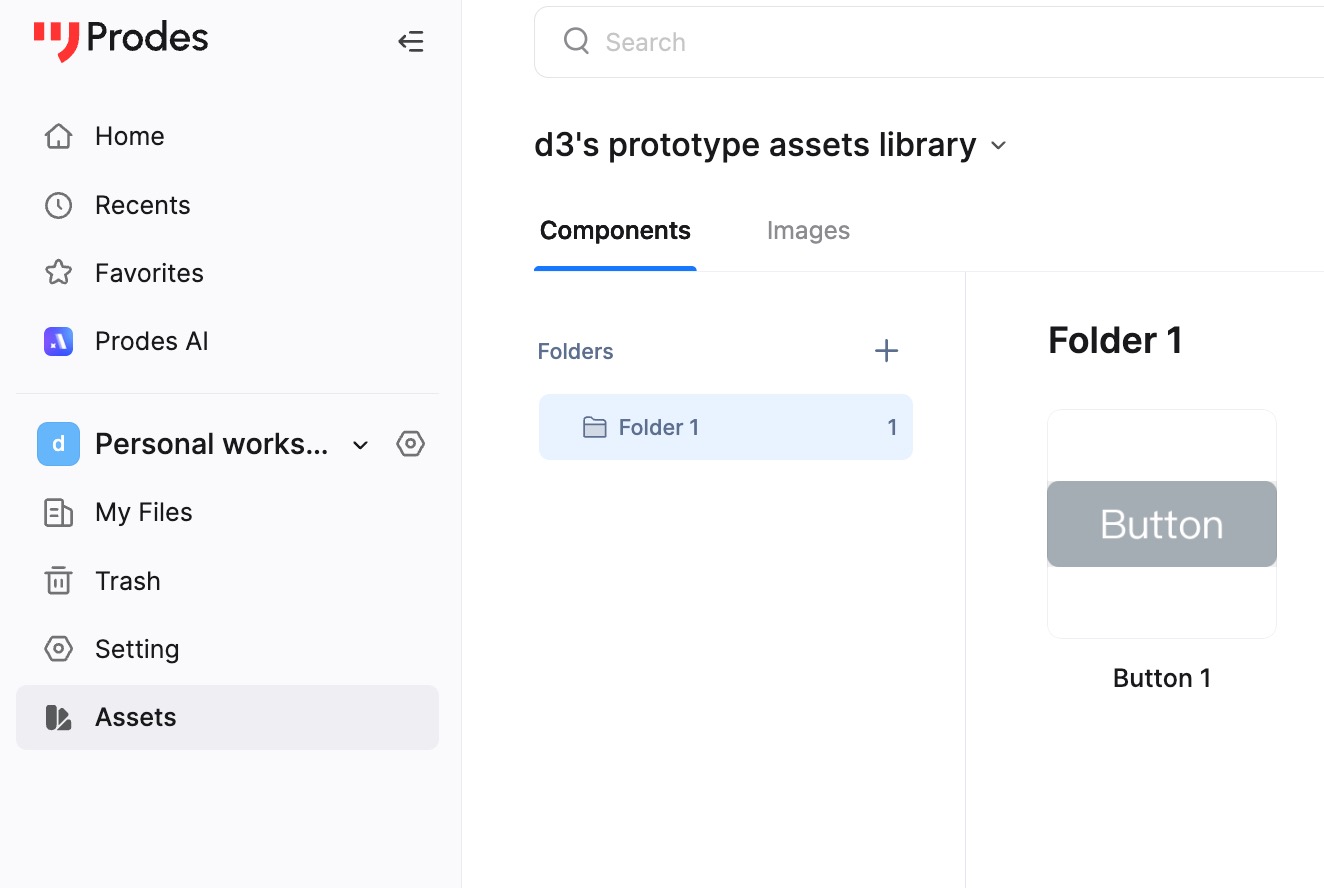
Managing Assets
In the current version, you can better manage and utilize your assets. Favorited content is also saved in the Assets panel.
Widgets
Here you can create, copy, move, and delete widgets, create and delete widget folders, and place widgets onto the canvas.
Supports multi-selection by holding Shift or Command/Ctrl.
Images
A good image library acts like an organized library, allowing for quick and efficient access to required materials. Create folders first, then add images. You can even add tags to images to categorize them.
Add Folders & Tags
After creating a folder, you can drag and drop images directly into the blank area or click "Add Image" to upload. Currently supports PNG, JPEG, JPG, and GIF formats. Select an image to add tags, delete, download, move to another folder, or place it on the canvas. In "Image Tags", select a tag to quickly view related images. Click "Manage" to delete a specific tag. You can sort by name, size, or creation time in list or grid view to find what you need faster.
Batch Management
Hold Shift or Command/Ctrl to multi-select assets, or click Select All to perform batch operations such as adding tags, moving, deleting, or placing them on the canvas.
Folders can be deleted directly.
Efficient Search
Whether for widgets or images, it is a good habit to name them. You can simply search for them when needed!
Replace Image
In the current version, replacing an image only replaces the selected instance, not all instances where the image is used, to prevent accidental changes.
Enterprise Assets
In "Enterprise Assets", you can share the widget/image library with collaborators in your team. Folder names can be customized. When an asset is uploaded to a folder (project), all collaborators of that project can use it.
Deleting Assets
In the Professional Plan (formerly Individual), the account owner can add or delete assets at any time. In the Enterprise Plan, only the Enterprise Owner can create or delete folders in the Assets library, but other members of the Enterprise Workspace can add assets.