AI Widgets
Mockitt introduces the all-new AI Widget feature, which intelligently generates widgets based on your wireframe sketches or text descriptions.
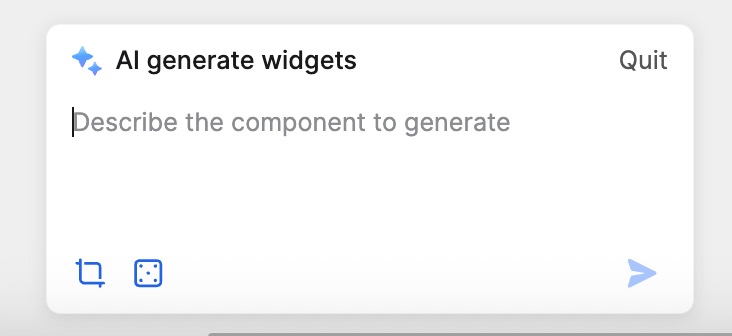
How to Use AI Widgets
Accessing AI Widgets
- Click Widgets in the left toolbar. In the menu that opens, find and click AI Widget.
- Click the Magic Icon (Mockitt AI) in the top toolbar, then select Generate Widget.
Generating Widgets from Sketches
- Select a clear wireframe or sketch on the canvas.
- Click the AI Widget function button and enter a description of the content you want to generate based on the sketch.
- The system will intelligently generate the corresponding high-fidelity widget based on your selection.
Generating Widgets from Text
- In the AI Widget interface, enter a detailed and clear text description of the desired widget's shape, features, and other information.
- Click the Generate button, and the system will create the widget based on your description.
Editing Generated Widgets
You can further edit the generated widgets, including resizing, changing colors, editing text, and more, to meet your specific design requirements.
Use Cases for AI Widgets
Try the following examples when using Mockitt's intelligent widget generation feature:
Form Widget: "Please generate a login form including a username input field, a password input field, and a login button."
Carousel Widget: "Please generate a horizontal carousel with left and right arrows and indicators, auto-play enabled." Or "A vertical carousel displaying titles and descriptive text."
Progress Bar: "Please generate a horizontal progress bar, filled with blue, showing the current percentage." Or "A vertical progress bar, filled with green, indicating completion."
You can also try more complex widgets:
Interactive Chart: "Please generate an interactive chart where users can select data sources, chart types (e.g., bar, line, pie), and styles, with hover or click details."
Chat Interface: "Please generate an online chat interface including a message list, an input box, and a send button. Users can type and send messages and see messages from others."
Media Player: "Please generate an audio/video player where users can upload or select media files, with play, pause, volume control, and fullscreen functions."
Task Management: "Please generate a task management interface where users can create tasks, set priorities, assign owners, set deadlines, and view task progress."
By experimenting with these complex widgets, you can better understand Mockitt's AI capabilities and unleash your creativity.
Tips for Using AI Widgets
Here are some tips to help you generate and edit widgets more effectively:
Accurate Prompts:
- Provide precise and clear prompts so the AI can accurately understand your intent.
- Describe specific features, functions, and desired interaction effects.
Clear Sketches:
- Ensure your selected sketch is clear and only includes relevant elements you want the AI to focus on.
- Combining a clear sketch with a specific text prompt helps the AI better understand your requirements.
Iterative Editing:
- Mockitt AI supports iterative editing. You can continue to converse with the AI to modify and adjust the generated widget until it meets your needs.
Targeted Modification:
- If you want to modify a specific element within the generated widget, select that element and tell the AI what you want to change (e.g., style, position, interaction).
Real-time Preview:
- Preview the modified widget effects in real-time within the editor and adjust as needed to quickly realize your design ideas.
Mockitt AI Widgets provide a fast way to generate components with the flexibility of secondary editing. Accurate prompts and clear sketches are key to getting the best results. Whether you are designing prototypes, collaborating on projects, or doing interaction design, Mockitt AI is your powerful assistant.