Version Management
Version Management is a core feature of Mockitt that allows users to create records at different stages of file editing. It provides capabilities to view, compare, and restore versions. Through Version Management, you can better control the editing history of your files, ensure important content is not lost, and easily restore to any previous version needed.
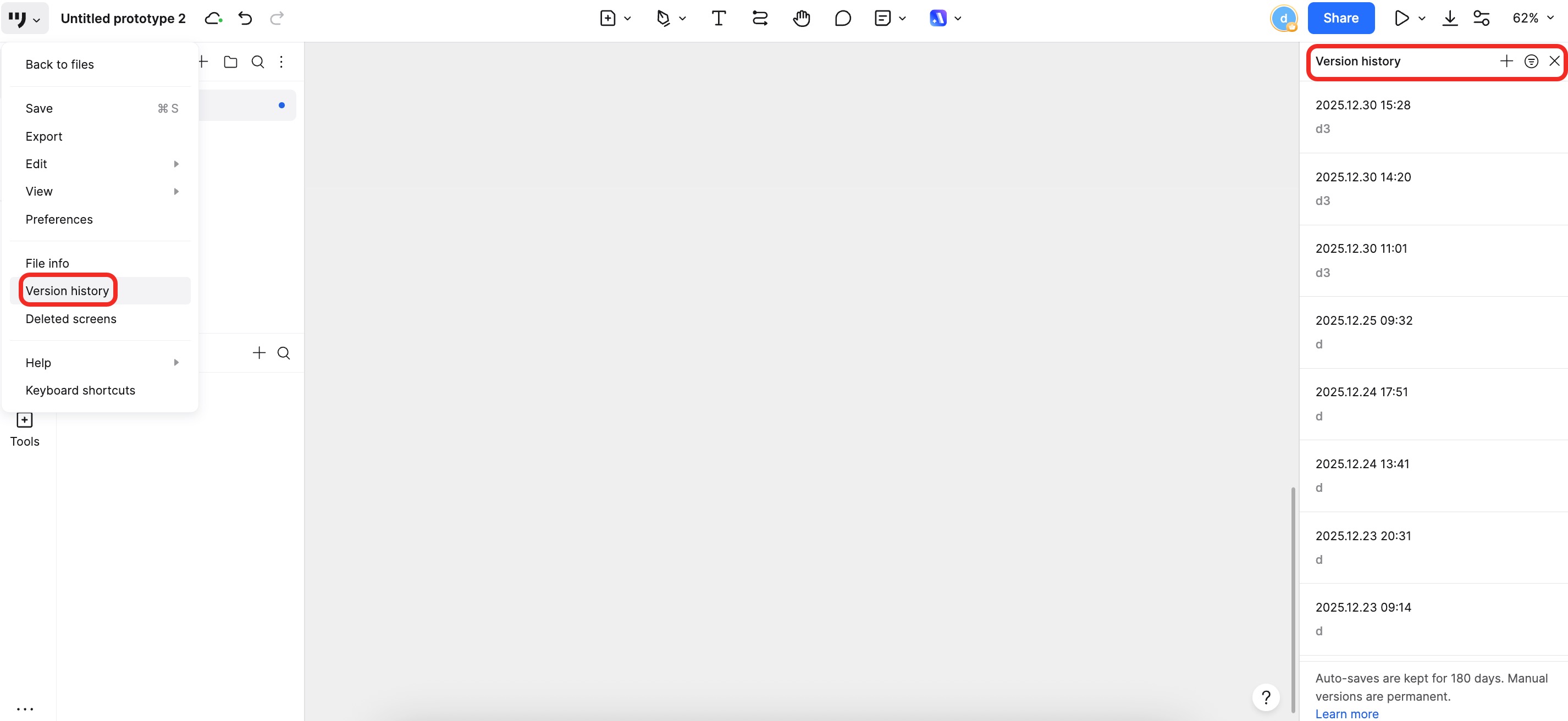
Create Manual Version
You can create a version record at any time during the file editing process to save the current state. Manually created versions are kept permanently and support modifying version information.
Steps to create a manual version:
- Click the More (menu) icon next to the top navigation bar.
- Select Version History, then click New Version.
- Enter a Version Title and Description, then click Done.
Creating versions helps record file states at different project stages, facilitating future review and recovery.
Automatic Versioning
In addition to manual versions, Mockitt supports automatic version creation. The system automatically generates records based on file edits to track changes in a timely manner.
- Automatically created versions are displayed in reverse chronological order.
- Each record includes the time and the username of the editor.
- Automatic versions do not contain titles or notes; only manually created versions include this information.
- Trigger: An automatic version is triggered if new edits occur more than 1 hour after the previous version record. Note that adding/deleting/modifying comments does not count as a file modification.
Difference between Automatic and Manual Versions
| Creation Method | Delete Permission | Modify Info Permission | Title & Note | Username Source |
|---|---|---|---|---|
| Automatic | Cannot be deleted manually | Cannot modify info | Not included | Last submitter |
| Manual | Can be deleted | Can modify info | Included | Creator (Manual) |
View and Compare Versions
With Version History, you can view and compare different versions at any time.
Open the Version History panel and select a version from the list. Click on the version to view its details.
You can switch between different versions to compare them while viewing. Click Exit to return to the file editing area.
Filter Versions
In Version Management, you can use the filter function. You can choose to show "Manual versions only" or "All versions".
Selecting "Manual versions only" allows you to quickly find and manage key milestones created by team members.
Restore Version
If you need to revert to a saved version:
- Open the Version History panel.
- Select the desired version from the list.
- Click Restore to this version.
Before restoring, the system will prompt you to confirm, noting that the current workspace content will be replaced. Upon restoration, the current content will be automatically saved as a new version to ensure no data is lost.
Warning: If other members are editing simultaneously, your restore operation will cause them to lose their current work in the workspace. Please communicate with your team before proceeding.
Delete Versions
Manual Deletion
Manually saved versions can be deleted manually:
- Open the Version History panel.
- Find the version you want to delete.
- Click the Delete icon on the right side of the entry.
Confirm the operation in the pop-up window. Deletion is irreversible, so please operate with caution.
Automatic Deletion (Retention Policy)
Automatically created versions cannot be manually deleted. However, the system automatically cleans them up based on the following retention policy:
| Time Period | Retention Quantity | Description |
|---|---|---|
| Past 4-7 days | Latest version + 3 intermediate versions | Keeps 4 versions per day. |
| Past 8-30 days | Latest version + 1 intermediate version | Keeps 2 versions per day. |
| Past 31-180 days | Latest version | Keeps 1 version per day (the latest one). |
| Over 180 days | None | Versions older than 180 days are deleted. |
Plan Limits
Different plans offer different Version History capabilities.
| User Type | View Range | Manual Version Limit |
|---|---|---|
| Free Plan (Individual) | Last 3 days | Not supported |
| Paid Plan (Monthly/Quarterly) | Last 30 days | Not supported |
| Lifetime Plan (Individual) | Last 180 days | Not supported |
| Free Team | Last 3 days | Max 2 versions |
| Paid Team | Last 30 days | Max 10 versions |
| Enterprise | Last 180 days | Max 30 versions |
Usage Scenarios
- Periodic Creation: Create versions at different stages of file editing to effectively record work results for easy review.
- Use Descriptions: Add clear descriptions to manual versions to quickly identify specific content and changes.
- Delete Carefully: Ensure content is no longer needed before deleting a version record to avoid data loss.