Preferences
To improve your user experience, Mockitt offers theme switching, a rich set of keyboard shortcuts, and comprehensive Help Center tutorials. You can customize the interface, improve operation efficiency, and find effective solutions to problems.
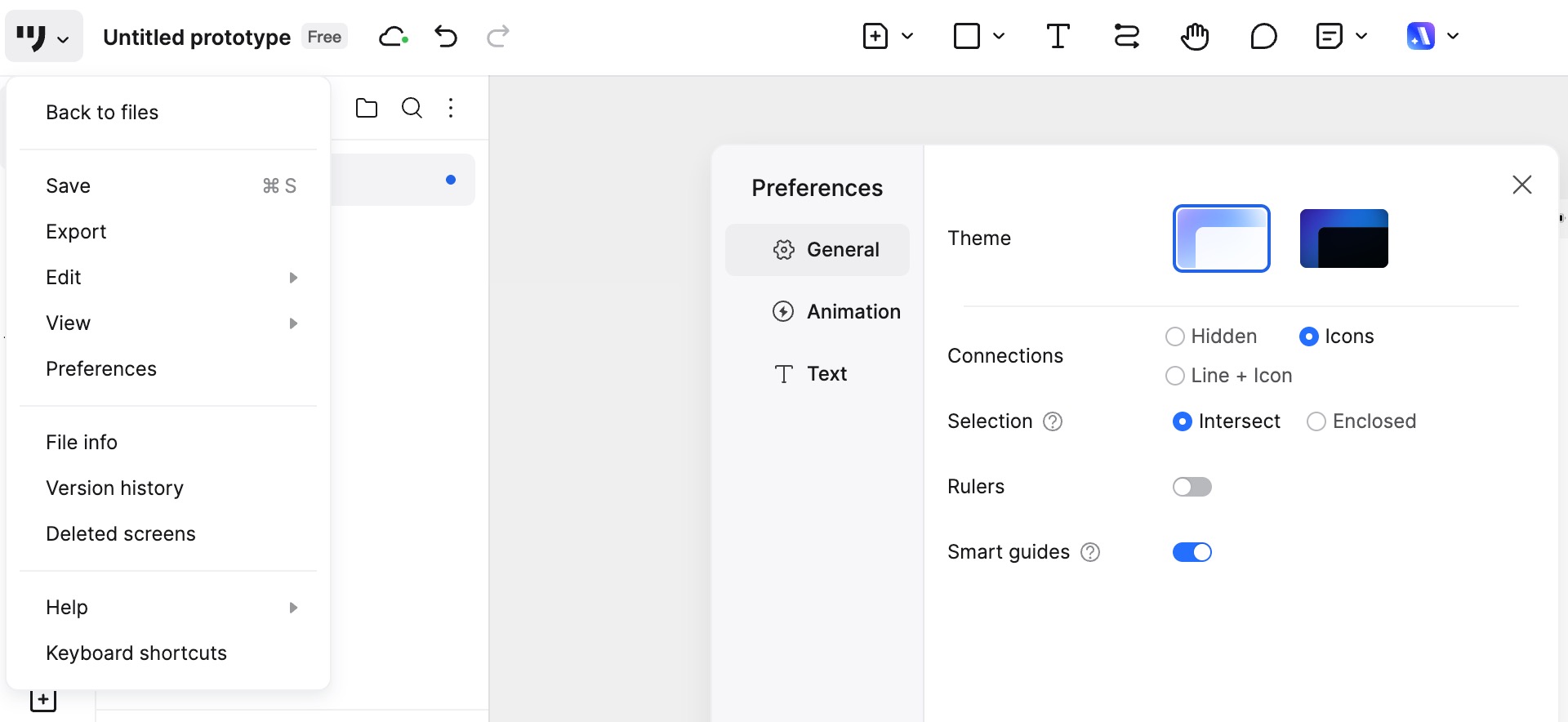
Switch Theme
Mockitt provides a Dark Theme option, making it more comfortable to use in low-light environments.
To switch to the Dark Theme:
- Go to Settings: Click the Menu button in the top-left corner of the editor, then select Preferences.
- Select Theme: In the settings menu, select Theme.
- Apply Theme: Choose Dark. The interface will switch to dark mode, providing a softer visual effect.
Keyboard Shortcuts
Mockitt supports keyboard shortcuts for widget creation, editing, selection, text formatting, arrangement, and view controls to speed up your prototyping process.
Here are some commonly used shortcuts:
- Ctrl + C: Copy
- Ctrl + V: Paste
- Ctrl + Z: Undo
- N: Create Note (Card Annotation)
- W: Create Sticky Note (Pin Annotation)
- A: Add Page
Text Shortcuts: You can also use shortcuts to modify text formatting, such as bolding, italicizing, and adjusting font size.
How to view the full Shortcut List:
- Click Menu > Shortcuts in the top-left corner of the editor.
- Click the ? (Question Mark) icon > Shortcuts in the bottom-right corner of the editor.
Help Center
If you encounter any issues while using Mockitt, the Help Center is your best resource for answers and solutions. You can find detailed tutorials and FAQs here.
- Search: Use the search function to find answers to specific questions.
- Browse: Explore different topics and tutorials to learn how to use Mockitt better.
- Contact Support: If the Help Center cannot solve your problem, you can contact the Mockitt support team for further assistance.
How to access the Help Center:
- Click Menu > Help in the top-left corner.
- Click the ? (Question Mark) icon > Support in the bottom-right corner.