Comments
In the Mockitt editor, you can easily exchange comments to add feedback and suggestions to the project.
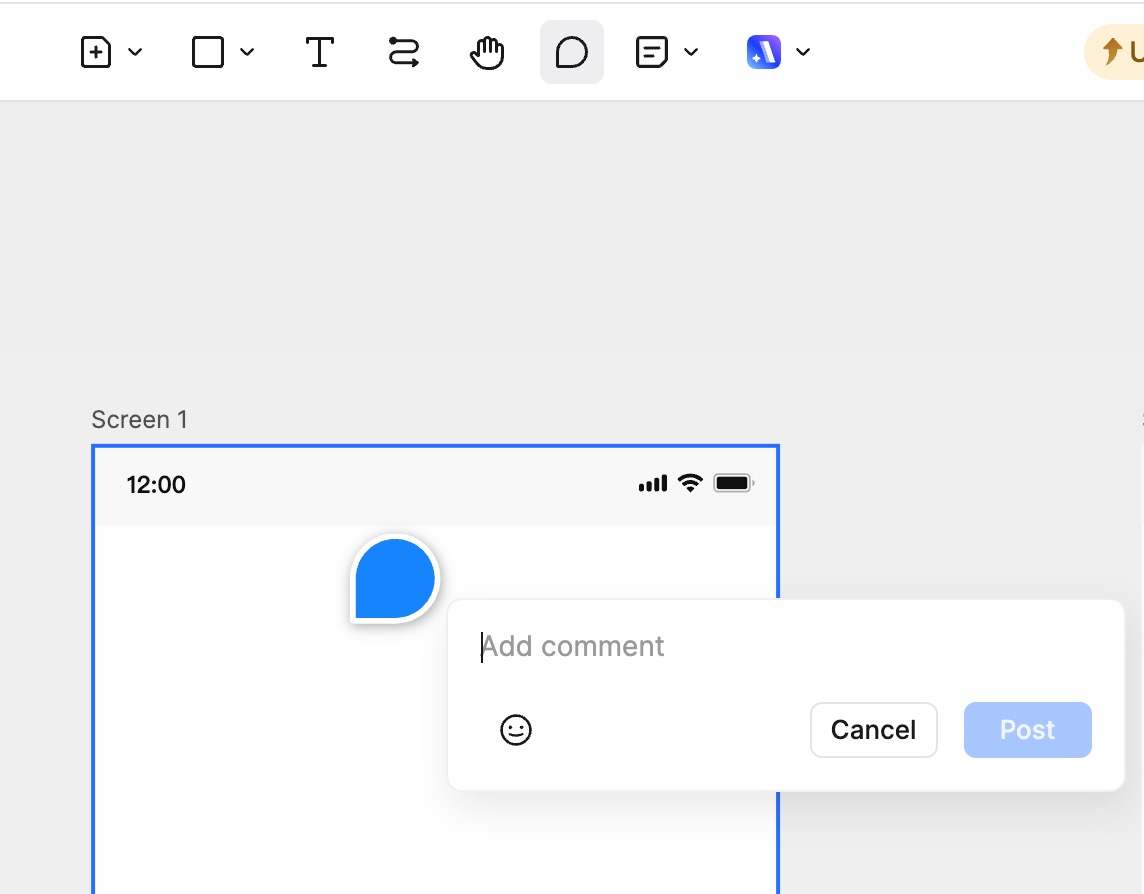
Adding Comments
Click the Comment button at the top of the editor, or use the shortcut C to enter Comment Mode. Double-click anywhere in the editing area to add a comment. You can use text and emojis to express your thoughts.
Viewing Comments
In Comment Mode, the right panel displays all comments. You can filter comments by type, including All, Created by me, Mentioning me, and Resolved. This makes it easier to manage and browse comment content.
Editing and Deleting Comments
For existing comments, click the More button (three dots) to edit or delete them. You can also mark a comment as Resolved. Resolved comments are hidden from the page by default, but you can view them by enabling the filter. Once shown, they will appear grayed out on the page.
Adding Comments in Presentation Mode
You can also open Comment Mode in the Presentation view to provide feedback. Switch to the Comments tab in the bottom bar, then double-click anywhere on the screen to add a comment to the prototype. You can also reply to comments here.
Currently, only registered Mockitt users can add comments. Please open the share link and log in to your Mockitt account to comment.