Import Axure Files
Introduction
Axure Import allows you to import HTML files generated from Axure into Mockitt as a new project for further editing.
Please note that the HTML folder generated by Axure must be compressed into a .zip format. Other formats are not supported, and encrypted ZIP files cannot be recognized.
Operation Process
1. Export Axure File
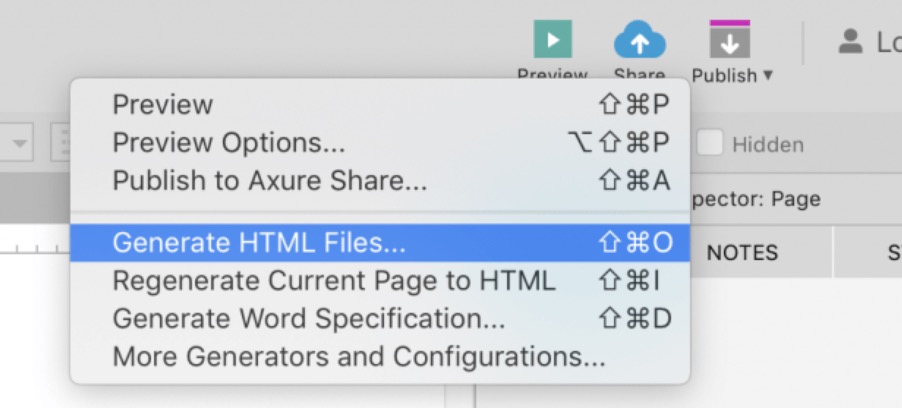
In Axure, click Publish > Generate HTML Files.
Note: Ensure all generated files are placed in the same folder.
2. Compress Axure File
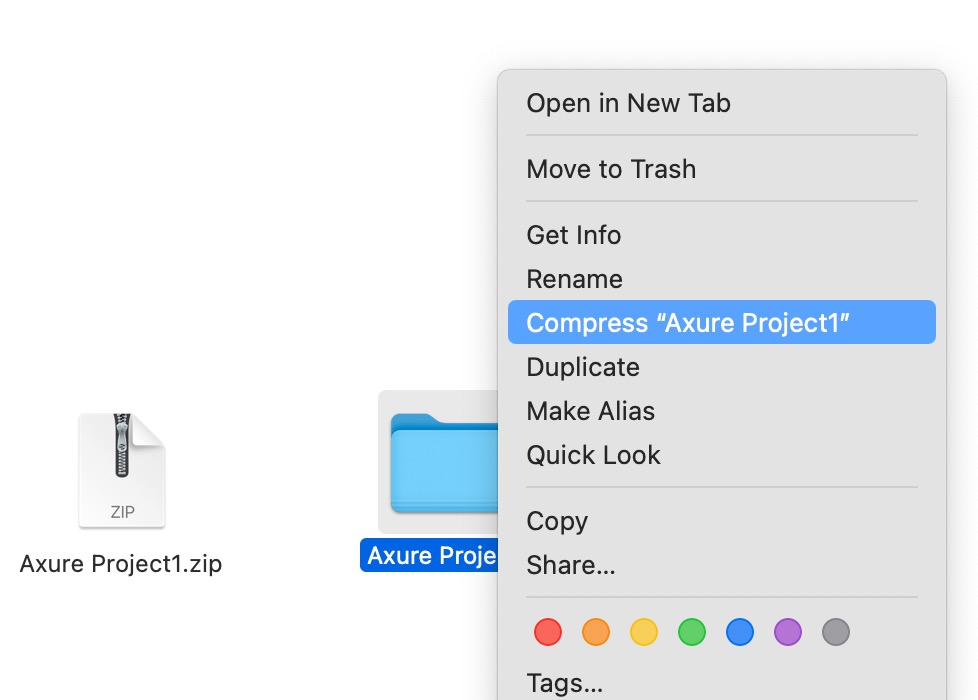
Compress the folder containing the generated files. Important: You must compress the entire folder, not just a single HTML file. The compression format must be ZIP, and it must not be encrypted.
3. Import to Mockitt
Open Mockitt in Google Chrome. In the Workspace, click Axure Import to upload the ZIP file.
Note: Currently, only unencrypted .zip files are supported.
After clicking the button, a file selection window will appear. Select the corresponding ZIP file and click Open.
You can also choose to batch upload (up to 10 files at a time).
4. Import Successful
Once the import is complete, a new file (the imported Axure project) will appear in your Workspace. You can then continue to edit the project within Mockitt.
FAQs & Tips
Q: File Format Error
A: This may occur due to different computer configurations, compression tools, or Axure versions. Please try the following steps in order:
- The exported file from Axure might be corrupted, or the ZIP file might not contain all published content. We recommend using Axure 9 to re-publish the HTML files, compress them again, and then import to ensure file integrity.
- Encrypted ZIP files will cause the import to fail. Please ensure the file is not encrypted during compression.
- The compression tool might have generated an incorrect ZIP format. We recommend using your operating system's built-in compression tool. Note: If you are on Windows, consider using WinRAR.
Q: Data Import Failed
A: If your file data is too large (i.e., the prototype contains too many widgets), the import may fail. In this case, we recommend splitting the content into smaller parts and uploading them separately.
Q: Can I import Axure source files (.rp)?
A: No. Mockitt cannot parse .rp source files directly. You must open the source file in Axure 9, click Publish > Generate HTML Files in the menu bar, compress the output folder, and then import it.
Q: Can I import Mockitt offline demo packages?
A: No. If you have previously downloaded an offline demo package from Mockitt, it cannot be re-imported for editing. If you have the original source file (e.g., in Axure), please follow the import steps to publish and compress it before importing.
Q: Network Timeout / Please Retry
A: If the internet connection drops during the upload, an incomplete file may appear in your Workspace. Please delete this file and try importing again once your network connection is restored.