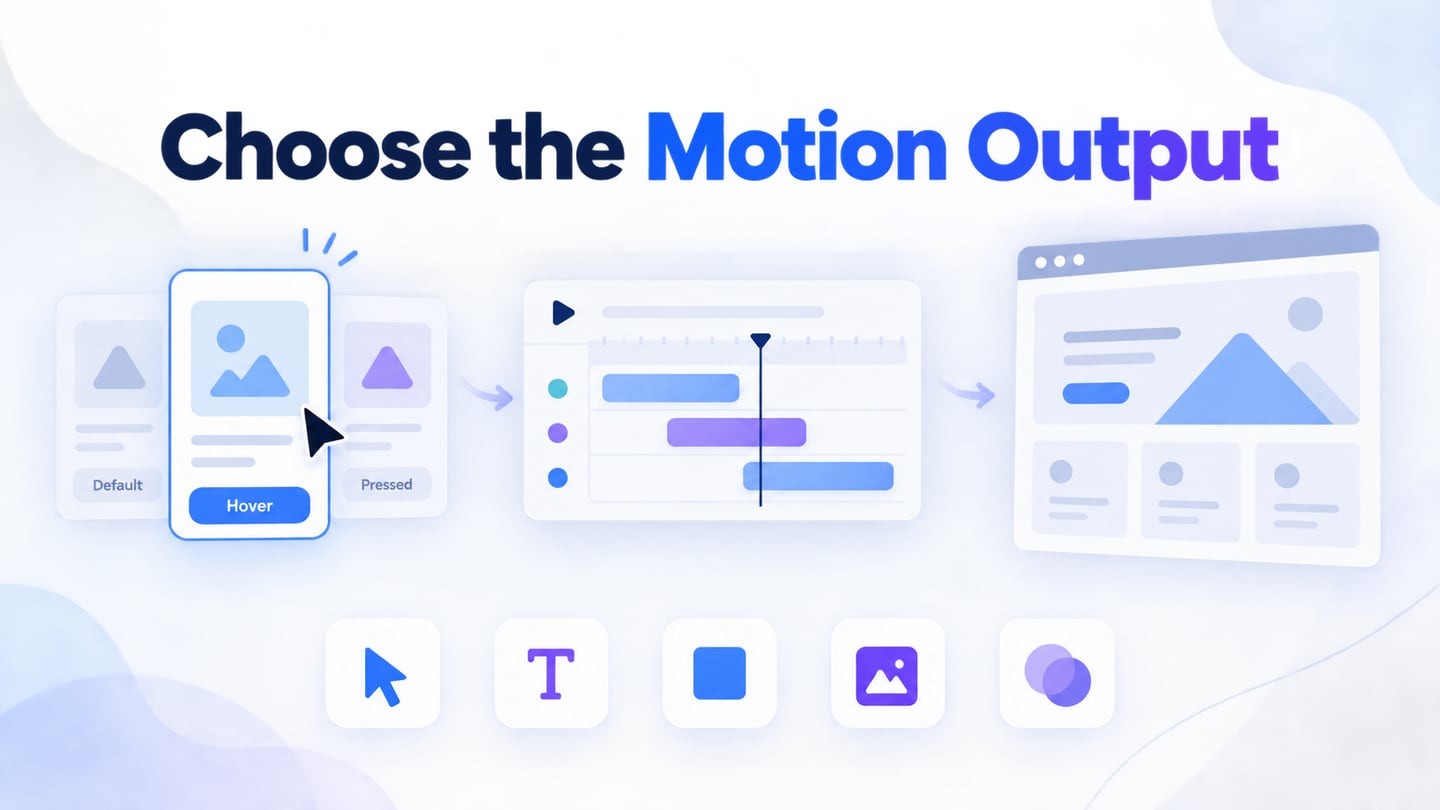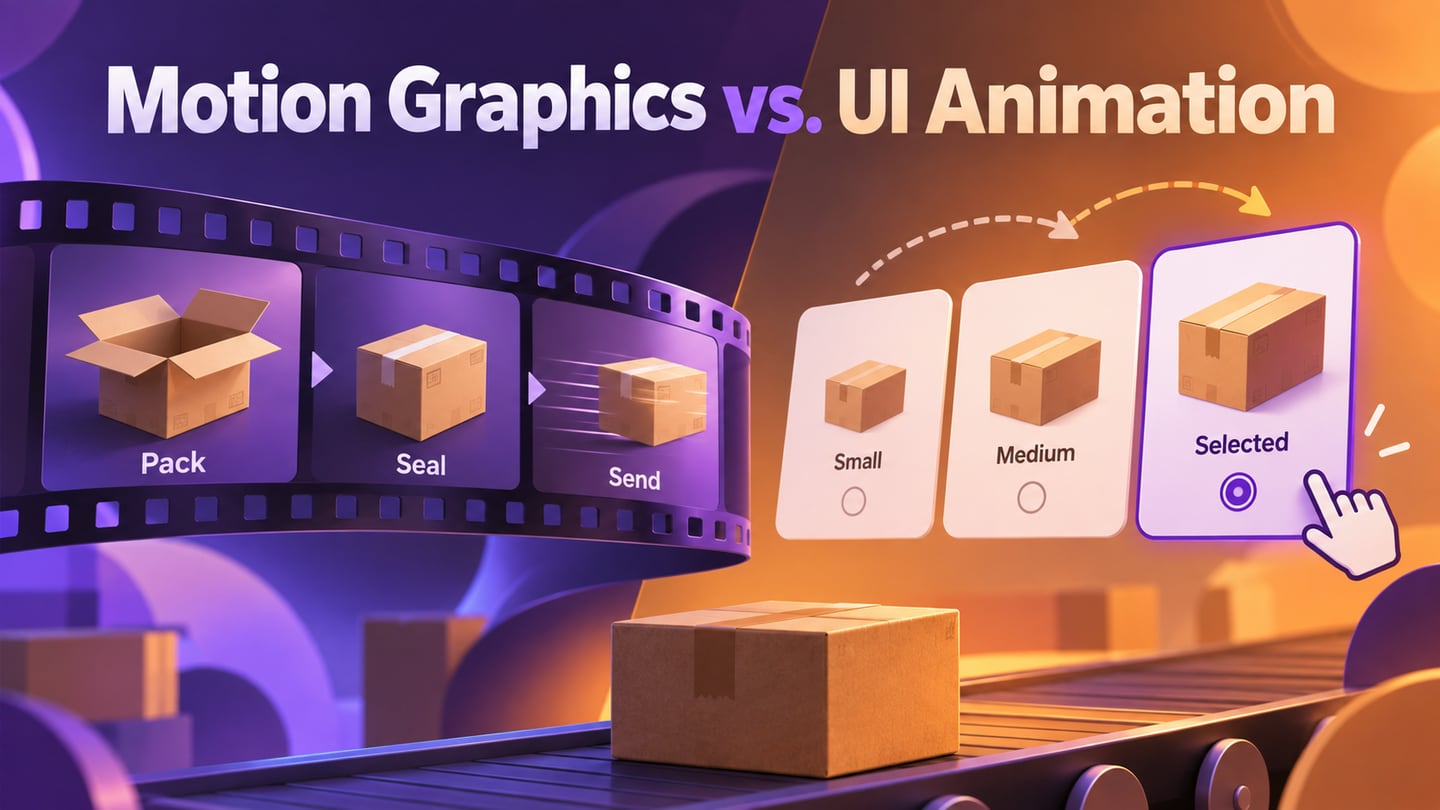
Motion graphics and UI animation both use change over time, but they often answer different questions. A motion-graphics sequence may explain a process or tell a story; UI animation belongs to a system that responds to a person's actions. Choose the deliverable before choosing an effect. This article compares those outputs through media examples. For the detailed interactive workflow, use the guide to motion design in UI prototypes.
Motion graphics and UI animation: the basic distinction
 Original motion-graphics workspace illustration; it is not a Mockitt screenshot or a current software tutorial.
Original illustration of a motion-graphics workspace.
Motion graphics combines graphic elements such as type, shapes and illustrations with movement. A rendered clip normally follows an authored sequence: the viewer can play or pause it, but does not change the underlying task state by choosing a depicted option. An animated product explainer may show a parcel being packed, sealed and sent in that fixed order.
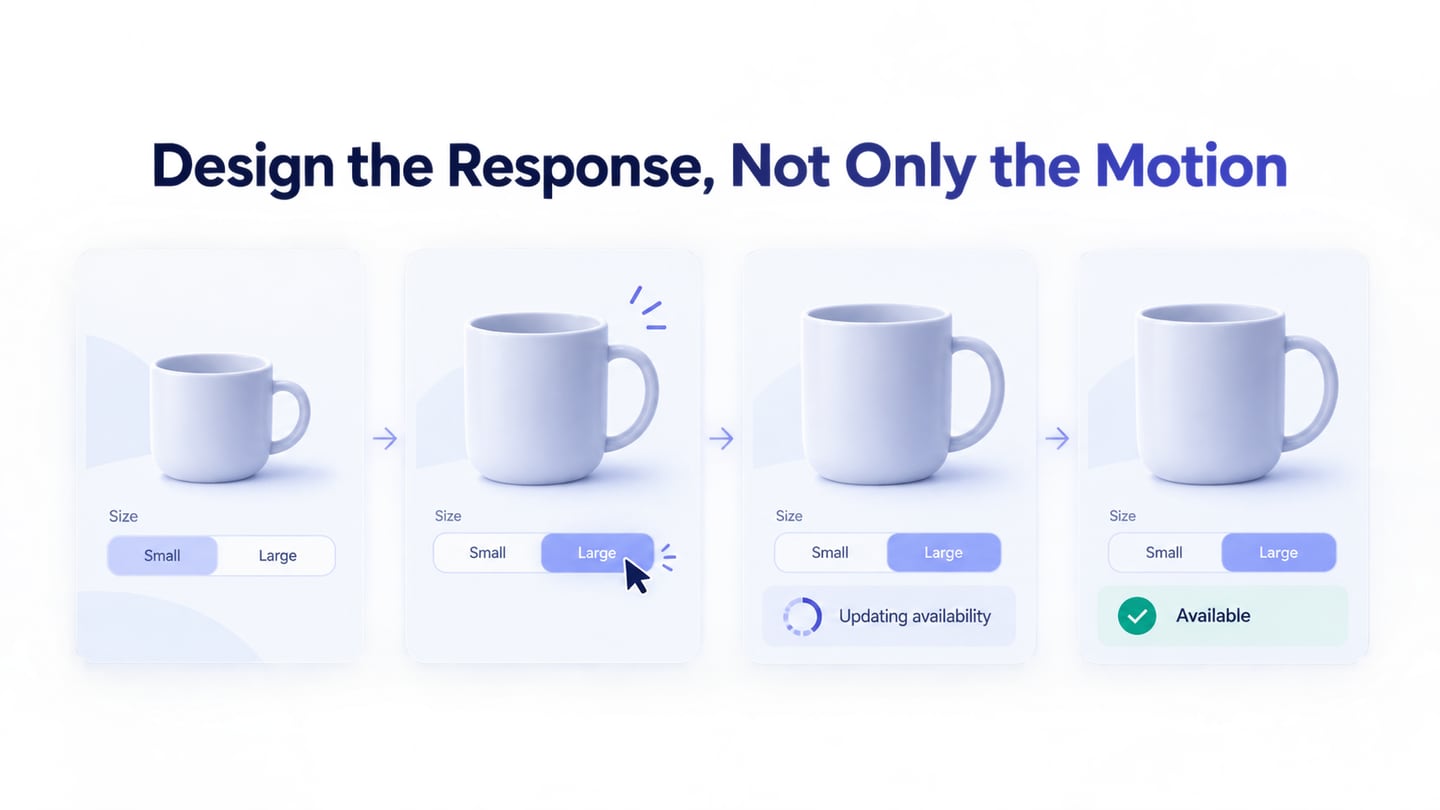
UI animation is part of an interface's behavior. It may accompany a selection, a navigation action or a system response. The user can change what happens next: selecting a small parcel instead of a large one can lead to a different state. The animation communicates that change; it is not the action or result itself.
The distinction is about behavior and delivery, not whether the image is flat, three-dimensional or visually elaborate. A product can contain both: a short explanatory video and an interactive form below it. A video of a form remains a video; it does not let the viewer complete the form's task. Likewise, a clickable mockup is not automatically a finished application.
Who is a motion designer?
Motion designers create animated visual communication for audiences and contexts such as titles, advertising and explanatory media. Product teams may also use motion skills for interface behavior. The work shares timing and composition concerns, but the brief differs: a film asks how a sequence communicates, while an interface asks how input, system behavior and feedback fit a task.
Common uses of motion graphics
The seven applications below show the breadth of motion graphics. Some result in a film or clip; others may combine rendered assets with interactive systems. Name the actual output in the brief so that an attractive demonstration is not mistaken for working behavior.
1. Television Industry: Screensavers, titles, subtitles, program design etc.
2. Film industry: Openings and ending screens, titles, screensavers, production of trailers and teasers etc.
3. Game development: animated models and effects may run within an interactive game, while a trailer or cinematic can be a rendered sequence. A game example therefore does not tell you the delivery format by itself.
4. Marketing: Animated social media ads, advertising on television, promotional materials, native advertising in the form of animated infographics, brand videos.
5. Media: News, entertainment, educational portals often use motion design to create short and engaging videos.
6. Business: Presentation videos and infographics for websites, conferences, product presentations, presentations to business partners, etc.
7. Education: a sequence can explain how parts fit together or how a process unfolds. A learner may need pause and replay controls, captions or a static explanation. An interactive lesson adds a different requirement: the system must respond meaningfully to the learner's input.
Three potential communication benefits
1. Show order and change: a sequence can reveal what happens first and what follows. That is useful for an explanation such as Pack, Seal, Send. If the person must choose a parcel size or change an address, however, a fixed sequence cannot substitute for the interactive task.
2. Explain relationships: movement can show how parts join, separate or transform. Use it when time adds meaning. For exact comparison or reference, a still diagram or table may be easier to inspect than a sequence that keeps moving.
3. Direct attention: a short animation can emphasize a relevant change or message. Attention alone is not comprehension, and repeated decorative motion can compete with the content. The communication goal should determine whether movement belongs in the deliverable at all.
Five formats and techniques to distinguish
1. 3D
3D imagery appears in advertising, product demonstrations and games. It can be rendered into a movie or used as an asset in an interactive environment. Specify which is needed. A rotating product video gives a chosen tour of an object; an interactive viewer can let the person choose a viewpoint. Those outputs need different behavior and review criteria.
2. Virtual Reality (VR)
VR is a viewing and interaction context, not a synonym for motion graphics. A 360-degree film and an interactive virtual environment can both be viewed immersively, but they offer different control. Clarify whether the viewer watches an authored sequence, looks around it, or changes the environment through actions. Comfort and orientation need attention in each case.
3. VFX in Ads
Visual effects in advertising can combine footage and designed elements to explain or dramatize a product. The result is often reviewed as a sequence: image quality, timing and message matter. Showing a simulated interface inside the advert does not establish that the advertised interaction has been implemented or evaluated.
4. GIFs and short loops
A short loop can demonstrate one action or convey an idea in a small space. It remains a sequence rather than an interactive task, even when it shows a pointer clicking a button. Consider readability, repetition and the ability to stop movement. Do not assume a GIF is the best file format simply because the animation is short.
5. Blending 2D and 3D
Combining 2D and 3D can give a title sequence, explanation or advertisement a distinctive visual language. That style does not determine whether the final output is a video asset or an interactive experience. Decide the audience's role first, then choose the visual treatment that helps them understand it.
Choose the deliverable by what the audience must do
Choose a rendered clip when the main need is to watch an explanation, presentation or story in an authored order. The Adobe rendering and export documentation illustrates how a composition becomes movie output or an image sequence. Delivery still needs the right dimensions, format and playback context; this is separate from designing a working UI.
Choose an interactive prototype when the review question depends on what someone does: selecting an option, changing a value or navigating a path. A Mockitt prototype can represent supported interface states for review. It does not replace a specialist film-production workflow, and the final application requires its own implementation and verification.
Sometimes both are useful. A parcel service could use a short Pack, Seal, Send explainer to introduce the process, then an interactive package-size selector to start the task. Give each artifact a clear review question and identify which one demonstrates behavior and which one communicates the story.
How the choice affects UX
For a clip, review whether the viewer can understand the message at its intended size and pace, with suitable alternatives for its content. For an interactive view, review whether the available choices and resulting state support the task. Do not count a successful explanation as evidence that people can complete the actual interface workflow.
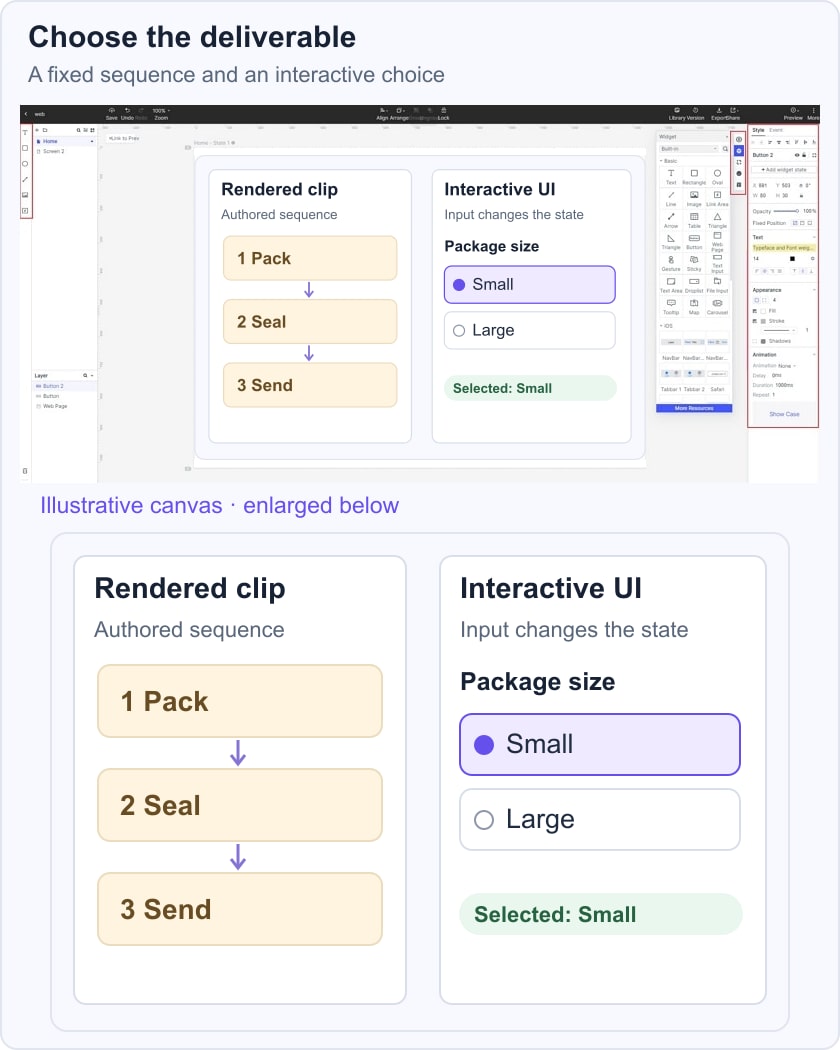
The illustrative comparison below places three fixed film frames—Pack, Seal, Send—beside a package-size interface with Small, Large and Selected: Small. The frames explain an order; the interface represents a choice. Neither side is an exported film, executed animation or working shipping service.
User control matters in both cases, but the requirements are not identical. WCAG guidance on Pause, Stop, Hide addresses qualifying automatically moving content, while Animation from Interactions addresses disabling nonessential interaction-triggered motion at Level AAA. A clip and an interface can require different checks. Neither a storyboard nor a prototype establishes complete accessibility conformance.
Before production, agree the output and the review question: What must the audience understand? What must they be able to do? Which parts are fixed, and which depend on input? Keep any rendered assets and behavior requirements distinct so that the next team receives the right deliverable.