Keep refining in Mockitt AI
Add screens, change layouts, and refine copy and states. In the preview, follow the entire flow from its starting point to check that the update solves the original problem.
Mockitt AI · Start with your idea
Describe your users, screens, and features to generate a first draft of your app's interface and interactions with Mockitt AI. Preview the result and refine it through conversation. When you need more control, continue editing in Mockitt Prototyping so your team can keep working from the same design.
Sign in to continue. AI allowances and credits depend on your account plan.
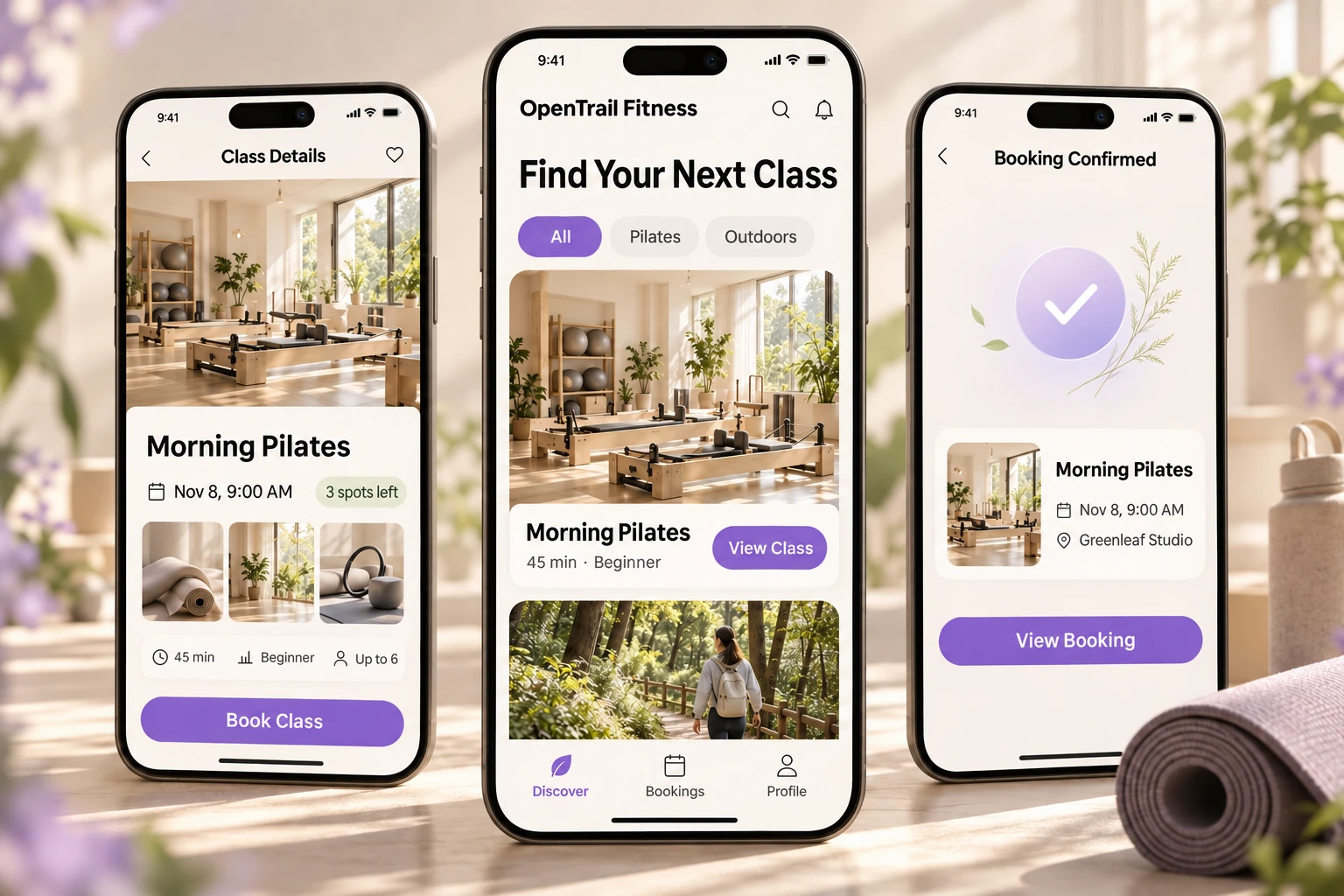
01 / Turn your idea into screens
Help users complete one task before adding more features. For a fitness class booking app, the home screen helps people find a class, the detail screen explains when and where it takes place, and My Bookings lets them find their confirmation again.
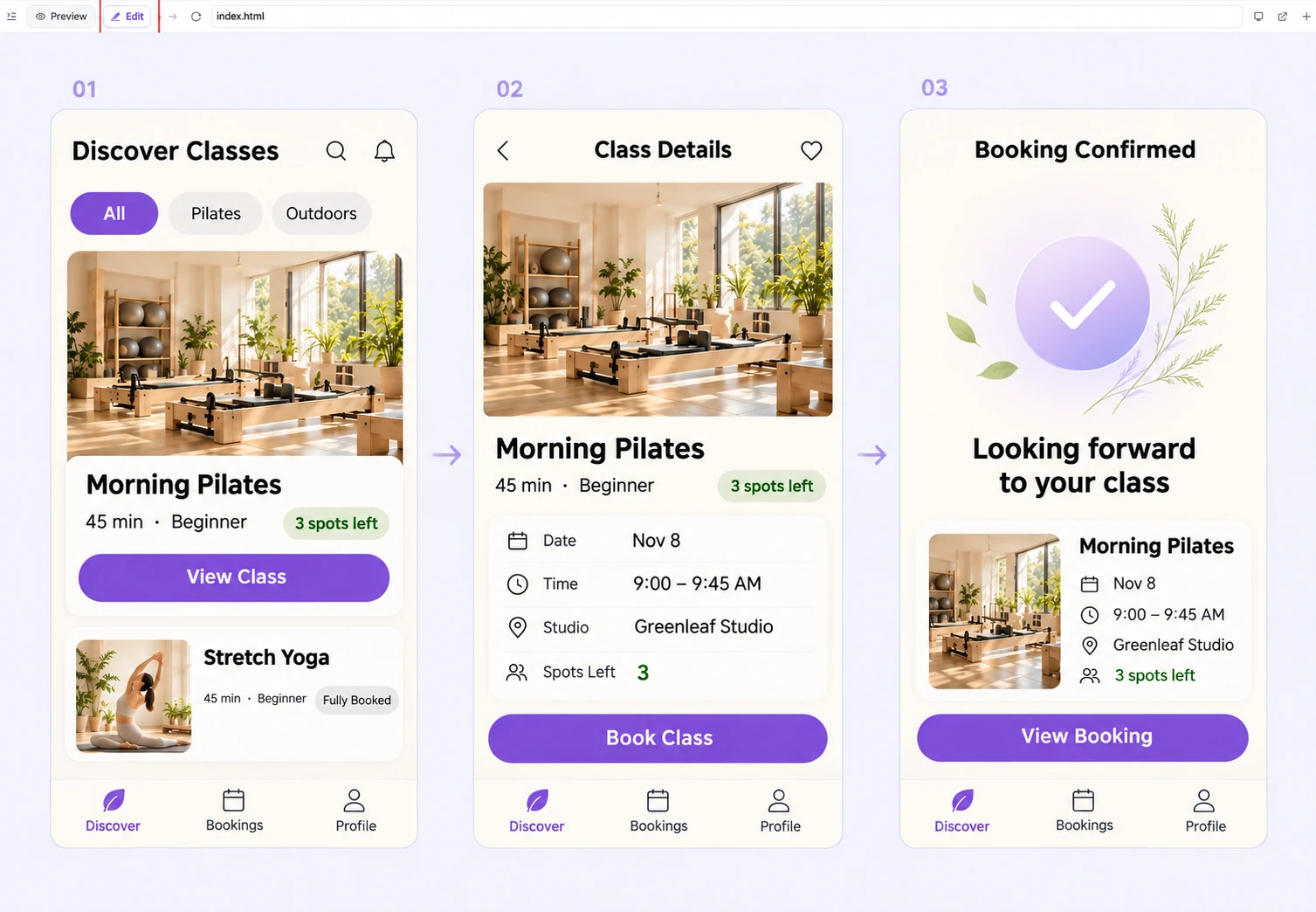
Help people who are new to exercise find a suitable class, confirm the time, and book a spot.
Class list → Class details → Booking confirmation → My Bookings. Keep the selected category when users return to the list.
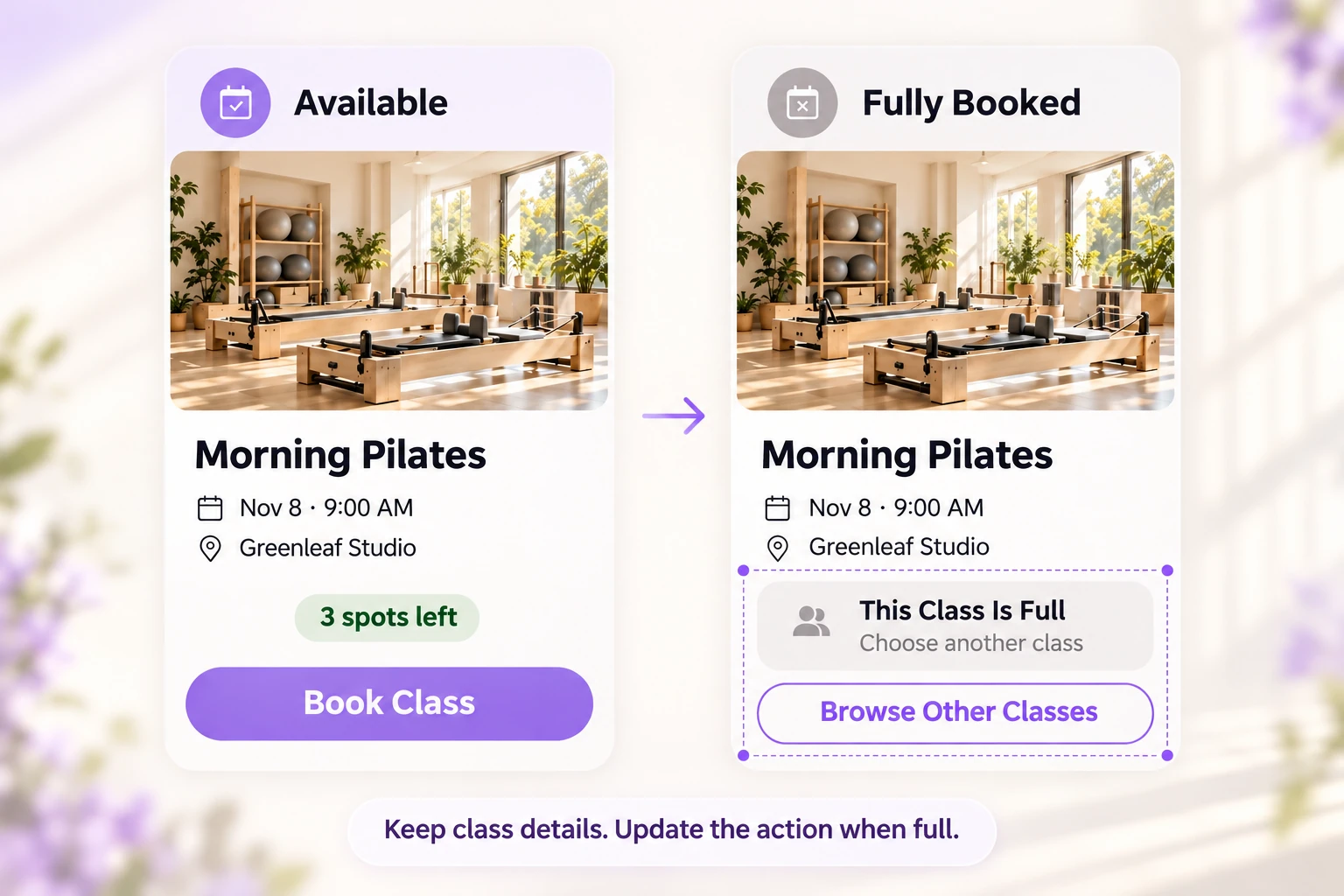
If a class is full, explain why it cannot be booked and let users choose another one. If a submission fails, keep their selections and offer a retry.
Specify the mobile screen size, content, and actions first, then add colors, fonts, and visual references. For a broader look at generating and refining designs, explore AI prototyping and editing.
02 / Go from viewing screens to trying the flow
A class booking flow needs to make four things clear: which class someone has chosen, when it meets, whether a spot is available, and where to find the booking afterward. Open a class card to see how those details carry through the flow.
You are viewing the class list. Choose Morning Pilates to try booking a spot, or Stretch Yoga to see what happens when a class is full.
Find a class you'll enjoy
03 / Be specific about what to change
Keep refining the interface through conversation after it is generated. In previews that support targeted edits, you can also select the area you want to change. Explain which element to update, how it should change, and what should stay the same so AI can keep working on the same task.
“Move the available-spots message above the booking button on the class detail screen. When the class is full, show ‘This class is fully booked’ and change the button to ‘Browse other classes.’ Keep the class photo, date, and location.”
Button labels, feedback placement, and a clear way back have a more direct effect on completing a booking than extra decoration.
Check that the class name, date, and studio match across the detail, confirmation, and result screens before expanding other features.
04 / Take the next step after generation
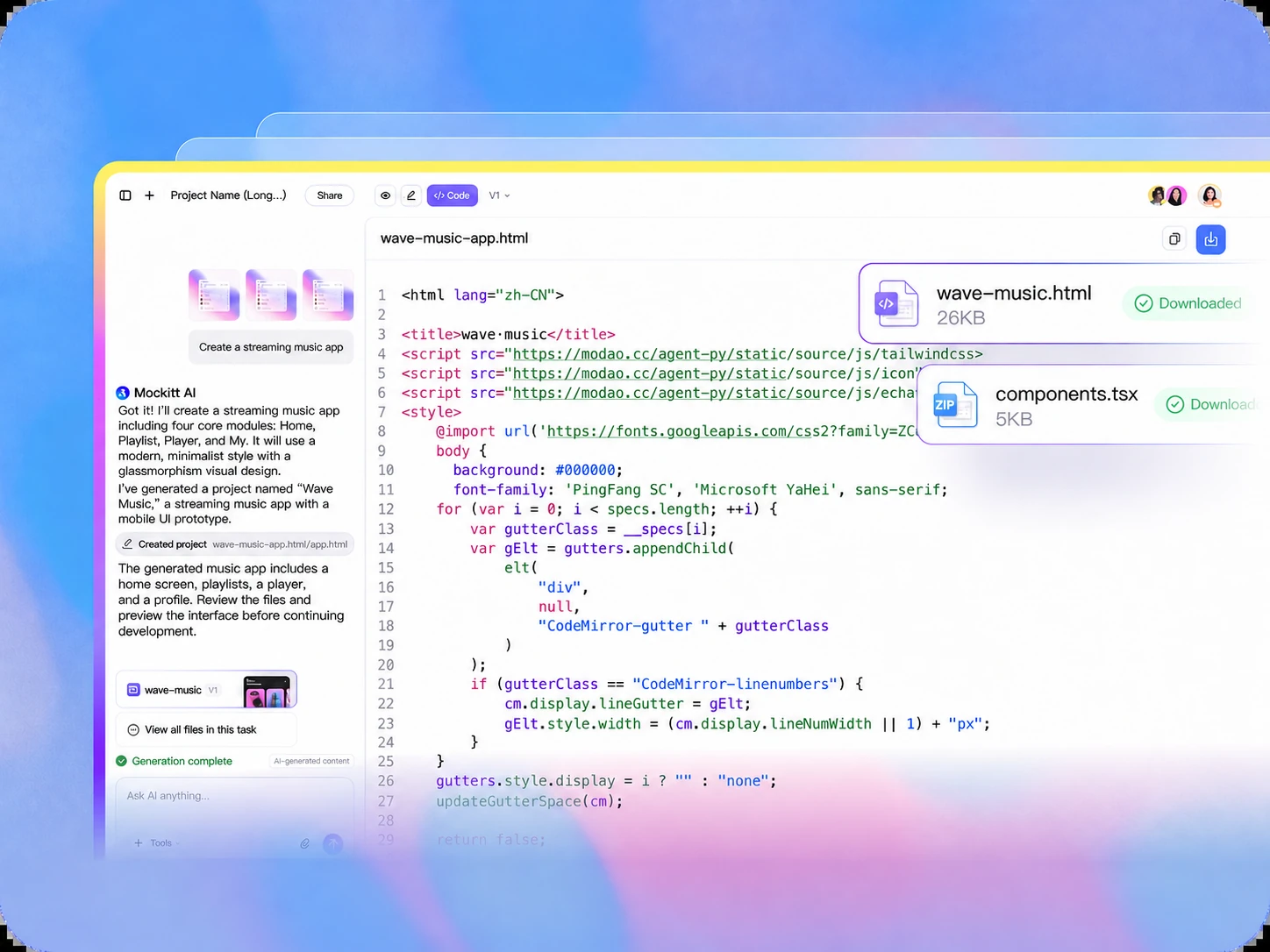
Share an interactive preview when you need to discuss the direction. Move into prototyping when you need to fine-tune individual elements. When development begins, hand off the interface code together with the engineering requirements.
05 / Start your first app
You do not need to plan the entire system at once. Start with one user goal, then give AI the screens, states, and visual direction needed to support it.
Classes and in-person appointments
Connect class discovery, time confirmation, booking results, and My Bookings, with states for available and fully booked classes.
Local services and ordering
Define drink options, pickup time, order confirmation, and sold-out states so order details stay consistent throughout the flow.
Workplace apps
Plan expense entry, attachments, submission, and approval tracking. When information is missing, direct users to the field that needs attention.
Design a mobile class booking app called OpenTrail Fitness. Use a 390px screen width, a warm white background, and purple primary buttons.
Users: People who are new to exercise and want to find and book a suitable class.
Screens: Explore classes, class details, booking confirmation, and My Bookings.
Classes: Morning Pilates on Nov 8, 9:00–9:45 AM at Greenleaf Studio; 45 minutes, beginner level, 3 spots left. Stretch Yoga on Nov 8, 6:00–6:45 PM at Greenleaf Studio; fully booked.
Flow: Browse the class list, confirm the time and location on the detail screen, and open My Bookings after a successful booking.
States: If a class is full, explain why and offer other classes. Prevent duplicate actions during submission. If submission fails, keep the selections and let the user retry.
Requirements: Users can move between screens. Class names, times, and locations stay consistent. Returning to the list preserves the selected filters. Complete this flow first, then expand it gradually.
Before you begin
Knowing what you need to produce makes editing and handoff easier.
Mockitt AI can generate a first draft of app interfaces and interactions from a written brief. Use it to discuss layouts, try key actions, and refine the design. Specify the screens, target device, and states so the result fits the task. After generation, you can continue the conversation, inspect the code, or import the result into Mockitt Prototyping for editing.
Yes. Describe what you need in plain language, review the generated interface in the preview, and adjust it through conversation or visual editing. Developers are still needed to connect production APIs, user accounts, payments, and data storage.
The generated interface and frontend code are a starting point for development, not a packaged, signed, and approved native app. Publishing to an app store still requires the appropriate runtime, backend services, device support, testing, and platform review.
App generation focuses on code-based interfaces that run in a preview; the form on this page uses that mode. Prototyping focuses more on screens, components, interaction specifications, and team review. Explore your app in AI first, then continue in the prototype editor or hand the code to developers, depending on what you need to do next.
When HTML is kept as an AI component, its interactions can remain available and you can edit the HTML visually. Converting it into native editable elements lets you adjust components and layouts individually. These two formats are edited differently, so after conversion, check the flow and add any prototype interactions you still need.
Sign in to Mockitt to see your available allowance and credit balance. AI tasks consume credits based on usage and your account plan. For details, see Mockitt plans and AI allowances.
Explore your next step
Study mobile screen patterns, from fitness and appointment apps to finance and shopping, then turn inspiration into a task you can test.
Keep editingReturn to this page's editing and handoff section to compare keeping HTML as an AI component, editing native elements, and continuing with code.
Handoff documentationRecord states, transitions, decisions, and implementation requirements, with a worked equipment-booking example and a documentation template.
YOUR NEXT APP STARTS HERE
Start with a flow people can try, then build out the details that matter, one step at a time.
Describe my app idea