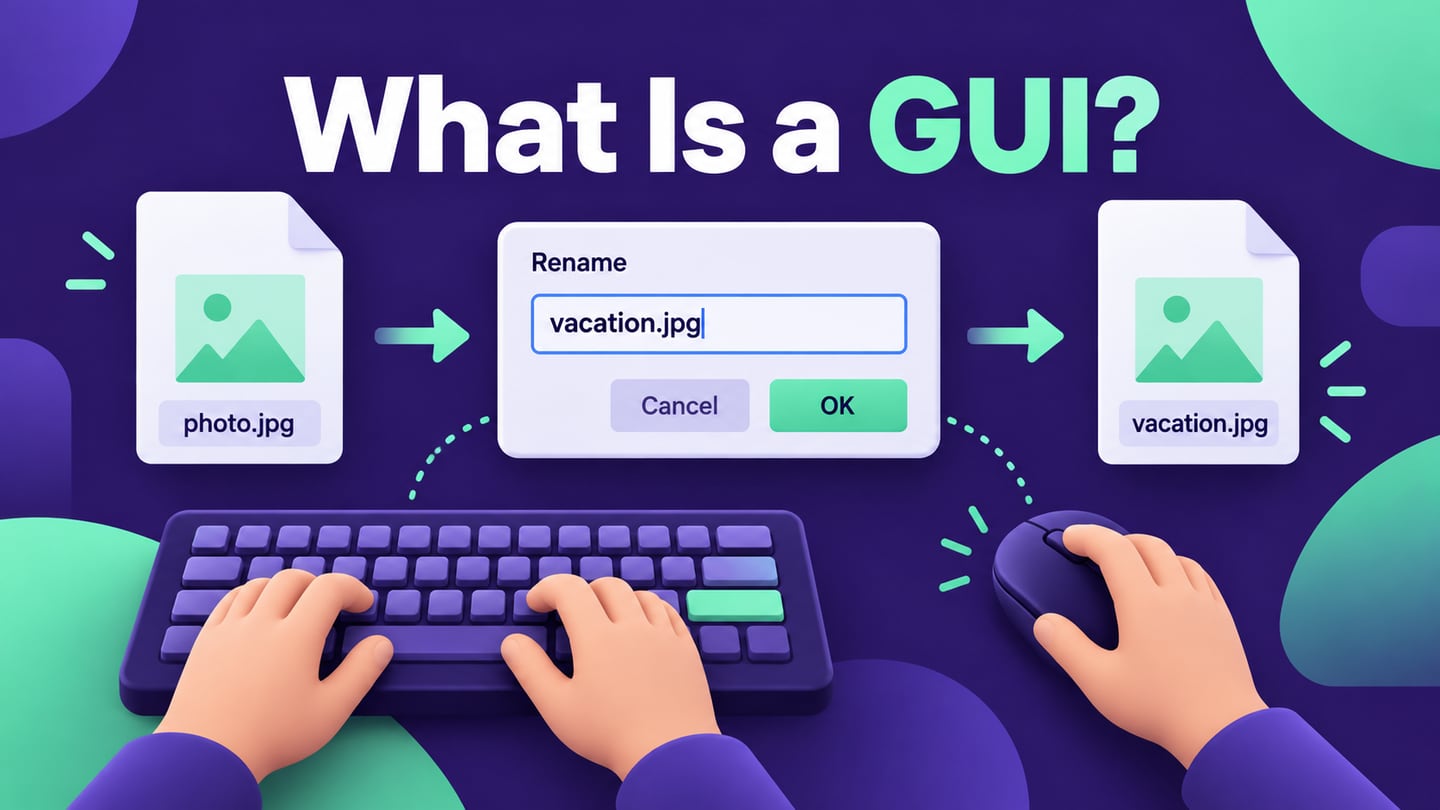
Explore an interface before implementation
Mockitt can help represent screens and task paths for review. A design or prototype makes an idea visible; it is not the same as a functioning application or proof that the interface is usable.

What is a Graphical User Interface?
A graphical user interface (GUI) lets a person interact with a system through visual elements such as windows, icons, menus and controls. A UI design workspace can represent those elements while a team explores a task. Desktop operating systems, mobile apps and many websites use graphical interfaces. A GUI is one way to present interaction, not a guarantee that a product is easy for everyone.
People can operate a GUI through a mouse, touch, a pen, a keyboard or assistive technology, depending on the implementation. Visual controls make available actions visible, while labels and feedback help explain them. Text remains part of most GUIs: a field label or an error message can be more informative than an unfamiliar icon alone.
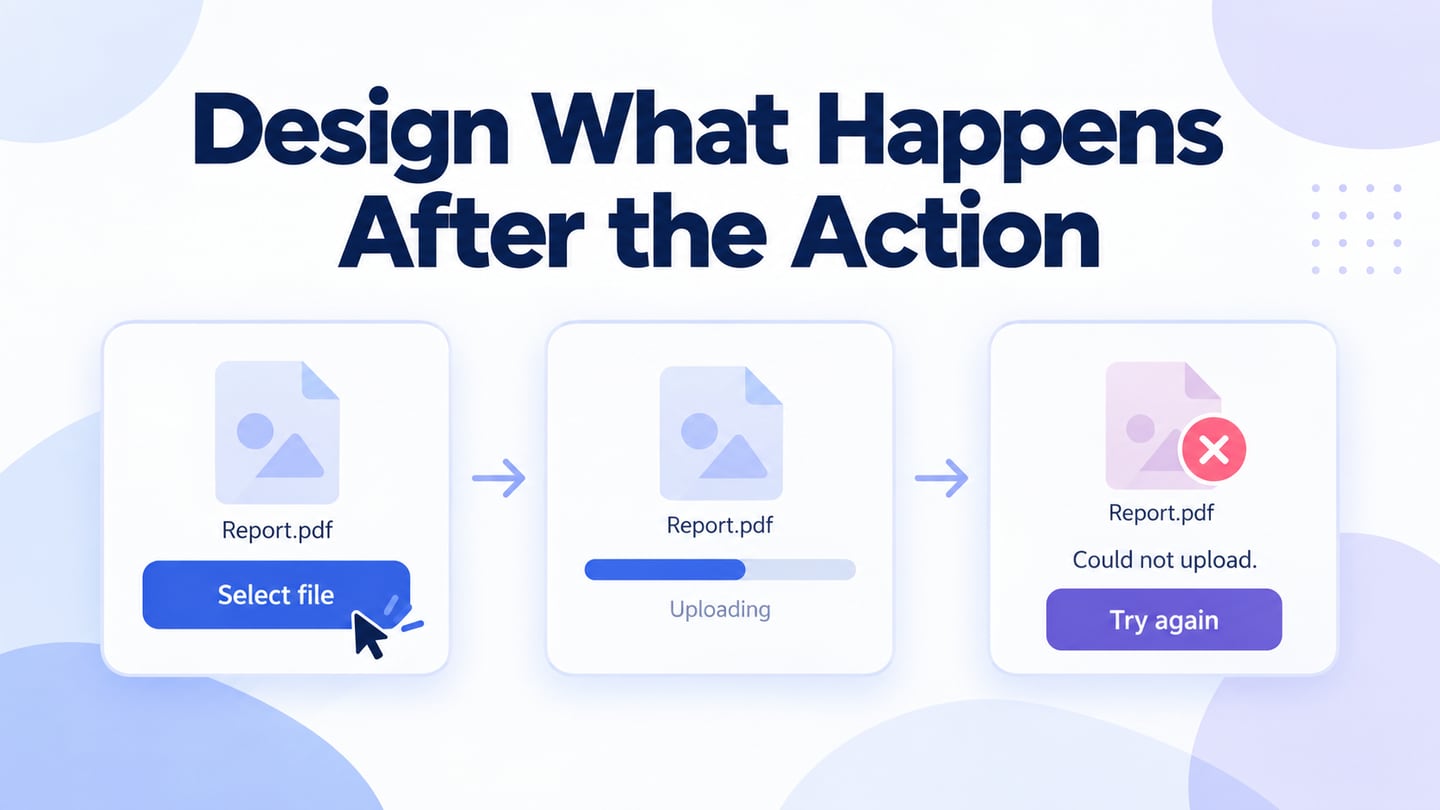
A common advantage is that people can discover actions without memorizing a command syntax. A folder menu may show Rename and Delete, for example. That still requires understandable labels and behavior. Feedback should explain the result of an action, including when it fails or takes time, rather than assuming that every click immediately opens something.
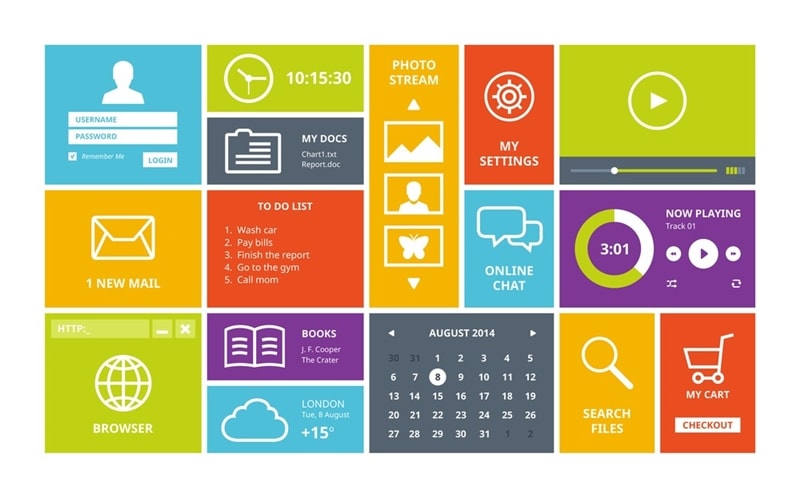 Original conceptual GUI illustration, not a functioning application.
How Does a Graphical User Interface Work?
For one concrete implementation example, Microsoft’s Windows message documentation describes how input events are delivered to application code. The code handles the event and determines the response. This is more accurate than imagining that a mouse click directly translates into assembly language, and it is only one implementation model among many.
From input to visible feedback
- The interface presents an object or control, such as a selected file and a Rename action.
- The person activates the action using an available input method, such as a pointer or keyboard.
- The application receives an event and runs the code that handles that action.
- The application checks the input and relevant rules, then updates its state if the action can proceed.
- The interface displays the result, a pending state or a useful error message.
- The person interprets that feedback and decides whether the intended task is complete.
- If the result is not what they intended, the interface should provide an appropriate way to correct or recover from it.
Examples of graphical interfaces
The following original images illustrate desktop, mobile and web-style graphical interfaces. They are historical examples, not current product comparisons.
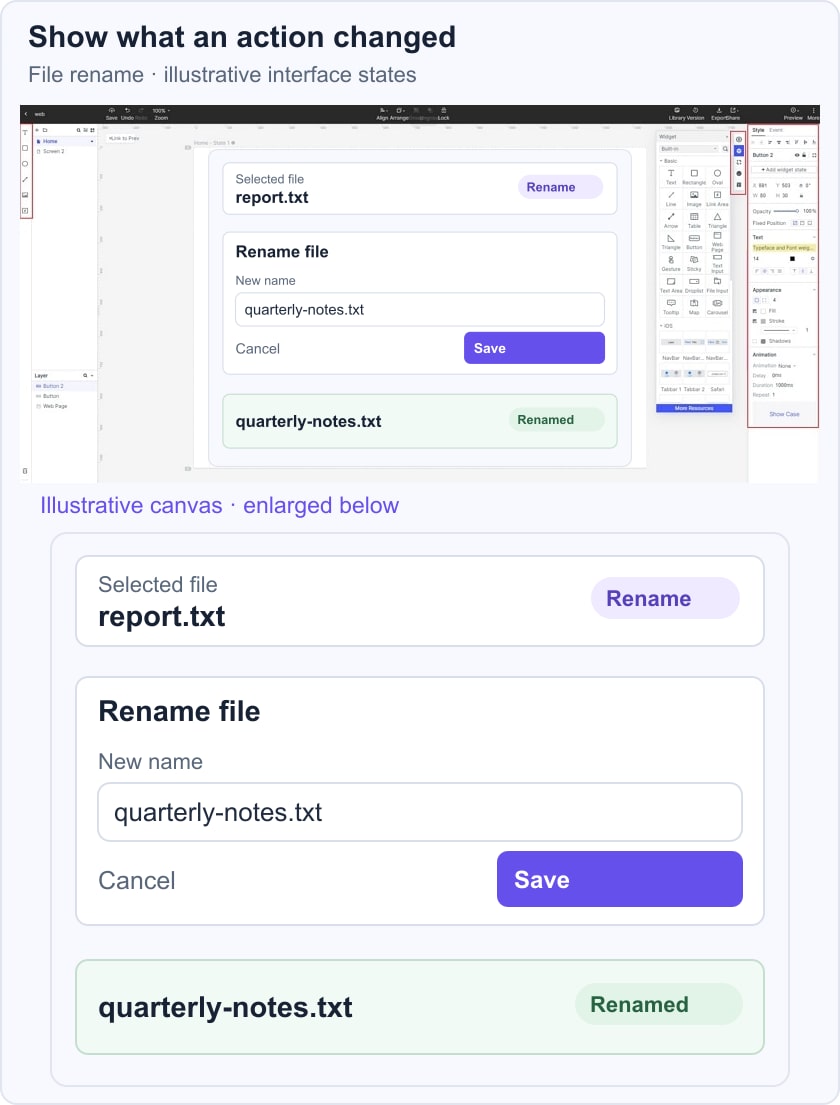
In a rename example, the person selects report.txt, opens Rename, enters quarterly-notes.txt and chooses Save. The final list shows quarterly-notes.txt with Renamed feedback. The illustrative canvas makes that state change explicit; it is not a real operating-system session. A complete design would also specify an invalid-name message, cancellation and what happens if the operation cannot finish.
 Historical desktop example; the image does not represent a current operating-system comparison.
Desktop interfaces use objects such as files, folders and a recycle bin to organize actions. These metaphors can help, but they are learned conventions rather than self-explanatory symbols for everyone. A file manager may support dragging an item as well as selecting a command from a menu. Clear labels and feedback help the person understand what moved, where it went and whether the operation completed.
 Original phone app-drawer example illustrating icons and labels.
A smartphone app drawer uses icons and names to provide entry points to applications. Inside an app, navigation, toolbars, fields and status messages organize the available tasks. Screen size and input conditions affect that arrangement. An icon should remain recognizable, but a design also needs to consider labels, focus, touch targets and what happens when the person uses an alternative to direct touch.
How web interfaces relate to GUIs
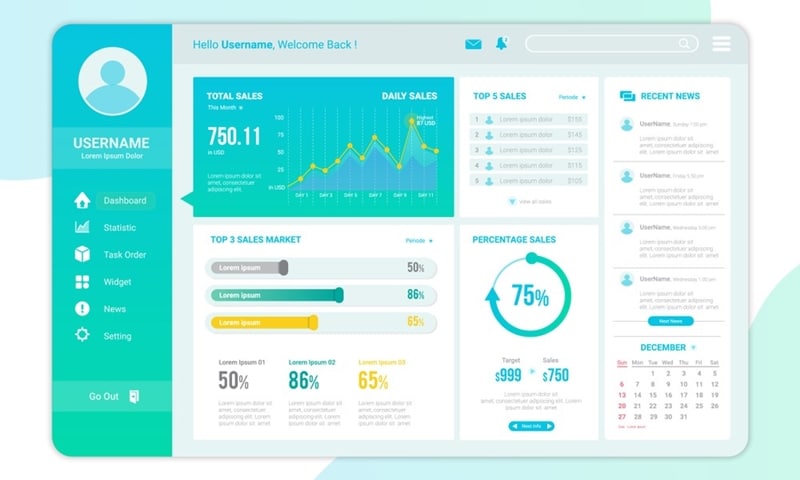 Original dashboard mockup, not a live business report.
A web user interface and a GUI are not opposing categories. A website with graphical buttons, menus and forms is a GUI delivered through web technology. A desktop application can also have a GUI, and a browser can display primarily text-based content. The useful distinction is between the interface style and the platform or technology delivering it.
Web interfaces must account for browser behavior, different viewports, navigation and network conditions. A desktop application may have a different set of platform conventions and capabilities. Both need clear information, understandable actions and meaningful feedback. Visual communication is part of the work, alongside interaction behavior and access—not a substitute for them.
Character, command-line and graphical interfaces
CUI is commonly used for character or text-based user interfaces, while GUI means graphical user interface. CLI means command-line interface. The terms overlap but are not identical: a text interface can use menus and fields, whereas a command line typically accepts typed commands. An application can offer more than one interface style.
Text interfaces and command lines
In a command line, a user enters a command and receives output, often as text. Other text interfaces offer keyboard-operated menus or forms. These approaches remain useful for tasks such as repeatable operations, automation or working in constrained environments. They are not simply obsolete versions of a GUI. Their usefulness depends on the task, the user's knowledge and the available documentation. A command line can be efficient for an experienced user while requiring more learning for an unfamiliar task.
GUI
A GUI makes actions available through visual controls and spatial organization. This can support exploration and manipulation of visible objects, such as selecting files or adjusting a layout. It can also become crowded or difficult to navigate. Keyboard operation is not exclusive to text interfaces: W3C keyboard guidance explains why graphical web functions need an appropriate keyboard path, subject to the criterion's exceptions.
Explore a GUI design with Mockitt
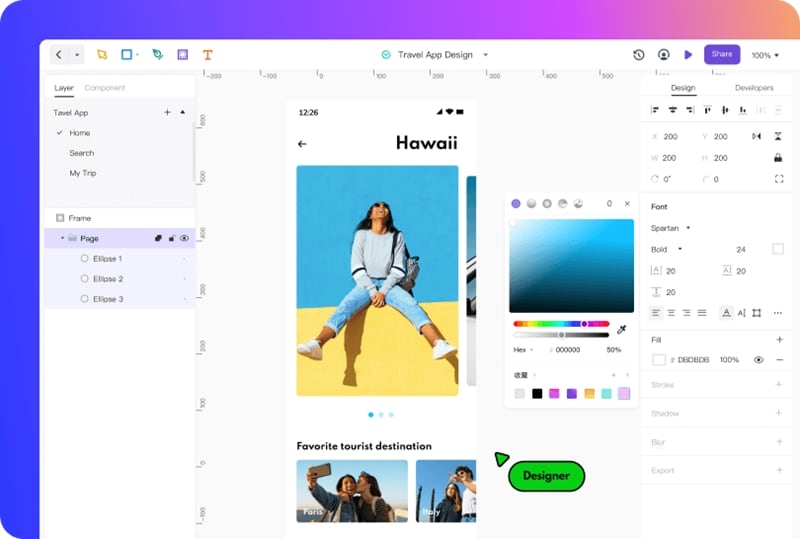 Original legacy Mockitt editor capture; exact current controls may differ.
Mockitt can be used to lay out interface screens and represent a proposed interaction before implementation. Start with a concrete task, such as renaming a file, and identify the information required at each step. A prototype can support discussion of the sequence, but the application still needs implementation and evaluation in its intended environment.
For a first exercise, keep the scope small enough to inspect. Draw the selected item, the action, the input state and the visible result. Use meaningful labels and include an error or cancellation path where it affects the task. The quality of the result depends on those decisions, not simply on selecting a design tool.
Use the current workspace and available components to build that representation. The original travel-app screenshot below shows a legacy design editor; its appearance and controls may differ from the current application. Do not infer a current two-mode workflow or a complete feature list from that old capture.
1. A shared design workspace
A shared workspace can help a team discuss the same design and avoid confusion between exported versions. Check the available access and sharing options before review. Cloud storage does not mean the browser uses no local memory, and access still depends on the account, network and device environment.
2. Components and understandable states
Reusable components can help keep labels, spacing and visual treatment consistent. Represent relevant states explicitly: selected, editing, saved and error are different conditions in a rename task. Review whether the person can tell which state is active. Do not claim that a particular editor control automatically removes every source of cognitive effort.
3. Layouts for the intended screen and input
Choose a screen size that fits the exercise and review the design with realistic content. A layout drawn for a phone is not proof of a native mobile implementation, and a shared preview does not establish unrestricted device compatibility. Check the actual environment in which the prototype will be reviewed and the product will eventually be used.
4. Learning through examples and review
Guides and examples can help a designer understand a tool or interaction pattern. Check that a tutorial matches the relevant product version, and adapt the example to the task rather than copying it without context. Ask a reviewer to explain what an action will do and what changed afterward. That question is often more useful than asking only whether the screen looks good.
Conclusion
A GUI connects visual information with actions and feedback. Judge it by the task it helps someone complete, including alternative input and recovery when something goes wrong. Desktop, mobile and web interfaces share that responsibility, even though their platform conventions differ. A clear prototype makes the proposed behavior easier to discuss; the finished system still needs to be checked for functional correctness, software usability and accessibility.