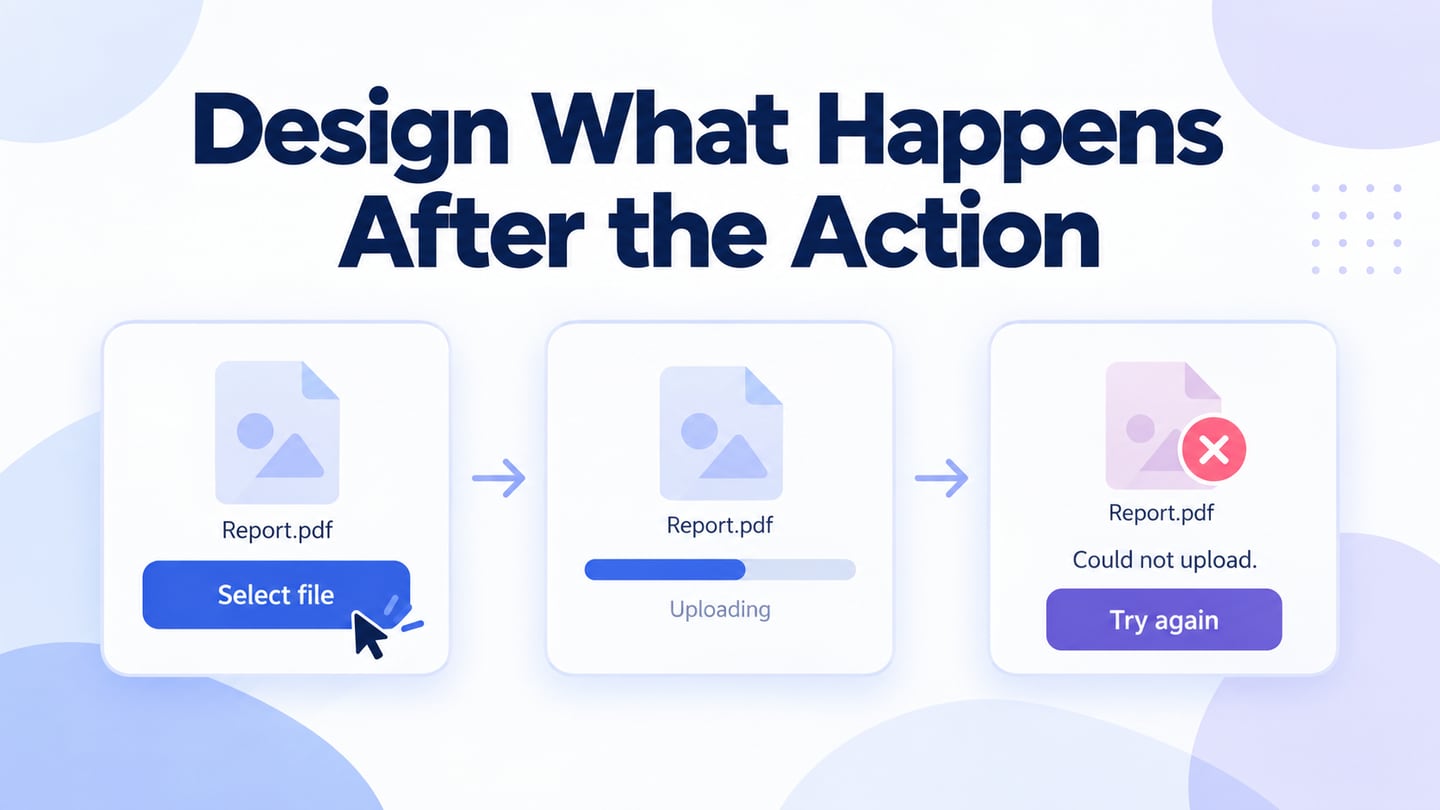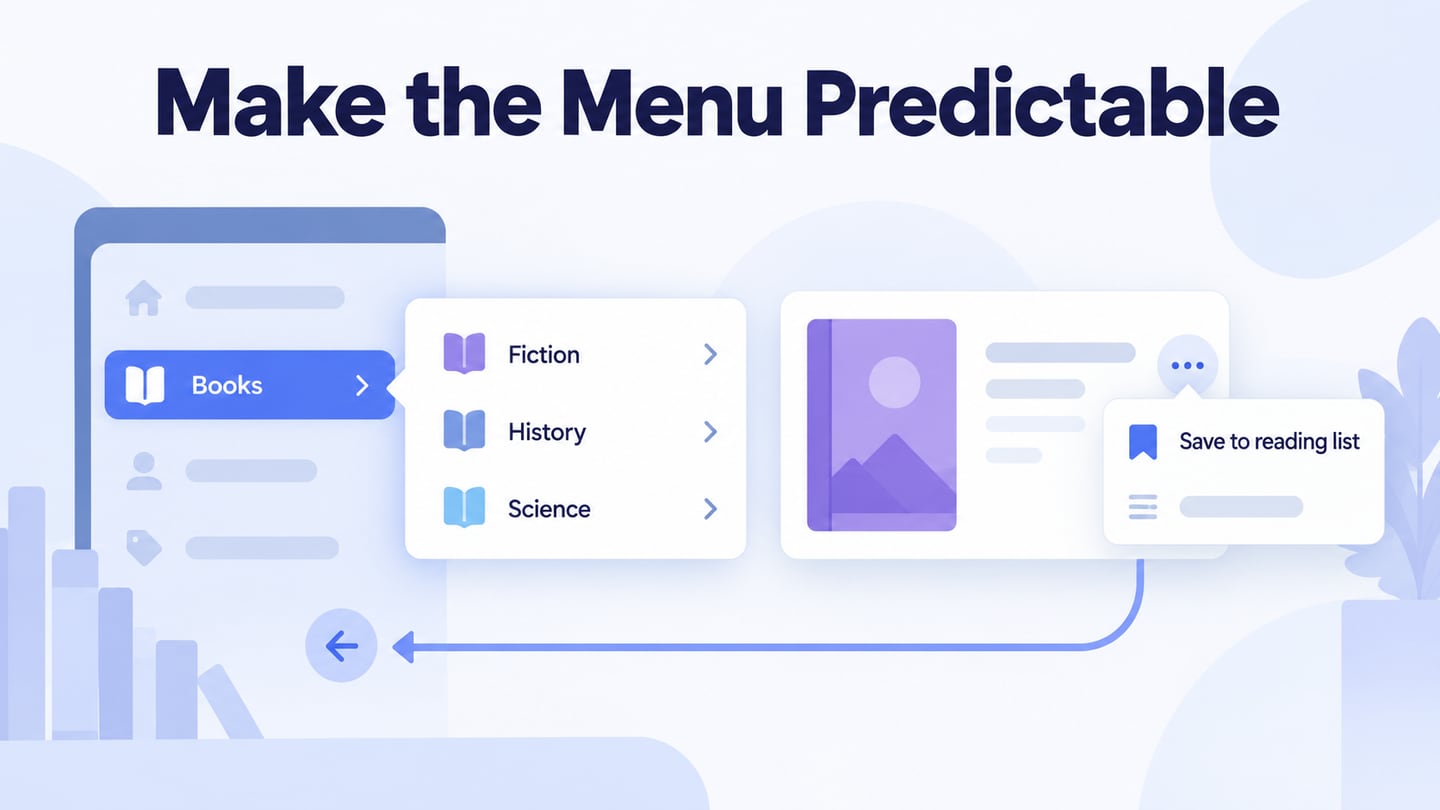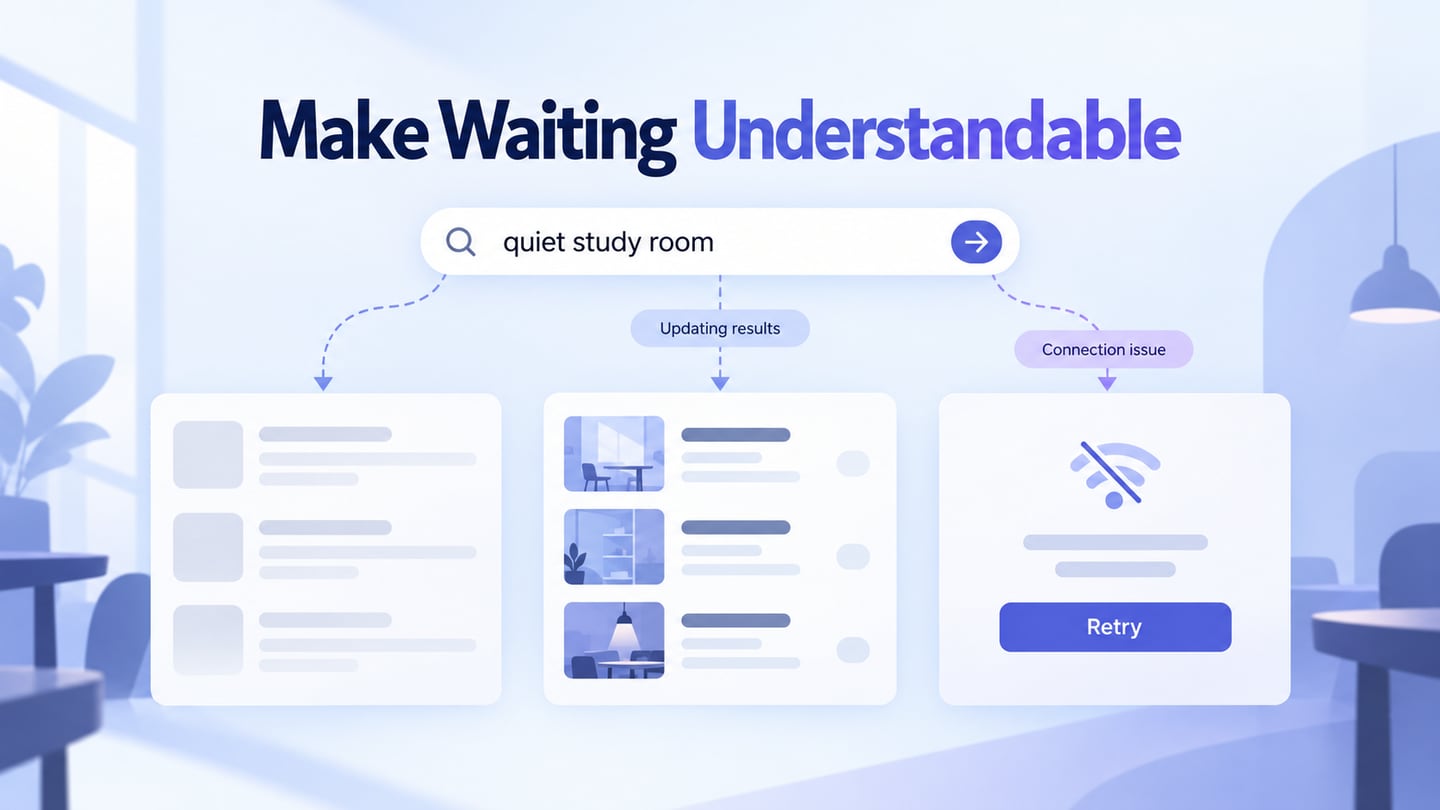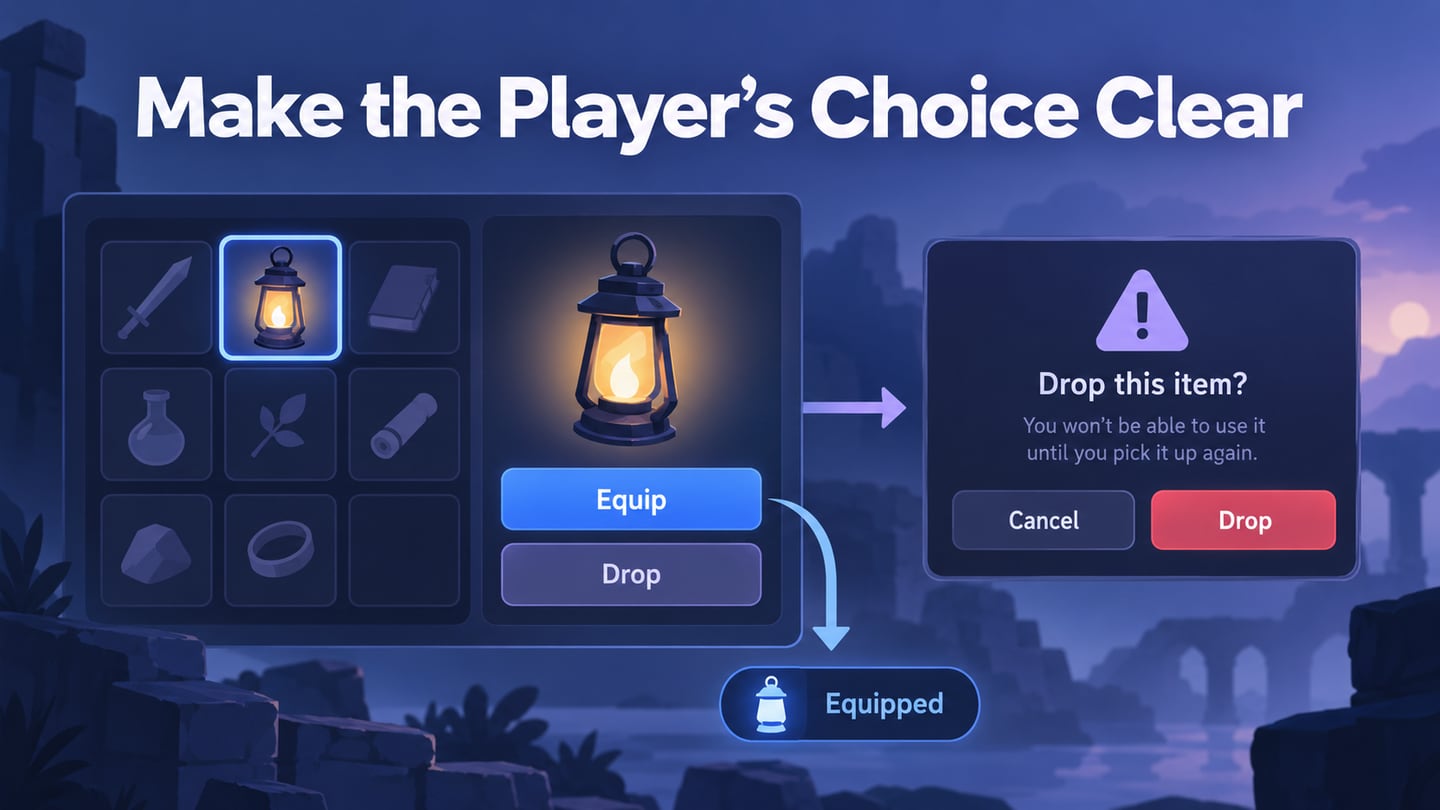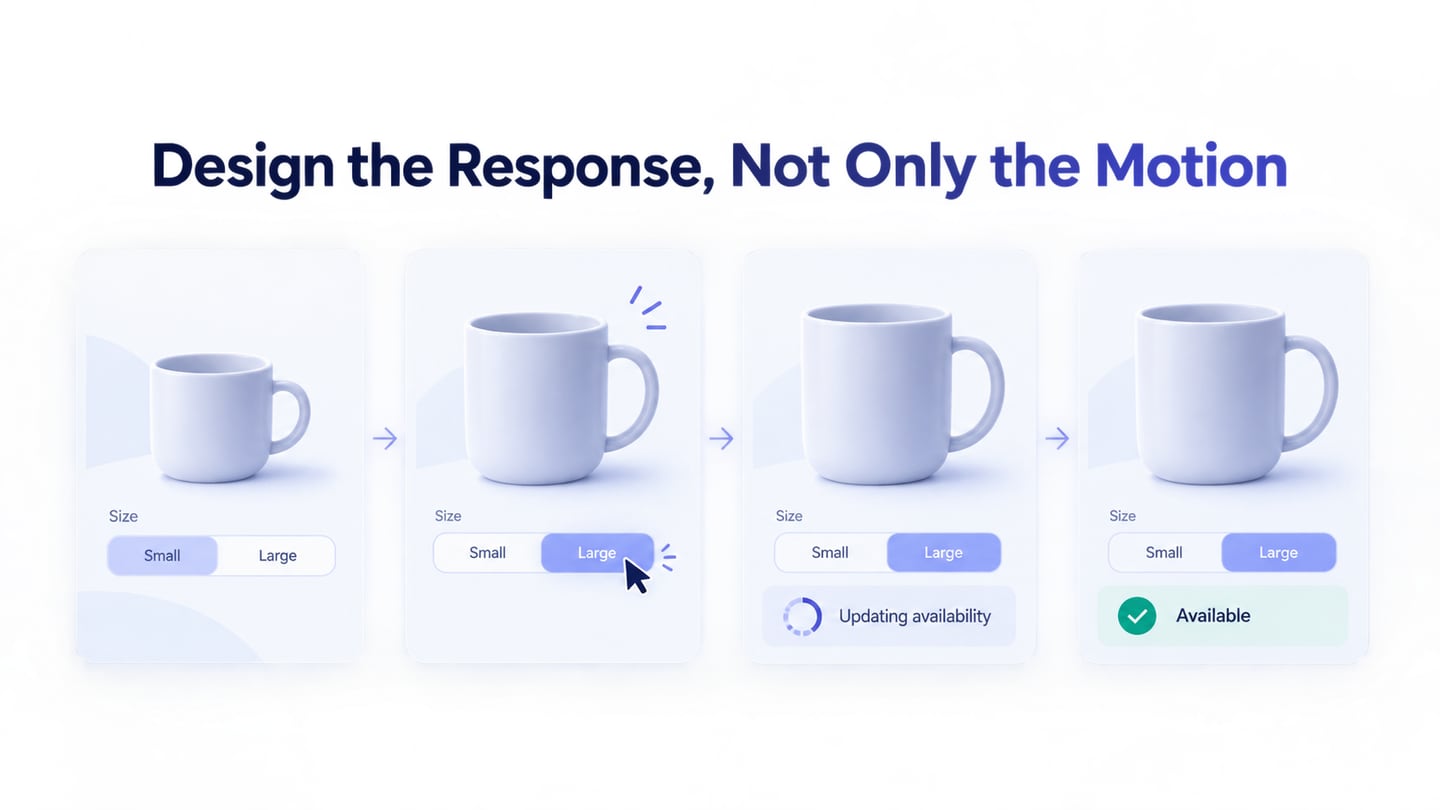
A UI interaction connects an input to a meaningful response: a selection changes, a menu opens, a request waits, or an action succeeds or fails. Animation may explain that change, but it is only one part of the design. Use an interactive UI prototype to make the trigger, feedback, outcome, and recovery path reviewable before implementation.
- Part 1. A Tool for Prototyping UI Interactions
- Part 2. Create UI Interactions Step by Step
- Part 3. Six Interaction Patterns to Evaluate
A Tool for Prototyping UI Interactions
Mockitt helps you arrange interface elements and connect screens or component states. Create the states needed to explain the task rather than adding motion to every element. The original screenshots below show an earlier editor; their linking and preview concepts remain useful even when current controls differ.

Use shared review to discuss behaviour and unresolved rules. Design details and annotations can support handoff, but a prototype does not automatically supply every component, backend rule, accessibility behaviour, or production-ready implementation.
How to Create UI Interactions Step-by-Step
Step 1: Create a Project
Create a project for the intended task and viewport. Define the state before the interaction and the result you expect to show. Confirm the workspace’s save and version behaviour rather than assuming work can never be lost.

Step 2: Add Components and States
Add the relevant controls and content. Include selected, pending, successful, and failed states where the task requires them. A separate screen can explain a state even when the final implementation will update only one component.
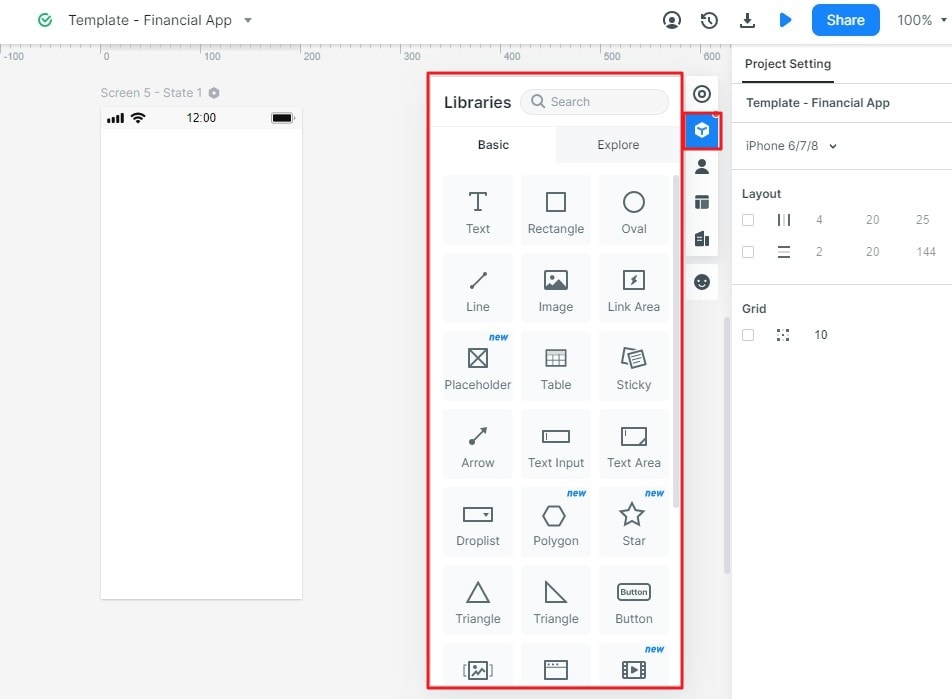
Step 3: Connect the Interaction
Connect the trigger to the next state using the prototype’s linking controls. Use a recognizable action and specify the condition under which the result occurs.
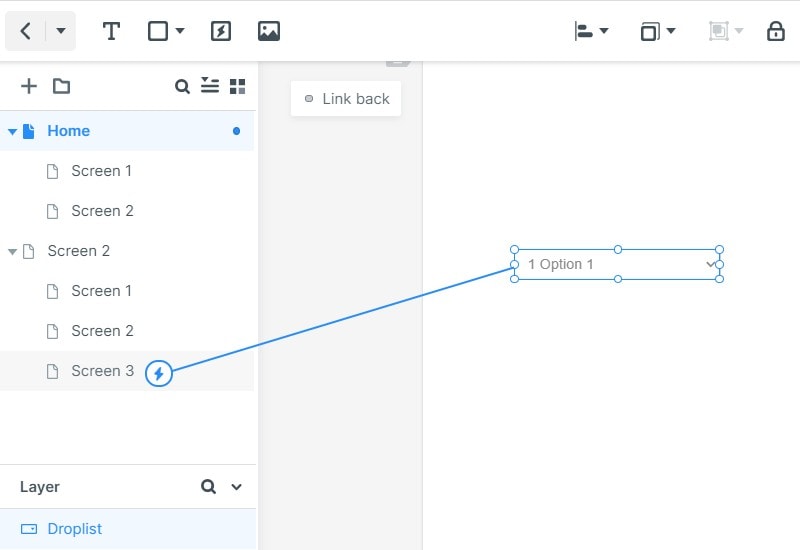
Choose transitions that explain the change. Keep the behaviour understandable without the effect and note what should happen when input is repeated, interrupted, or canceled.
Step 4: Preview and Share
Preview at the intended size and follow the whole interaction, including the recovery path. Share it with appropriate access and a concrete task so reviewers can identify missing feedback or an unexpected result.
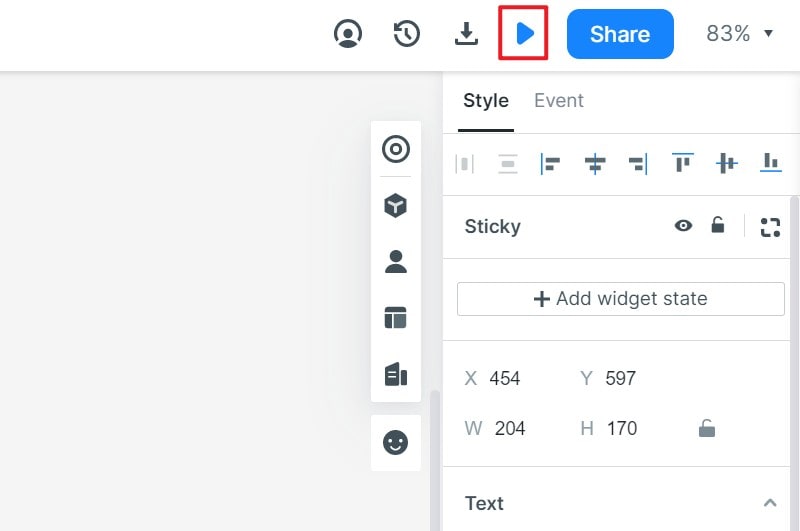
Hand over the states and their conditions, not just a successful animation. The implementation must also handle real requests, permissions, input methods, and assistive technology. Confirm these behaviours in testing.
Specify a product-option interaction
For a fictional mug configurator, a person changes Small to Large. Keep Large visibly selected while availability is checked, show Updating availability, and then show either Large is available or an explanation that it cannot be chosen. Enable Add to basket only according to the defined availability rule. These are illustrative states, not a live stock check.
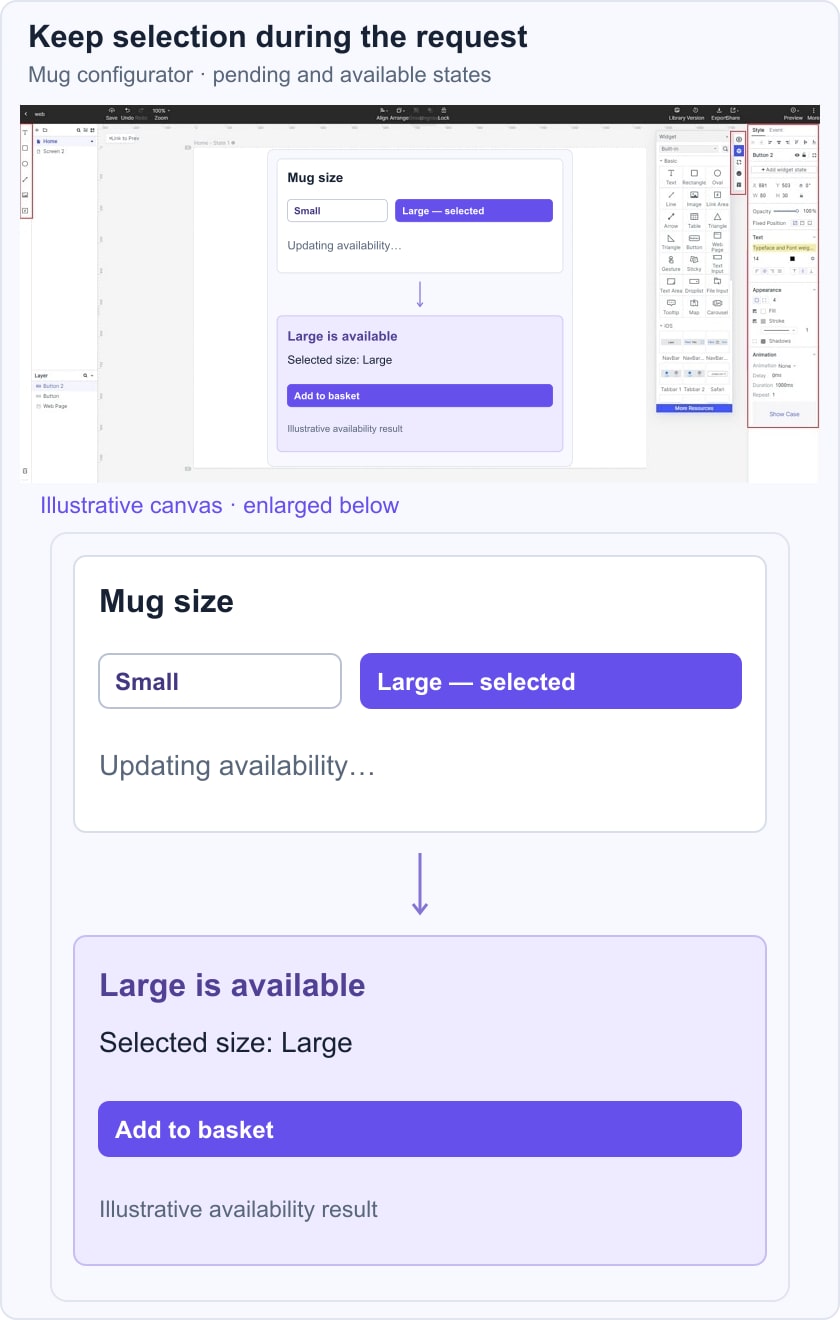
Write the interaction as input → state → feedback → next action. The selected option should not silently revert during the request. Use status-message guidance to make meaningful updates available without forcing focus away unnecessarily, and verify the actual implementation. UI testing should include repeated input, failure, and recovery, not only the expected result.
Six Interaction Patterns and Their Review Questions
Interaction design concerns behaviour within the wider user experience, which also includes research, information, context, and service outcomes. The following patterns are design options. Their value depends on the task, not how impressive an animation looks.
#1: Folding Tab Bars
A folding tab bar reveals additional options using a visual transition. It may communicate hierarchy, but it can also hide important destinations or rely too heavily on a gesture. Keep the available action discoverable and provide an understandable state change without the folding effect.
#2: Pull to Refresh
Pull to refresh requests an update of displayed content. Make the pending and completion states clear, preserve useful context, and provide an alternative control when needed. A refresh gesture should not imply that every displayed item is current before the request finishes.
#3: Product Configurator
A product configurator connects option choices to the relevant item state, such as size, color, availability, and price. Product variants give a concrete example of why a visual selection may affect the actual item being chosen. Keep those consequences clear before an order action.
#4: Sliding Sidebar Menu
A sliding sidebar reveals navigation that is not always visible. Provide a clear trigger, a way to close it, and predictable focus behaviour. A swipe should not be the only way to discover or operate important navigation.
#5: Hanging Coupons
Animated coupons may draw attention to available offers, but their conditions and actions must remain readable without motion. Avoid making someone chase a moving control or wait through decorative movement to reach the offer details.
#6: Elastic Gradient Navigation
An animated tab indicator can help show which section is selected. Preserve a visible selected state and clear labels when the animation is disabled. The movement should not be the only way to identify the active destination.
Use the guidance on animation from interactions when deciding how nonessential motion can be reduced or disabled. The purpose is to support a clear response to input; the visual effect should remain secondary to the task.