First pass: define the scope
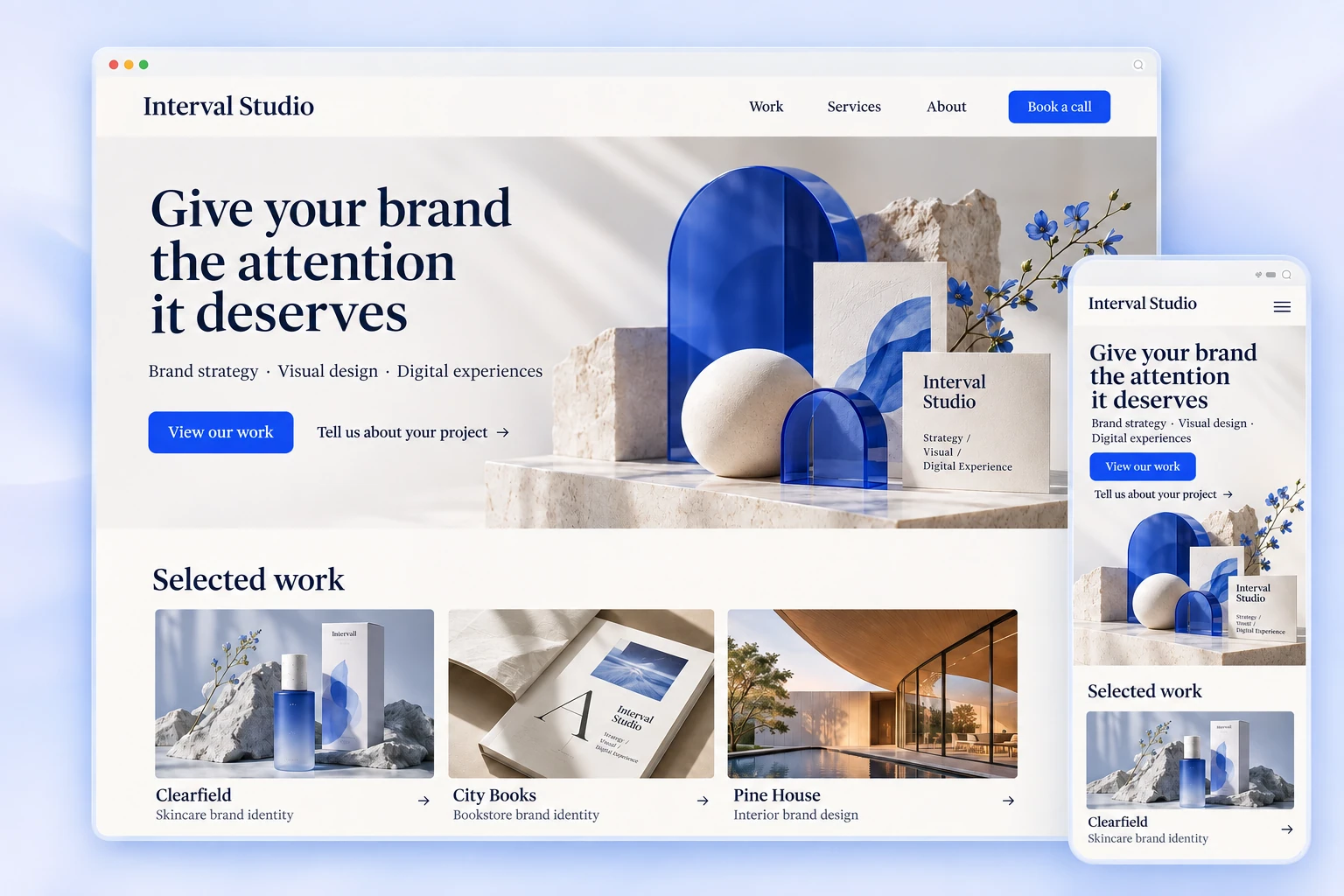
Include Home, Services, Work, and Contact pages. Highlight brand design services on the homepage. Use project images you have permission to use, and leave missing client names or project results blank.
Mockitt AI · Website generation
Describe your website to generate pages you can preview and keep editing. Refine the layout in conversation, then use the visual HTML editor to adjust copy, styling, and individual elements.
Choose an example to fill in a starting brief:
Sign in to generate. Check your account for available modes and credits.
Start with your website’s purpose
A brand website explains who you are. A landing page invites action. A portfolio shows what you can do. Tell AI who the page is for and what visitors should do next, rather than simply asking for a good-looking website.
Create an English-language website for Interval Studio, a design studio serving businesses that want to refresh their brand. Include Home, Work, Services, and Contact pages. The homepage should explain the studio’s positioning, feature selected projects, and offer a way to book a consultation. Let visitors filter work by brand design or website design. The contact page should ask for a name, email or phone, project type, and project overview. Use blue and white, generous spacing, and layouts for desktop and mobile. Include required-field messages and submission feedback. Build a front-end demo first, without connecting to a live service.
Help visitors understand what you do, see your work, and start a conversation about a project.
01 / Define the pagesGive Home, Work, Services, and Contact a clear purpose.
02 / Describe the actionsExplain how visitors browse projects, switch categories, book a call, and see feedback.
03 / Set the constraintsInclude your brand colors, actual copy, target screen sizes, and anything that must stay.
Website generation · A practical example
Use the Interval Studio example on this page to plan an initial brief, focused revisions, and interaction states. Copy the brief below, add your actual content, and build on the blue-and-white visual direction.
Include Home, Services, Work, and Contact pages. Highlight brand design services on the homepage. Use project images you have permission to use, and leave missing client names or project results blank.
Keep the page structure and typography while adjusting the hero heading hierarchy and primary button position. Test with your actual long headline at a mobile width to check line breaks and button visibility.
Check return navigation, required-field messages, loading states, and failed-submission feedback. A working inquiry form needs a server connection; a visual demo does not handle real submissions on its own.
# Interval Studio website
Audience: Small and midsize business owners planning a brand refresh.
Pages: Home, Work, Services, and Contact.
Hero: Explain who the studio helps and what it offers in one sentence. Use Book a call as the primary action and View our work as the secondary action.
Content: Use only supplied projects, images, and approved client information. Mark missing content as To be added.
Visual style: Blue and white with generous spacing. Preserve project image proportions without stretching.
Iteration: Generate the information structure first, then confirm the hero and project cards. Change only the specified section in later rounds.
Review: Headlines should wrap naturally and buttons remain visible on mobile. Include required-field, submitting, and error states for the form.
Scope: Start with pages the team can review. Real form submissions, access control, and data storage require separate implementation.
Make the first draft your own
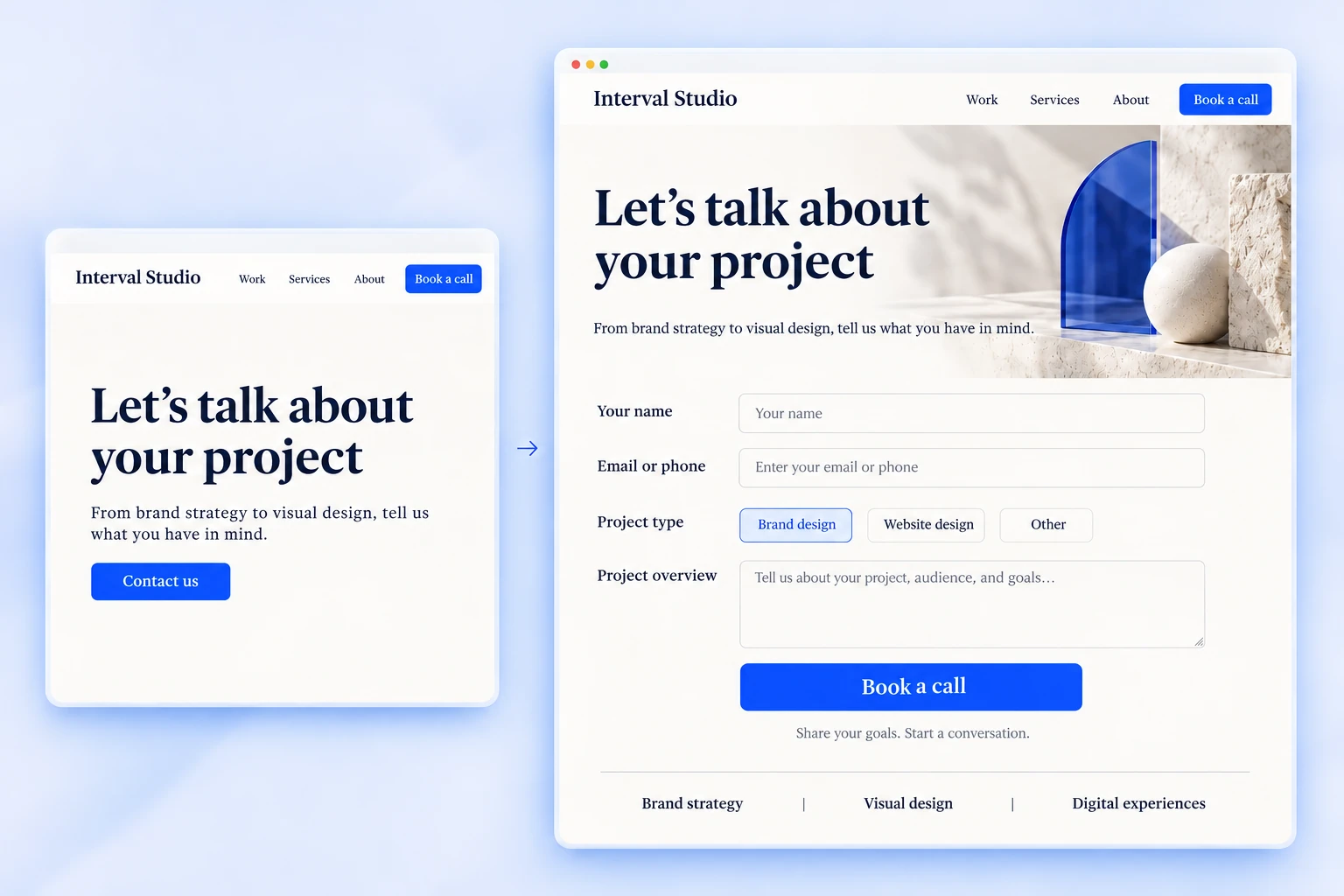
Keep the layout you like and give follow-up instructions for a specific area. To change text, colors, or spacing, select Edit in the generated page’s preview to open the visual HTML editor. You can also select an area and ask AI to focus its changes there.
“Keep the homepage and work section. Replace the bottom Contact us button with a consultation form and add project-type options. Show a message if contact details are missing, and display a confirmation state after submission.”
Give visitors a clear path
When you preview the result, follow the steps a visitor would take. Bring any problems back into the conversation and ask for changes to the specific page or state.
Explain the service and its value in the hero, give projects enough context, and make the primary button’s action clear. Replace generated placeholder copy and images with your own content.
Check navigation, filters, and forms: where does a link go, which option is selected, and what happens when information is missing? A demo’s submission message does not mean the form is connected to a live service.
Let long headings wrap naturally, arrange content in a single column, and make buttons easy to tap. Specify how navigation and essential actions should remain accessible in the mobile layout.
Keep building on your draft
Once you agree on the page direction, choose the next step that fits your workflow. Refine the HTML, move into collaborative prototyping, or hand the generated files to a developer so the team can work beyond a screenshot.
Example Mockitt AI project showing the conversation, generated files, and code view.
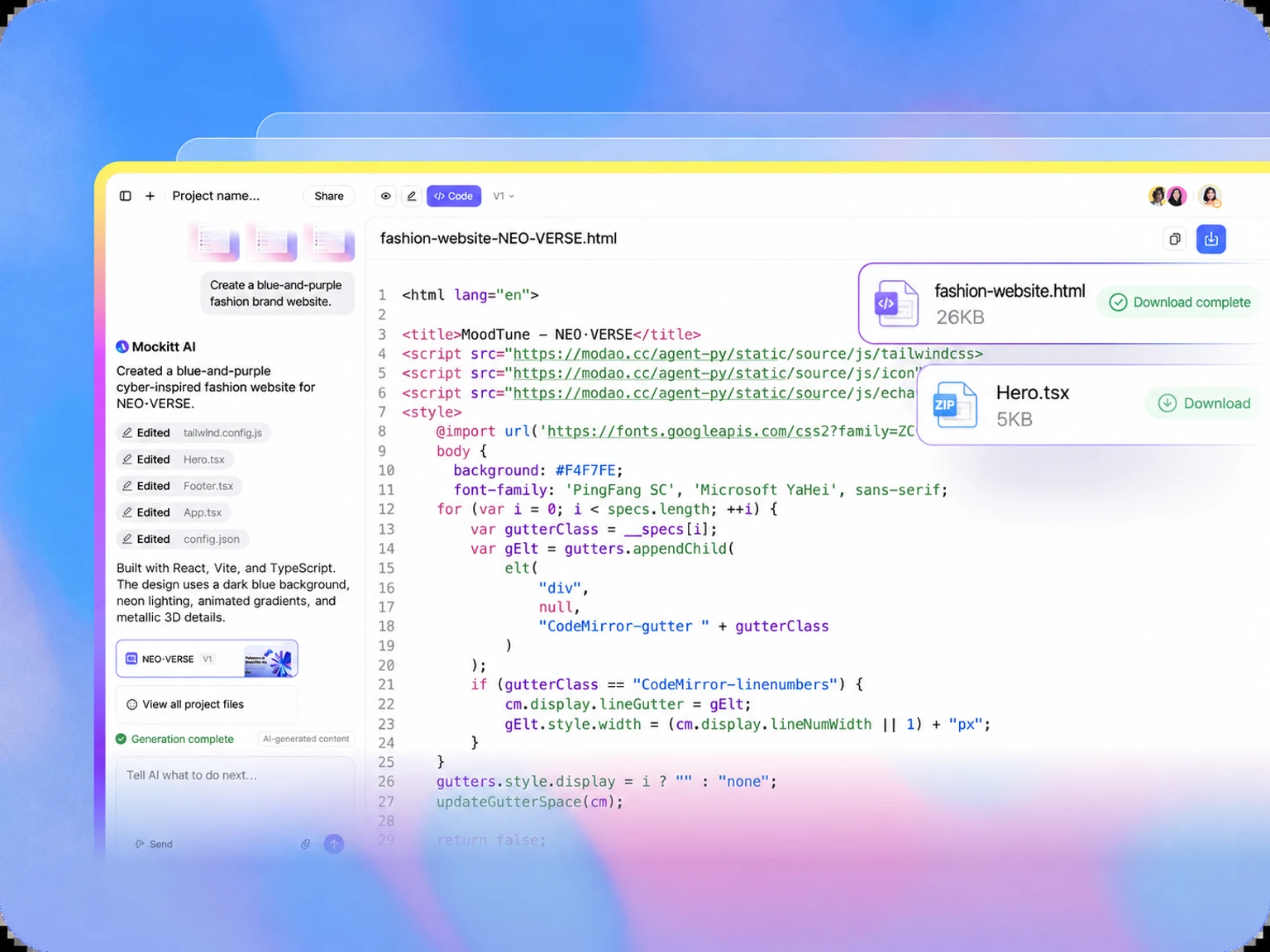
Open the editor from the AI preview to adjust text, visual styling, and individual sections. If you already have an HTML file or code, you can bring it into the HTML editing workflow too.
Explore HTML importKeep imported HTML inside an AI component, or convert it to editable elements when you need native layer editing. After conversion, check the styling and interactions again.
Explore Mockitt prototypingReview, organize, and download the files your project generates, then explain the page behavior and interaction requirements. If you already have a design, you can also follow the design-to-code workflow.
Explore design to codeBefore you get started
Start with pages you can discuss, then refine them into a website that fits your needs.
Yes. Start by describing the website type, intended visitors, page content, and key actions in plain language. Preview the generated pages and ask for changes. Live integrations, sign-in, payments, and other business functions still require development and testing.
Yes. Continue the conversation to revise the page, or select Edit in the generated preview to open the visual HTML editor. Adjust copy, styling, and layout in a specific section. For focused revisions, explain both what should change and what should remain.
You can request desktop and mobile layouts in your brief, but you should still check the generated result. Pay attention to long headings, collapsed navigation, image proportions, and tap targets. Ask for revisions at the specific screen size where you find a problem.
No. Import an HTML file or paste code to begin editing. In Mockitt prototypes, an AI component can contain the HTML. Converting it to editable elements lets you work with native prototype layers; check the styling and interactions after conversion.
No. Generation and preview help you develop the page design and interactions. Launching a website also involves final content, service integrations, a domain, and deployment, plus checks for access control, security, performance, and use across devices.
Check your Mockitt account for available modes, credits, and plan details. Review the credits and mode descriptions before you choose how to generate your website.
Your next page starts here
Start with your brand, page content, and one key action, then build out your website step by step.