Dashboard and admin UI prototyping
Design the work behind your dashboard
A dashboard needs to do more than display attractive charts. Use Mockitt to prototype how an operations team finds a record, checks its status and completes an action, including the states where the task cannot go as planned.
Start with an operations task, not a grid of widgets
Choose an action the dashboard must support: find delayed orders, review an access request or assign a support ticket. Identify the decision the person needs to make and the information required to make it. Then decide which table, summary or detail view belongs on the screen.
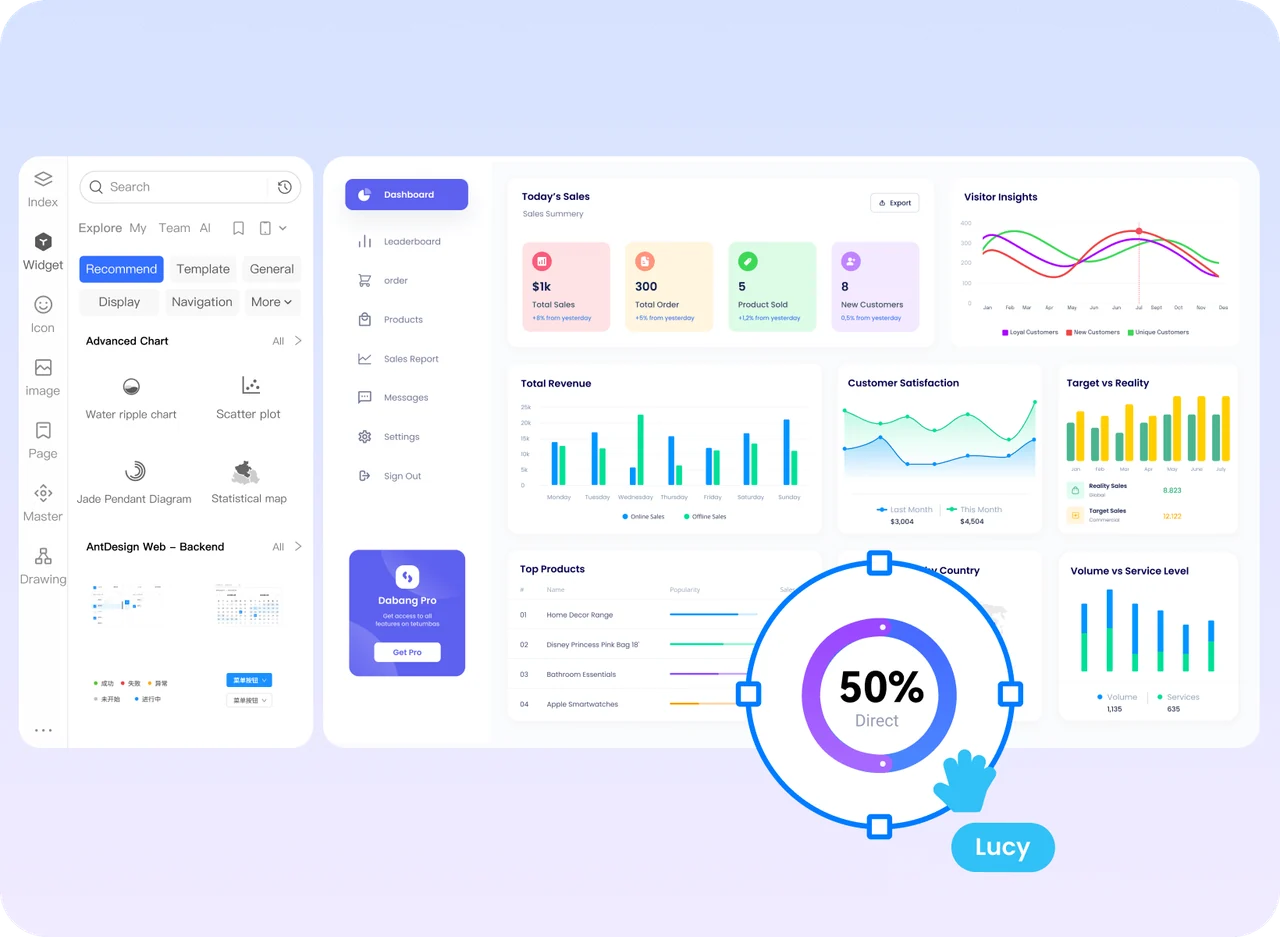
Use Mockitt Prototype to assemble the layout with navigation, tables, charts and reusable controls. Connect the list to its details and actions. A prototype lets the team examine the workflow before the interface depends on live services or production data.
Connect the states a real task will pass through
Filters and search
Show what is active, how it can be cleared and what the current results mean. Include a no-results state that helps someone recover. Agree whether changing a filter resets pagination or keeps the current selection.
Tables and record details
Use realistic column names, long values and status labels. Decide which information belongs in the table and which belongs in a detail view. Make the route back clear so a reviewer can continue the original task.
Selection and bulk actions
Show the selection count and the scope of an action. Distinguish selected rows from every matching record. Include a review or confirmation when the consequences require it, and show how a partial failure is reported.
Roles and permissions
Design the relevant differences between a viewer and an administrator. Explain why an unavailable action cannot be completed and what route remains. The prototype documents the experience; the application must enforce access rules.
Example: review and assign delayed orders
Create fictional orders with several statuses and owners. Ask a reviewer to find the delayed orders that still need an owner, inspect one record and assign the eligible selection. This gives the dashboard a task with a meaningful result.
| State | What the prototype shows | What the team should decide |
|---|---|---|
| Filtered list | Delayed status, unassigned owner and matching results | How active filters are displayed and cleared |
| Record details | Order history, reason for delay and available actions | What information is needed before making an assignment |
| Selection review | Selected order count and proposed owner | Which records are eligible and whether the change needs confirmation |
| Partial failure | Assigned records plus items that could not change | How to explain the result without repeating a successful action |
| Read-only role | Visible order information without assignment controls | How the person requests help or access when needed |
Build a reviewable dashboard flow
Prepare representative content
Write sample names, dates, statuses and quantities before polishing the layout. Include long values, missing information and an empty result. Keep the data fictional and consistent across the screens in the flow.
Create reusable screen patterns
Build the table, filter area, detail view and feedback states from consistent components. Keep spacing, labels and action placement predictable so reviewers can focus on the task rather than relearning the interface on each screen.
Link actions and return paths
Connect filtering, opening a record, returning to results and completing an assignment. Show the intended outcome of each important action. You can represent a complex state with a separate screen when that is sufficient for the review.
Review with the people doing the work
Give the same task to the product, operations and development team. Ask what is missing, what might be misunderstood and which behavior depends on the backend. Record those decisions with the relevant screens before handoff.
Carry the agreed behavior into detailed design
Once the workflow is understood, refine the visual system in Mockitt Design. Check the layout with realistic content and the screen sizes the team actually uses. An administrative interface still needs readable text, clear focus and actions that are understandable without relying on color alone.
Hand over the prototype with notes about filtering, selection, permissions and failure behavior. Call out which values are examples and which rules are agreed. That helps engineering connect the visual design to the real data model without treating a demo state as a specification.
Questions from your team
Does a dashboard prototype need live data?
Usually not for an early workflow review. Consistent sample data can show the decisions and difficult states clearly. If the question depends on real query behavior or performance, plan a separate technical test.
How is this different from generating an app with AI?
This workflow focuses on deliberately assembling and reviewing an operations interface. AI can help with a starting layout, but the central work is defining the tables, actions, permissions and recovery behavior for the task.