Original material
We held 12 events, received 480 registrations, and collected 86 responses this season. Next season, we plan to adjust event times and add family activities. Venues and volunteer availability still need to be confirmed.
Mockitt AI Slides · Presentation design
Give your content focus.
Give every slide structure.
Keep your content · Create a consistent style · Keep editing online
Start with your message
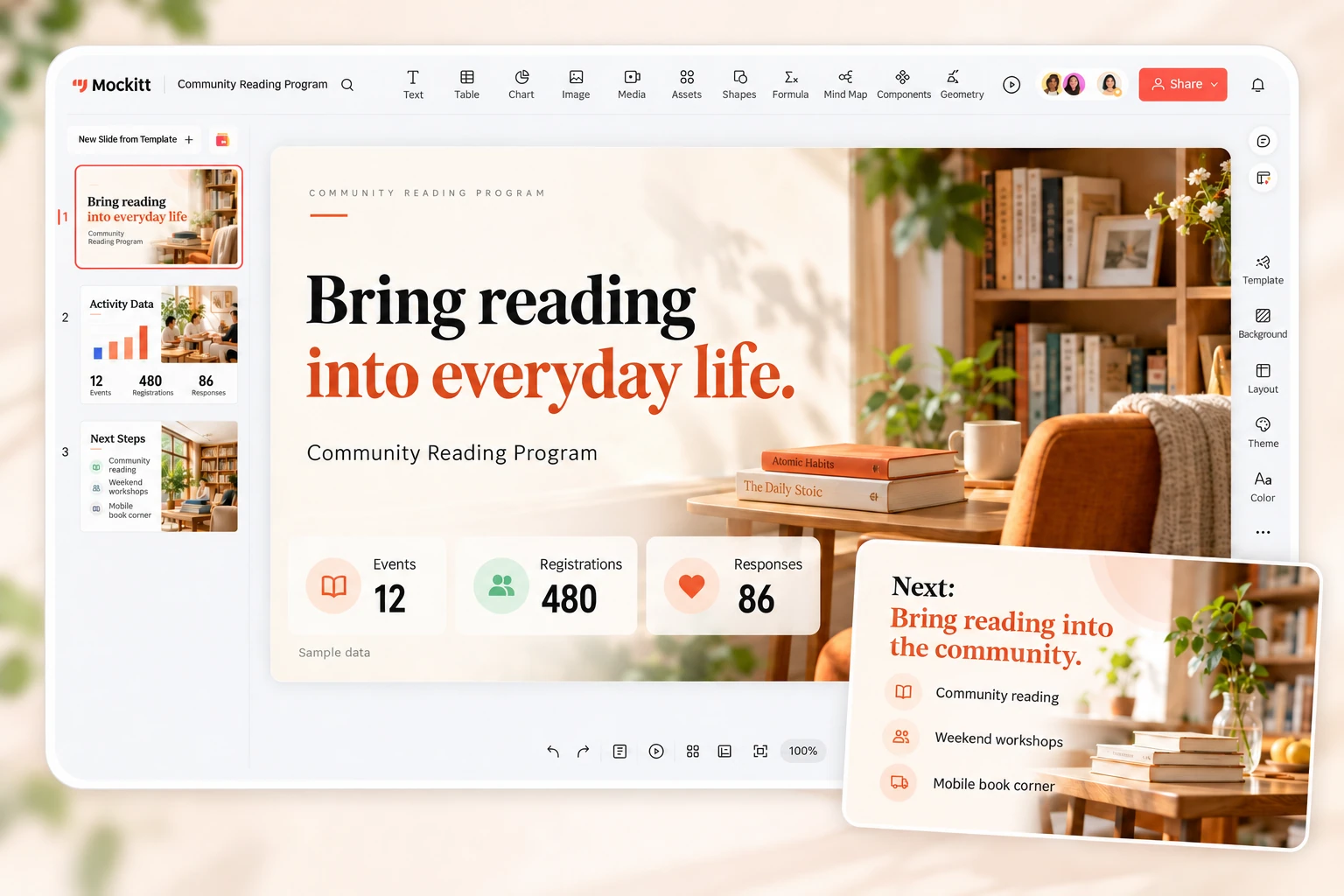
When you build a presentation with Mockitt AI Slides start with the takeaway you want your audience to remember. Figures, project updates, and lessons each call for a different layout.
Use large figures to highlight a few key metrics, and charts when you need to compare them. Keep units, reporting periods, and sources easy to read, with decoration out of the way.
Community Reading Program · Before and after
This example uses the same sample figures shown above: 12 events, 480 registrations, and 86 responses. A clearer layout can change their order, but registrations must not become attendance figures, and response counts must not become satisfaction scores.
We held 12 events, received 480 registrations, and collected 86 responses this season. Next season, we plan to adjust event times and add family activities. Venues and volunteer availability still need to be confirmed.
Overview: 12 events held Key figures: 480 registrations · 86 responses Next step: Confirm family-friendly venues and volunteer availability Decision needed: Event times for next season
These figures are sample data. For an actual report, add the reporting period and original sources. Without attendance data, do not calculate an attendance rate.
One style, different slide types
The cover sets the tone. Data slides highlight comparisons, photo slides draw the eye, and planning slides explain what comes next. Consistent fonts, colors, and spacing make different layouts feel like one presentation.
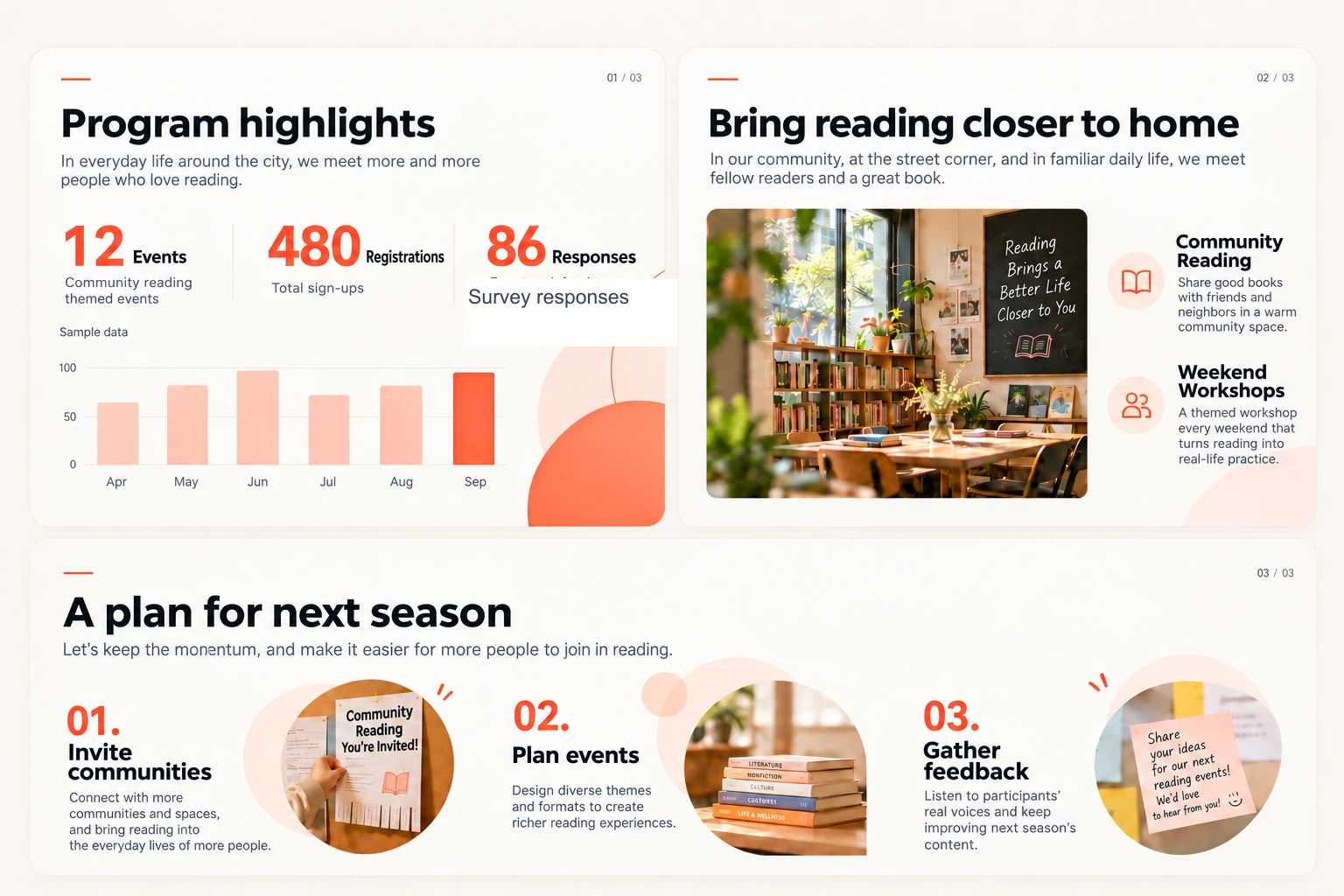
Separate the takeaway from supporting details so the main point stands out.
Use your primary color for emphasis and supporting colors to compare or distinguish information.
Keep related information together and leave room between different ideas.
Work with your existing material
Whether you have a slide deck, a document, or a written outline, first identify what needs to stay. Bring in your material using the file types and options available in your workspace, then work through the slides.
Set the audience, length, and decision the presentation should support. Mark any facts, figures, and quotations that must stay unchanged.
Choose a style for your report, training session, or proposal. Check the cover and two different content layouts to see how they work together.
Edit headings, text, images, and charts. If a slide feels crowded, split it into two instead of shrinking the type.
Check what the figures measure, line breaks, and image proportions. Then use the export or sharing options available in your workspace.
Set the visual direction
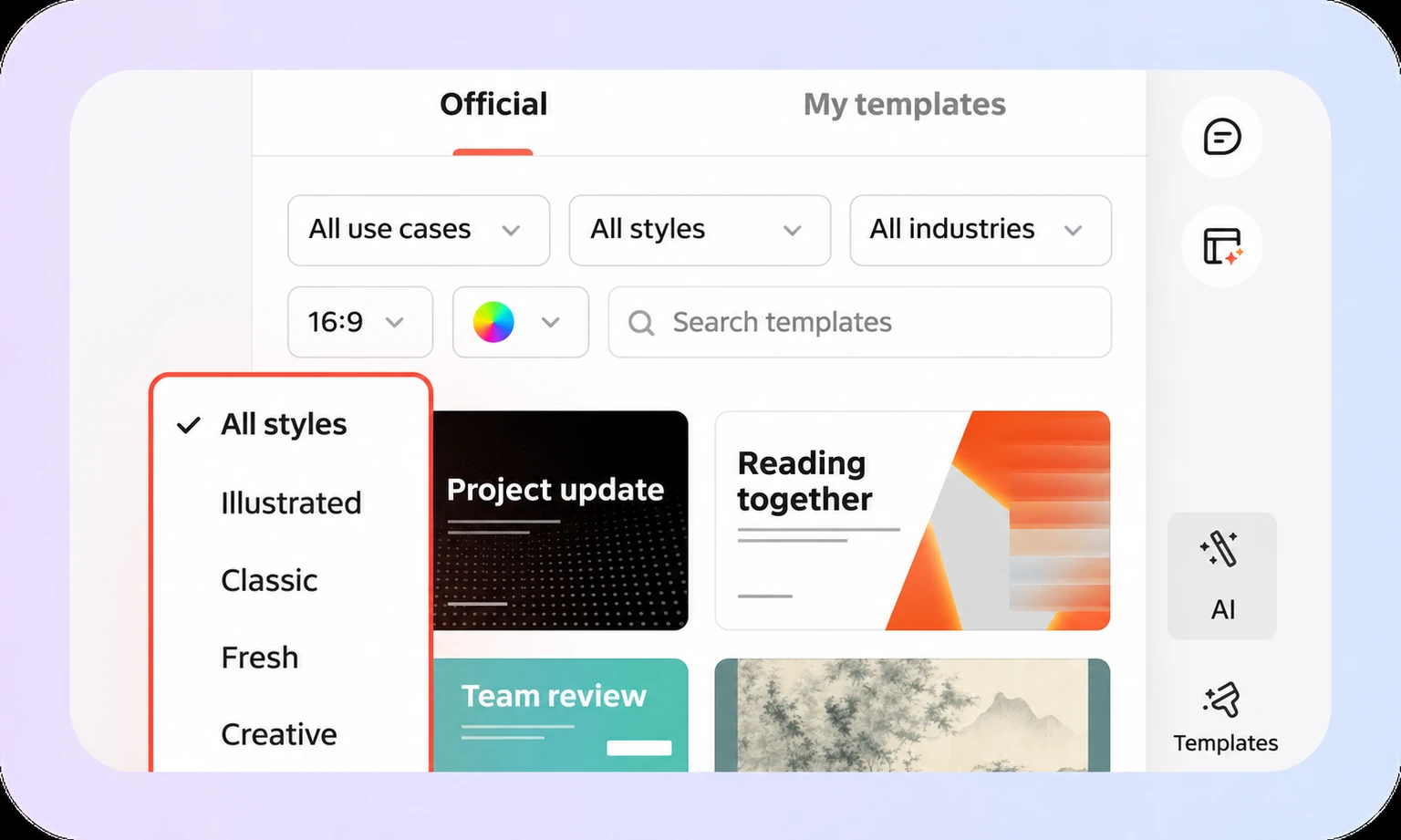
Compare fonts, colors, and layouts in the Mockitt AI Slides theme library. A formal report and a classroom lesson can call for different styles.
Fine-tune the details
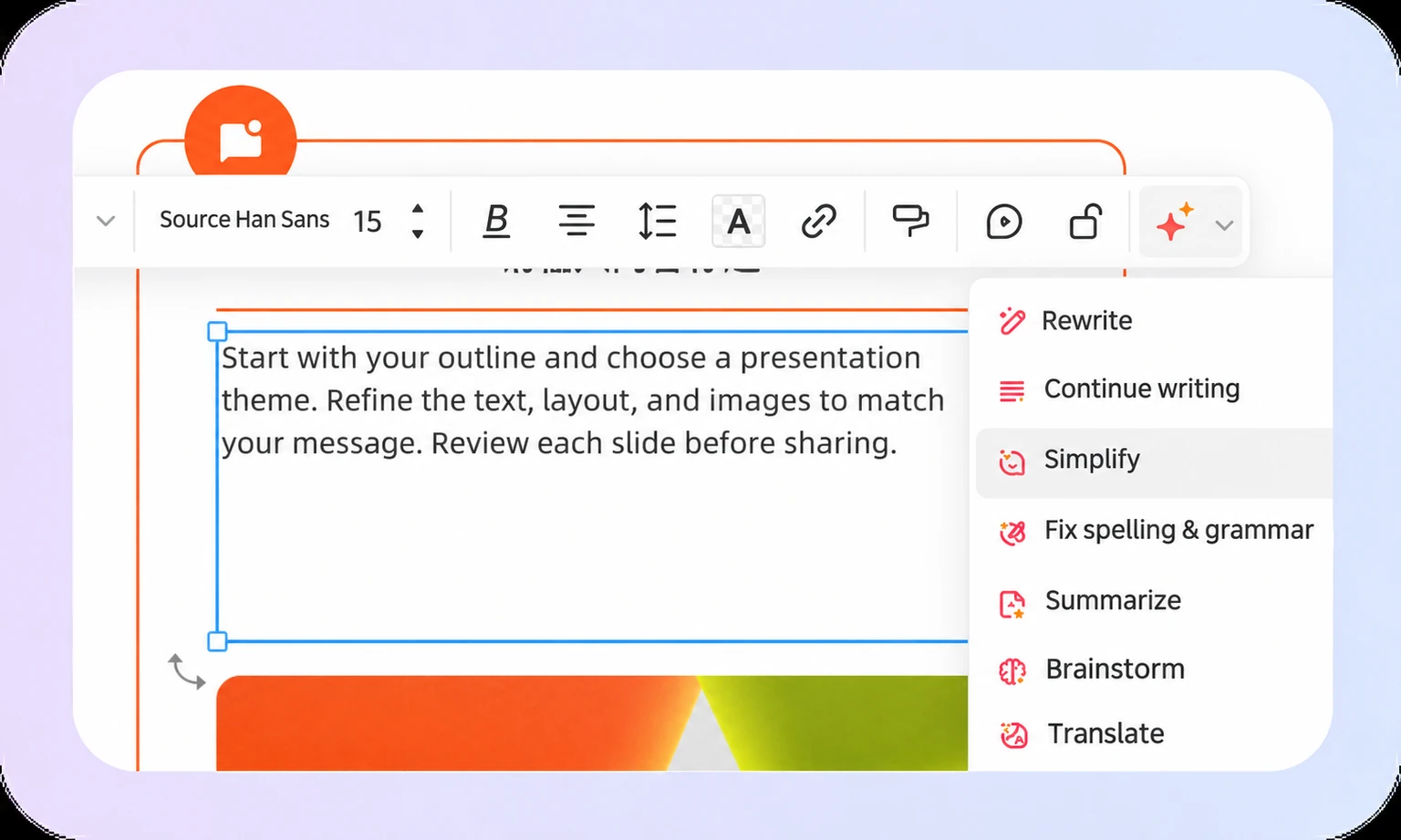
Adjust individual elements in the editor. Keep the meaning intact when rewriting, check the data in charts, and preserve image proportions so each slide supports what you want to say.
Give AI a clear brief
Your audience and goal guide what to include. Facts and figures shape the content, and style shapes how you present it. Copy this brief, add your own topic and material, and use it to guide the AI.
Open Mockitt AI SlidesHelp me improve a progress presentation for the Community Reading Program. Audience: Community leaders involved in program decisions. Presentation length: 8 minutes. Goal: Explain what we did this season, what we learned, and what support we need next season. Keep: Original facts, data definitions, image credits, and key conclusions. Mark missing information as To be confirmed; do not invent data. Layout: One main point per slide. Use layouts suited to event figures, event photos, and next season's plan. Style: Warm and understated, with a light background, coral accents, consistent heading levels, and clear text spacing. Order of work: Suggest improvements slide by slide. Confirm the information structure before changing the visual design.
Before you present
AI suggestions can help organize your ideas. You still need to check the claims and evidence in the deck. Before sharing, review it from your audience's perspective.
Check figures, units, dates, and sources. Make sure a rewritten heading has not changed the conclusion.
Preview body text, chart legends, and notes on the presentation screen. The main points should be clear from the back of the room.
After downloading, check fonts, slide breaks, charts, and images. Test key slides on the device you will present from.
Questions, answered
Use the themes, content editing, and chart tools in Mockitt AI Slides to refine the information hierarchy, layout, colors, and images. Start by describing your audience, presentation setting, and what needs to stay. Review each slide to make sure its figures and conclusions remain accurate.
With an existing deck, keep the useful outline, data, and images and focus on how the slides present them. Starting from scratch means first choosing a topic, audience, and outline. Use the supported file options in your workspace to bring in an existing deck. If the file is not supported, organize its content into a written outline and continue from there.
First decide what each slide needs to say. Put the takeaway in the heading and the key evidence in the body. Move longer explanations to another slide or your speaker notes. Keep data definitions, necessary conditions, and sources, even when simplifying the layout.
Both AI rewrites and layout changes need a review. Check figures, units, time periods, chart scales, citations, and conclusions. The sample data in this example should not replace your own actual data.
Keep fonts, colors, and spacing consistent, and choose layouts for the content. Data slides should highlight figures and comparisons, process slides should make the sequence clear, and photo slides should preserve a visual focal point. A consistent style can include several different layouts.
Preview and refine the text, images, and charts in Mockitt AI Slides, then use the export or sharing options in your workspace. After downloading, open the file in the software you will use to present and check the fonts, slide breaks, charts, and images. The editor preview alone does not confirm how the exported file will look.
Give your content the presentation it deserves