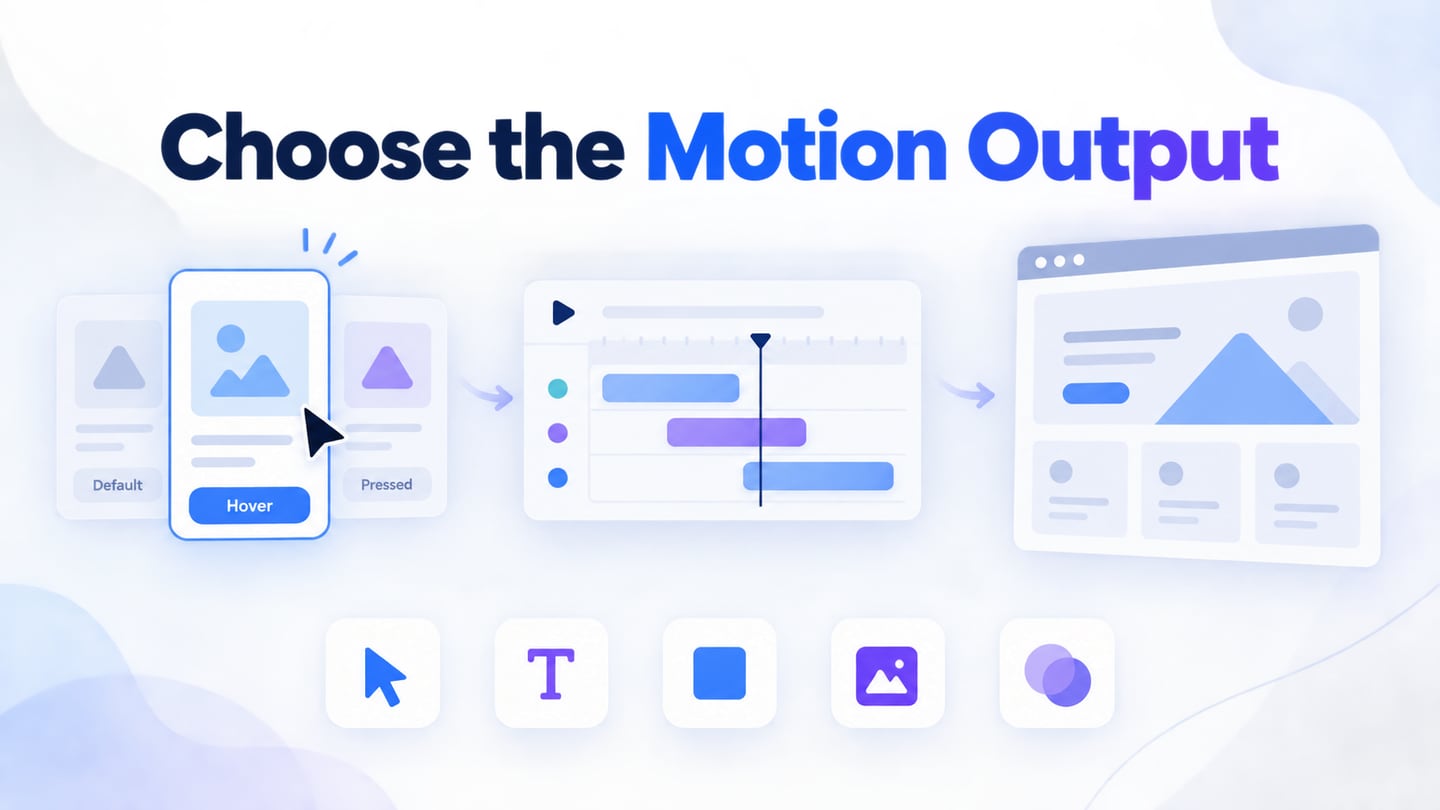
UI animation can explain a change of state, provide feedback, or help someone stay oriented. The right tool depends on the output: an interactive prototype, a rendered motion clip, or an animated website. Mockitt’s prototyping workspace supports reviewing interface flows; it serves a different purpose from a video compositor or a production website builder.
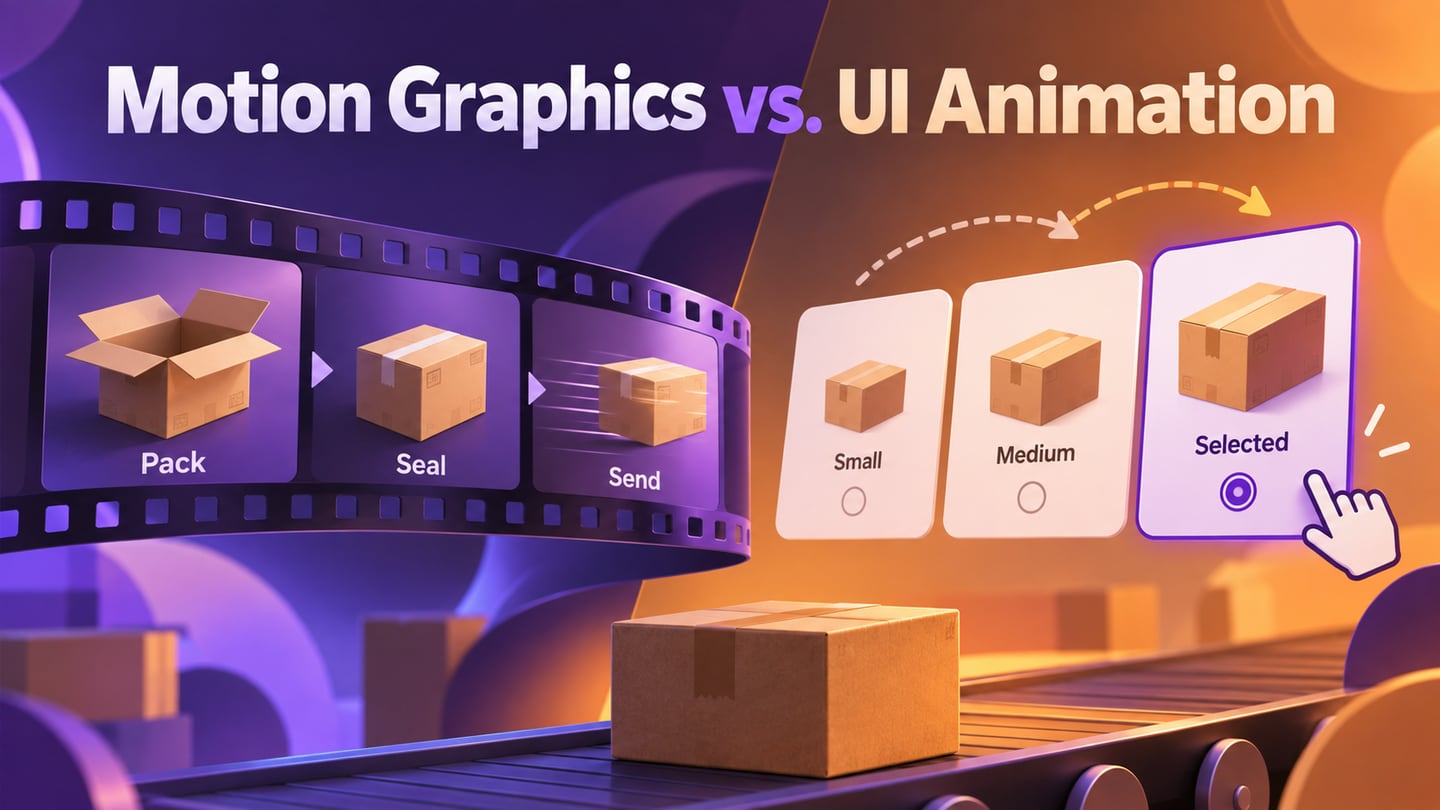
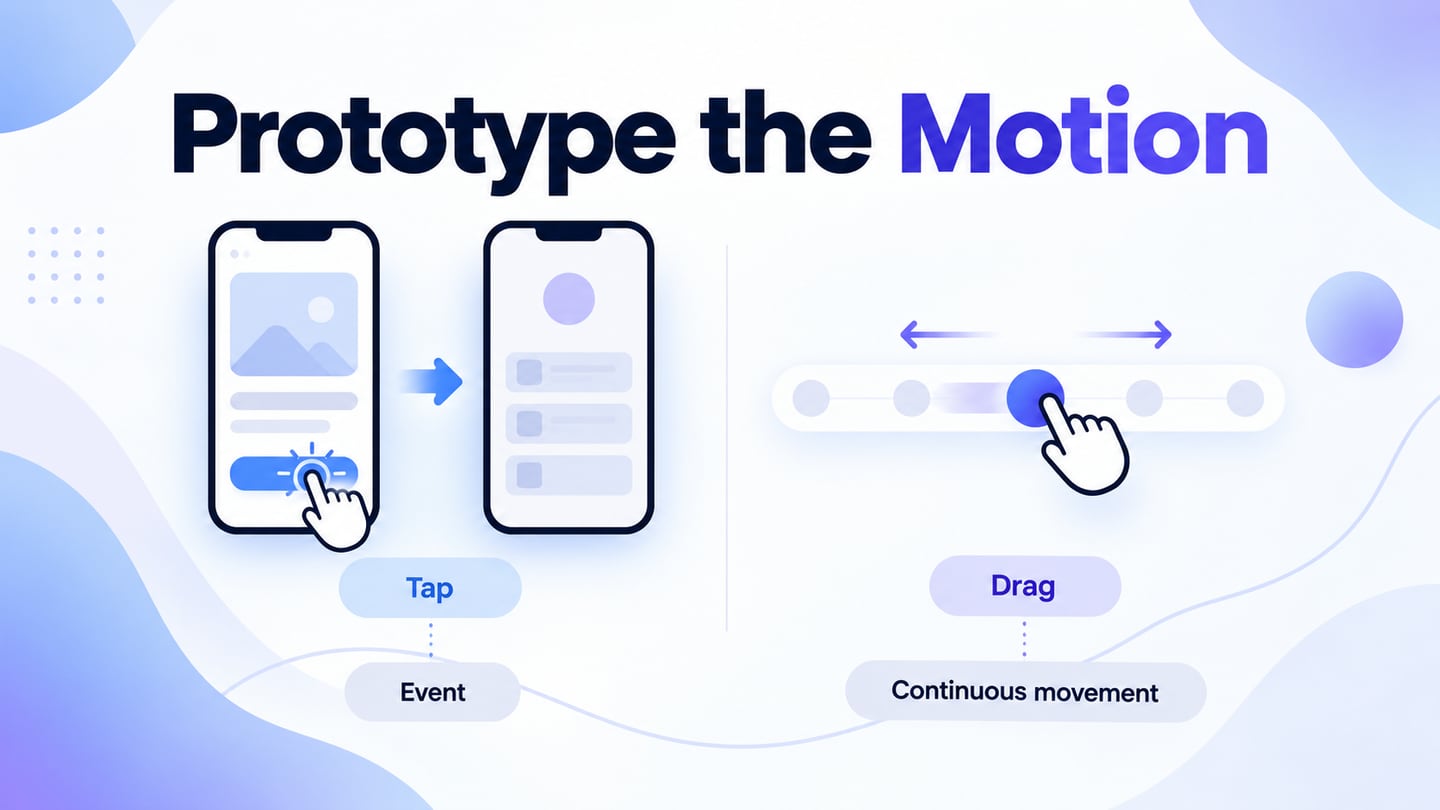
If you are new to UI animation, separate a moving picture from an interaction that responds to a user. A video can demonstrate timing, while a clickable prototype lets a reviewer choose an action. Decide which behavior needs to be evaluated before selecting a tool.
Motion graphics are one form of animation. UI motion may use similar visual techniques, but it needs to serve a control, state change, or task. For guidance on choosing useful movement, see motion design for prototypes. This article focuses on five tool choices and a practical screen-state workflow.
Why is UI animation important in app development?
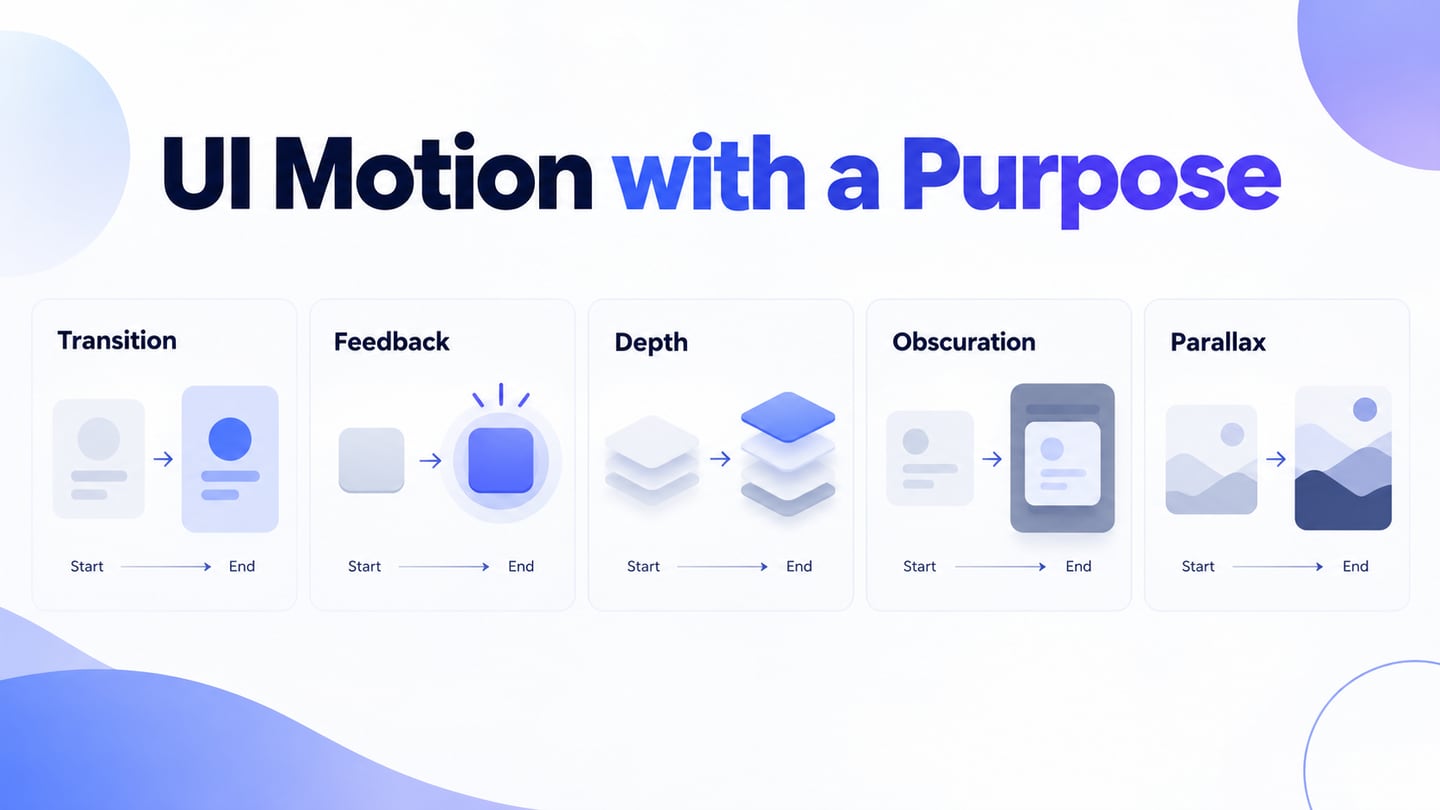
Animation deserves attention when it communicates something that a static state cannot communicate as clearly. It is not mandatory for every control, and visual novelty is not evidence of app quality. Use it to show a relationship, confirm an action, or explain progress; keep essential information available when motion is reduced or unavailable.
- Support the product’s visual language without delaying the task.
- Make a change of state easier to recognize.
- Direct attention to meaningful feedback rather than constant decoration.
What are the different kinds of UI animation?
There is no single exhaustive classification. Four useful contexts are small interactions, loading feedback, navigation, and storytelling. They overlap, and each can also have a clear static alternative.
- Micro-interactions
- Loading
- Navigation
- Storytelling
Micro-interactions
Micro-interactions are contained product moments that revolve around a single use case—they have one main task. Every time you change a setting, sync your data or devices, set an alarm, pick a password, log in, set a status message, or favorite or “like” something, you are engaging with a micro-interaction.
Loading
Loading feedback tells people that work is underway. Use a determinate indicator when you have meaningful progress information, and avoid inventing a percentage when you do not. An animated indicator should not hide a stalled request or replace an actionable error message.
Navigation
Navigation motion can help explain where a panel came from or how a user returns to a previous view. Keep the destination and controls clear, and avoid making users wait through a long effect. The principles of interaction design are more useful here than an unsupported claim about how many visitors seek a navigation menu.
Storytelling
Storytelling motion can introduce a concept or explain a sequence, but it should remain understandable without automatic playback. Keep captions or equivalent text where the content requires them. Do not force a long animation between the user and a routine task.
Five UI Animation Tools: Choose by Deliverable
1. Mockitt
Mockitt is useful when the deliverable is an interface prototype that reviewers can explore. Arrange screens, connect actions, and show relevant states to communicate the intended experience. It does not replace a rendered-video compositor or the implementation of production animation.

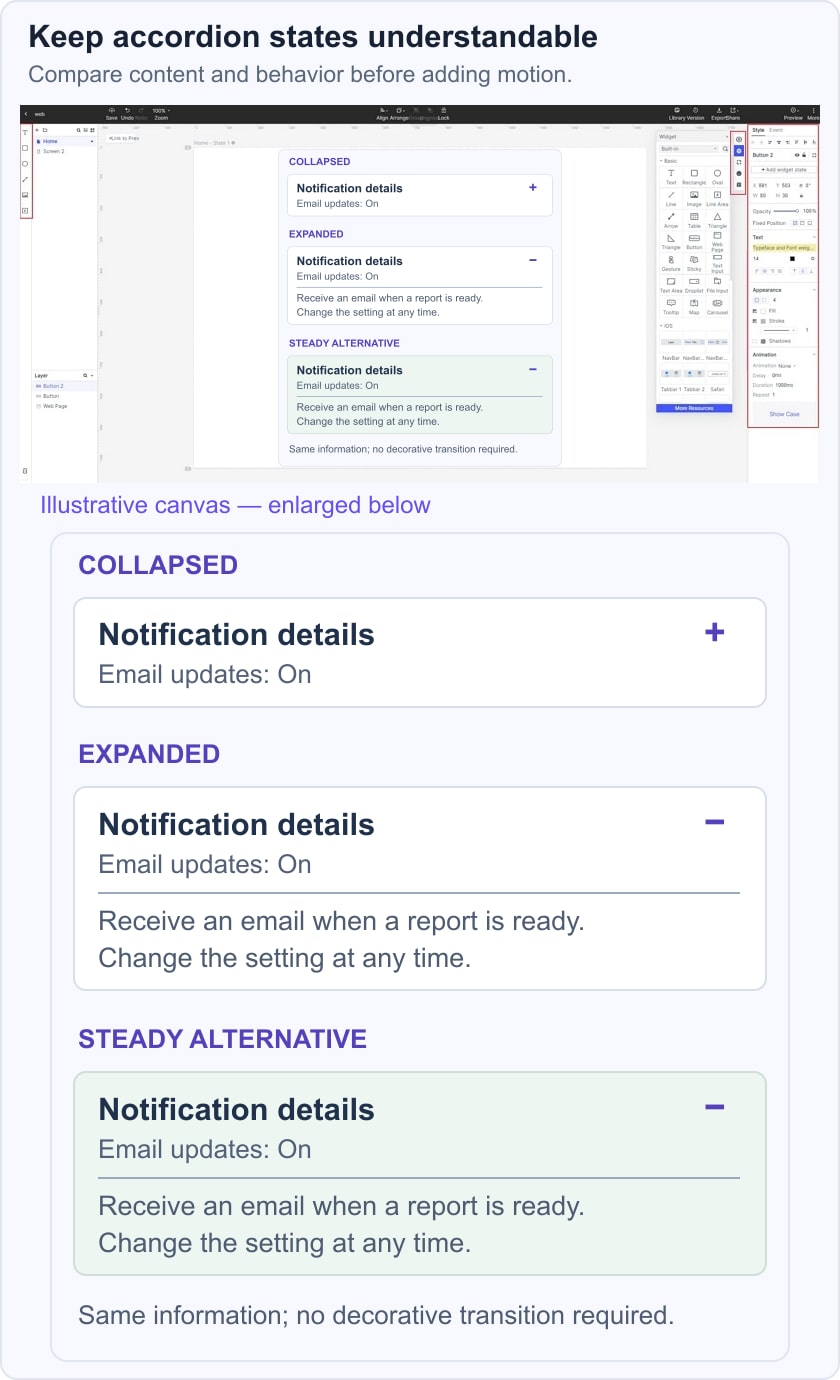
Use the prototype to test a focused task rather than to promise an entire working app. The workflow below shows an accordion with collapsed and expanded states. The original editor screenshot is retained as a historical reference; controls and available options can vary with the workspace and product version.
- Create and compare interface concepts before implementation.
- Choose screen sizes appropriate to the prototype’s target device.
- Industry-specific widgets in its extensive library of elements and templates.
- Connect screens or component states where supported, and preview the transition.
- UX testing is convenient with preview mode.
- Check the supported import options for the assets used in the project.
- Team collaboration option with real-time feedback.
- Visual prototyping does not require implementing the production application.
- Cross-platform operation.
- Enterprise management features for easy team collaboration and project management.
- Share designs and behavior notes for implementation; a prototype is not a generated APK or a complete application.
2. Adobe After Effects
Adobe After Effects is a motion-graphics and compositing tool. Choose it when you need to demonstrate timing or produce a rendered sequence, not when the main deliverable is a user-controlled prototype. Its current trial page lists a seven-day trial.
- A project-based workflow for assembling and revising motion compositions.
- Works within Adobe’s creative-tool ecosystem; verify compatibility with the applications and versions you use.
- Create rendered motion graphics and effects rather than a clickable app flow.
- Allow time to learn the timeline and compositing workflow.
3. Origami Studio
Origami Studio is a visual interaction-prototyping tool with a canvas and Patch Editor. It is useful for exploring interactive behavior that needs more logic than a simple screen link. Do not confuse its free download with a claim that the entire application is open-source.
- Combine interface layers with patches that describe behavior.
- Free to use.
- Use the canvas for layout and the Patch Editor for interaction logic.
- Explore repeated or state-dependent behavior when it serves the prototype.
- Check the documented inputs and outputs of each patch.
- The official site describes Figma import and video export; check the workflow needed for your deliverable.
4. Flinto
Flinto is a Mac application for interactive prototypes. Its official site offers a 14-day trial and a purchase option, rather than a permanently free product. It includes transition and behavior tools for exploring screen and component interactions.
- Use visual tools to build interactions, with time to learn the transition and behavior workflow.
- The documented media options include video and GIF support.
- Add sound when it communicates useful feedback, with an equivalent visible signal.
5. Framer
Framer’s animation tools are part of its visual website-building workflow. Use it when the deliverable is an animated website. Its documentation covers effects and component variants for the current website-building workflow.
- Choose Framer for a website-building workflow and check its current publishing-plan limits.
- Review the current asset and import workflow rather than relying on old Framer X integrations.
- Use visual effects for common interactions; custom behavior may require additional implementation work.
- Component variants represent different states in the current visual workflow.
- Effects can respond to actions or scrolling when appropriate for the page.
- Review the published page’s behavior, performance, and motion preferences.
How to Create UI Animation Using Mockitt
The following seven-step workflow takes a prototype from project setup to handoff. Start with a notification-settings accordion. Show collapsed and expanded states, then keep a steady alternative for a reduced-motion experience. Use the editor controls available in your workspace; separate screens are a valid way to explain states when a specific component interaction is unavailable.
Step 1. Create a new project for the prototype
Log in to Mockitt and create a prototype project. Choose a screen size suitable for the interface you are reviewing. Name the project and its initial screen so collaborators can distinguish it from other experiments.
Tip: You can resize the project to your liking.
Step 2. Add widgets, icons, buttons, etc to your canvas app screens.
Step 3. Make UI animations.
You can represent the change with separate screen states or, where supported, with a stateful component. These are two ways to communicate the intended behavior, not a requirement to animate every widget.
Method 1: Make animation using State
Create a version of the screen for each meaningful state, such as accordion closed and accordion open. Keep the heading and trigger in consistent positions so the difference is easy to inspect. Use the current editor’s state controls where available, or duplicate the screen and connect the alternatives.
Note: Keep shared labels and controls consistent across the states; record which properties actually change.
Method 2: Make animation using Dynamic Widget
- When your editor provides stateful widgets, define the component and name its states clearly. Confirm that the component supports the transition you need before building the rest of the flow around it.
- Create the collapsed and expanded component states.
- Link the states with the supported interaction and inspect the resulting change.
Step 4. Connect the Trigger and Return Path
Connect the accordion trigger to the intended next state, and provide a clear return to the previous state. Keep navigation feedback distinct from the selected setting. Preview the path with the same content in both states.
Tip: You can label them with distinct names to identify states quickly.
Step 5. Make a carousel
A carousel is optional. Add one only if the task requires moving through several items; it is not a prerequisite for UI animation. If you use a supported carousel component, supply appropriately sized images and give users an understandable way to move between items.
Check the item order, navigation controls, and any autoplay behavior. A static list may communicate the same content with less interaction cost.
Step 6. Preview your prototype
Preview the collapsed and expanded accordion, then review a version that changes state without decorative motion. Confirm that the same content and actions remain available. A browser prototype review does not verify the final application’s reduced-motion implementation.
The example below keeps the accordion label and notification choice in the same position across states. The expanded panel adds explanation; the steady alternative presents the same information without a decorative transition. These are illustrative design states, not a recording of a finished animation engine.
Step 7. Handoff design to the developer
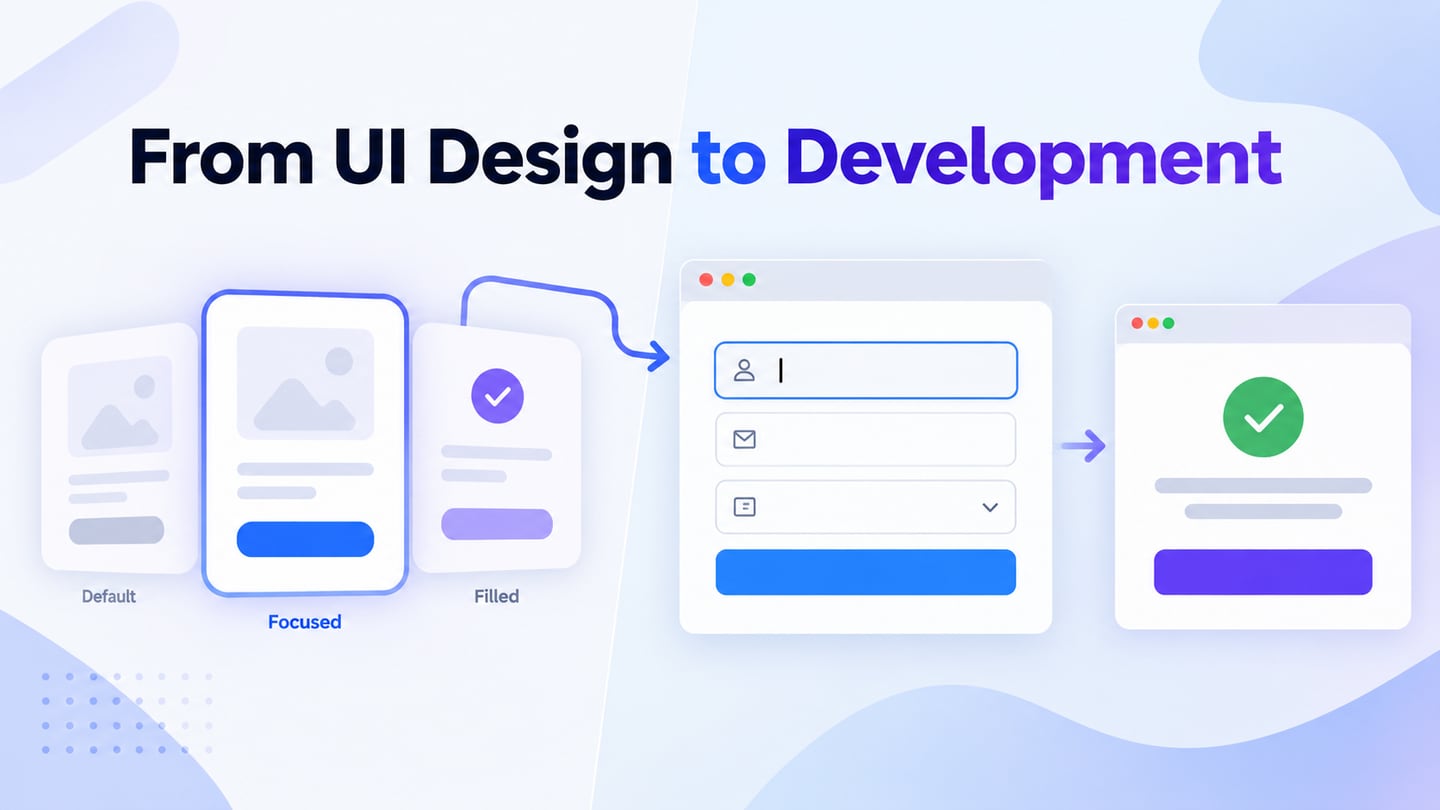
Share the design and behavior notes with the developer. Specify the trigger, states, focus behavior, and reduced-motion alternative. Do not describe a shared prototype or downloadable preview as production application code.
Conclusion
Choose the tool by the deliverable, then use motion to explain a specific change. For the accordion example, a reviewer should understand what opened, how to close it, and whether the setting changed. Combine the prototype review with usability testing and implementation checks. An animation that looks polished still needs to support the user’s task.