AI Presentation Maker
Turn scattered notes
into a compelling presentation
Start with a topic, a document, or your work notes. Let AI help organize the outline and slides, so you can focus on the decisions that matter: who you are presenting to and what you want them to decide.
Open Presentations in Mockitt AI and describe what you need to present.
01 Start with a topic
Describe your audience, the purpose of the presentation, and the points it needs to cover. Let AI suggest sections, then add your facts and conclusions.
See how to write your brief02 Start with documents or notes
Gather the key material from your Word, PDF, TXT, or Markdown files, then use Mockitt AIPPT to turn it into an outline.
See the document-to-slides workflow03 Improve an existing deck
If your content is ready and the design needs work, focus on layout, typography, and visual hierarchy while keeping the information you have already approved.
Explore AI presentation designA product review,
organized into six slides
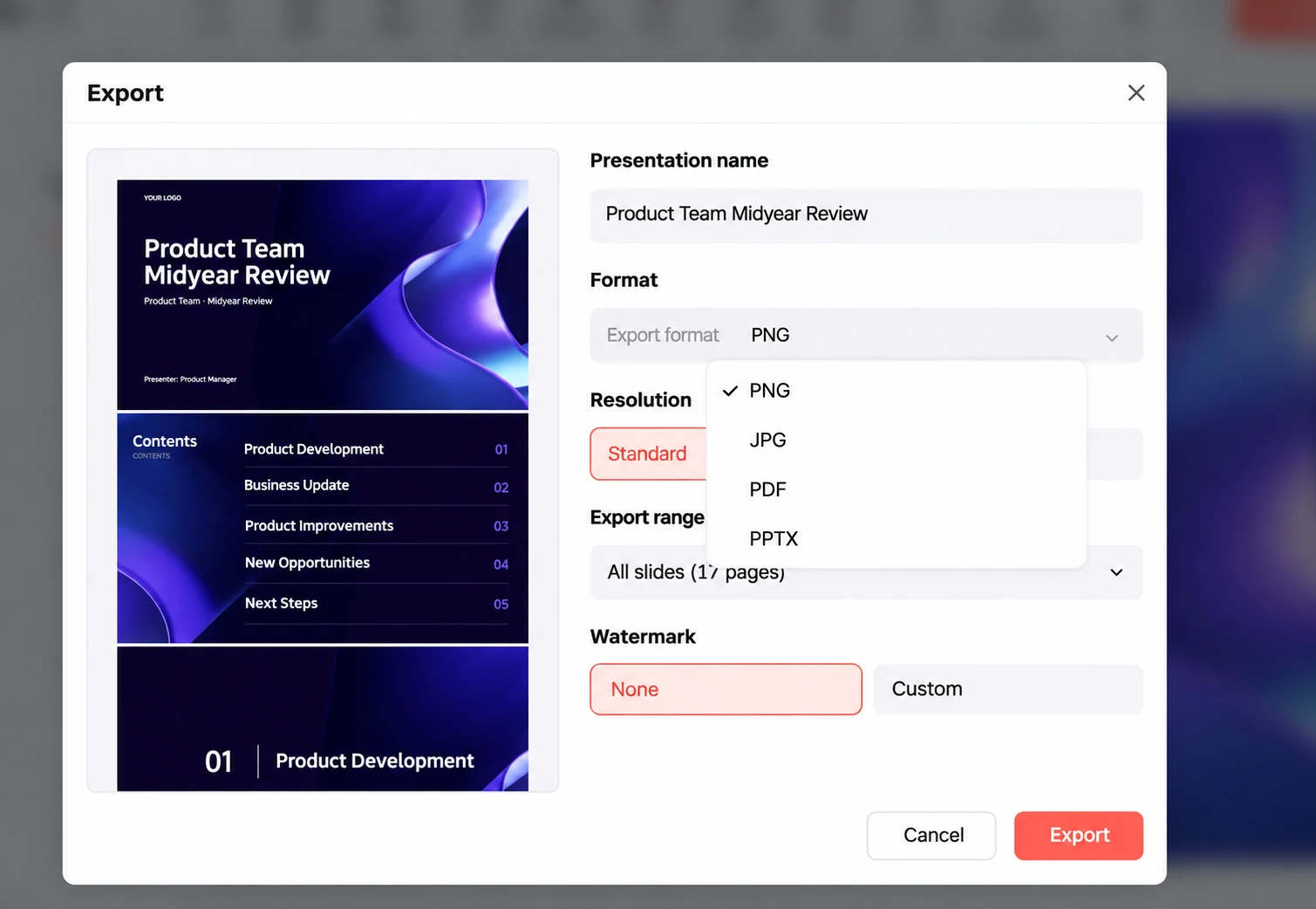
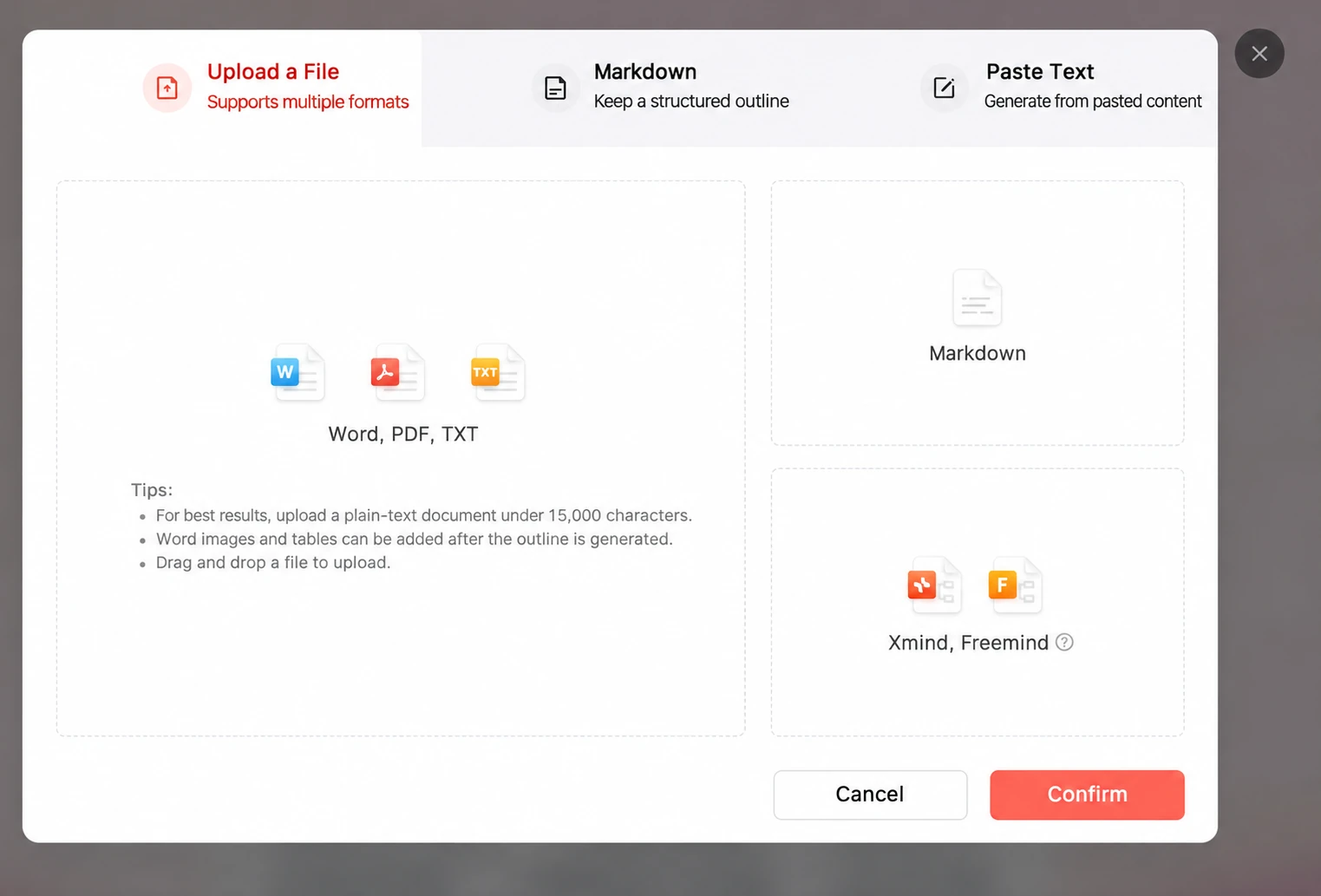
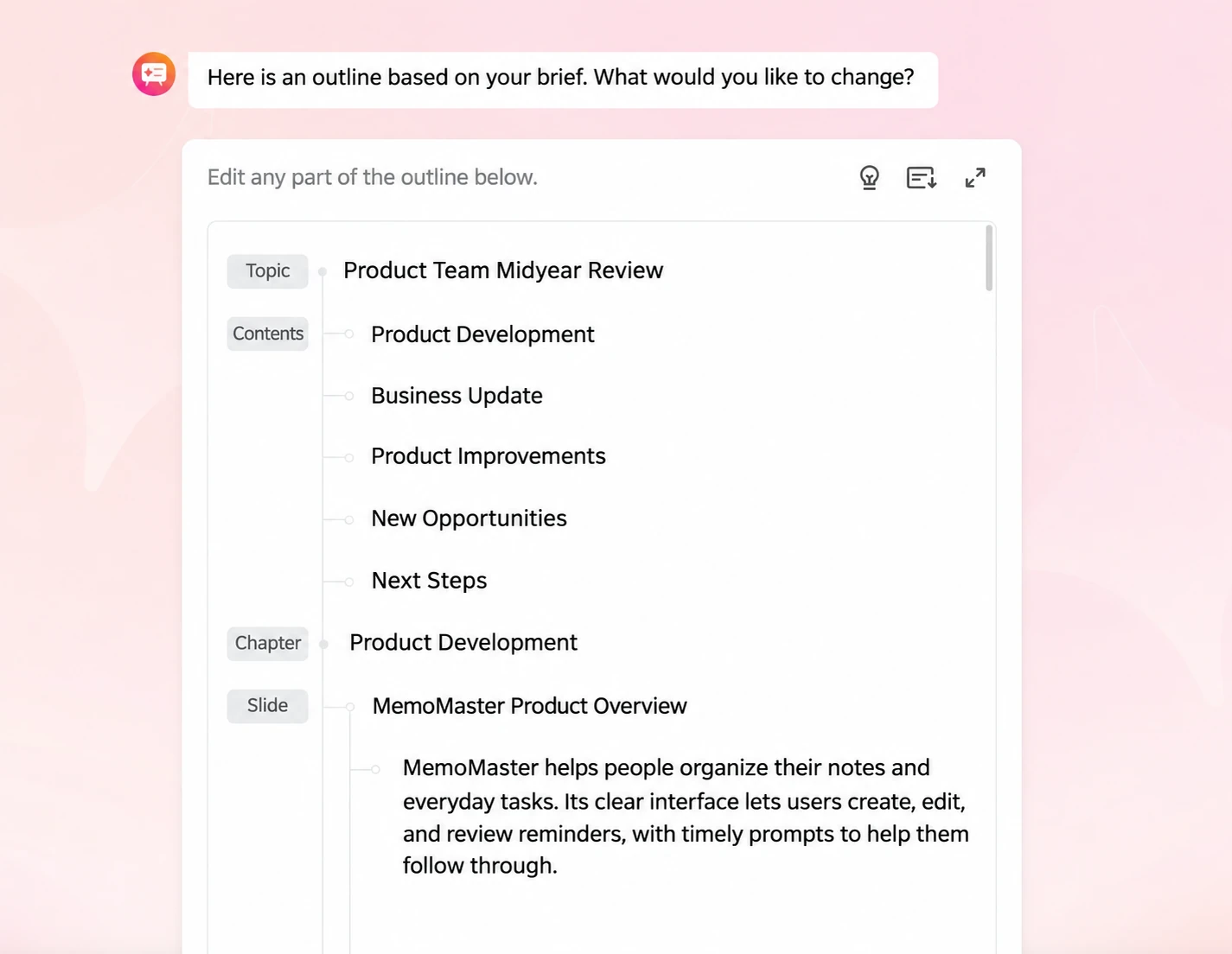
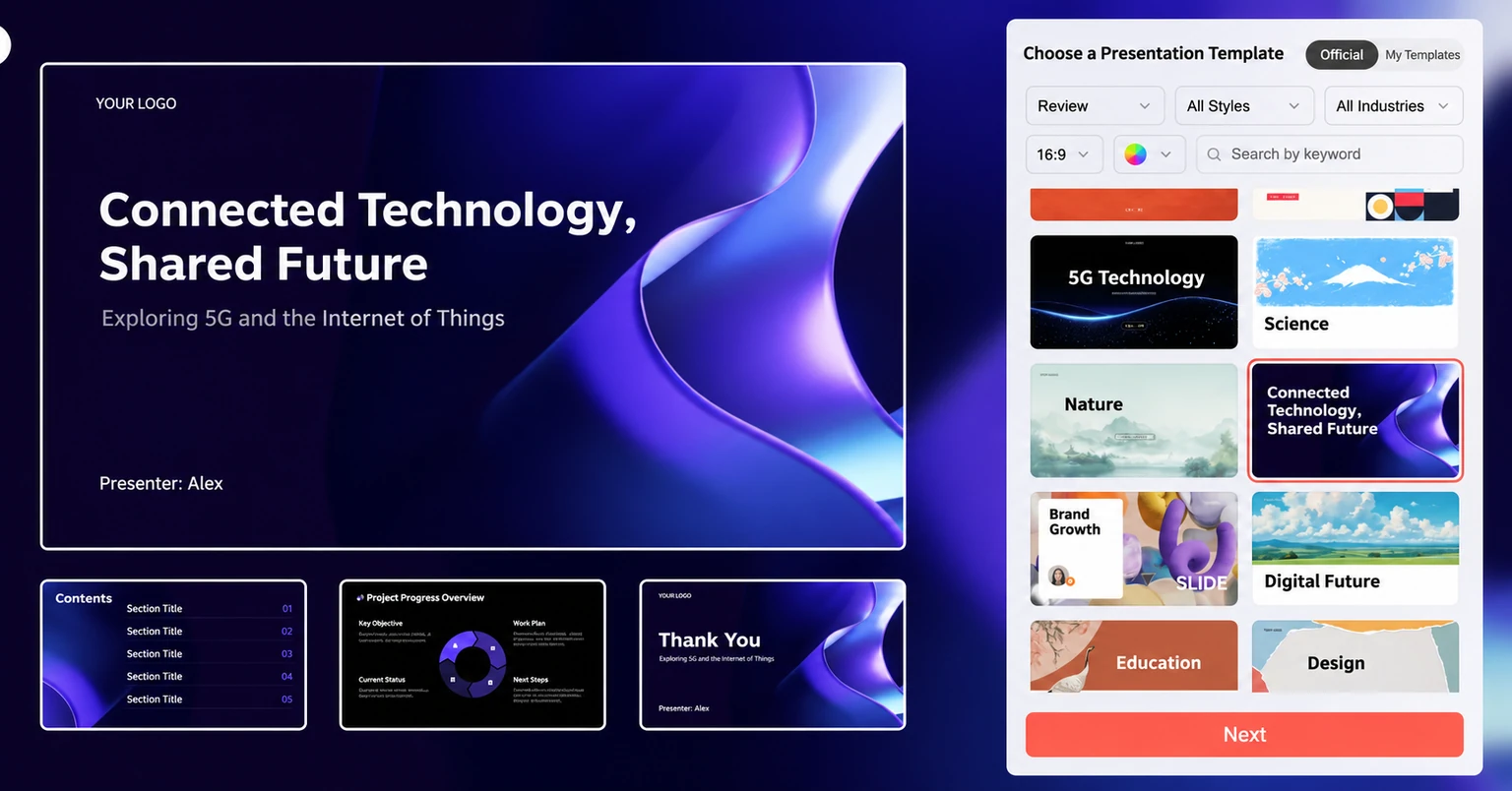
Sample brief you can copy · Not AI-generated outputThe booking-service redesign example shows how to organize the problem, project scope, and error paths into a presentation brief. The product screenshots show a separate midyear product management report moving through document import, outlining, template selection, and export. They illustrate the workflow, rather than the output of the sample booking brief.
- 01 Project context What needs a decision today
- 02 User feedback Keep the quotes and concerns
- 03 Release scope Three screens, with clear limits
- 04 Booking flow From time slot to confirmation
- 05 Error handling Prevent duplicates and support retries
- 06 Review decisions Open questions and next steps
Shape the story first.
Give each slide a purpose.
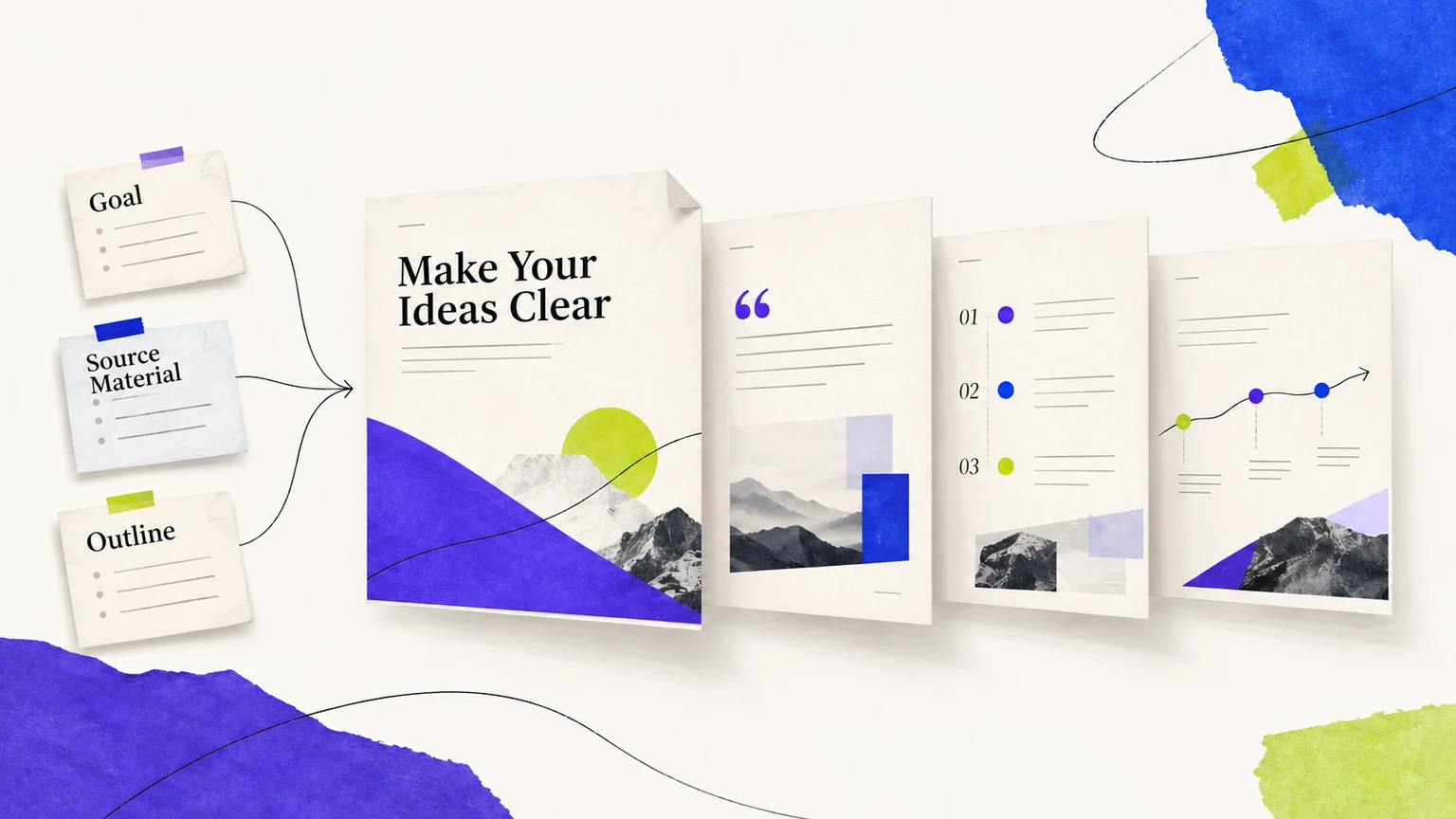
Keep a clear connection between your source material, outline, and slides. It makes revisions easier: decide what belongs in the presentation first, then refine the design and details.
Describe the task.
Include what must stay.
“Make a presentation about a booking service” leaves too much open. Specify a product and engineering review, make the goal agreement on this release's scope, and include user feedback, the flow, and known constraints. Those details give the presentation a direction. The example below shows the document-based workflow; available controls depend on your current account.
- Presentation: a six-slide review of a booking-service redesign.
- Keep: two direct interview quotes and three core screens.
- Scope: exclude payments and account management. Do not invent business data.
Answer one question per slide.
Put the story in order.
Check that the sections support the review: feedback leads to scope, the main flow leads to error handling, and the deck ends with open decisions. After importing a document, review the topic and outline, remove repeated sections, and choose layouts suited to comparisons, processes, or conclusions.
- Present direct user quotes as quotes, rather than turning them into unsupported generalizations.
- Show a process in sequence and summarize scope limits in a short list.
- Label open questions clearly. Leave missing figures blank instead of inventing numbers to fill a slide.
Choose a layout.
Make the key point stand out.
Once the outline is ready, choose layouts that fit the topic, then review each slide's text and visuals. Replace vague goals such as “a better experience” with specific behavior: prevent duplicate submissions, preserve the selected time slot after an error, and provide ways to retry or go back.
- Adjust the wording, visuals, and layout to make the content hierarchy clear.
- Make sure revisions preserve the original quotes, scope, and error-handling requirements.
- Check titles, body text, and charts at the size your audience will see.
Add your own material.
Start building your presentation.
This prompt brings together the audience, goal, slide count, essential material, and scope. Copy it, replace the examples with your own facts, and review the outline before deciding how to present it.
Use interview material you have permission to quote. Mark missing data as a placeholder rather than asking AI to invent a conclusion.
Open AI PresentationsDifferent audiences.
Different priorities.
Choose the information your audience needs to understand now, instead of putting every piece of source material on a slide.
Project reviews
Help your team make a decision
Bring the problem context, user research, options, and constraints. Organize the slides around the problem, proposed solutions, tradeoffs, and decisions to make.
Separate facts from assumptions, connect each solution to a specific problem, and end with the scope to approve, the owner, and the next step.
Progress reports
Connect actions with results
Include the reporting period, goals, actual results, issues, and plans. Give each figure a source and unit, and explain the basis for any comparison.
Check that each result has supporting evidence, charts preserve the original values, and next steps address the problems identified during the reporting period.
Lessons and training
Help learners understand and apply ideas
Define your learners, their existing knowledge, learning objectives, examples, and exercises. Structure the lesson around concepts, examples, practice, and feedback.
Check that the difficulty matches learners' experience, examples are accurate, and each slide teaches one main idea.
Finalize the content.
Choose the right format.
Mockitt AIPPT offers PPTX, PDF, and image export according to your account's access. Choose PPTX for further editing, PDF to preserve the reading layout, or an image to share an individual slide.
After exporting, check fonts, page breaks, images, and text hierarchy in the software and on the device you will use to present. Available formats and access can differ between editors; check the options shown in your account.
Before you start
your presentation
Can AI create a presentation from just a topic?
Yes. Start with a topic, but include the audience, purpose, and points you need to cover. For example, expand “booking-service redesign” to “a six-slide product and engineering review covering scope, the booking flow, and error handling.” AI can help organize a first draft; you still need to supply and verify the facts, figures, and final conclusions.
How do I turn a Word document or PDF into slides?
Mockitt AIPPT accepts Word, PDF, TXT, and Markdown files. Review the extracted outline, remove repeated passages, and retain important material before organizing the slides. Document-to-slide generation restructures content; it does not guarantee that every original layout, table, or complex diagram will be reproduced exactly. See the document-to-slides guide.
Can I edit text, images, and layouts after generation?
Yes. You can continue refining the content and layout. Specify the slide number, what to keep, and the change you want; that gives more direction than “make it look better.” Review text, replace images, and adjust the layout in the editor. Mockitt AI and Mockitt AIPPT use different editing workflows, so available controls depend on the editor you are using.
How is AI presentation generation different from presentation redesign?
Presentation generation turns a topic and source material into a deck. Presentation redesign is better suited to existing content that needs consistent typography, layouts, and visual hierarchy. If your content is already approved, explore AI presentation design to improve its appearance without unnecessary content changes.
Can I generate and export presentations for free?
Generation trials and file exports have separate access requirements. Mockitt AIPPT's free generation trial does not include every export option. Check your current account and the pricing page for PPTX, PDF, and image export access and plan allowances. Creating a draft does not automatically unlock every export format.
Are AI credits interchangeable with AIPPT plan allowances?
They apply to different workflows. An AIPPT plan's generation allowance is not the same as conversation credits in Mockitt AI. Mockitt AI charges for actual AI usage, which is affected by source material, context, and task steps. Check your current account and the AI credit details for the terms that apply.
Your next presentation
starts with a clear brief
Bring your topic, audience, and source material to give your first draft a solid foundation.
Create with Mockitt AIDescribe the task, then refine the presentation around your content.