Ergonomics, also called human factors, considers how people interact with other parts of a system and how design can support well-being and performance. The International Ergonomics Association traces the term to the Greek words ergon, meaning work, and nomos, meaning laws. For UX, it means considering the person, task and interaction setting together—not just the appearance of a screen.
Physical, cognitive and organizational ergonomics offer three complementary perspectives. A UI design workspace can help explore the on-screen part of a task, but evaluating an interface also requires understanding the device, input method, environment and working routine in which it will be used.
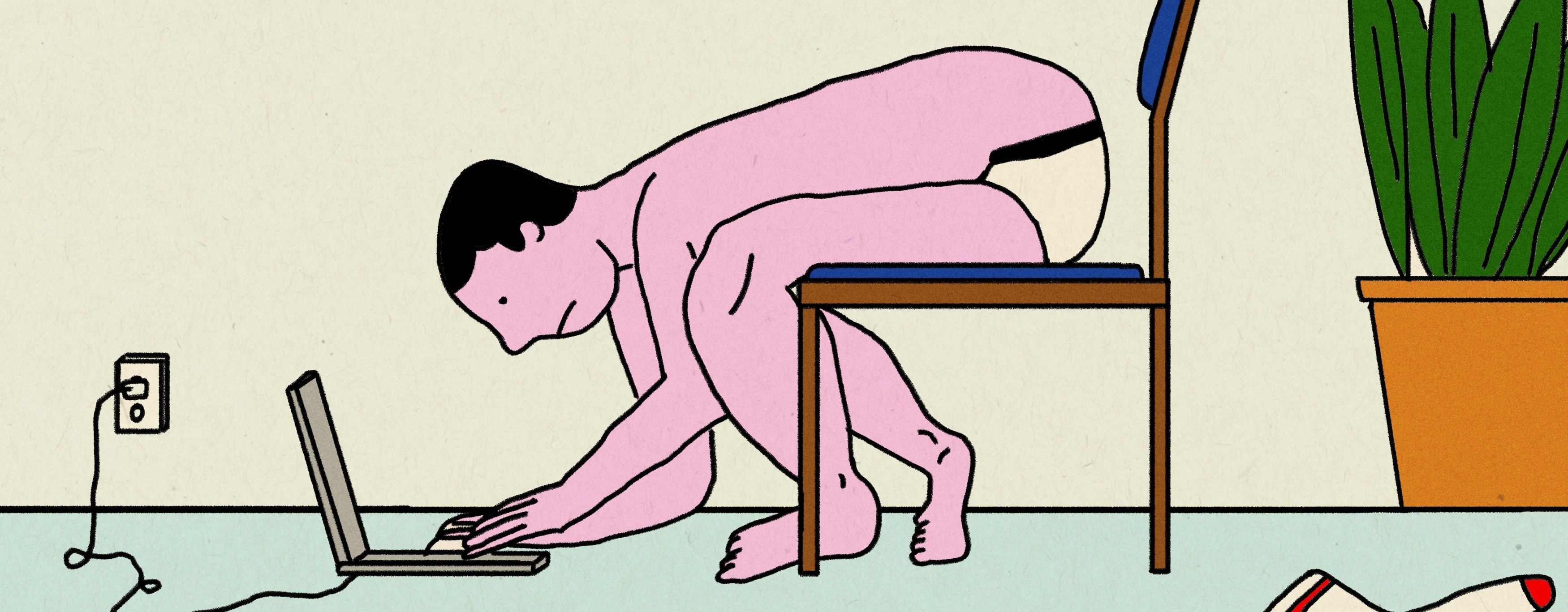 Original illustration of a poorly matched working setup; it is not a recommended posture or medical evidence.
Examples of ergonomics in daily life
Ergonomics draws on areas such as body measurements, biomechanics, perception and organizational behavior. A workplace review might examine reach distances, repeated movements, lighting, information demands and coordination between people. The purpose is to fit the system to its users and tasks; no single chair, posture or interface layout suits every situation.
The following everyday examples show the breadth of that approach. They are task-design considerations, not medical diagnoses or individual treatment instructions:
1. Work organization: scheduling, workload, handovers and rest opportunities affect how a task is performed. A well-designed process makes responsibilities clear and gives people the information and time they need. An interface change alone may not resolve a problem caused by conflicting responsibilities or an unrealistic workload.
2. Lifting and handling: the weight, shape and location of an object, the available equipment and the working space all matter. Assess the task and appropriate handling support instead of presenting one lifting technique as a guarantee against injury. In a digital workflow, avoid making workers repeatedly put down equipment just to dismiss unnecessary screens.
3. Driving: controls and displays need to be usable in the vehicle's actual context. Reach, visibility and distraction are relevant design concerns. Avoid prescribing one posture for every driver or treating an interface change as protection from injury. Use qualified task-specific guidance when a design decision affects health or safety.
4. Computer work: the arrangement of the screen, chair, keyboard and pointing device affects how someone interacts with software. Consider adjustability and the person's needs instead of treating a fixed angle as a universal rule. For the interface itself, provide keyboard access and avoid unnecessary repeated pointer movements.
5. Tools and vibration: using powered equipment involves physical conditions that a screen prototype cannot reproduce. A digital task should be assessed alongside the equipment and working process. For example, a stock-count screen may need to accommodate gloves, interruptions or an alternative input method, depending on the actual workplace.
6. Lighting: glare, reflections and changing illumination can affect how easily a display is read. Review the interface in its intended environment, including the contrast of labels and the visibility of focus or selection states. A layout that looks clear in a quiet office may need adjustment elsewhere.
Even a small mismatch between the environment and the task can be worth investigating. Ask where people must reach, what they repeat and when they need to change position or tools. Avoid turning everyday observations, such as how someone sits with objects in a pocket, into an unsupported medical claim.
Common uses of ergonomics
The IEA identifies physical, cognitive and organizational domains. Physical ergonomics addresses bodily activity and the working environment; cognitive ergonomics considers mental processes and workload; organizational ergonomics considers the wider work system. They overlap in practice. A mobile inspection task, for example, combines device handling, interpreting information and passing results to another worker.
Ergonomics in safety and health: work design can include reviewing equipment, task demands and the organization of a workplace. The appropriate changes depend on the hazards and the people involved. Avoid promising that a generic ergonomic adjustment will eliminate injuries or produce a fixed reduction in costs.
Ergonomics in dentistry: the arrangement of instruments, the work area and coordination between professionals can be examined as a system. The useful design question is how people perform the task and exchange information. Specific clinical positioning or treatment advice belongs with qualified professional guidance, not a general UX article.
Ergonomics in agriculture: harvesting, moving feed and working with nursery equipment involve different handling and environmental demands. Tools such as carts can change a task, but suitability depends on the conditions. A supporting app should be checked for readability, input accuracy and recovery when work is interrupted.
Ergonomics in the textile industry: repeated operations, workstation layout and the way work is paced are relevant considerations. Digital production instructions should be legible and easy to resume. Neither a posture suggestion nor an interface revision can be assumed to resolve every physical or organizational problem.
Across these industries, involve the people doing the work. Their descriptions can reveal awkward workarounds and missing information. Combine that input with observation and appropriate specialist assessment before selecting a change.
The relationship between ergonomics and UX
- Productivity: reduce avoidable effort in a task without assuming a universal percentage improvement. Count repeated actions, inspect unnecessary navigation and check whether the information required for the next step is available. Measure the outcome in the relevant setting after a change.
- Work quality: a difficult physical task or confusing instruction can interfere with accurate work. Look at both the interface and its surroundings. If people enter a count while carrying equipment, test whether labels, controls and confirmation are usable under that constraint.
- Participation: invite workers to explain where a design causes friction, then review proposed changes with them. Do not equate participation with a guaranteed increase in morale or output. Record disagreements and differences between tasks rather than averaging them away.
- Safety culture: make responsibility and escalation clear. An interface should not encourage people to complete a dangerous task simply to clear an alert. Where a workflow is safety-critical, assess it with the appropriate expertise and established workplace procedures.
- Cost and time: ergonomic evaluation and changes require resources. Compare the proposed effort with the problem being addressed, including training and maintenance. Remove the assumption that improvements are always free or that future savings are guaranteed.
Apply these ideas to a warehouse count form: keep Shelf B4 visible, make the Count field clear, place Save count where it can be reached comfortably in the intended grip, and separate Edit location from the primary action. The layout is a hypothesis to test with representative users and devices, not an ergonomic certification.
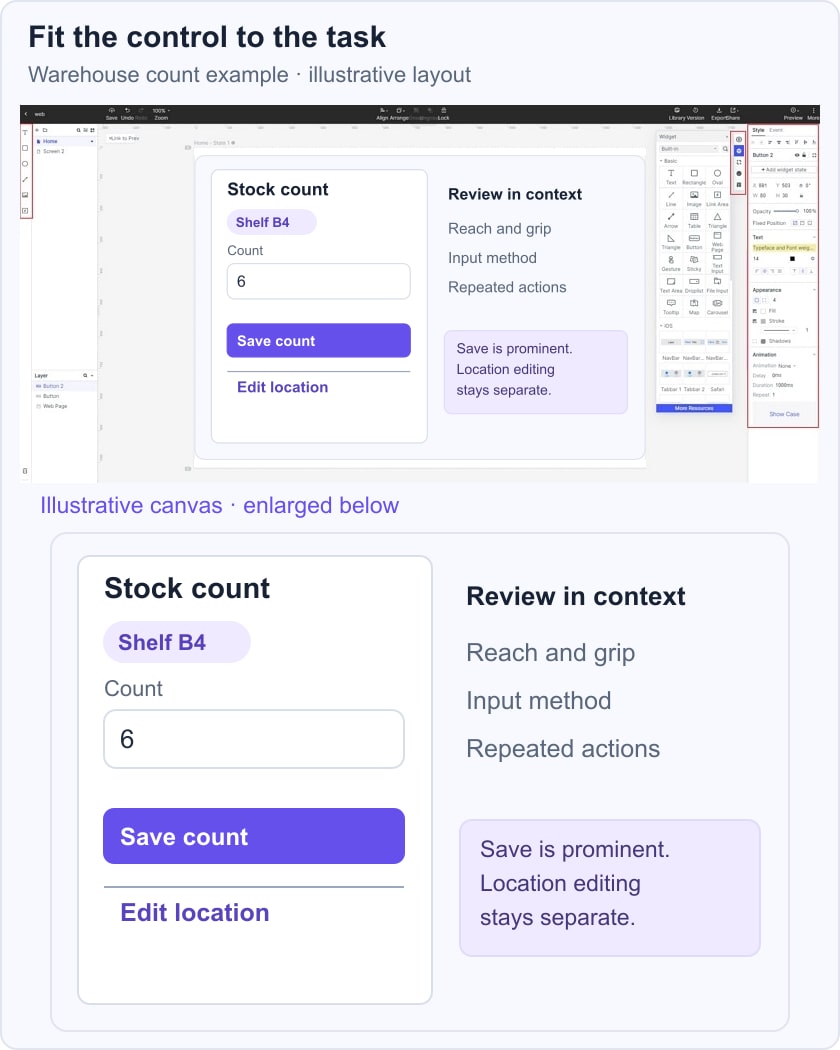
Target size and spacing are useful checks within that review. WCAG 2.2 target-size guidance specifies a minimum of 24 by 24 CSS pixels for pointer targets, with defined exceptions. That minimum is not a universal optimum: task conditions may call for larger controls. A static picture cannot establish compliance, keyboard behavior or comfortable reach.
Check the same task using the intended input alternatives, including keyboard operation where relevant. Ask whether the user can identify the active field, correct a count and confirm what was saved. Then review the wider routine: a good button cannot compensate for missing information or an unsuitable device.