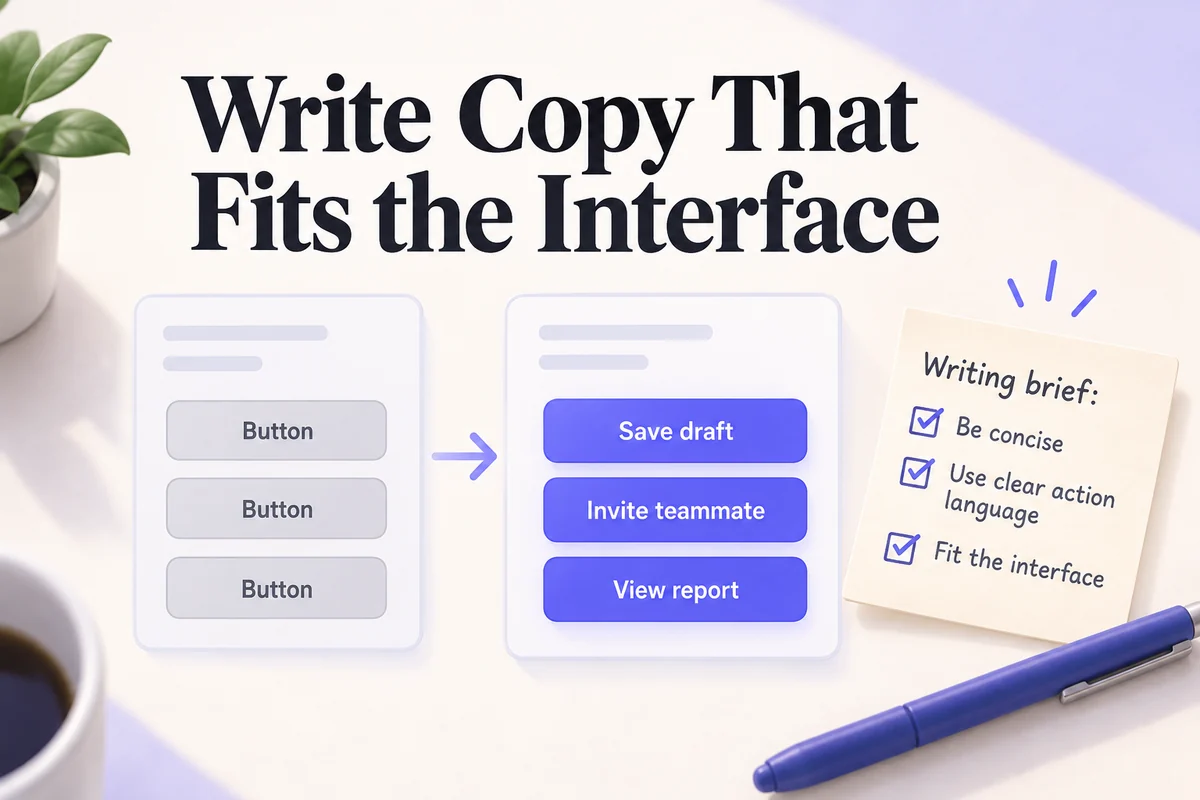
An online AI text generator turns a prompt into a draft: an explanation, a message, a summary, or a set of interface labels. The useful question is not simply whether it can produce fluent sentences. It is whether the text fits the task, preserves the facts, and helps the intended reader take the right next step.
This guide explains how text generation works, where it can help, and how to evaluate its output. A Mockitt Magic Fill walkthrough shows text placed inside real interface elements, where length and meaning become design decisions rather than abstract writing preferences.
Part 1: Understanding online AI text generation
How a generator turns a prompt into text
Language models learn statistical patterns from training data and use the supplied context to generate a continuation. Natural language processing is the broader field of working with human language; machine learning is one family of methods used within it. Neither term means that a generated answer has been checked against the world.
A model can produce plausible wording without knowing whether a price, quotation, or product capability is correct. It may also miss an instruction when the prompt is ambiguous or several requirements conflict. This is why fluent output still needs review, especially when it will appear in a customer-facing interface.
Prompting and fine-tuning are different activities. Giving a model examples in a conversation helps specify the current task; it does not necessarily retrain the model. Likewise, a chatbot responding to feedback in the current conversation is not proof that it has permanently learned a new fact. Data use and retention depend on the service and account terms.
Give the model a brief it can follow
A useful writing brief identifies the audience, purpose, facts, constraints, and expected format. For interface copy, include what the user just did and what will happen next. “Write a friendly message” is much less specific than “Write an invitation-expired message for a teammate; explain that they need a new link and provide one primary action.”
For a small product-copy task, you might ask: “Write three labels for a team workspace: save unfinished work, invite a teammate, and open an existing report. Use sentence case, start with a verb, and keep each label under 18 characters. Return only the labels. Do not imply that any action has already completed.”
The character limit is a design requirement, not proof that the generator will comply. Count the output, place it in the actual control, and test it with realistic text size. Keep the version that makes the action clearest; a shorter label can still be misleading.
Where online text generation can help
- Content preparation: turn a supplied outline into a rough draft, suggest alternative headings, or summarize material you have already reviewed. Verify quotations and facts against their sources.
- Customer support: draft a response from an approved policy or a support record. The response should not invent a refund promise, account action, or delivery date.
- Translation and localization: produce a candidate translation while retaining placeholders and product terminology. A fluent translation still needs review for meaning, register, and the interface's available space.
- Research synthesis: organize supplied notes into themes, questions, or a summary. Keep traceability to the original material so a confident summary does not replace the evidence.
These tasks differ in risk and review effort. Brainstorming ten possible button labels is not the same as drafting a legal notice or giving personalized advice. Choose the process according to what an incorrect answer would cause, and use an appropriate reviewer when the consequences are significant.
Part 2: What better AI text workflows should look like
More capable output still needs clear evidence
Longer context, richer inputs, and connections to tools can make a text generator more useful. They can also make mistakes harder to notice because the answer combines several sources or actions. A sensible workflow keeps source material, generated interpretation, and final decisions distinguishable.
For example, when summarizing interview notes, ask the system to separate direct observations from possible explanations. When drafting a product description, provide the verified capabilities and explicitly exclude unannounced features. This gives the reviewer concrete checks instead of an open-ended instruction to make the text “better.”
Use alternatives to support a writing decision
AI can help explore tone or phrasing, but more variants do not automatically improve the result. Compare a small set against an explicit criterion. Does the error message identify the problem? Does the action label match the next screen? Does the introduction answer the reader's question without an unnecessary preamble?
Keep a short record of the choice when wording affects a reusable pattern. A team may decide that destructive actions need the object in the label, or that an empty state should explain both the absence of content and a next action. Those decisions belong in the product's content guidance, where future drafts can use them consistently.
Review confidentiality, attribution, and misleading output
Check the service's terms before uploading private material. Remove unnecessary personal data from examples and use fictional data when demonstrating a workflow. Do not assume that a paid account, a browser tool, and an API integration have identical data-handling settings.
Generated text should also be checked for copied-looking passages, unsupported claims, and language that treats one group unfairly. If a passage relies on a source, cite the source you actually examined. A model-generated citation or an assertion that text is “original” is not a substitute for that review.
Bring the draft into the place where it will be used
The useful end point is a reviewed artifact, not the chat response itself. For product teams, that means placing copy into screens and testing it alongside controls, images, and realistic states. The wording that looks concise in a chat window may wrap awkwardly or become ambiguous inside a narrow button.
If you are comparing services rather than learning this workflow, the separate AI text generator comparison explains differences between free access, trials, and specialized tools.
Part 3: Place generated text in a Mockitt prototype
The six-step Magic Fill example below shows the relationship between selected interface elements and generated text. The captures are from the legacy editor; use the current product's available AI controls rather than treating the old navigation as an exact guide.
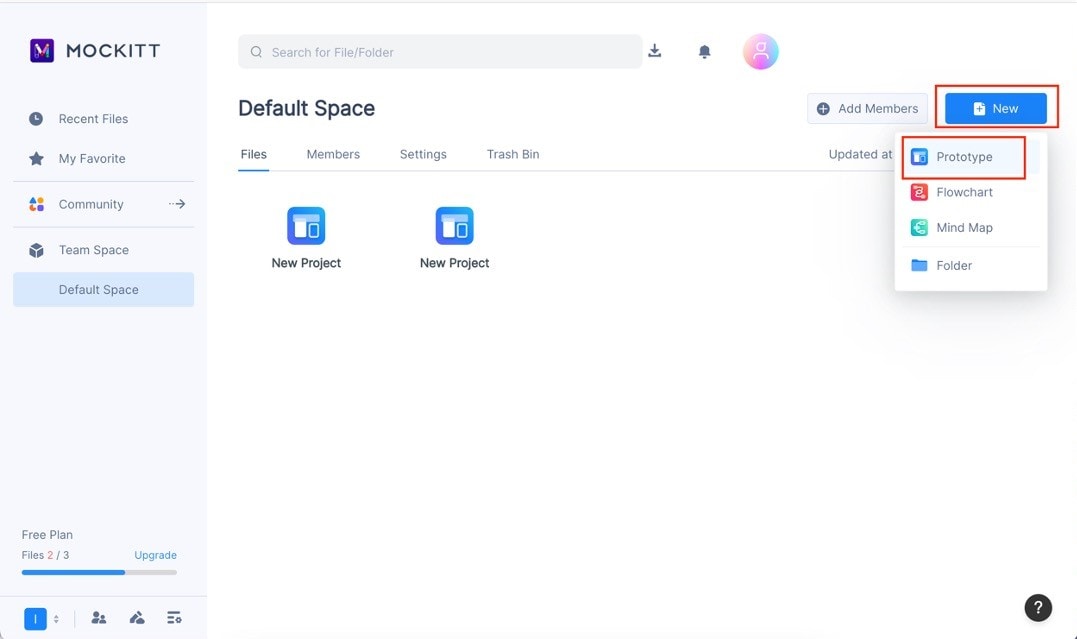
Step 1: Start a prototype for the intended screen
Open your workspace and create a prototype project appropriate to the task. Choose one screen to work on first, such as a team dashboard. The workspace capture highlights the New Prototype action.
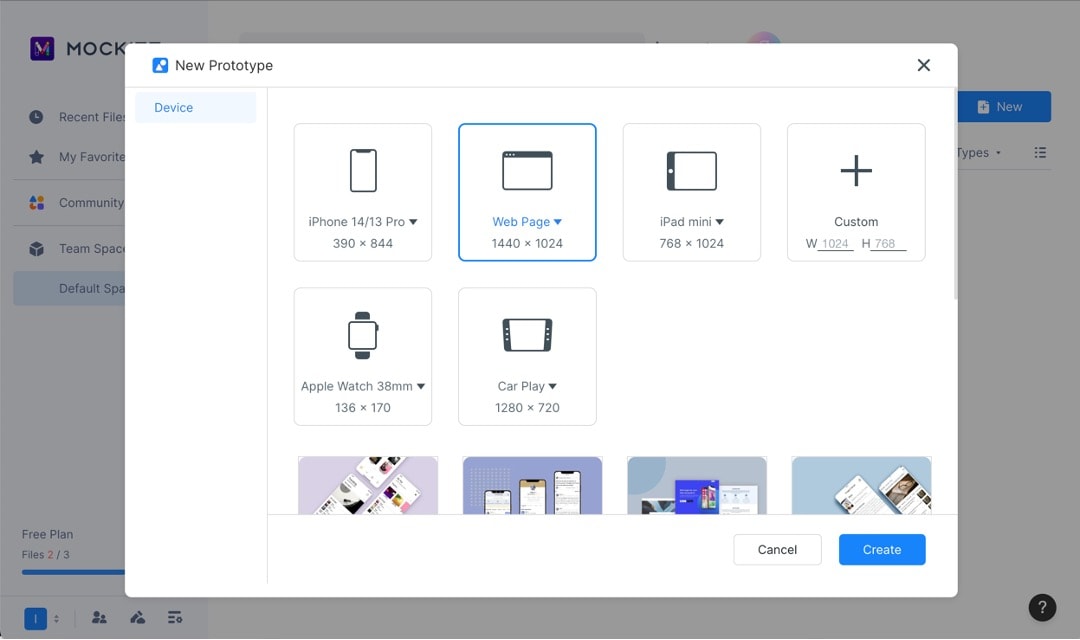
Step 2: Choose the screen size
Select a device or canvas size that matches the experience you are designing. This example uses a web-page canvas. Available width changes the way a generated label will fit.
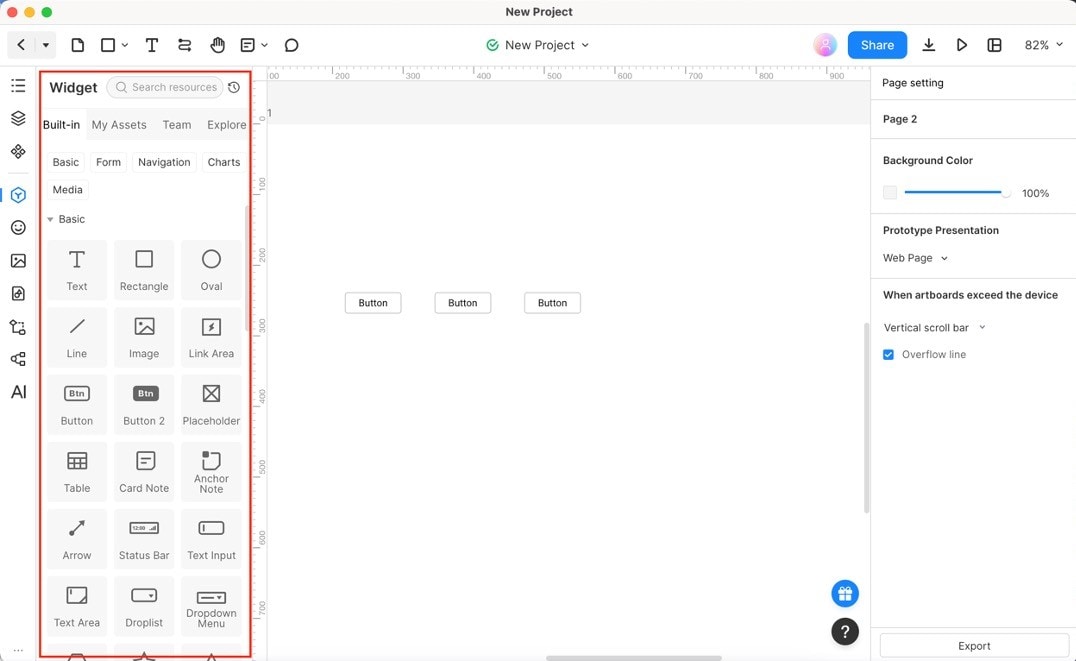
Step 3: Add the elements that need copy
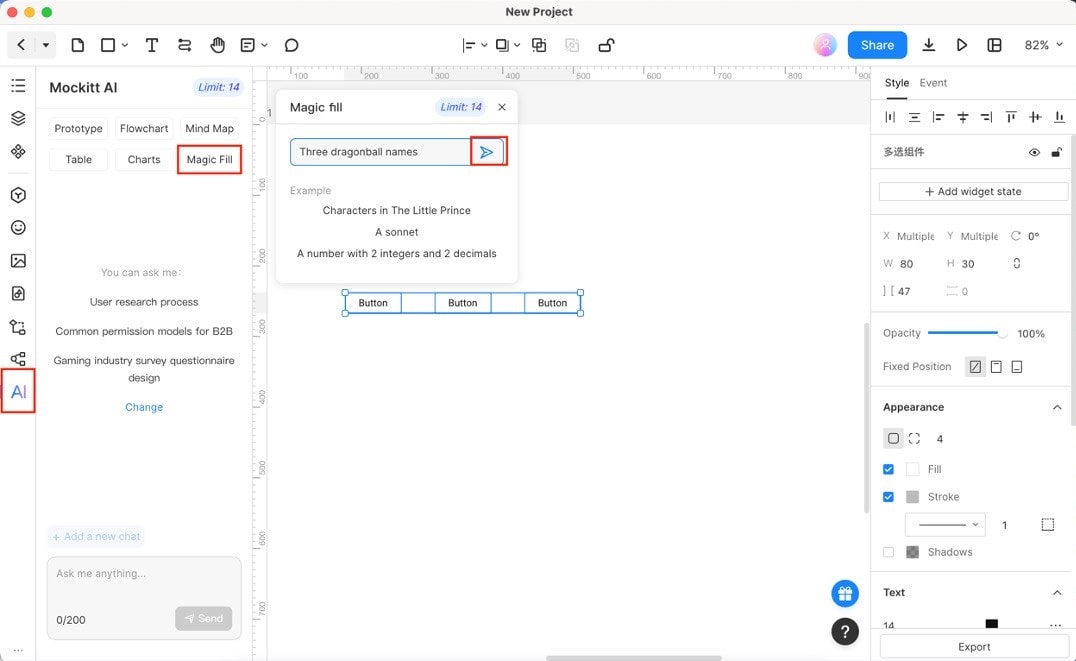
Place the controls or text elements in their intended arrangement. Here, three buttons have been added to the canvas. Select the text-bearing elements that should receive new content, rather than generating an unrelated paragraph and trying to force it into the design later.
Step 4: Describe the content to generate
Use the available fill or text-generation control and supply a precise request. The illustrated demonstration asks for three Dragon Ball character names. That is a simple way to see whether separate text values populate three controls, but it does not test whether the resulting labels describe useful product actions.
Step 5: Inspect the visible result
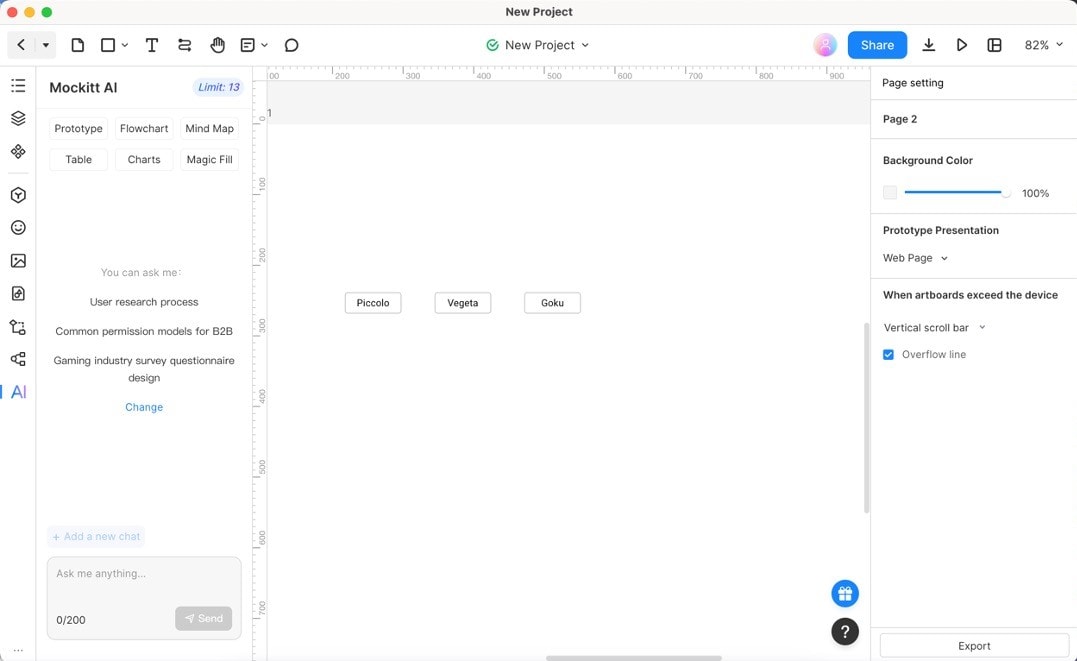
The result contains Piccolo, Vegeta, and Goku. Check the populated elements individually: the order, spacing, capitalization, and text fit. For a real dashboard, use action-oriented copy such as “Save draft,” “Invite teammate,” and “View report,” then confirm that each label matches its interaction.
Step 6: Test the copy in the flow
Preview the screen and follow each action. Read the label before clicking, then compare the expected and actual destination. If a teammate cannot predict what a control will do, revise the wording or the interaction. Repeat the check with longer localized text if the product serves multiple languages.
Also check neighboring states. An invitation screen may need different text before sending, while sending, after success, and after a failure. “Invite teammate” describes the initial action; “Invitation sent” describes a completed result. Reusing the latter while the action is still pending can create a false expectation. Put each message on the matching state and review the sequence as a whole.
For an error, state what the person can do next. If a reference is invalid, explain how to correct it; if a service is unavailable, provide a suitable retry or support route. Generating these messages together can help compare tone, but the cause and recovery action must remain distinct. Save the approved wording with the design so later edits do not reintroduce ambiguous text.
You can explore the current AI prototype workflow when you are ready to connect the copy to editable screens. The aim is a prototype whose content explains the interaction clearly, with AI helping prepare options that the team can evaluate in context.