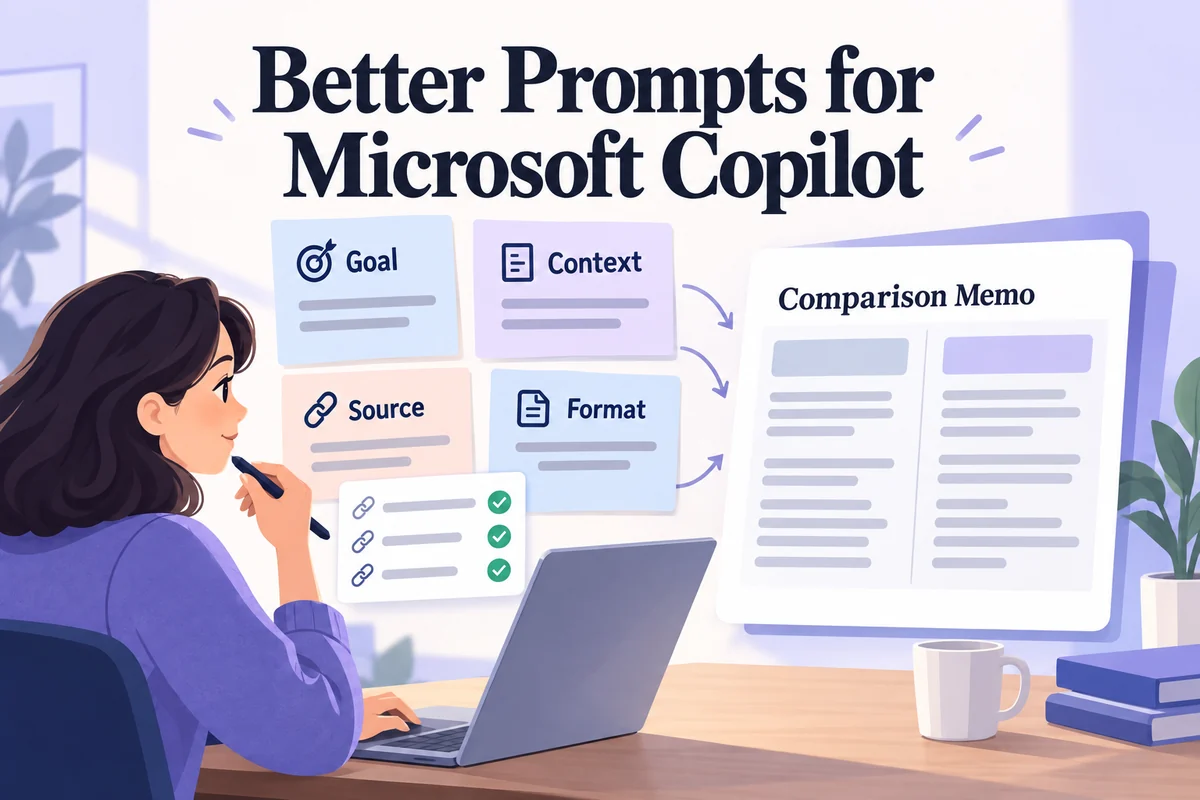
Microsoft's AI chatbot is now encountered primarily through the Copilot name. If you arrived here looking for the “new Bing” chatbot described in older tutorials, the product name and interface have changed. The useful questions remain: what can it help you do, how should you prompt it, and which parts of an answer require verification?
Learn how the conversational workflow works, how to frame a useful Copilot prompt, and where a Mockitt prototype helps test the resulting product idea. The Bing screenshots document the earlier product experience; they are not today's required setup.
Part 1: What an AI chatbot does
A chatbot accepts input and returns a response through a conversational interface. Some systems follow predefined rules; some use language models; many combine both with search, account data, or actions. A transactional assistant and a conversational assistant are useful design categories, but they are not mutually exclusive technical architectures.
A transactional workflow aims to complete a defined job, such as checking an order or changing a booking. A conversational workflow supports a more open-ended exchange, such as explaining a topic or helping draft a document. The interface should make clear whether it is offering information, proposing an action, or actually completing an authorized action.
Common business uses and their boundaries
- Customer support: explain a policy, find an approved answer, or collect information before handoff. It should not promise a refund or say an account was changed unless the underlying system confirms it.
- HR and internal information: help people locate policies or summarize supplied guidance. Access to restricted employee information depends on the deployed system and permissions.
- Marketing and communication: explore headlines, revise a brief, or draft a response from verified facts. Someone still needs to check claims and brand voice.
- Financial or operational work: organize supplied information or explain a document. A conversational answer is not proof of a current price, an approved decision, or suitable personal financial advice.
Before choosing a Microsoft assistant, identify the job and where its source material lives. A public-web question, a document you upload, and a request about restricted company files require different access. Use that distinction to choose the product and account, then judge the answer against the supplied material.
Part 2: Microsoft's chatbot, from Bing to Copilot
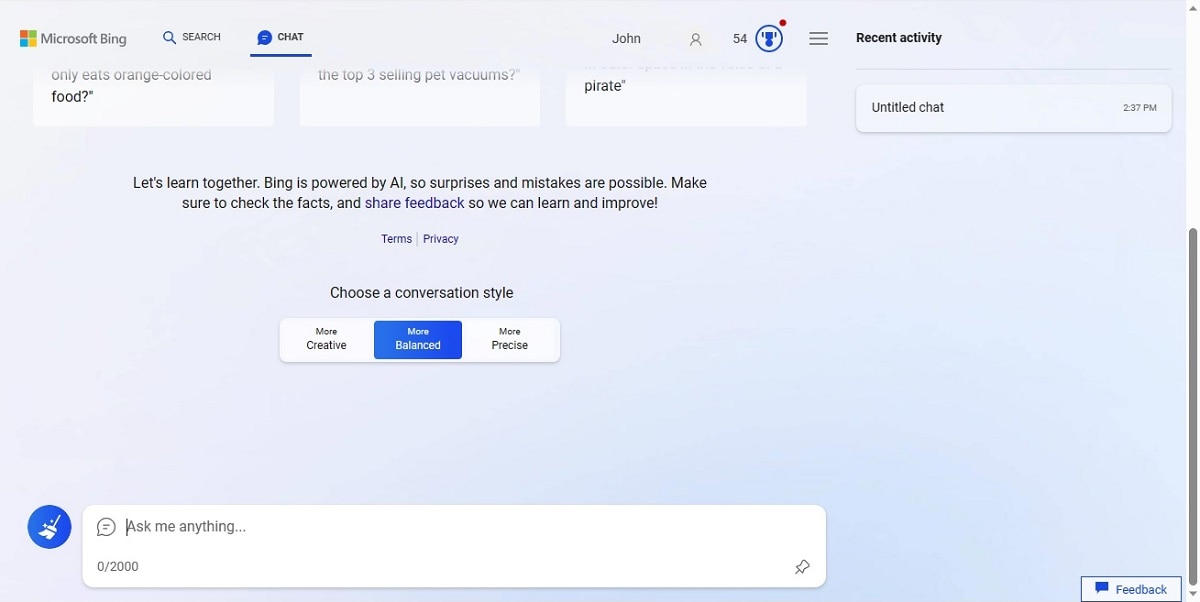
Current Microsoft guidance uses Copilot and describes several conversation modes. The available experience depends on the product, account, and plan. Consumer Copilot and Microsoft 365 Copilot should not be treated as interchangeable accounts with the same access to work data.
Microsoft's Copilot conversation-mode guidance explains the current options, including a search-oriented mode. When an answer contains source links, open the sources and check that they support the specific statement. A citation attached to an answer does not automatically validate every sentence.
A practical three-step Copilot workflow
- Open the appropriate Copilot experience. Use the Microsoft product and account that match your task. Do not assume that an old tutorial's browser requirement, screen, or mode names still apply.
- Describe the task and provide the relevant context. State the desired outcome, audience, constraints, and material the answer should use. Exclude private data that the chosen service is not approved to process.
- Inspect and refine the response. Check important claims, follow source links where provided, and ask for a narrower revision when the answer misses the brief.
A useful product-management prompt might be: “Draft a one-page briefing for a design review. Use the notes below as the only source for product facts. Separate confirmed requirements, open questions, and risks. Keep the summary under 200 words and do not add a launch date.” Replace the placeholder notes with material you are authorized to share.
This follows the idea in Microsoft's prompting guidance: supply a goal, relevant context, expectations, and sources. The framework is useful; access to a particular document or work system still depends on the product and permissions.
Check an answer before using it as product evidence
The Bing example below asks what Mockitt AI is. Its answer includes product claims and external links. That demonstrates a chat response, not an independent product test. Use the current official product page to verify features instead of quoting the generated summary as evidence.
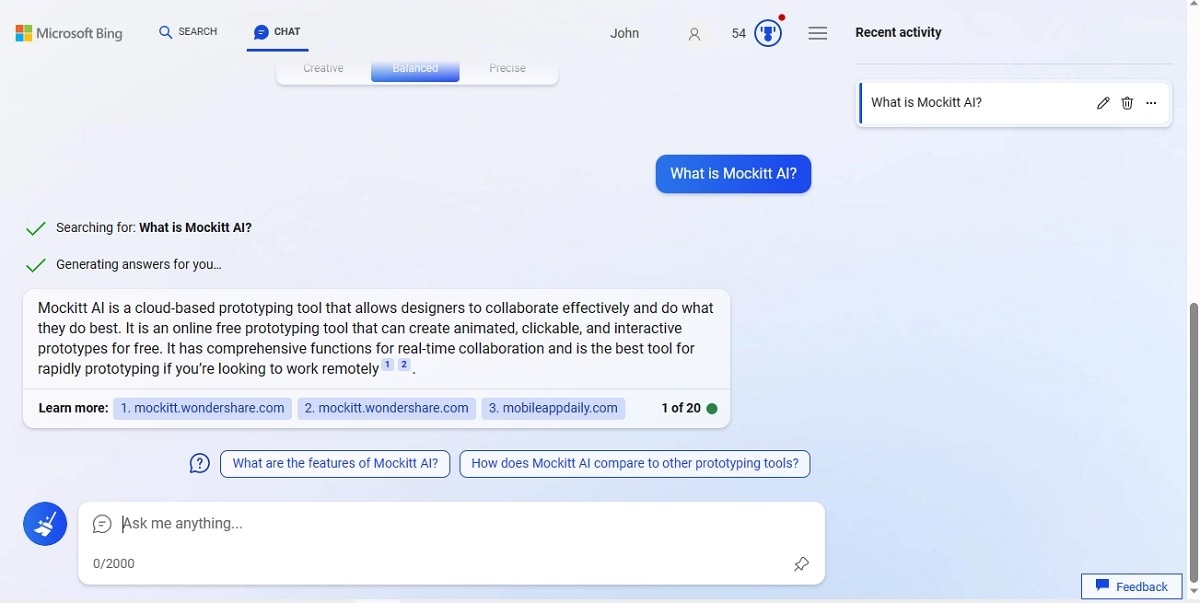
For a review brief, apply the same discipline. Mark any sentence that introduces a fact absent from the supplied notes, check numbers and named products, and confirm that an “open question” has not become an asserted requirement. Ask for a revision with the original evidence visible.
Part 3: Where Mockitt fits beside a general chatbot
Copilot helps with conversational tasks such as drafting, explaining, and searching. Mockitt is relevant when the next step is product design: organizing an idea into screens, exploring a flow, or reviewing a prototype. These are related activities, but one tool should not be presented as a direct substitute for every capability of the other.
Suppose the briefing identifies a purchase-approval requirement with an unresolved question about who can approve it. First resolve that rule with the owner; then design the requester and approver screens. This keeps a suggestion in a generated brief from silently becoming product behavior. The prototype makes the chosen rule visible for review.
The Mockitt AI overview describes the current product scope. The next section shows a design question explored in the legacy editor; its panel layout and access conditions may differ from the current product.
Part 4: Develop a review task in Mockitt
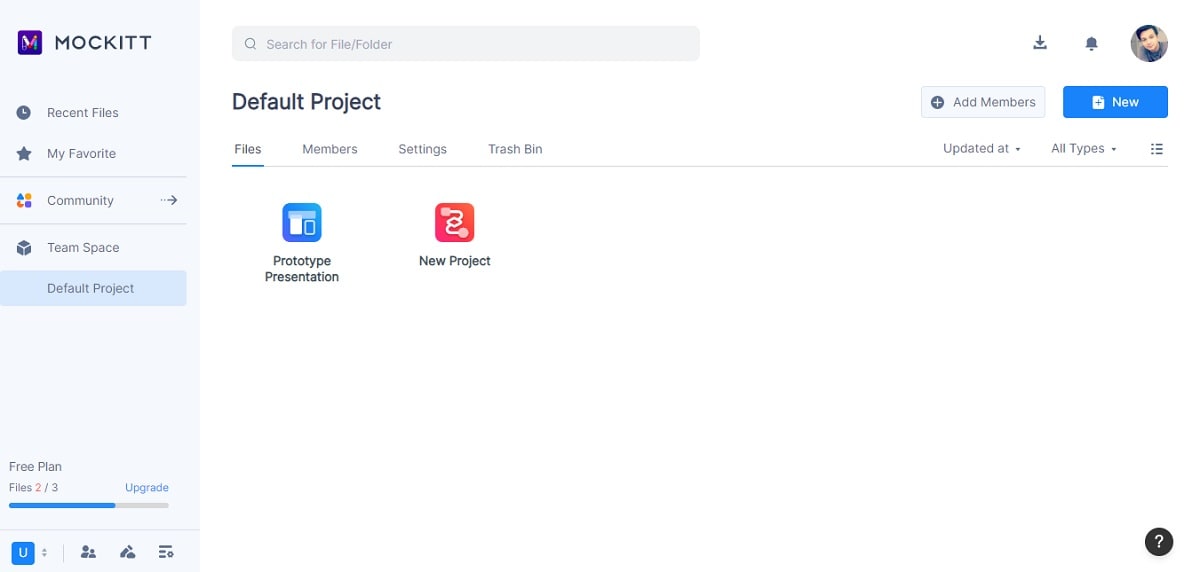
Step 1: Start with a design question
Open the relevant project and select one requirement from the checked review brief. For the purchase-approval concept, identify what a requester submits, what an approver sees, and which decision remains unresolved before drawing the screens.
Step 2: Open the available AI assistant
Locate the AI tool available in your current workspace. This example uses the left-side AI Chat panel. Provide the product context rather than assuming the assistant can infer the audience or approved capabilities from a blank canvas.
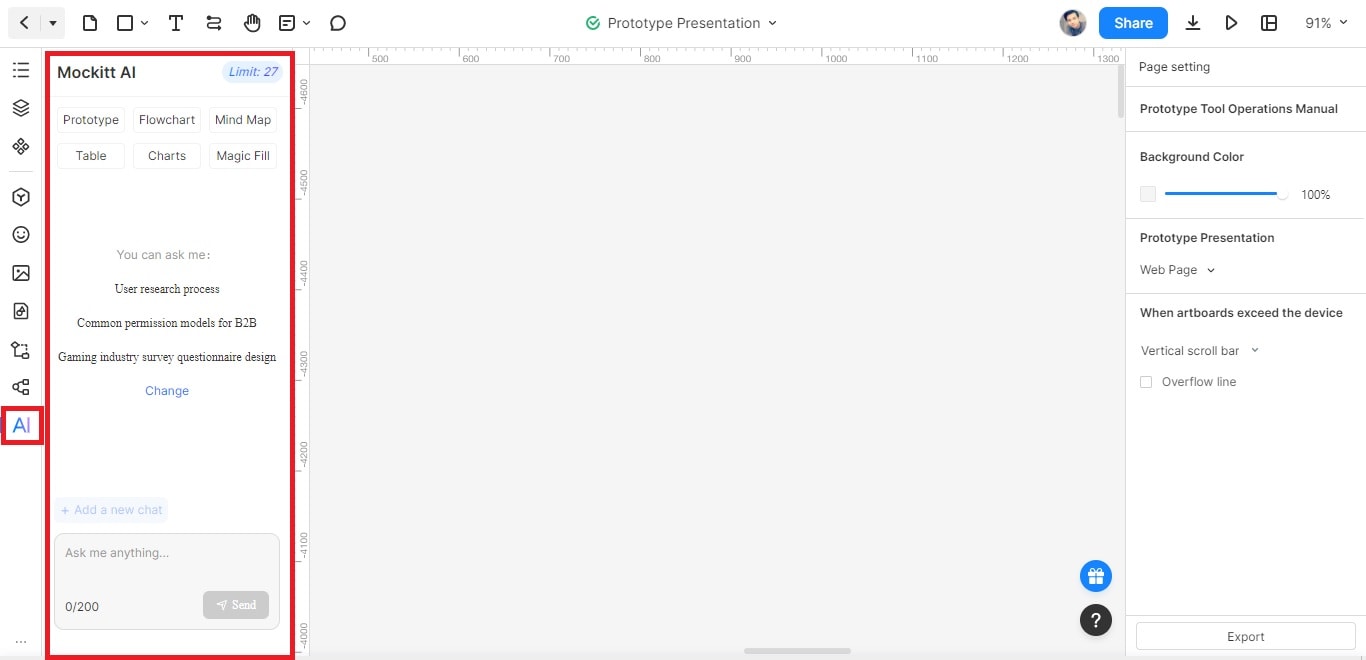
Step 3: Evaluate the response against the task
The illustrated prompt asks how to create a beautiful prototype. Turn a broad response into a useful follow-up: “Use the approved purchase-request rules below to list the requester and approver screens. Separate required states from optional suggestions. Do not decide the unresolved approval rule.” Compare the outline with the brief before building it.
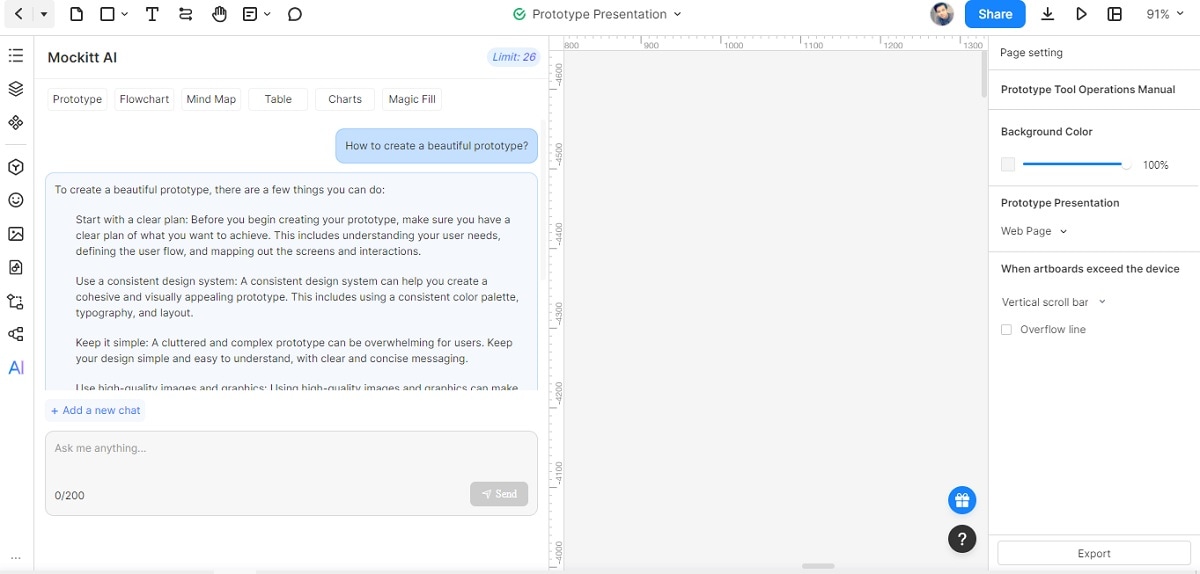
Step 4: Carry the useful draft into a prototype
Copy the useful outline and create the agreed screens. In the approval example, show the pending request and the distinct accepted or rejected result. Ask a reviewer whether each screen reflects the rule in the brief, then record any question that still needs an owner.
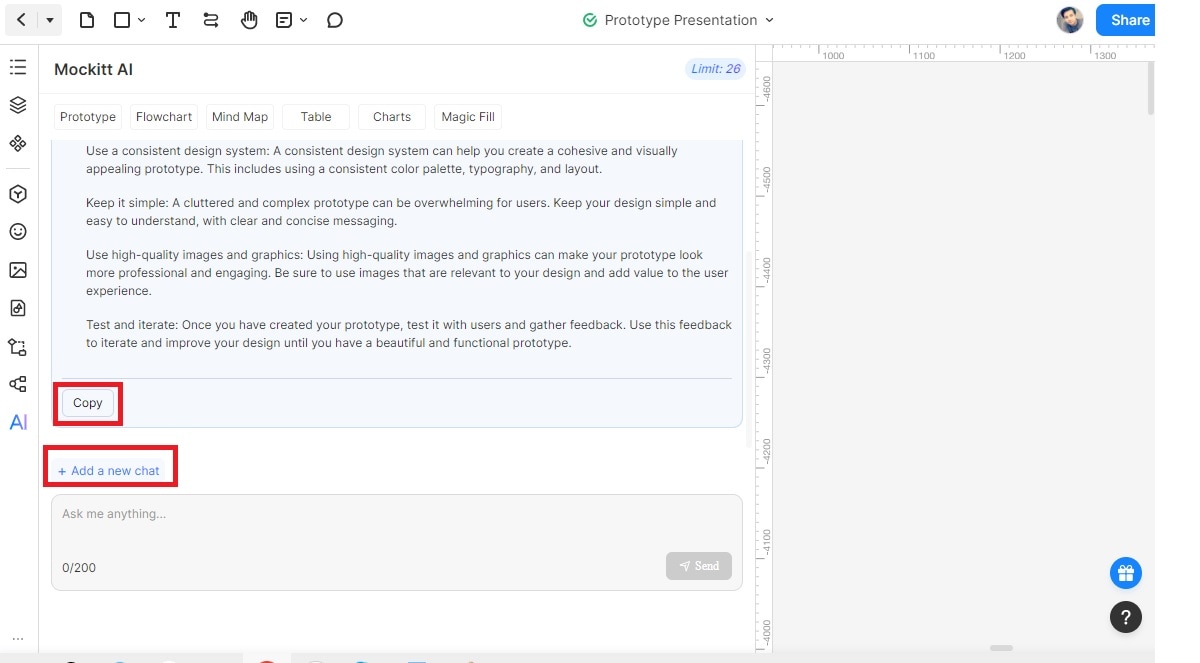
If the feature you are planning is itself conversational, the chatbot prototype guide covers dialogue, recovery, and handoff. For any feature, keep the same connection from source material to checked brief to design decision; that is what makes a Copilot-assisted workflow useful to the team.