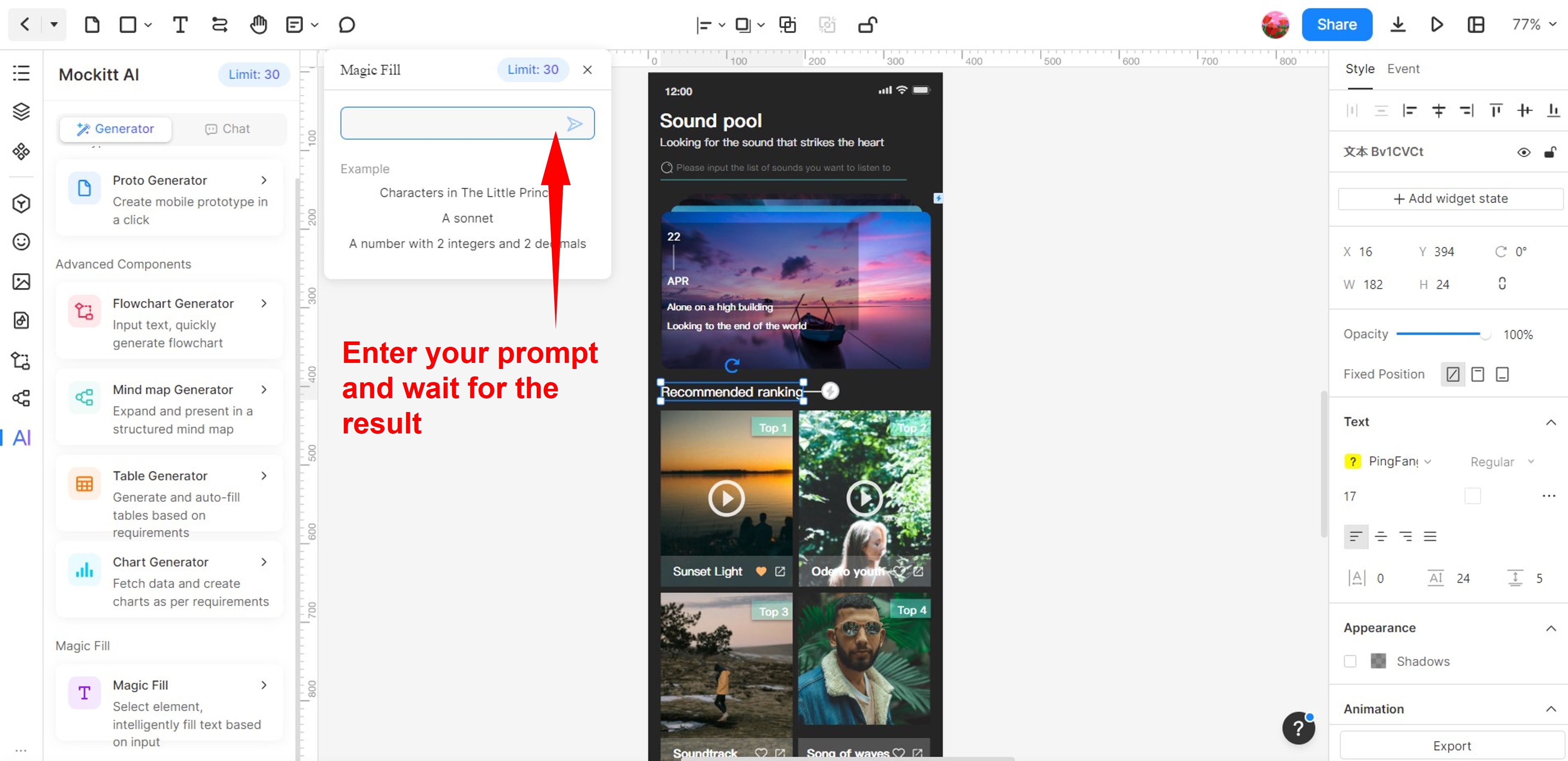
Now, meet the AI feature of Mockitt: Magic Fill. Say goodbye to tedious manual content creation for a prototype. Instantly add relevant text content on its widgets based on your prompt, saving valuable time. Also, Magic Fill goes beyond English, offering multi-language support for content creation. Follow the instructions below and learn how to use Mockitt AI Magic Fill feature.
Step 1: Visit
Step 2: If you already have a Wondershare ID, please log in to your account in the Mockitt dialogue box.
Otherwise, proceed to create a new account.
Step 3: Click New in the upper right-side navigation pane and select Prototype.
Step 4: Select a custom Device size dimension or pick a template in the New Prototype dialogue box.
After selecting your preference, click Create.
Step 5: Select a widget on the canvas once you have created a layout or selected a template.
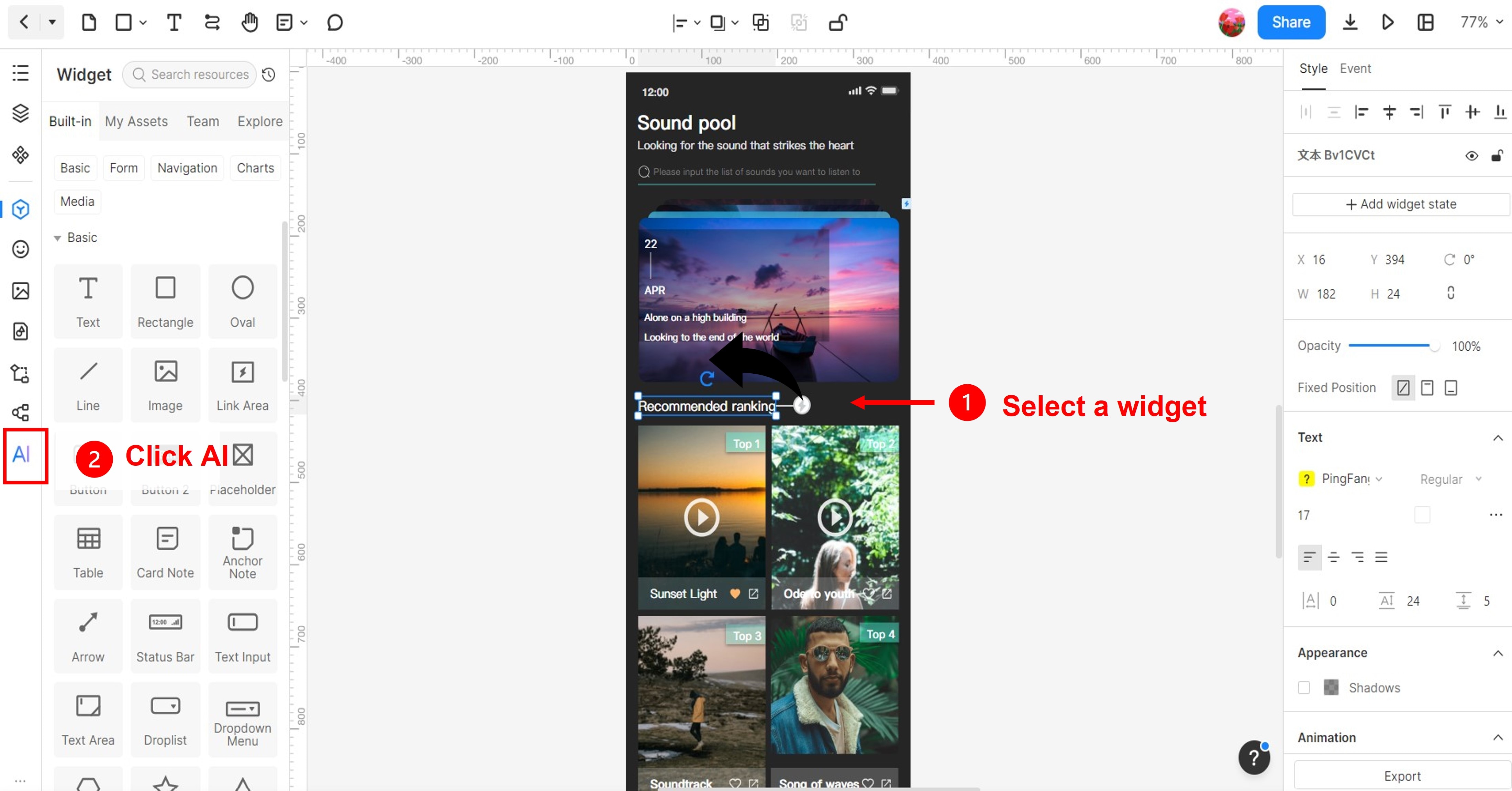
Step 6: Navigate to the left-side navigation pane and click AI.
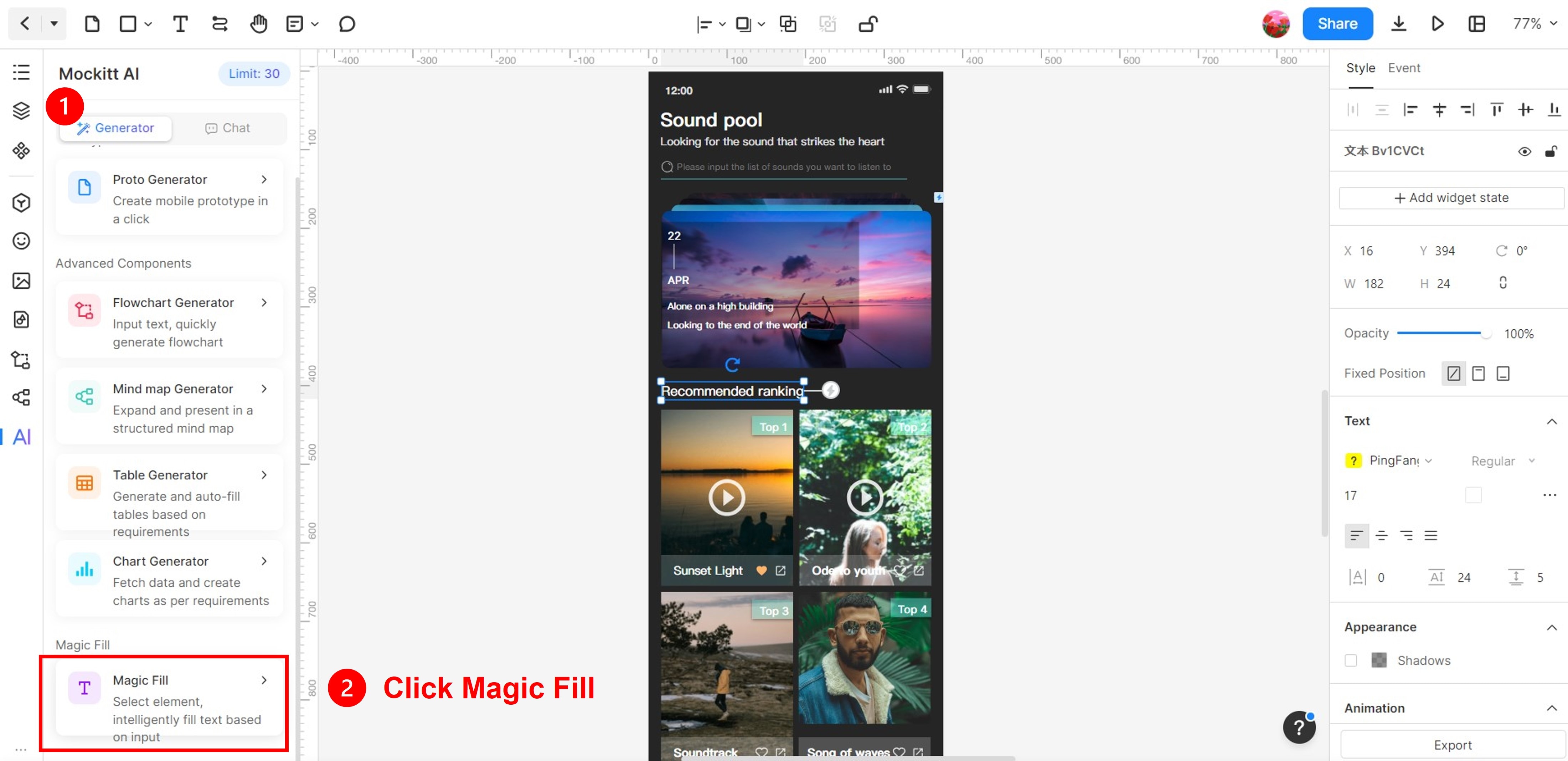
Step 7: Go to the Generator tab bar and click Magic Fill in the lower navigation pane.
Step 8: In the Magic Fill dialogue box, enter your prompt into the text field, and finally, click the send icon.