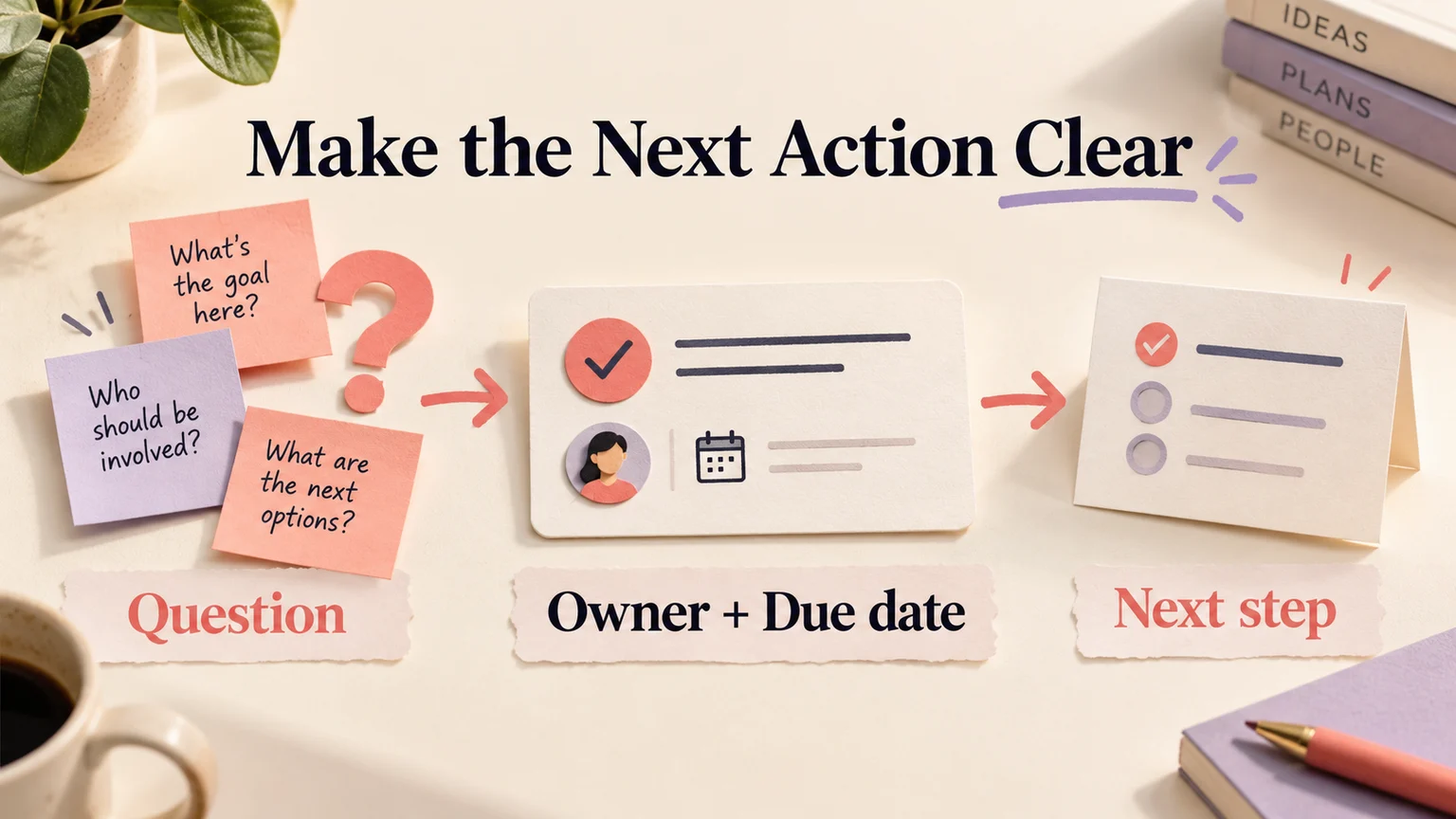
A project can have plenty of messages and still leave everyone unsure who owns the next step. The Asana app brings assignments, deadlines, discussions, and project updates into one place. Start with one real piece of work: a deliverable someone can finish and another person can review.
Consider a fictional product team preparing a booking-page redesign. It needs to agree on the customer journey, assign the design work, and resolve review comments before development. The team can first arrange questions and dependencies on a Mockitt whiteboard for product planning, then record agreed actions in Asana. A shared planning canvas gives the discussion context; the task record makes ownership explicit.
What is the Asana app?
Asana is a work management application for organizing projects and the tasks inside them. Teams can assign work, set due dates, attach files, and discuss a particular deliverable where its context is available. Its project management overview describes list, board, calendar, timeline, and Gantt views, alongside task and status-update features. Availability depends on the selected plan.
The distinction between a project and a task matters more than the choice of view. “Booking-page redesign” is a project with an outcome. “Review the unavailable-date message” is an action inside it. A task called only “Booking page” leaves its owner guessing whether to research, design, approve, or build.
Changing the display does not make those decisions for you. Agree on the outcome, the person responsible, and the evidence that will count as finished before adding more fields or automation.

Who can use Asana?
Project managers can coordinate delivery, while designers, marketers, operations specialists, and individual contributors can use the same task context to understand their responsibilities. You do not need a separate project management department to benefit from a clear assignment process.
For the booking-page team, the product manager owns the scope decision, a designer prepares the interaction, and an engineer reviews technical constraints. One person owns each action, even when several people contribute. A reviewer should know whether they are being asked to comment, approve a decision, or complete a separate task.
Before inviting the whole organization, write a short project plan with scope and dependencies. Try the workflow with the people who will use it daily. Ask whether they can locate their next action, its deadline, and the latest supporting material without searching through messages.
How to use Asana for your first project
Keep the first setup small enough that everyone can understand it. The following four building blocks preserve a useful order: define an action, group related work, include the right people, and report progress.

1. Create a task with an owner and a finish condition
Asana's task creation guidance lists the Create control and Add task within a project as entry points. Give the task an action-based name, select an assignee, set a due date, and add the context in its description. Add collaborators who need to follow the discussion.
For the example project, use “Review the unavailable-date message.” The description should identify the design version, the blocked booking scenario, and the decision required. “Done” could mean that the reviewer records an accepted wording or requests a specific change. Attaching a screenshot alone does not establish that finish condition.
When several contributions are necessary, separate them into subtasks with their own owners. Keep the final review distinct from the work being reviewed so that completing a draft cannot be mistaken for approval.
2. Group related tasks into a project
Asana's quick-start guide explains how to create a project from the Create menu, a template, or imported work. For this redesign, start with sections such as Explore, Design, Review, and Ready for development. Choose names that describe your team's actual process.
Add a short project overview: the user problem, the scope boundary, the deadline, and links to the current brief. Keep experiments that have not been accepted separate from committed delivery work. The team can explore several messages without implying that all of them must ship.
Use prototype acceptance criteria to describe the behavior reviewers must inspect. For example, the unavailable date remains visible, the reason is understandable, and the visitor can choose another date without restarting the booking.
3. Create or join the appropriate team
A team groups people who work together. Asana's team documentation distinguishes teams in an organization from a workspace: the team controls may not appear when you are in a workspace. In an organization, team creation can be available from the sidebar, quick-add control, or admin console, subject to your permissions.
Use an existing product team when it already matches the work. If a new team is needed, give it a recognizable name, add members, and review its privacy settings. Do not create a new organizational group merely because a project has a new title.
Invite reviewers to the project they need and check their access to the linked design. A working task invitation does not guarantee permission to open a separately shared board or prototype.
4. Report project progress with a reason and a next step
Asana's current project status guidance lists on track, at risk, off track, on hold, complete, and dropped. Use the status label and written explanation together. A color alone cannot explain whether a missing decision threatens delivery.
An example update might read: “At risk: the unavailable-date wording needs a decision before development begins. Maya will resolve the open question by Thursday; the designer will then update the review version.” This tells teammates what changed and who acts next.
A published Asana status update is a snapshot: later changes to task names, dates, or assignees do not rewrite its embedded information. Publish a new update when the situation changes. Do not treat yesterday's favorable report as proof that today's blockers are resolved.
Which Asana alternatives should you consider?
The best fit depends on the work you need to coordinate. These five options remain useful comparison starting points. Evaluate the same small project in each shortlisted tool, including permissions, review handoffs, and reporting. Check current plan details before making a purchase.
1. Workzone
Workzone describes project and task management, request intake, approvals, workload management, and reporting. Consider it when you need to coordinate those activities across teams. Do not base the choice on the old claim that Asana lacks Gantt charts: Asana now lists a Gantt view among its project views.
2. Trello
Trello's board model uses lists and cards to organize work. Moving a card between lists can express a change in progress. Try it when a visible sequence of stages fits the workflow, then check how your team will handle dependencies and review evidence.
3. Jira
Jira is another project management option, including for teams coordinating software work. If engineers already track delivery there, evaluate whether design decisions can connect to those existing work items. Test the handoff before introducing a second place that everyone must update.
4. Scoro
Scoro combines project work with areas such as resource planning, time and cost tracking, CRM, and client billing. It is worth examining when a service business needs to connect delivery with commercial operations. Compare the specific apps and configuration required for that workflow.
5. ClickUp
ClickUp brings task management, documents, project views, and reporting into its product. Evaluate how much structure your team actually needs. A useful trial is whether a new contributor can find the agreed brief and update their assignment without duplicating information.
For the broader division of responsibilities, the guide to product manager tools for discovery, design, and delivery helps identify which job each tool should own. Avoid adding an application solely because its feature list is long.
How Mockitt can support the planning and design work
Use Mockitt's visual workspace to make the product discussion concrete, then turn agreed outcomes into accountable tasks. For the booking-page example, group the current problem, proposed behavior, unresolved questions, and decision on the board. Keep a link to that context with the corresponding Asana assignment. This is a manual handoff; it does not assume an automatic integration.
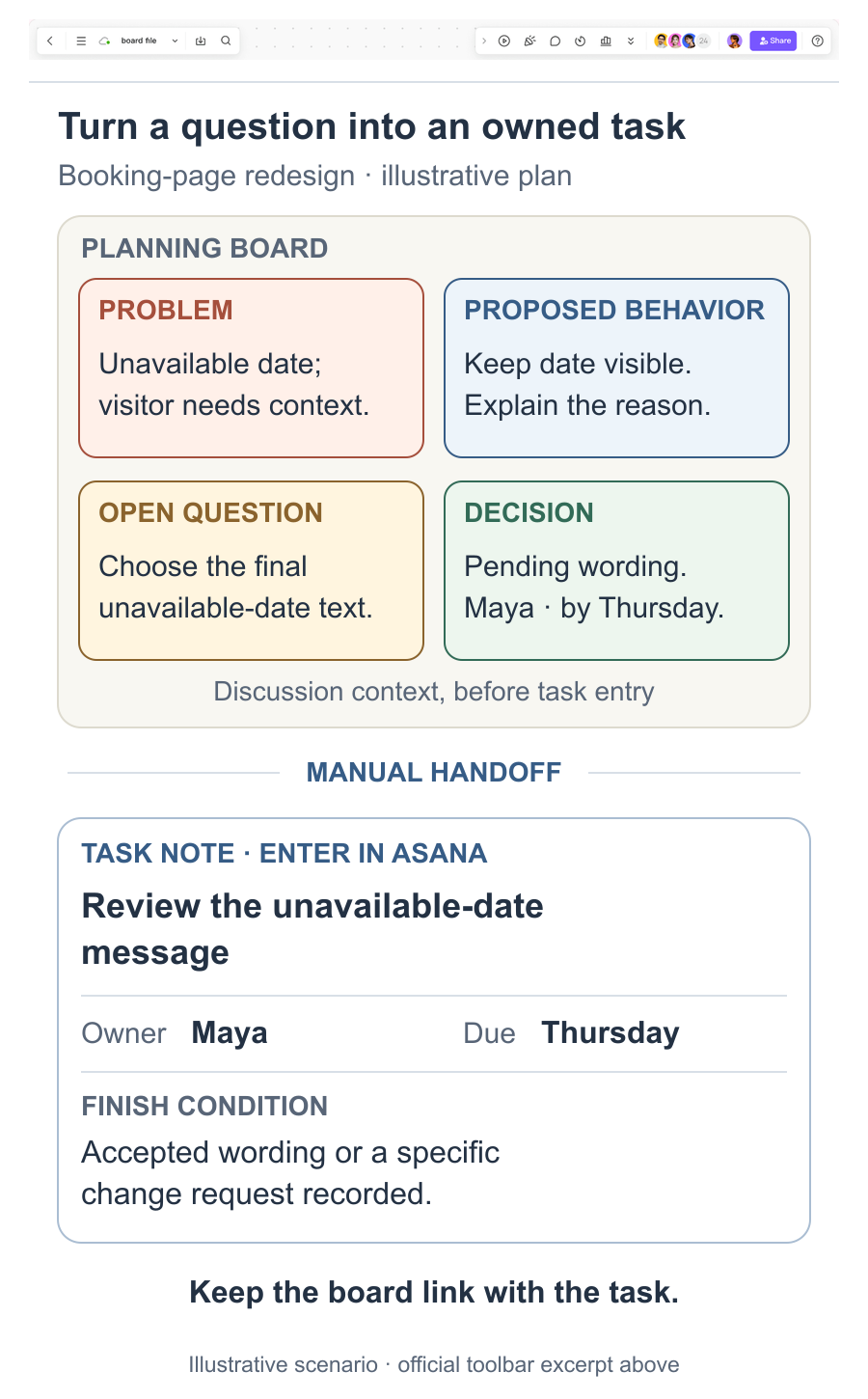
1. Collaboration: carry the decision into the task
After a review, record what was accepted, what still needs work, and who owns the follow-up. Link the relevant board or design version in the task description. When the discussion changes scope, update the assignment as well so that a contributor does not follow an outdated instruction.
2. Animations: review behavior as a specific deliverable
The original Mockitt example below shows connected travel-app screens. For your own project, use an interaction example when a static image cannot explain a transition. Ask reviewers what should happen after an action, what signals completion, and whether the movement helps the user understand the change.
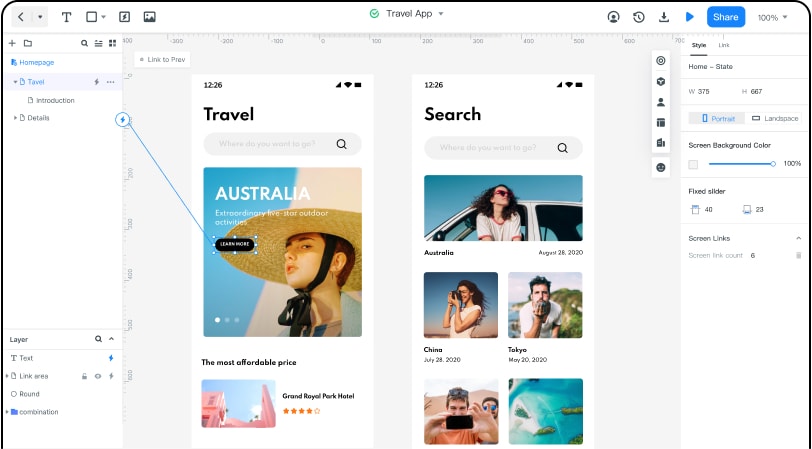
3. Assets: keep the reviewed material identifiable
Include the relevant screens, reusable interface elements, and reference material with the review context. Name the version that was accepted. During design QA, the reviewer needs to compare the implementation with that agreed behavior rather than an unexplained image from an earlier discussion.
Begin with one project and one complete review cycle. If each contributor can identify the task, its evidence, and the next decision, you have a workable foundation. Add automation and reporting only when they solve a problem that the team can name.