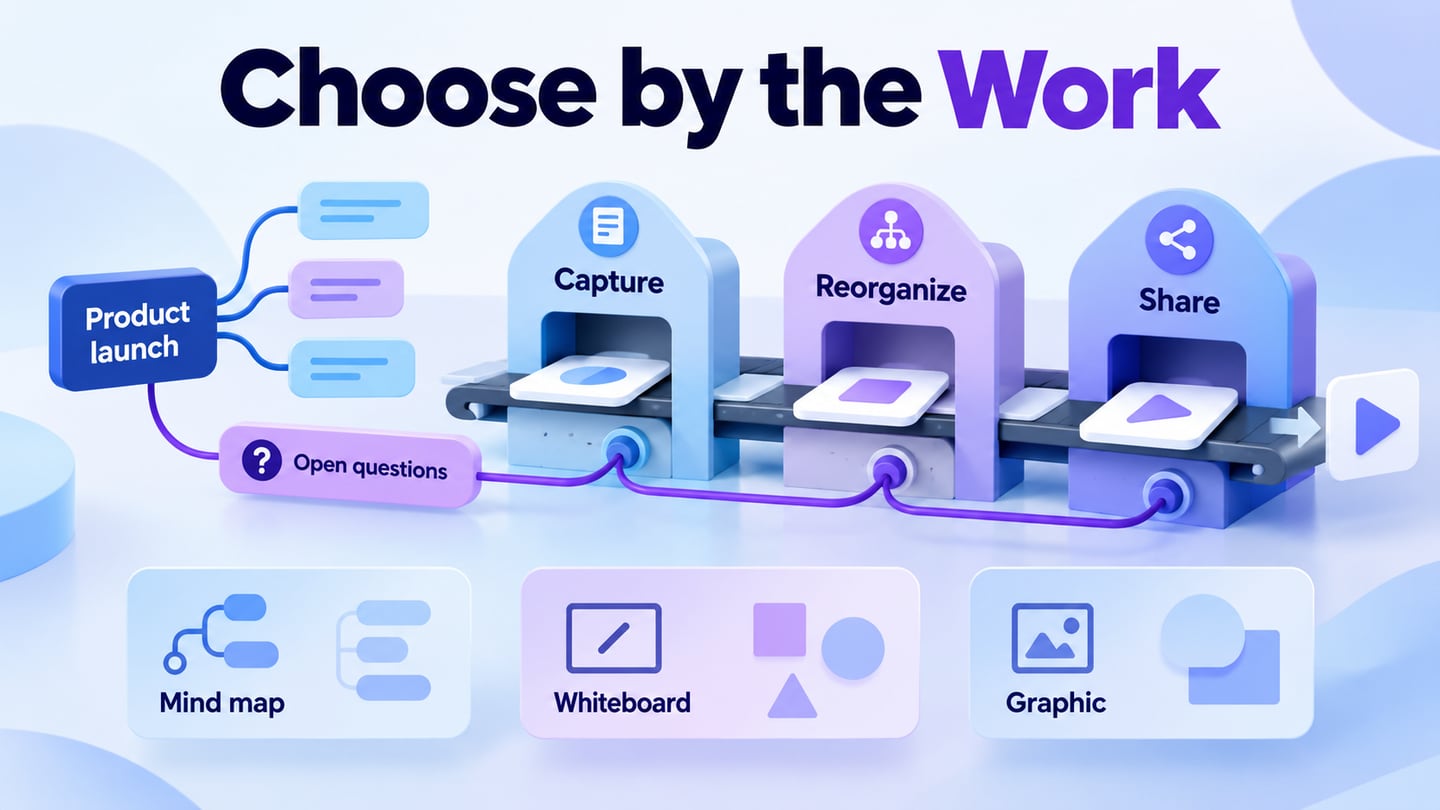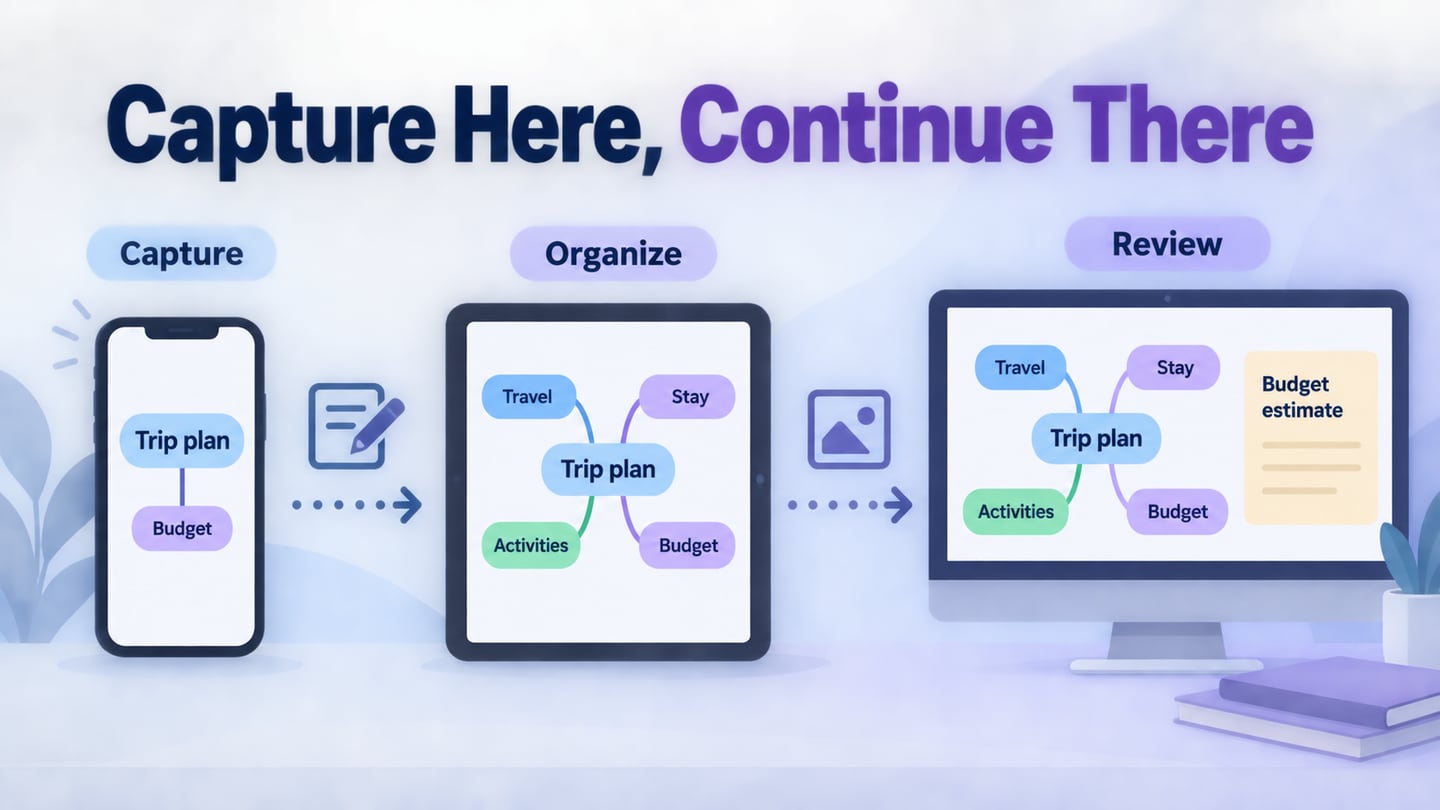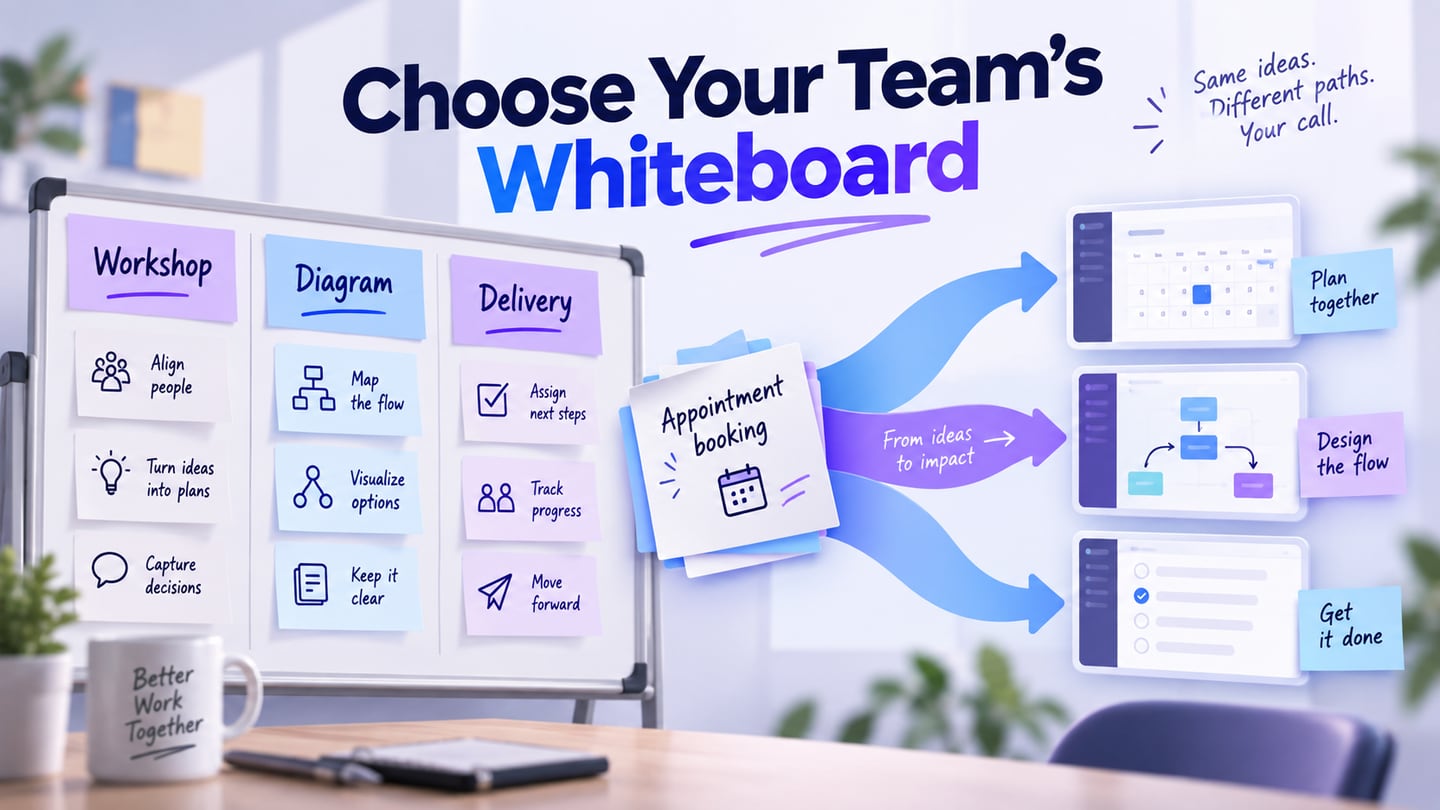
Miro combines an online whiteboard with mind mapping and collaborative planning. A useful Miro alternative should replace the work your team actually does: a facilitated workshop, a structured diagram, or a plan that becomes an interactive product concept. Those are different buying decisions. This guide keeps them separate so that a task board is not mistaken for a whiteboard.
Start with the outcome. If your workshop needs to move from loose ideas into flows and interface decisions, evaluate the Mockitt online whiteboard alongside a prototype. For open-ended team workshops, compare Boardmix, Mural and Conceptboard; for formal diagrams, consider Lucidchart or Creately. Trello and Float belong later in the workflow, when you are assigning work or capacity.
Use a small trial board before migrating. Put the same six onboarding observations on each candidate, group them into three themes, ask a guest to comment, and export a copy. Check whether the result stays editable, whether guests need paid seats, and whether the export preserves labels. This exposes practical differences that a feature count misses.
Choose by the job you need to replace
A workshop board must be easy to join and navigate while people are talking. A diagram editor must preserve connections and readable labels when the structure changes. A delivery tracker must keep ownership and status reliable after the meeting. Decide which of these is the primary job; keep the existing tool if a switch adds more handoffs than it removes.
Check the editing, guest-access and export workflow on the devices your participants will use. Some examples show earlier interfaces, so use the product’s current controls for your trial.
| 1 - Mockitt | 2 - Boardmix | 3 - Trello (task follow-up) |
| 4 - Conceptboard | 5 - Canva | 6 - ClickUp |
| 7 - Lucidchart | 8 - Creately | 9 - Mural |
| 10 - Ziteboard | 11 - Fibery | 12 - Float (capacity planning) |
Mockitt
Mockitt is an online product-design workspace for organizing ideas, drawing flows and creating interactive prototypes. Its role in this comparison is the transition from a workshop decision to a screen or interaction that a teammate can inspect. It is not a promise to reproduce every Miro facilitation or integration feature.
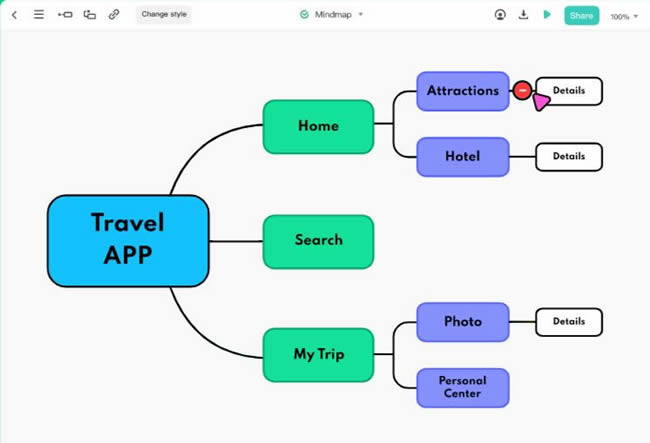
Key Features:
- Customize icons and vector graphics
- Create mind maps
- Real-time comments
- Organize product-design work
- Team libraries
How to evaluate it
For example, a small team might discuss why new users abandon an appointment-booking flow. Create branches for finding a service, choosing a time and confirming a booking. Under each branch, separate the observed problem from a proposed change. “No evening slots visible” is an observation; “show the next available evening” is a design idea. Keeping those labels distinct prevents a brainstorm from turning assumptions into evidence.
After the group agrees which idea to explore, sketch the service, time-slot and confirmation screens. Review the path before adding detailed styling. The whiteboard supplies the decision context; the prototype tests whether the proposed path is understandable. Record unresolved availability rules beside the relevant screen instead of silently inventing them.
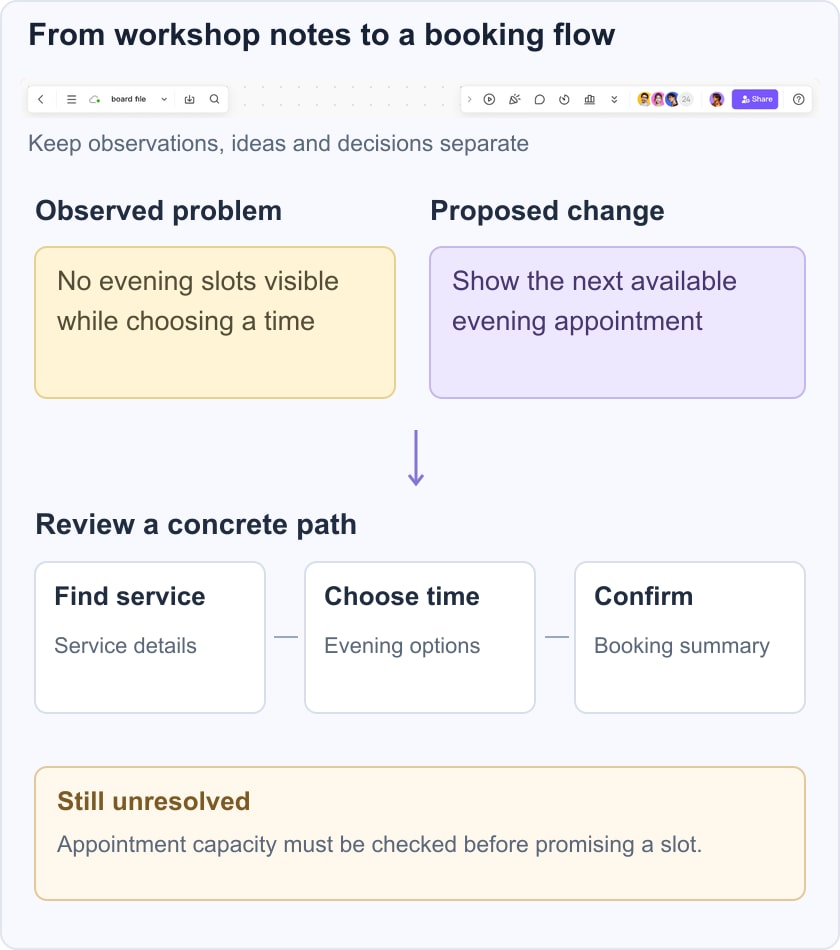
For a more structured diagram, first decide whether the relationships call for a concept map or a mind map. A radial idea tree is useful for brainstorming; labeled cross-links are more useful when the team needs to explain dependencies.
Access: use the current web workspace. Validate your team’s sharing and export requirements on the plan you will actually use.
Boardmix: visual brainstorming and mind maps
Boardmix is another option for collaborative whiteboarding and mind mapping. Compare it when the team wants to organize branches and notes on a shared canvas. Start with the same onboarding observations used in your other trials so differences in editing and sharing are visible.
Ask one colleague to restructure a branch and another to review the result. Then export a copy and check readability, guest access and the ability to continue editing. A clean export is useful for reference, but an image alone cannot preserve editable topics, comments or the history behind a decision. Verify those needs before moving an entire archive.
In the appointment-booking workshop, create separate areas for observations, candidate changes and decisions. Put “No evening slots visible” in observations and “show the next available evening” in candidate changes; connect the related notes to a concise map. Boardmix is a direct candidate when that collaborative canvas is the deliverable. Mockitt becomes especially relevant when the team needs to turn the chosen idea into an interactive booking path.
Trello
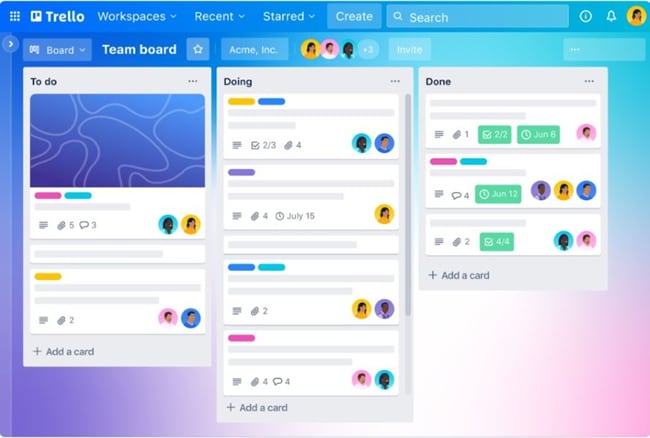
Trello organizes work into boards, lists and cards. It is not a freeform whiteboard or a native mind-map editor. Consider it when the result of your Miro workshop is a set of tasks with owners and due dates, rather than when you need to draw relationships across a canvas.
Key Features:
- Boards and cards for organized work
- Cards with descriptions and checklists
- Attachments, subject to plan limits
- Custom backgrounds & stickers
- Unlimited activity log
- Additional views depend on the plan
- Workspace and board visibility controls
How to evaluate it
A team can turn each agreed onboarding improvement into a card, link back to its design context, assign an owner and track the next decision. That is a different function from moving sticky notes around during a workshop. Keep a diagram where visual relationships matter; use the board to make follow-up work visible.
Trello publishes its current board, collaborator, automation and attachment limits on the plan comparison. Check all four before moving a working group; a low per-seat price alone does not tell you whether guests or automation will fit.
Supported Systems: Web
Conceptboard
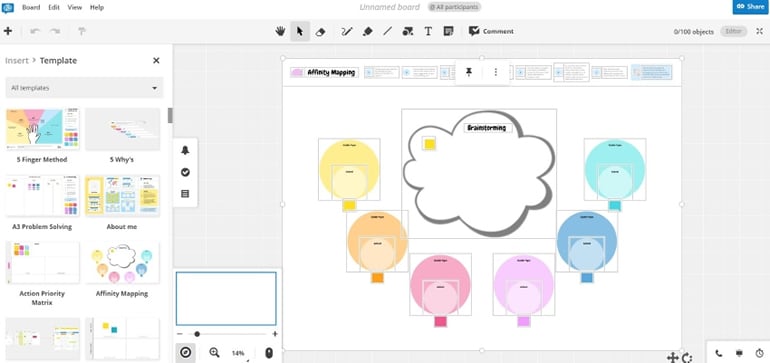
Conceptboard provides a collaborative visual workspace with comments and shared boards. Its deployment and security offerings are relevant when procurement requirements are part of the choice. Review the applicable hosting, access and retention documentation with your organization rather than treating any whiteboard as automatically safe for every kind of information.
Key Features:
- Deployment and access options to evaluate
- Infinite canvas
- Live cursors with usernames
- Supports importing popular file formats
- Board History
- Role management
- Template library
- Visual planning
How to evaluate it
Conceptboard suits teams that want visual reviews with a clear discussion trail. Test a realistic review: invite a colleague, place a comment on one problem, resolve it after a change, and check what remains visible to a guest. Live cursors help during the session, but permissions and the saved discussion matter after it ends.
Access: browser-based collaboration; confirm deployment options with the vendor for your organization.
Canva
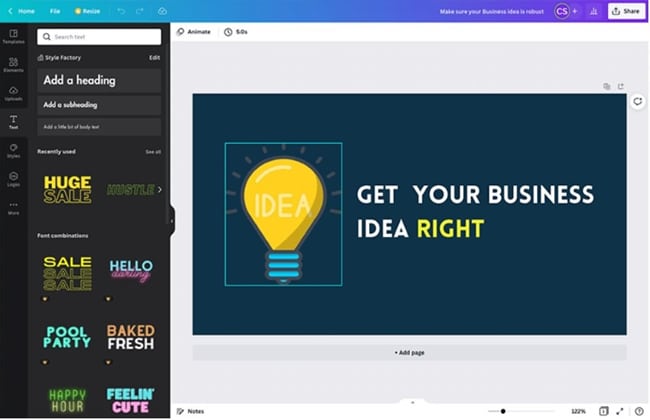
Canva Whiteboards combines a visual canvas with Canva’s design resources. It is useful when workshop material will also become a presentation or other communication asset. Treat the whiteboard and the final design as separate deliverables: a polished visual does not prove that the underlying decision has been validated.
Key Features:
- Whiteboard and design templates
- Photos and graphics, with availability determined by licensing and plan
- Collaboration tools
- Infinite canvas
- Sticky notes, special whiteboard elements, and flowchart tools
- Various integrations
- Customizable charts and tables
How to evaluate it
Canva is worth evaluating for visually rich brainstorming. Place the decision question in a prominent frame, group notes by theme, and keep the next action visible. Before sharing outside the team, check that image assets and fonts remain available to the recipient and that the export is readable at its intended size.
Canva also offers collaboration tools, which allow you to brainstorm with your team. You can assign team members tasks by adding comments or tagging them. Gathering feedback is also possible.
Access: web and supported Canva apps. Confirm which whiteboard actions are available on your device.
ClickUp
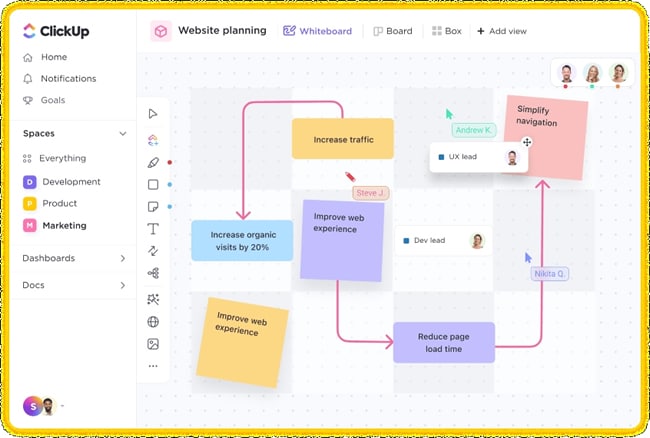
ClickUp Whiteboards connects visual planning with tasks in the ClickUp workspace. Its practical advantage is the handoff from a sketch to tracked work. It is most relevant when your team already manages delivery there, or when the relationship between a board item and a task is a central requirement.
Key Features:
- Live cursors
- Import images and other files
- Freehand draw
- Arrows for relations
- Different views
- Add tasks
How to evaluate it
Use a trial board to connect an onboarding problem with the task intended to resolve it. Check whether reviewers can find the task’s owner and status without losing the diagram’s context. Live cursors help people collaborate in the moment; the important follow-up question is whether the task remains the source of truth after the workshop.
Freehand drawing and connectors help communicate a rough idea. Use explicit labels for uncertain dependencies so a casual sketch is not interpreted as a committed delivery sequence.
Time tracking and other project-management features should be evaluated separately from whiteboarding. They may help delivery planning, but do not by themselves make a workshop easier to facilitate.
Access: ClickUp web and supported apps; verify the whiteboard experience on the devices your team uses.
Lucidchart
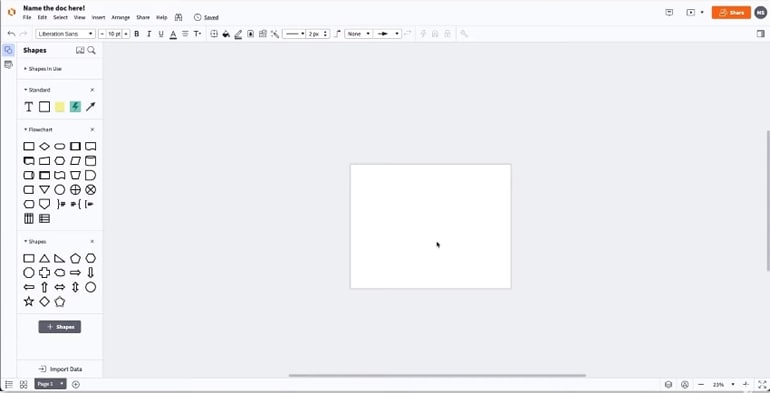
Lucidchart is a diagramming option for teams that need structured relationships, such as process steps, ownership boundaries and system connections. Compare its shape libraries and editing behavior with the diagrams you actually maintain rather than judging it solely as a sticky-note canvas.
Key Features:
- Templates
- Arrows for relations
- Live cursor
- Different views
- Comments
- Lots of shapes and icons
- Map data and user flows
How to evaluate it
Lucidchart can be useful when a workshop outcome needs a more formal diagram. For the booking example, map the request, availability check and confirmation, then review every branch with the person responsible for the rule. If you are still choosing a diagram structure, the guide to concept maps explains how labeled relationships differ from a simple brainstorm.
Supported Systems: Web
Creately
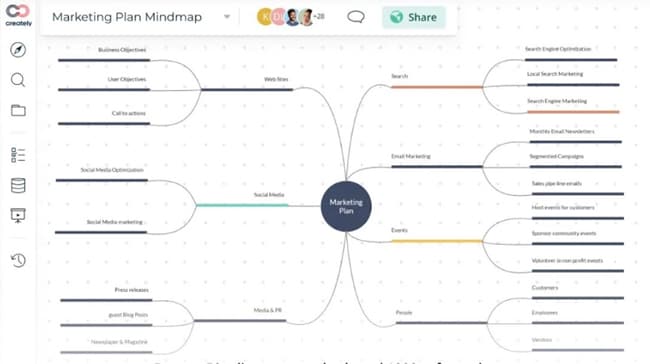
Creately provides visual workspaces for diagrams, plans and connected information. Consider it when the team needs to keep context attached to a visual model rather than producing a standalone picture. Specific data connections and import options vary by product, so evaluate the exact workspace you intend to use.
Key Features:
- Many integrations
- Create Mind Maps, Concept Maps, and other diagrams.
- Diagram templates
- Link and navigation
- Add tasks and roles
How to evaluate it
Try Creately with a process your team already understands. Add owners and supporting notes to a small diagram, then ask a reviewer to trace one exception. If the model becomes hard to follow without a live explanation, simplify it before adding more integrations or data.
An integration is useful only if it preserves the information your team relies on. Check what is read, what can be edited, and which system owns the current status.
Supported Systems: Web
Mural
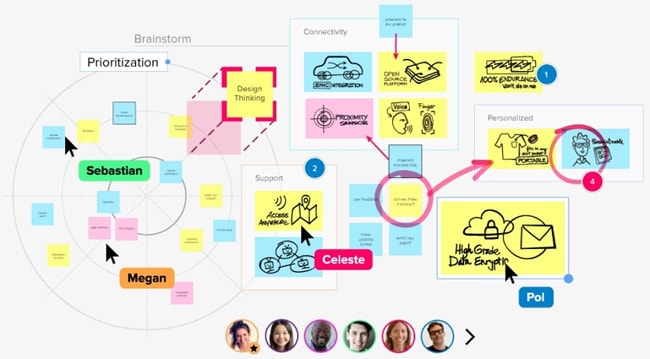
Mural focuses on collaborative visual work and facilitation. It is a relevant Miro alternative for workshops in which participation, discussion and alignment are more important than detailed interface prototyping. Evaluate how comfortably occasional participants can join and find the current activity.
Key Features:
- Infinite and resizable canvas
- Icons, GIFs, and images
- Sticky notes and text
- Collaboration tools and permission controls
- Create and publish or use custom templates.
- Timer
- Private mode
How to evaluate it
Use Mural to test a short facilitated exercise: give everyone a clear question, allow individual idea generation, then group and discuss the contributions. Templates and visual assets can support that sequence, but the facilitator still needs to explain the task and capture decisions.
Private contribution modes can reduce the influence of the first visible answer. They do not guarantee independent thinking; explain when ideas become visible and provide a way for participants to ask questions.
Access: browser-based workspace; confirm current app support and guest permissions before a session.
Ziteboard
Ziteboard is an online collaborative whiteboard with a strong fit for drawing and explaining ideas in real time. Teachers, tutors and small working groups can evaluate it for a shared sketching session. A drawing-first workflow is different from a structured product backlog or a detailed prototype.

Key Features:
- Infinite canvas
- Insert images and PDF files.
- Audio and video chat
- Export the whiteboard as a high-resolution image or PDF
- Create templates
- Three types of writing tools (pen, highlighter, marker)
How to evaluate it
For a remote explanation, test whether a participant can follow the pen strokes, read annotations and contribute without extensive setup. Check your actual audio/video arrangement and export requirement before the lesson rather than assuming every feature is included in the same plan.
Business teams can use the same test for a quick sketch review. If you need to maintain a large decision history or connect many delivery tasks, compare that requirement separately.
Access: web; test the browser and input device you will use during the session.
Fibery
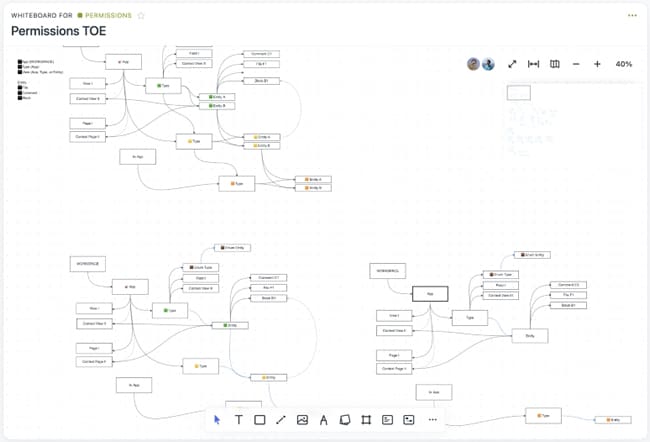
Fibery combines connected work data with visual views, including whiteboards. It is relevant when ideas need to stay attached to product records and decisions. The tradeoff is that a more connected workspace requires agreement on the underlying data model and who maintains it.
Key Features:
- Create diagrams or mindmaps
- Blocks
- Customizable Cards
- Arrows for relations
- Customizable views
- Changes history
- Templates
- Permissions
- Integrations
- Custom action buttons
How to evaluate it
For a product team, a useful trial is to connect a research observation, a proposed solution and a delivery record. Ask whether each item can be found again from the board and whether changes are reflected where expected. This is more meaningful than judging the canvas in isolation, especially if the team already stores its work in Fibery.
Supported Systems: Web
Float
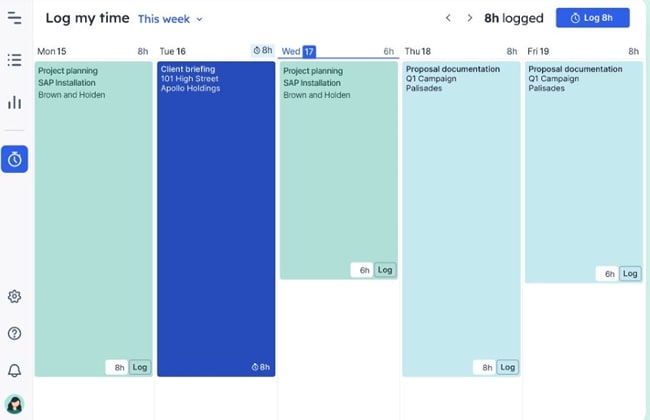
Float is a resource-planning tool, not a whiteboard or mind-map replacement. Keep it on the shortlist only when your actual need is scheduling people and capacity after the planning workshop. It will not preserve a freeform visual discussion simply because both tools can show a timeline.
Key Features:
- Schedule tasks in a project planner
- Track time
- Create graphs that let you visualize the company's resource allocation.
- Sync and export data
- Many integrations
How to evaluate it
Use Float to review who is available to carry out agreed work, what other commitments overlap and whether the proposed schedule is feasible. Keep the design rationale in a linked source that the team can revisit. A schedule represents a plan, not evidence that the product decision itself is correct.
Access: web and supported mobile apps; check the current scheduling experience for your team.
Conclusion
The right Miro alternative depends on the job: shared brainstorming, a structured diagram, an interface prototype or delivery planning. Trial that job with real participants, check guest access and editable exports, and retain a recoverable copy of the original board. Choose the smallest workflow that preserves your team’s decisions and makes the next action clear.
If your primary task is an individual idea tree rather than a team workshop, compare Xmind alternatives for editable mind maps instead. That decision puts more weight on branch editing, portability and offline access.