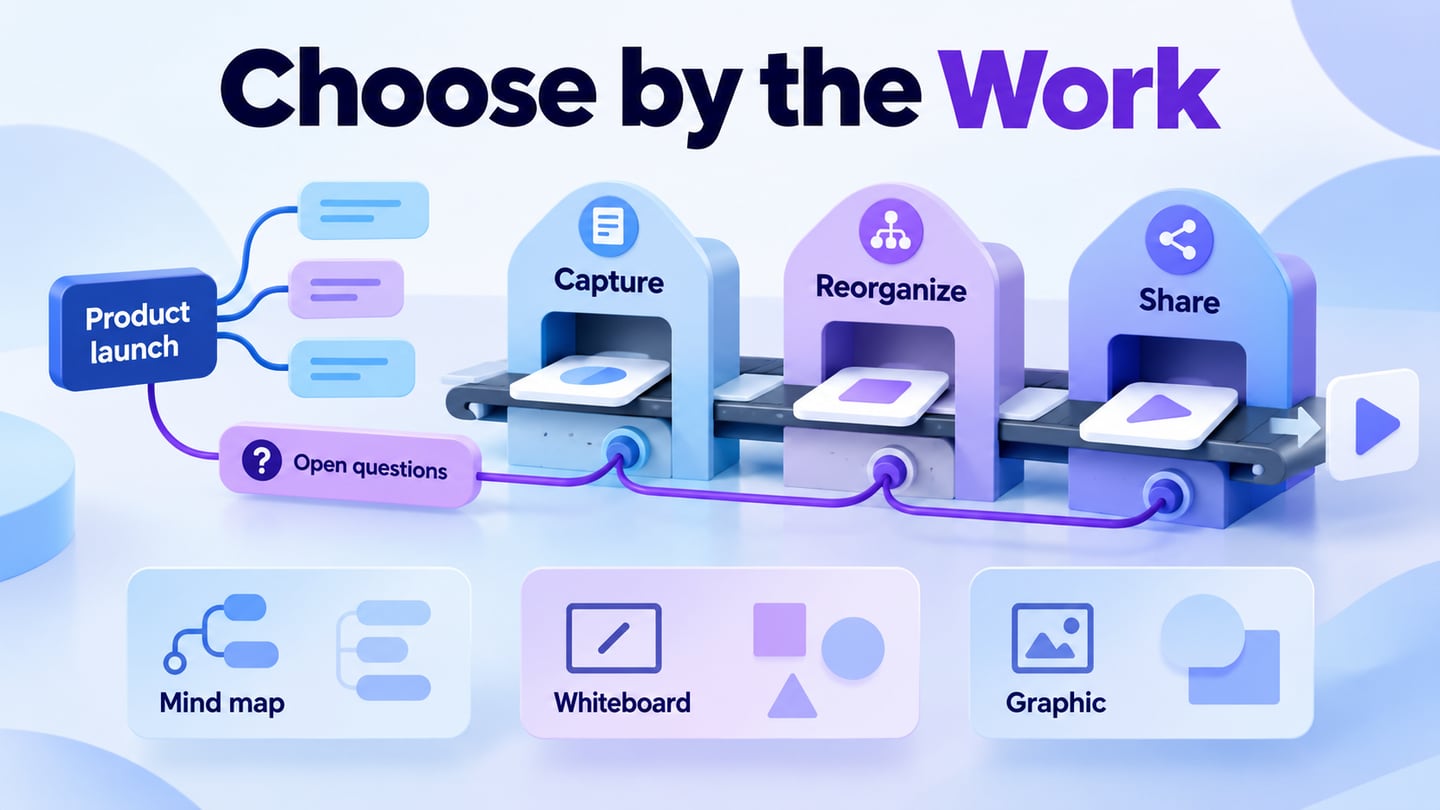
Xmind is a mind-mapping tool for organizing topics, relationships and supporting notes. A useful alternative should improve a specific part of that workflow: editing branches, working offline, collaborating with others or moving the map into a usable next deliverable. Changing tools solely because another feature list is longer can create unnecessary migration work.
For product planning, consider organizing a map in Mockitt’s whiteboard workspace when the reviewed ideas will guide a flow or prototype. For a direct Xmind replacement, first test whether the candidate preserves the parts of your existing maps that matter. This guide distinguishes ongoing free access, trials and paid capabilities instead of labeling every tool “free.”
Why Look for an Xmind Alternative
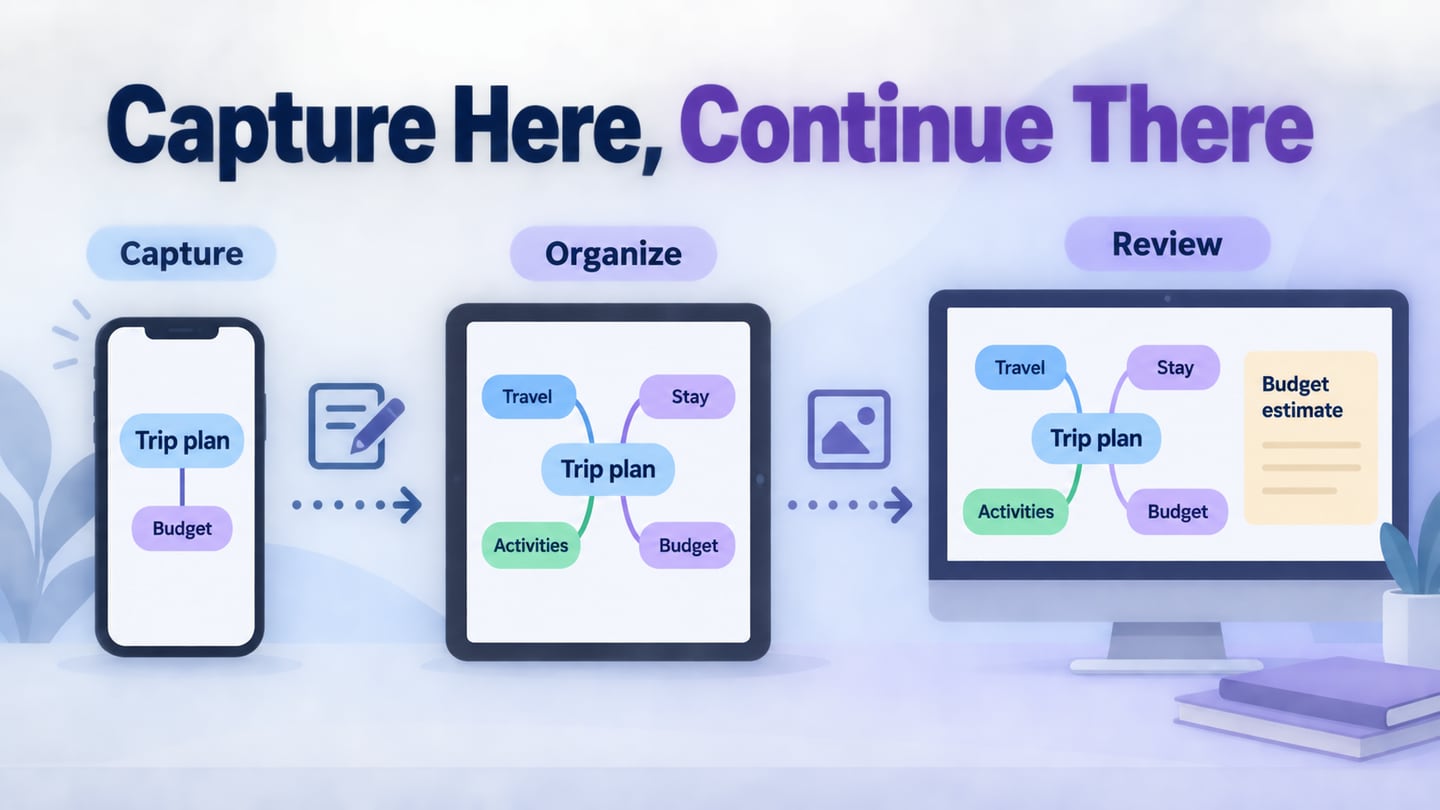
Before switching, identify the constraint that is actually blocking your work. It might be offline editing, team access, a required export format or a map that has become difficult to navigate. Use a representative map with nested branches, notes, images and cross-links to evaluate that constraint; a blank demonstration map is not enough.
Xmind offers free and paid plans, with collaboration and task-related features depending on the plan and platform. Check the current plan comparison before switching: the constraint may be a particular export, device or team workflow rather than a missing product category.
Best Xmind Alternatives
The options below cover different needs. Browser collaboration, a desktop idea tree and a connected project workspace are not interchangeable. Historical screenshots illustrate the type of workspace; current controls and plan limits may differ.
Test one map before moving the archive
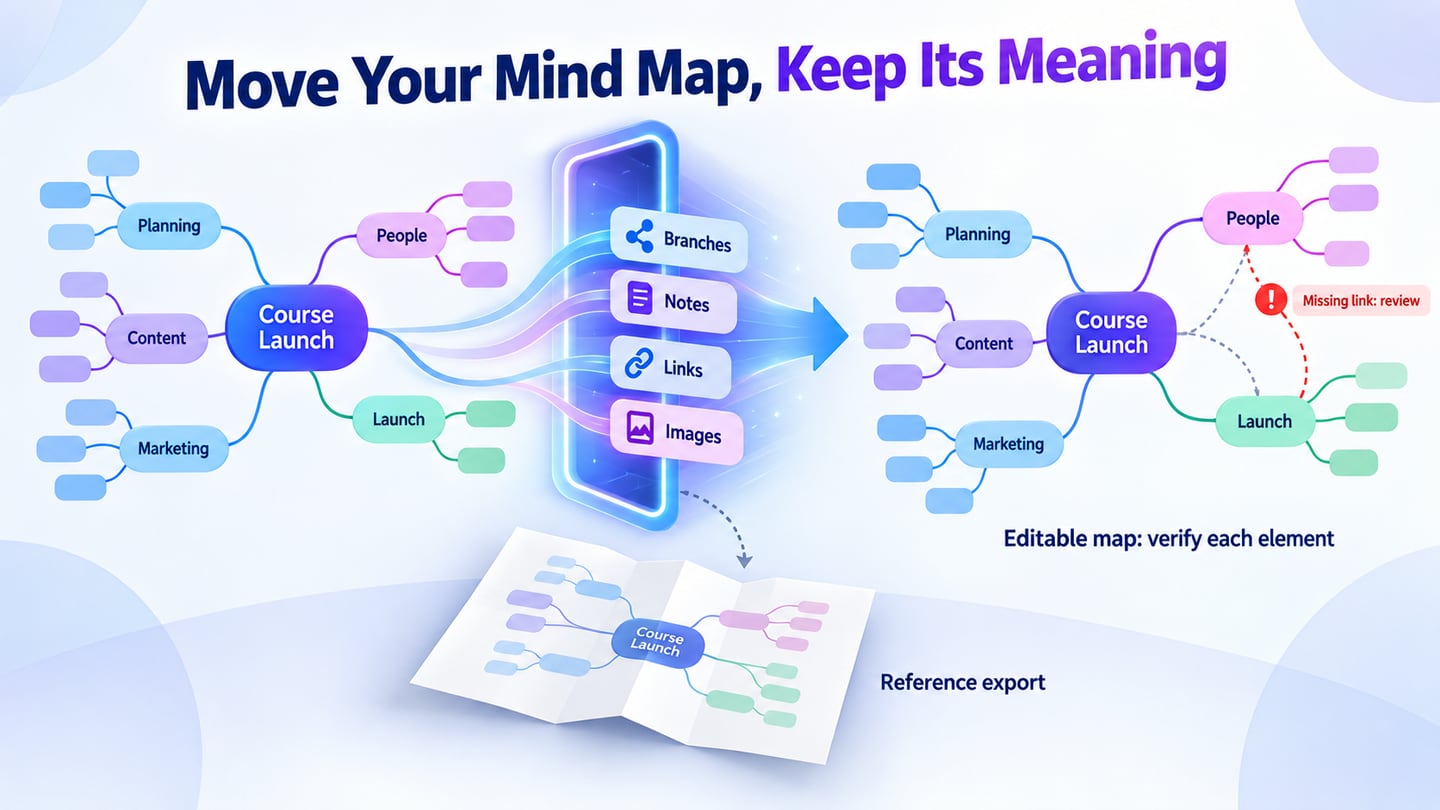
Use a course-launch example with four branches: audience, lessons, promotion and open questions. Add a note explaining the audience assumption, an image in one lesson branch, and a cross-link between a promotion promise and the lesson that supports it. Export from Xmind, import into the candidate where supported, and inspect each element. If import is unavailable, time a small manual rebuild before deciding to migrate everything.
A PNG or PDF preserves a visual reference, not an editable topic structure. Keep the original file and a readable export. Verify branch order, notes, links, attachments and access permissions after the move. For a map with several kinds of relationships, review the difference between concept maps and mind maps before choosing an editor.
| 1 - Mockitt | 2 - Boardmix |
| 3 - FreeMind | 4 - Taskade |
| 5 - ThinkComposer (legacy) | 6 - MindManager |
| 7 - MindMup | 8 - Creately |
| 9 - Mindomo | 10 - Bubbl.us |
1 - Mockitt
Mockitt is relevant when the map is part of a product-design workflow. Start with an editable structure, review its assumptions with teammates and use the agreed ideas to plan a flow or prototype. It is not presented here as a guaranteed lossless Xmind-file converter; verify the input and export formats available in your workspace.
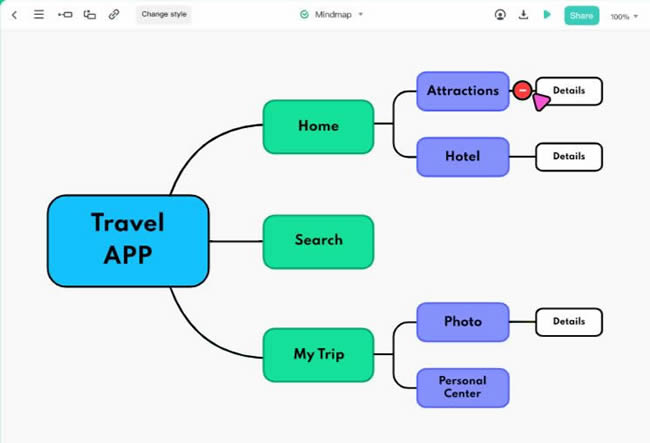
Use the map to organize topics, supporting notes and visual references, then review unclear points with teammates. Mockitt’s reusable interface resources and team libraries are relevant to the design work that follows; they do not establish that an imported Xmind map will preserve every branch attribute.
Pros
Keeps early ideas connected to later product-design work.
Browser access for a shared review.
Includes collaboration tools
Reusable resources for subsequent interface design.
An editable starting point for reviewing an idea structure.
Cons
Check the current plan, AI allowance and export options; a free account is not a promise that every capability is unlimited.
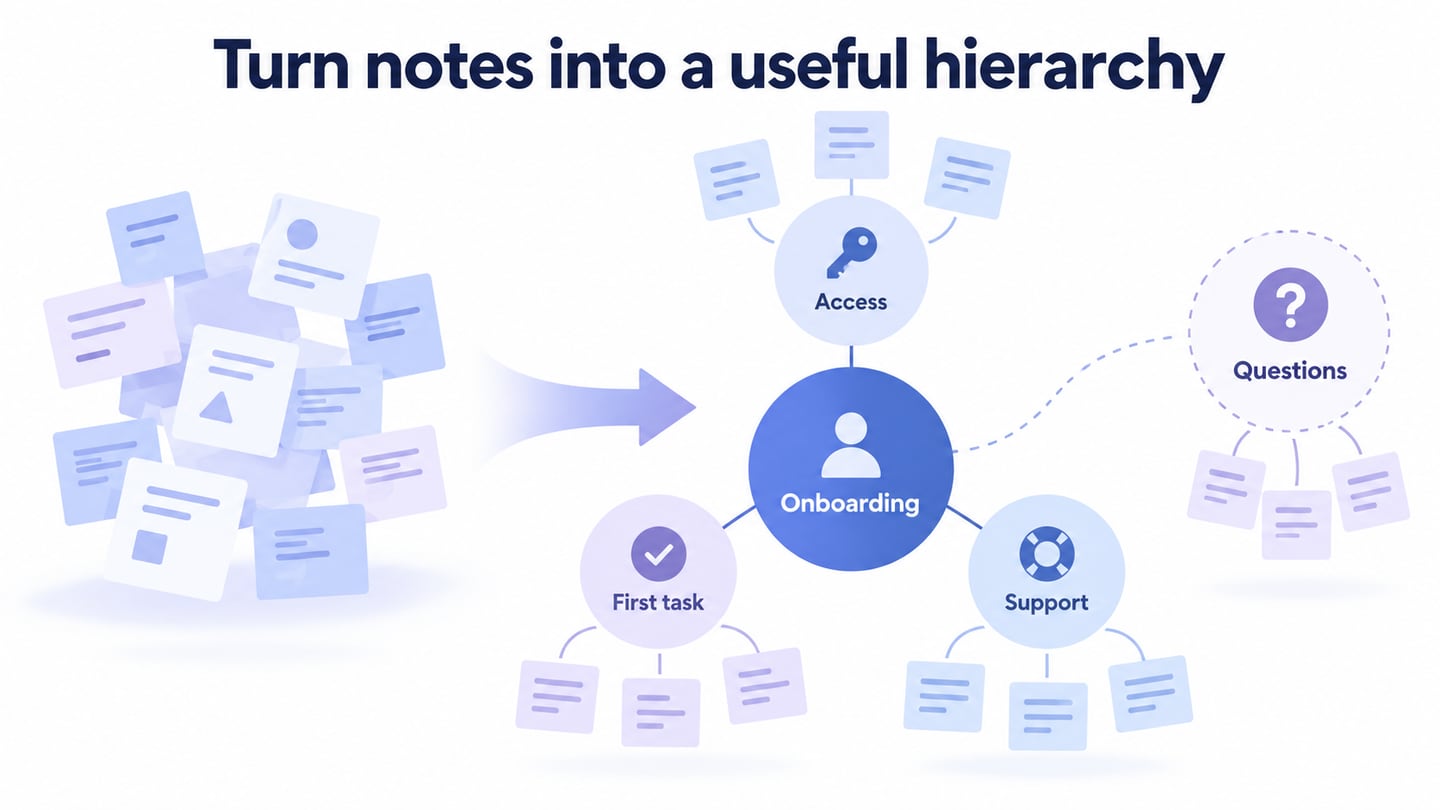
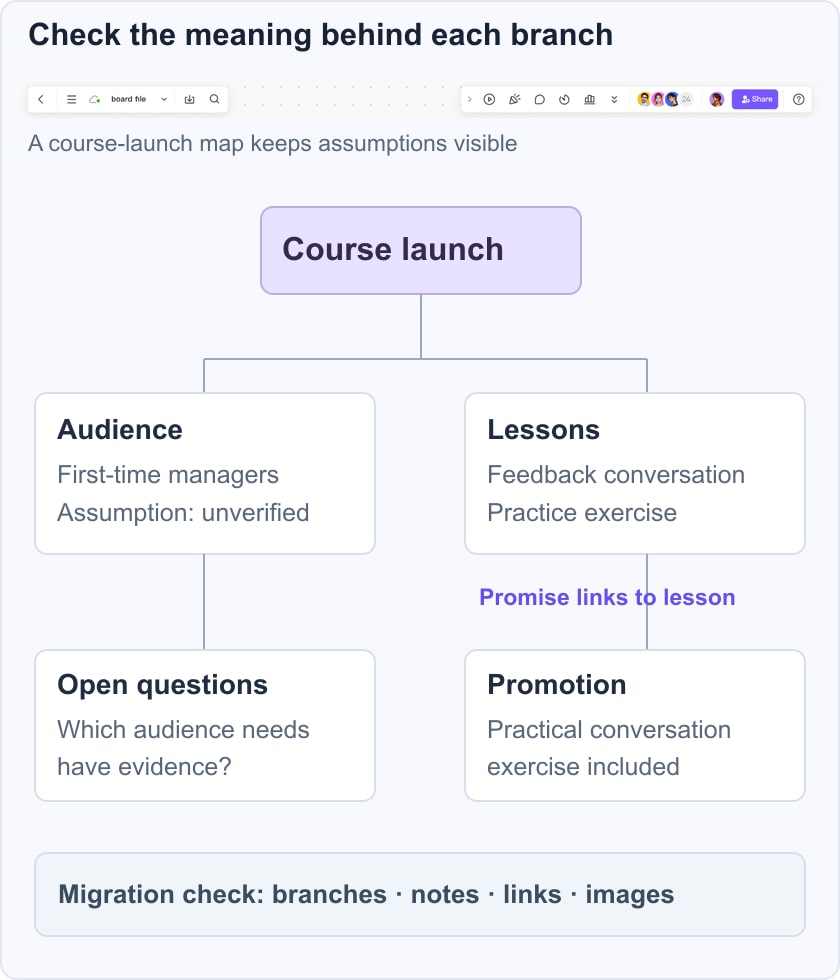
In the course-launch example, ask AI for an initial outline, then edit it against the actual brief. Keep “audience assumption unverified” under open questions instead of letting the draft imply that research has already been completed. Only move a branch into a delivery plan after someone has checked its meaning and dependencies.
Review the map with three concrete questions: does every lesson support the stated audience need, does each promotion claim point to something the course actually includes, and which assumptions still require evidence? This turns a visual outline into a reviewable planning aid. The illustrative scene below shows that distinction; it is not a report of a completed course launch.
2 - Boardmix
Boardmix combines online mind mapping with a shared visual canvas. Consider it when the map needs to sit beside workshop notes or be reorganized with colleagues. Use the course-launch trial to check whether people can follow the structure, add feedback and export a readable reference.
Do not assume that a collaborative canvas imports every Xmind attribute. Test a copy with notes, cross-links and an image, then compare it against the original. If part of the structure must be rebuilt, include that work in the migration decision. Confirm guest access and export permissions before inviting the whole team.
For a course-planning workshop, put lesson branches on the map and keep interview excerpts or draft lesson notes nearby on the board. A reviewer should be able to trace a promotion promise back to the lesson that supports it. This favors Boardmix when the map becomes shared workshop material; Mockitt is more relevant when the agreed structure will guide a course product’s screens or interactions. Neither choice should be treated as a lossless file conversion without checking your own archive.
3 - FreeMind
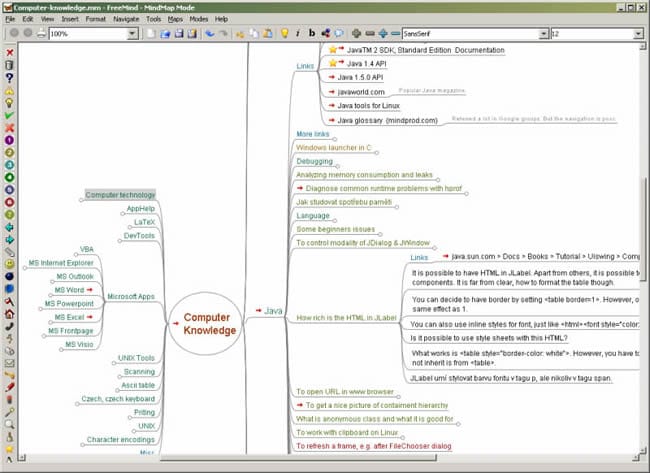
FreeMind is an open-source desktop mind-mapping tool. It remains relevant for readers who want a local branch-based map and can manage an older desktop application. Check compatibility and maintenance expectations on the computer where you will use it.
FreeMind’s folding feature lets you hide or reveal a branch so that a large map can be reviewed in smaller parts. That is helpful for the course example: focus on one lesson without losing the wider structure. Folding improves navigation; it does not resolve unclear relationships or duplicate ideas.
Key Features:
- Built-in colors, icons, and fonts
- Export mind map to HTML
- Insert links
- Smart drag and drop
Pros
Open-source desktop software; check installation requirements.
The folding feature makes Freemind very convenient to use.
Its XML-based files can be useful for portability, but do not assume another tool will import every element. Test notes, icons, images and links in a copy before depending on a conversion.
Cons
The image files you add to the mind map should be on your device when you open the mind map. Otherwise, the image will not show.
Do not choose it on the assumption of a modern browser-based multiplayer workflow.
Evaluate visual styling against the needs of your document or presentation.
Test external file paths and links after moving the map to another machine.
4 - Taskade
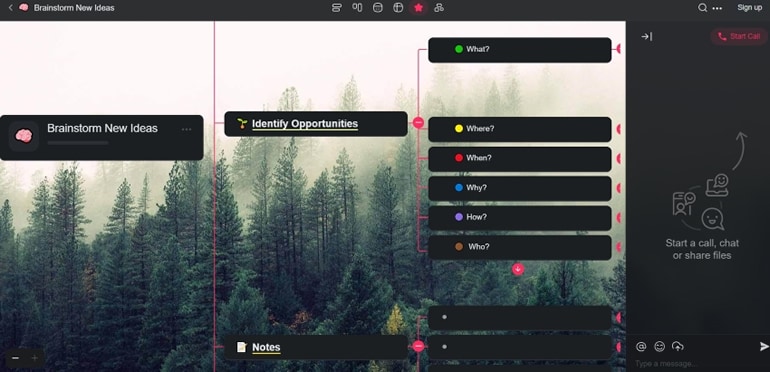
Taskade combines collaborative workspaces with AI and task-oriented workflows. It is worth evaluating when a map should also become assigned work. Check the current mind-map or project views in the version you intend to use, since its product scope has expanded beyond a standalone mapping tool.
Key Features:
- Nodes
- List, Board, Org chart, and Mind Map views
- Built-in calendar
- Assign tasks and set due dates
- Comments
- Share files with your team
- Chat and call
- Mentions
- Templates
Pros
Offers robust collaboration tools
Mind maps made with Taskade double as planners/schedulers.
Includes a messaging feature
A map can help show how tasks relate, while the task record carries delivery details.
Cons
Test the layout and styling controls against your map rather than assuming they match a dedicated mind-map editor.
Check the current free-plan and paid-plan limits; do not treat an earlier trial duration as an ongoing offer.
5 - ThinkComposer
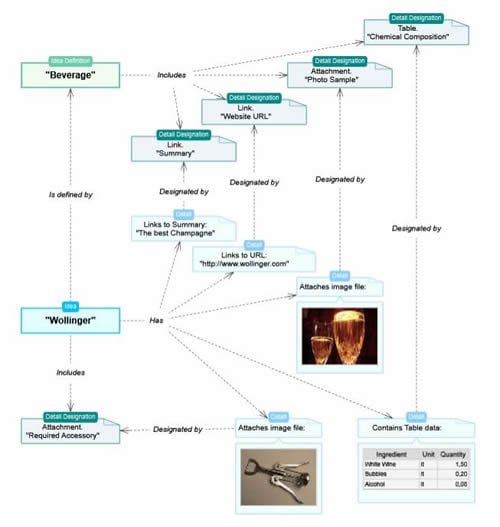
ThinkComposer is included as a legacy option for nested diagrams and structured visual models. Its earlier documentation describes child diagrams, connectors and attached information. Treat it as an existing-workflow or archive-maintenance choice, and verify the current download, compatibility and support situation before adopting it for new team work.
Key Features:
- Define your nodes and connectors.
- Insert attachments, tables, links, and custom fields.
- Add child diagrams for ideas.
- Generate reports for the document and export them to PDF, XPS, or HTML.
- Collapse or expand ideas' supertrees or subtrees
- Add markers
- Add notes, legends, call-outs, stamps, and rich description
Pros
Evaluate availability and licensing from the project source before installing.
Nested models can represent more detail than a simple radial map.
Expect to learn its modeling conventions.
It lets you add diagrams inside your diagrams
Cons
Verify maintenance, operating-system compatibility and a recoverable file format before relying on ThinkComposer for new work. Keep a readable export of an existing model.
Do not assume browser-based real-time collaboration.
6 - MindManager
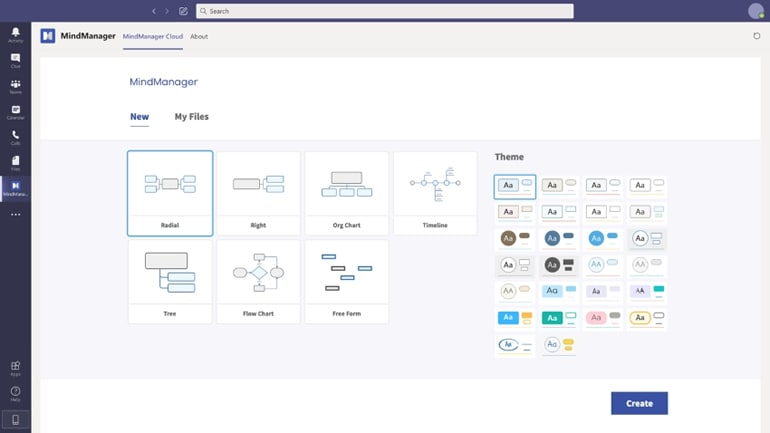
MindManager combines mind mapping with visual planning, including relationships between ideas and work. It is a candidate when a personal map develops into a more structured project view. Evaluate the editing experience, supported exports and collaboration options on the specific platform and plan you need.
Key Features:
- Add org charts or Gantt charts
- Systems Mapping
- Create presentations
- Timelines
- Integration with Microsoft products
- Flowcharts
Pros
Lets you create presentations using mind maps
Check currently supported integrations with the tools your team uses.
Offers different views
Available on different platforms
Cons
A trial and a permanently free plan are different; consult the current offer before budgeting.
7 - MindMup
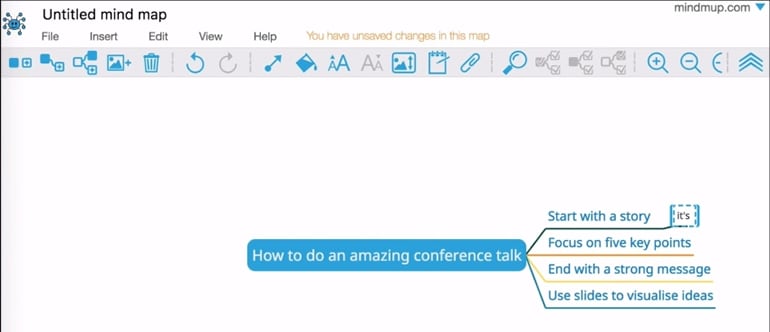
MindMup is a browser-oriented mind-mapping option. Its practical appeal is getting an idea structure into a shareable form without adopting a large project workspace. Check the current account, storage and collaboration terms before using it for long-lived team records.
Key Features:
- Frictionless interface
- Convert mind maps to PDFs, PowerPoint presentations, or outlines.
- Cloud storage
- Check whether the current MindMup version supports the Google Drive workflow you intend to use.
- Publish mind maps online and share them.
- Attach documents and images
- Collaboration tools
Pros
Evaluate the available free access against your map size and storage needs.
When publishing a map, inspect the final view and sharing settings. A readable published map is useful for discussion, but public publication is not appropriate for confidential notes.
Confirm whether real-time co-editing is available in the current MindMup service and plan; its public site also labels collaboration as forthcoming.
Easy administrative controls
Confirm which actions require an account in the current service.
Cons
Check file-size, storage-duration and export limits before using it as your only copy.
Verify collaboration permissions and plan requirements with a second account.
8 - Creately
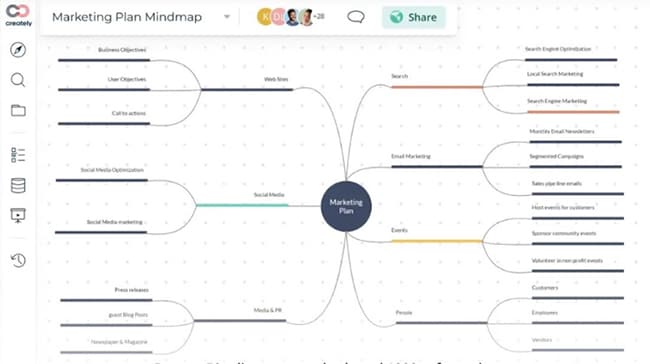
Creately offers visual workspaces for diagrams, plans and connected information. It is relevant when your mind map needs supporting context, such as owners, notes or links to other work. For a simple personal idea tree, that broader workspace may be more than you need.
Key Features:
- Multiple diagram types
- Diagram templates
- Add tasks, wikis, and resources to the canvas
- Links navigation
- Lots of integrations
- Collaboration tools
- Multi-perspective views
- Link data and notes
Pros
Includes collaboration tools
Useful for several diagram formats; evaluate your required notation.
Pre-made templates make mind map creation easy.
The ability to add wikis, tasks, and links to the canvas offers convenience.
Compare the plan needed for your actual collaboration and export requirements.
Cons
Verify current canvas and object limits rather than relying on an old free-plan allowance.
Test your required export format before migrating an archive.
9 - Mindomo
Mindomo supports mind maps, concept maps and outlines across online and desktop workflows. It is relevant when offline access and later collaboration are both important. Test synchronization and the availability of each feature on your intended devices rather than assuming all versions behave identically.
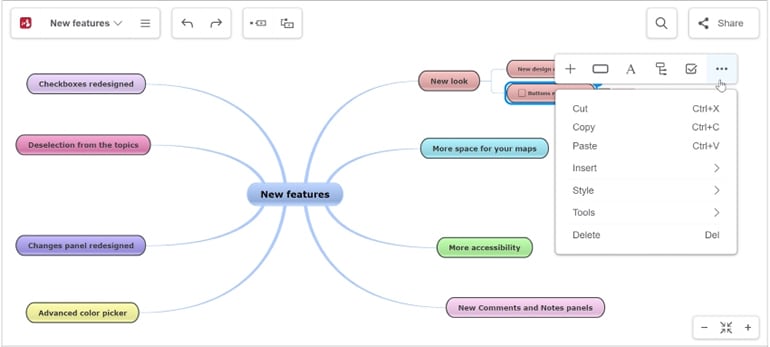
Key Features:
- Lots of layouts
- Pre-made themes
- Sync offline and online maps
- Various integrations
- Collaboration tools
- Templates
- Turn diagrams into presentations
Pros
Offers collaboration tools.
Available offline and online
Templates make diagramming easy.
A free option may fit a small trial; verify its present limits.
Cons
Check which online, desktop and mobile capabilities are included in the plan you choose.
Confirm current map, topic and export limits on the official plan page.
10 - Bubbl.us
Bubbl.us is a browser-based mind-mapping tool focused on organizing and sharing ideas. It suits a compact structure that needs to be understood quickly. Evaluate whether its branch editing and sharing options are enough before choosing a broader diagramming suite.
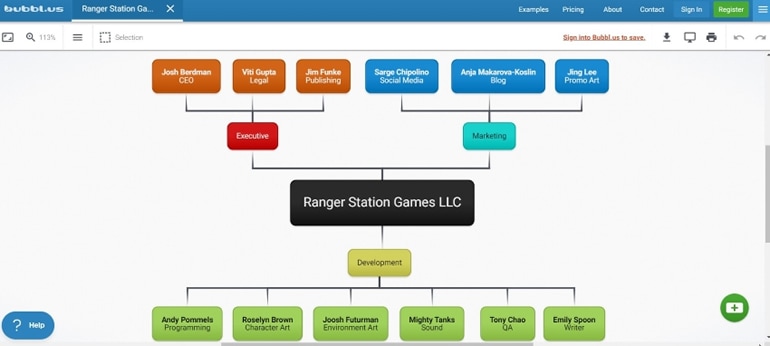
Key Features:
- Export mind maps as JPG, PNG, or text.
- Generate shareable links
- Collaboration tools
- Instant presentation creator
- Examples (templates)
- Attach files and images
- Revisions history
Pros
Test the map on the desktop and mobile browsers you need.
A focused interface for a small idea tree.
The minimalistic interface ensures there are few distractions
Check reviewer access and editing permissions with a real collaborator.
Cons
Check the current free-plan map allowance and paid features.
If offline editing is essential, verify it explicitly before committing to a browser-based tool.
Conclusion
Choose an Xmind alternative by a concrete constraint, not a universal ranking. Keep the original file, test one representative map, and distinguish editable exports from reference images. A tool that handles your branch structure and review workflow reliably is a better fit than one with a longer feature list.
For a team workshop with freeform notes, compare Miro alternatives for collaborative whiteboarding. For deciding how to represent linked concepts before selecting software, use the concept-map planning guide. These are different tasks from replacing an individual mind-map editor.