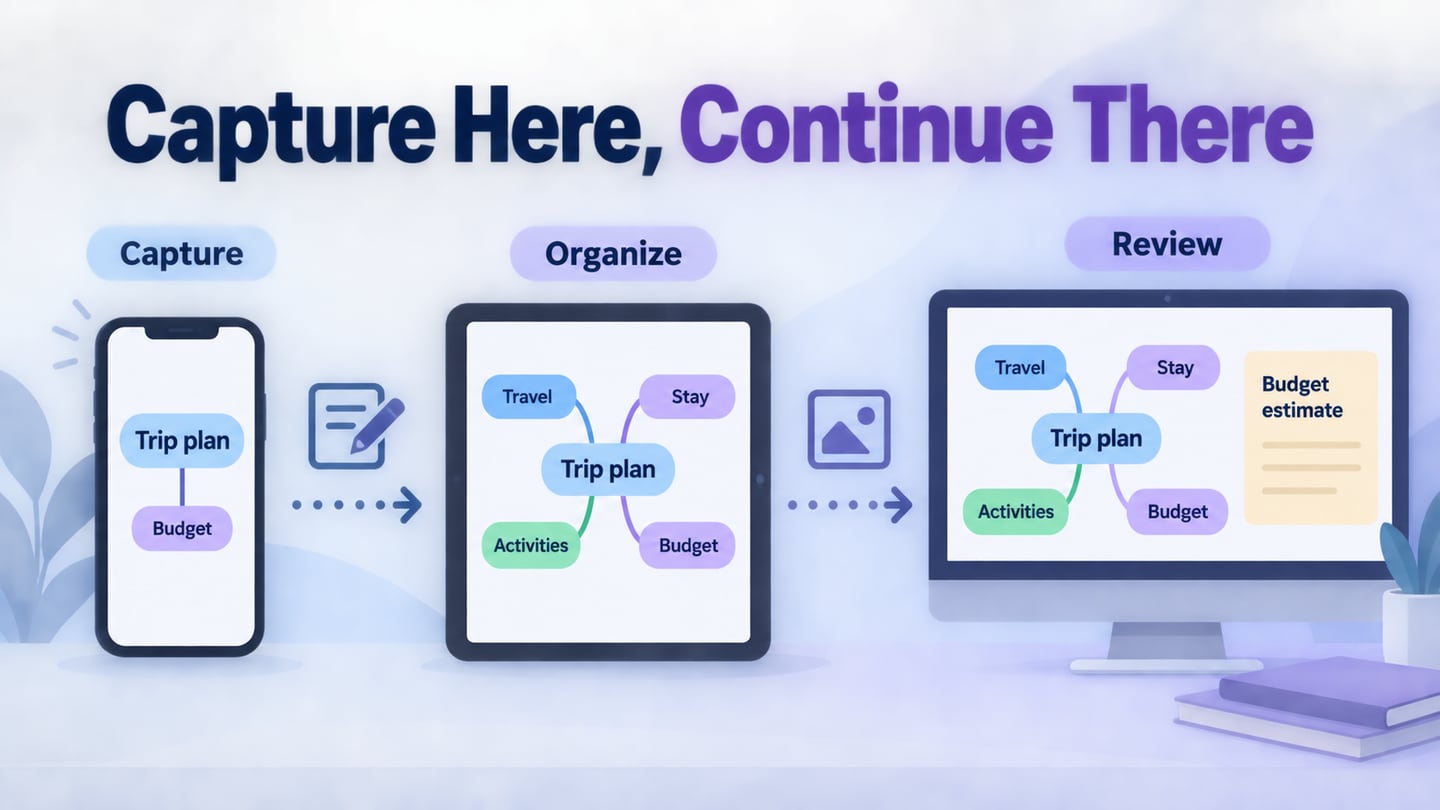
The useful question is not which app has the longest feature list, but whether it supports your actual phone or tablet task. Capture may happen on an iPhone, restructuring on an iPad and team review on a larger screen. Mockitt’s whiteboard workspace belongs in that wider workflow; a browser product needs its own touch and offline checks.
Start with three checks: can you add and reorganize topics comfortably on the device, can you reopen the map when needed, and can the next reader receive a useful export or shared view?
Test one representative note, link and image attachment instead of comparing a long checklist. If you work offline, confirm the exact offline behavior before relying on the app during travel.
Templates can speed up a first draft, but compare your own content and the device you will use. The native-app group below focuses on mobile capture; the web companions support the later review and diagramming work. Earlier interface examples may differ from current controls.
| Tool or category | Useful starting point | Check with your own map |
|---|---|---|
| Xmind | Native mobile mapping | Basic editing versus AI connectivity requirements |
| MindNode | Apple-platform mapping | Current app versus Classic file migration |
| MindMeister | Native mobile and cloud workflow | Offline editing and sync with a representative file |
| Miro | Mobile and tablet board apps | App-specific input and feature availability |
| AYOA | Mobile mapping and planning | Capture, organization and output behavior |
| Mockitt | Browser product-design workspace | Actual touch workflow; no assumed native app parity |
| Boardmix | Web companion for shared mind maps | Browser and touch workflow; no assumed native app parity |
| SmartDraw | Browser diagramming | Tablet input, reading size and export |
| Lucidchart | Diagramming with device-specific access | Current supported route for your device |
| Creately | Browser visual workspace | Touch editing and sharing permissions |
| iThoughts | Legacy collection | No new purchasing path; preserve original files |
Native apps for mobile capture and editing
Distinguish native mobile apps, browser-based options and discontinued purchasing paths. Check current availability and plans directly before choosing an option.
1. Xmind
Xmind’s iPad and iPhone workflow includes capturing and organizing map content on mobile. Its documented Draw to Map feature turns a sketch into an editable mind map; AI generation requires connectivity and credits. Evaluate the basic editing workflow separately from that optional AI step.
What to evaluate
- Capture a central topic and a few branches with the keyboard or drawing workflow you intend to use.
- Export a small map and check it on another device.
- Add one supporting image and confirm it stays associated with the right topic.
- Choose a readable structure before customizing the visual style.
- Move a topic to another branch and inspect the result.
- If sketch recognition is relevant, try a real note sample rather than a promotional example.
- Keep an editable copy of the map when sharing a static image.
- Confirm which AI and collaboration functions the selected plan provides.
Pros
Useful fit: a dedicated mobile mapping workflow that can continue on other supported platforms.
Check local and cloud save choices before planning work away from a reliable connection.
Try a map with realistic branch depth on both the phone and tablet sizes you use.
Inspect whether labels remain readable without excessive zooming.
Cons
AI-assisted operations and cloud collaboration have separate connectivity and account requirements.
Plan check: consult the current official plan and in-app terms before subscribing.
2. MindNode
MindNode is an Apple-platform mapping option with mind mapping included in its free tier. Distinguish the current app from MindNode Classic when moving an existing collection, and confirm the functions available on the device you use.
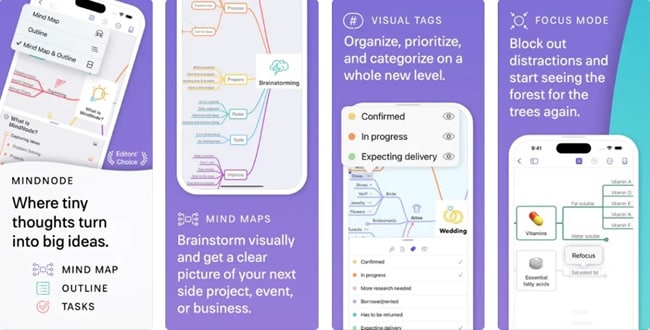
MindNode combines branch layouts and visual styling with notes, images and ways to focus on part of a map. Its current feature set also includes live collaboration and AI brainstorming; check which functions the selected plan and app provide before making them part of a mobile workflow.
Try a travel map with a note under Budget and an image under Destination. Move one branch, focus on its details and reopen the map on the other Apple device you use. Inspect the exported reading size and any reminder or task handoff you need. This reveals more than comparing themes or layout names in isolation.
Pros
Useful fit: mapping within an Apple-device workflow.
The map should remain legible in its exported form, not only inside the editor.
Check the current integrations needed for your own workflow rather than assuming every historical connection is still supported.
Cons
Advanced features depend on the current plan; mind mapping itself is included in the free tier described by the vendor.
Migration check: current MindNode and Classic are distinct versions; test the import and feature preservation before moving an archive.
3. MindMeister
MindMeister’s mobile app supports capturing, editing and sharing maps on iPhone and iPad. The vendor documents mobile offline editing with synchronization when connectivity returns; still test that behavior with the account and file you will use.
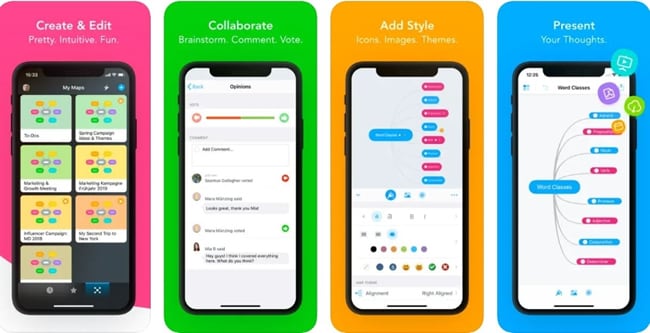
Key Features:
- Syncs mind maps and folders with users' free online account
- Icons, colors, styles, and themes
- Notes, links, tasks, and attachments
- Turn mind maps into presentations
- Real-time collaboration
- Add files and images to maps
- Export check: a document or presentation output may be an outline rather than the visual map. Open the actual file before promising a diagram to the recipient.
Pros
The current official mobile page describes up to three maps in the free tier.
Syncs with MindMeister's online mind mapping software.
Cons
Advanced functions and larger collections may require a paid plan.
Open a sample Office export before relying on it: a text outline and a rendered map serve different purposes. If the recipient needs the visual diagram, choose an available image or PDF output and inspect the result.
Plan check: review current account terms and the output formats available before committing a team collection.
4. Miro
Miro offers mobile and tablet apps for working with a collaborative board. Use its tablet documentation to check the intended input and review workflow rather than assuming every desktop function behaves identically on a phone.
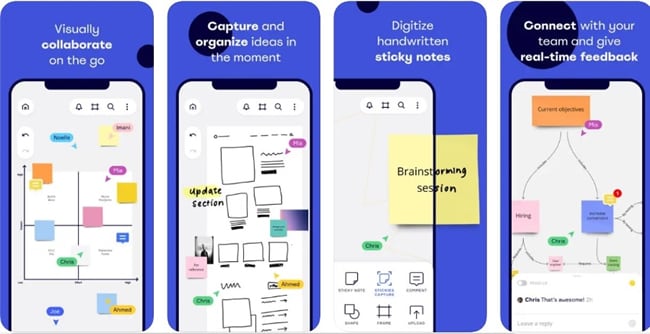
Key Features:
- Create, edit, and view boards
- Create mind maps
- Capture check: test any image or note input workflow with the material you actually collect.
- Share boards with your teammates
- Review and resolve comments
- Pen input: test the supported drawing tools on your tablet.
- Presentation: make sure the audience can follow the relevant area of the board.
Pros
Useful fit: reviewing a map that sits among other workshop material.
Try pen input where the device and current app support it.
Usable for teaching, workshops, brainstorming, and meetings.
Plan check: confirm current editable-board and sharing limits.
Cons
A large collaborative board can be harder to navigate on a phone than on a tablet. Try selecting, moving and reading a realistically sized branch before using Miro during a live session.
Device check: distinguish the mobile app, tablet app and mobile browser before planning the session.
5. AYOA
AYOA’s mobile documentation covers mobile project creation and mind mapping. It is worth evaluating when a map is part of a wider planning workflow, while keeping the map’s ideas separate from approved assignments.
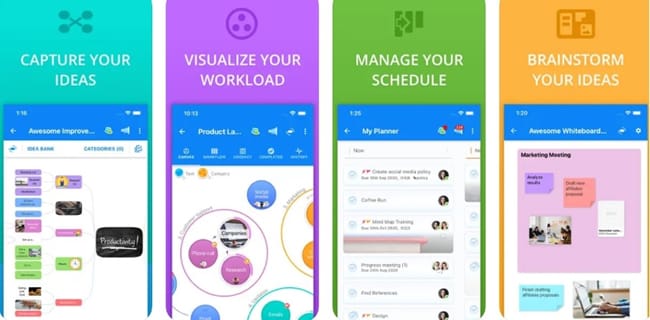
Key Features:
- Map layout: choose a structure the next reader can follow.
- Capture: test how quickly you can enter a realistic set of notes.
- Organization: revise a branch without losing its context.
- AI check: verify generated content and confirm any account or connectivity requirements.
- Images: keep only those that clarify the topics.
- Sharing and collaboration tools
Pros
Useful fit: mapping that connects with planning and team review.
Offers different types of mind maps.
Cons
Plan check: confirm current free or trial entitlements rather than relying on the old price table.
It can be intimidating for beginners.
Device check: test the same capture, edit and sharing sequence used for the other shortlisted apps.
Web companions for shared review
These options support a broader mapping workflow. Browser access does not establish native iOS support, offline editing or complete touch-editor parity. Capture notes in an app that works on your device, then evaluate the web workspace for the review that follows.
6. Mockitt – Mind Map
Mockitt is a browser-based product-design workspace with mapping workflows. In this comparison it is a web option, not a claim of a dedicated native iPhone mind-map app or guaranteed full mobile-editor parity.
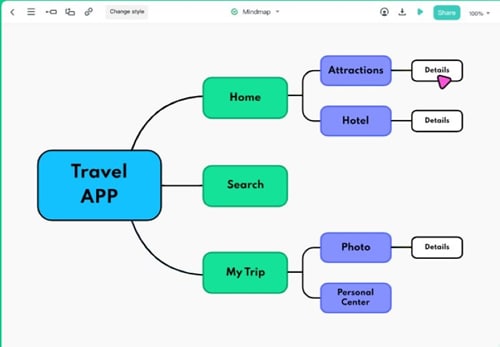
Key Features:
- Topic organization: group product ideas into a structure that can be reviewed.
- Team review: clarify who can see and edit the shared workspace.
- Source preservation: keep an editable map and supporting notes.
- Context: connect the map to the design problem that follows it.
- Export check: inspect the output offered by the current workspace and plan.
Pros
Useful fit: a map that will become part of a broader product-design review.
Access the current web workspace; verify touch editing on your intended device before relying on it.
Use a larger screen for dense maps or detailed screen-design work when that makes review clearer.
Account check: confirm current plan entitlements for the actual workflow.
Cons
Do not assume offline operation or native app behavior from browser availability.
For a travel-planning example, capture “Trip planning” with Destination, Dates, Budget and Open questions on the device that is convenient at the time. In the later shared review, add a note under Budget explaining what is confirmed and what is an estimate. The handoff succeeds only if another person can still see that distinction.
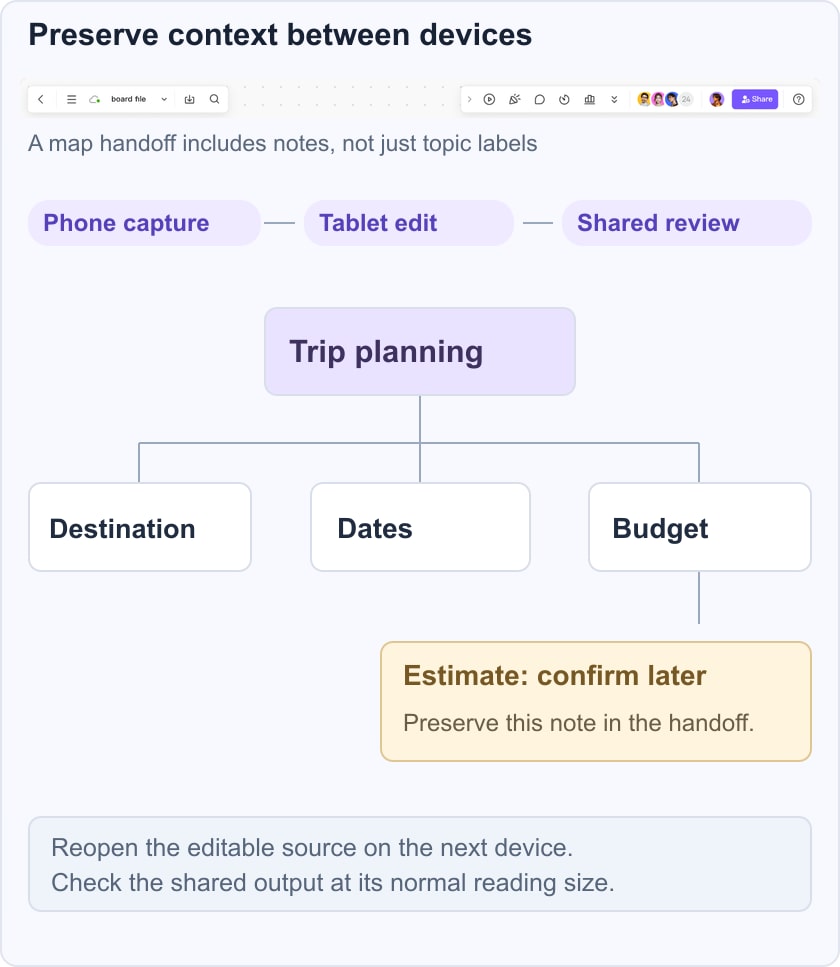
Use this trial across the shortlist: add a branch on the phone, reorganize it on the tablet, reopen the map in the expected connectivity conditions and share one readable output. Keep a backup before any format conversion. A preview image is useful for reading but is not a replacement for the editable source.
7. Boardmix: a web companion for team maps
Boardmix provides online mind mapping on a shared whiteboard. Consider it for the team-review stage after capturing ideas on an iPhone or iPad. This is a web-companion recommendation, not a claim of a native iOS mind-map app or verified full editing on every mobile browser.
For the trip-planning example, bring the Destination, Dates, Budget and Open questions branches into the shared session. Keep a budget estimate labeled as an estimate, add the supporting note, and ask another traveler to resolve one open question. Verify touch selection, branch movement and sharing on the intended device before relying on it; use a larger screen when a dense map needs more room.
Mockitt is useful when the notes will guide a product-design review. Boardmix fits a collaborative planning board that also contains reference notes or diagrams. In both cases, preserve an editable source and check the recipient’s access rather than treating an exported picture as the whole project.
8. SmartDraw
SmartDraw is a web diagramming option in this list. Evaluate it for a tablet-browser workflow rather than assuming the existence of a native app from the old article’s title.
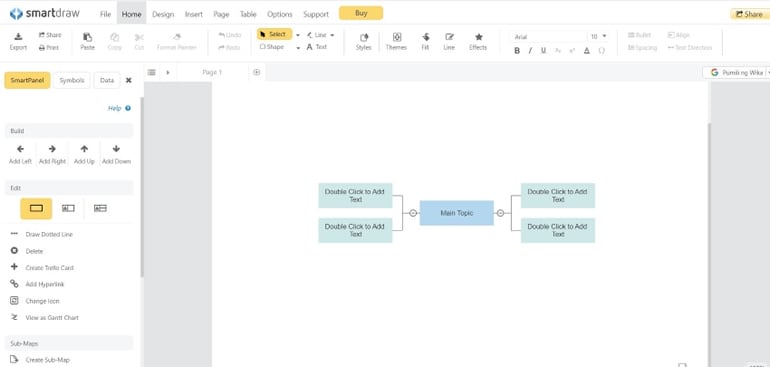
SmartDraw brings mind maps into a broader diagramming workflow. On the intended tablet, add a topic, move a branch and inspect how the layout responds. Keep labels and supporting references readable, then open the export in the application where the next reader will use it.
For a large map, split the subject into smaller views instead of shrinking every label. If the project also needs another diagram type, check that workflow separately. A mind map can name tasks, but ownership, dates and dependencies still need a deliberate planning record.
Pros
Useful fit: a structured diagramming workflow in the browser.
Test a map with realistic content on the intended tablet.
Evaluate it if the team needs other diagrams in addition to maps.
Check the exact tabular or document handoff required by the project.
Cons
Check the current trial and plan terms rather than assuming a permanent unrestricted free version.
You need an internet connection to access the tool.
Device check: verify the browser, input method and export behavior you need.
9. Lucidchart
Lucidchart is a diagramming workspace. Start with its mapping documentation, then confirm the current mobile or browser route supported for your device. A historical App Store screenshot is not sufficient evidence of today’s device support.
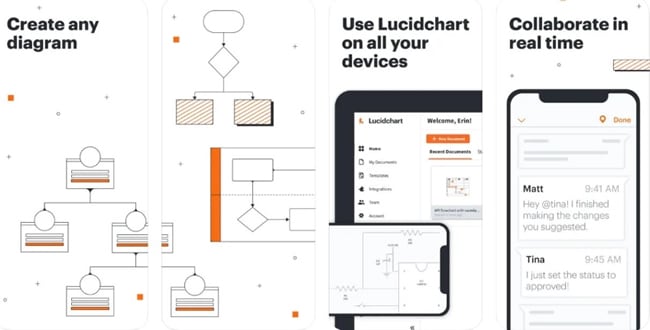
Key Features:
- Pre-built templates
- Real-time collaboration
- Comments
- Generate shareable links or send mind maps through email
- Integration check: confirm the specific workspace connection you require.
- Export to PDF, PNG, and Microsoft Visio
- Migration check: test your own source file before assuming a complex map will transfer intact.
Pros
Useful fit: maps maintained alongside other diagrams and shared explanations.
It has many integrations.
Plan check: confirm current document, object and export limits.
Cons
Check current document and object limits against a map with realistic branch depth.
Device check: verify the supported mobile workflow before introducing it to a team.
10. Creately
Creately is a visual collaboration and diagramming workspace. Test the intended tablet-browser workflow and the map-sharing process before adopting it for mobile capture.
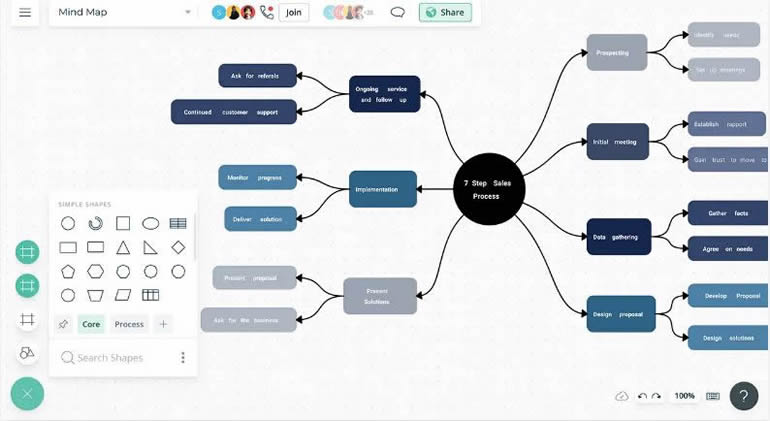
Key Features:
- Infinite canvas
- Vast template library
- Color themes
- Collaboration check: verify the communication and review workflow available in the current product.
- Editing check: test how updates from another collaborator appear in your map.
- History check: verify whether the selected plan provides the recovery workflow your team requires.
- Import check: use a representative source file rather than assuming universal compatibility.
- Export mind maps as images or PDFs
Pros
It is an online tool - so no installation is required.
Has powerful collaboration tools.
Supports different file formats.
Plan check: verify current document and collaborator limits.
Cons
Check the current object, canvas and collaboration limits for the plan you intend to use.
Device check: verify touch editing and export on the intended tablet.
iThoughts: preserve an existing collection
The developer’s iThoughts help page states that there are no purchasing options as of January 2024. Treat iThoughts here as a legacy migration case, not a current recommendation for someone starting a new map collection.

What to preserve from an existing collection
- Export both an editable format and a readable copy when the installed app allows it.
- Keep the original files in a backup before testing another tool.
- Check that imported branches retain their meaning and order.
- Preserve annotations or handwriting that carry information.
- Inspect notes separately from the visible topic labels.
- Check images and icons after conversion.
- Verify hyperlinks and cross-links rather than only the node count.
- Keep relationship labels with their intended connections.
- Review floating topics that may not fit the new editor’s default structure.
Migration priorities
Choose a destination based on a representative file, not a blank demo map.
Handle any protected files with the original credentials and a secure backup workflow.
Confirm which metadata and attachments the destination can retain.
Compare a rendered copy before and after transfer to catch missing context.
Availability limits
Do not send new users to an unavailable purchasing path.
Keep a fallback readable export in case an older installation stops working on a future device.
Conclusion
Choose a native app when its device-specific capture and offline behavior meet your needs; choose a web workspace when the wider collaboration workflow matters more. Preserve the editable source and test one real handoff. For broader comparisons, see the mind map maker guide, Xmind alternatives and Miro alternatives.