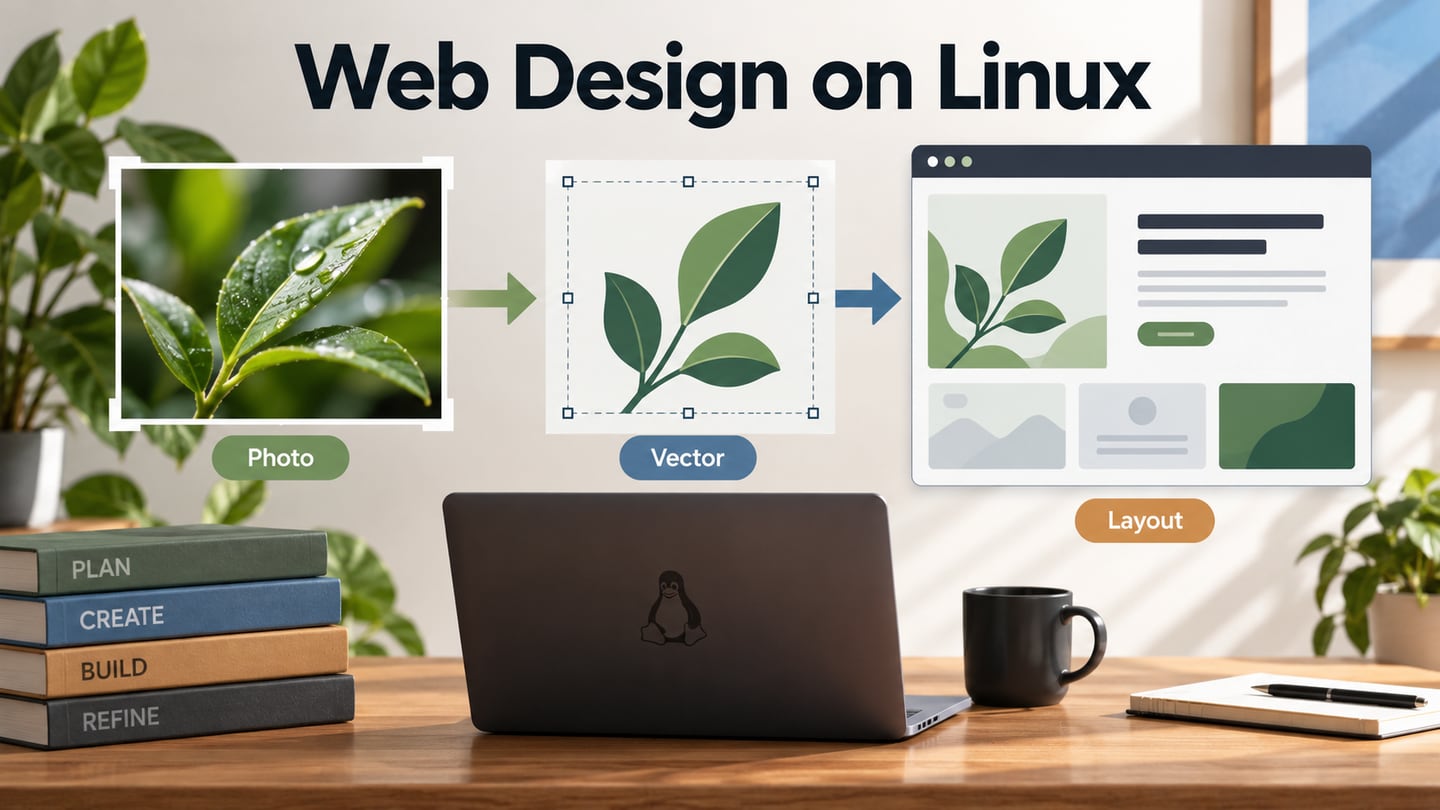
Web design on Linux can involve several different jobs: preparing images, drawing vector assets, planning page layouts and implementing the website. Choose tools by the output each job needs. A photo editor, a vector editor and a browser-based prototype workspace can support the same project without being interchangeable website builders.
Five Tools and Their Place in a Linux Workflow
Mockitt
Use a Mockitt website design canvas to arrange content and review the intended interface before implementation. For a Linux-based workflow, distinguish browser access from a native desktop application: check the current supported environment and do not assume that a Linux installer is available merely because the workspace is online.
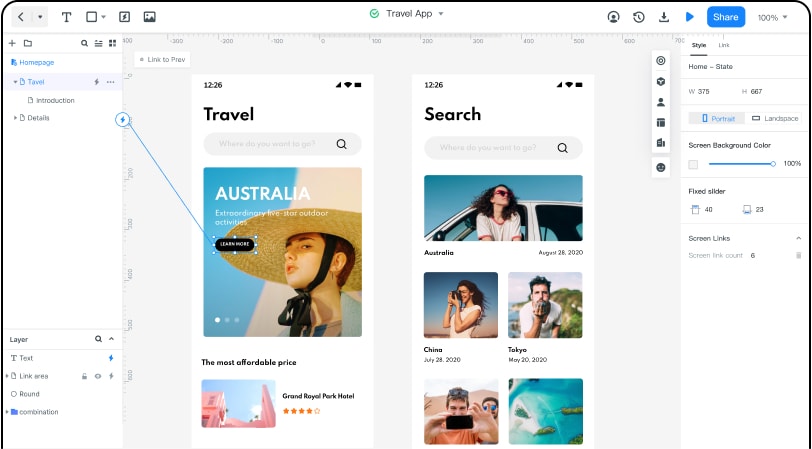
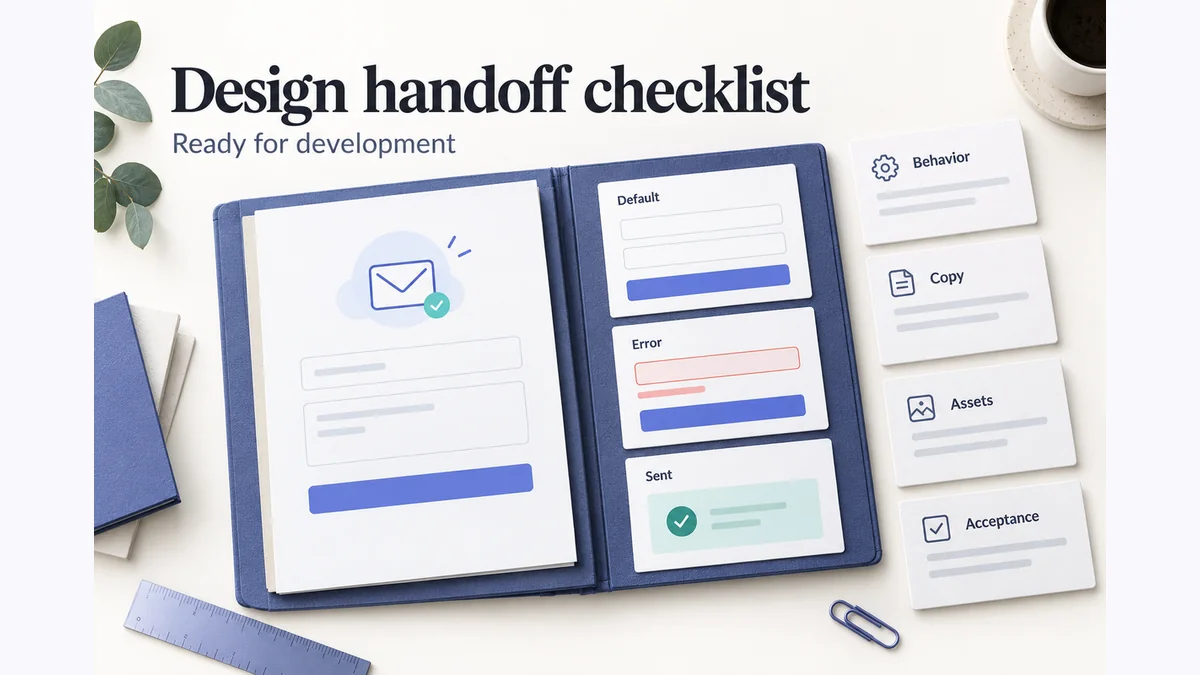
Create a draft around the actual page task, then share it with appropriate permissions. The useful collaboration outcome is an agreed content hierarchy, destination or state change that the team can implement. Templates can supply a starting structure, but their sample content should not dictate the project.
Use available widgets, text and image areas to represent the page. Connect the actions needed for review and inspect the preview at a useful size. Specifications and comments can communicate the design, while HTML/CSS implementation, hosting and browser testing remain separate work. The retained editor capture shows a historical interface.
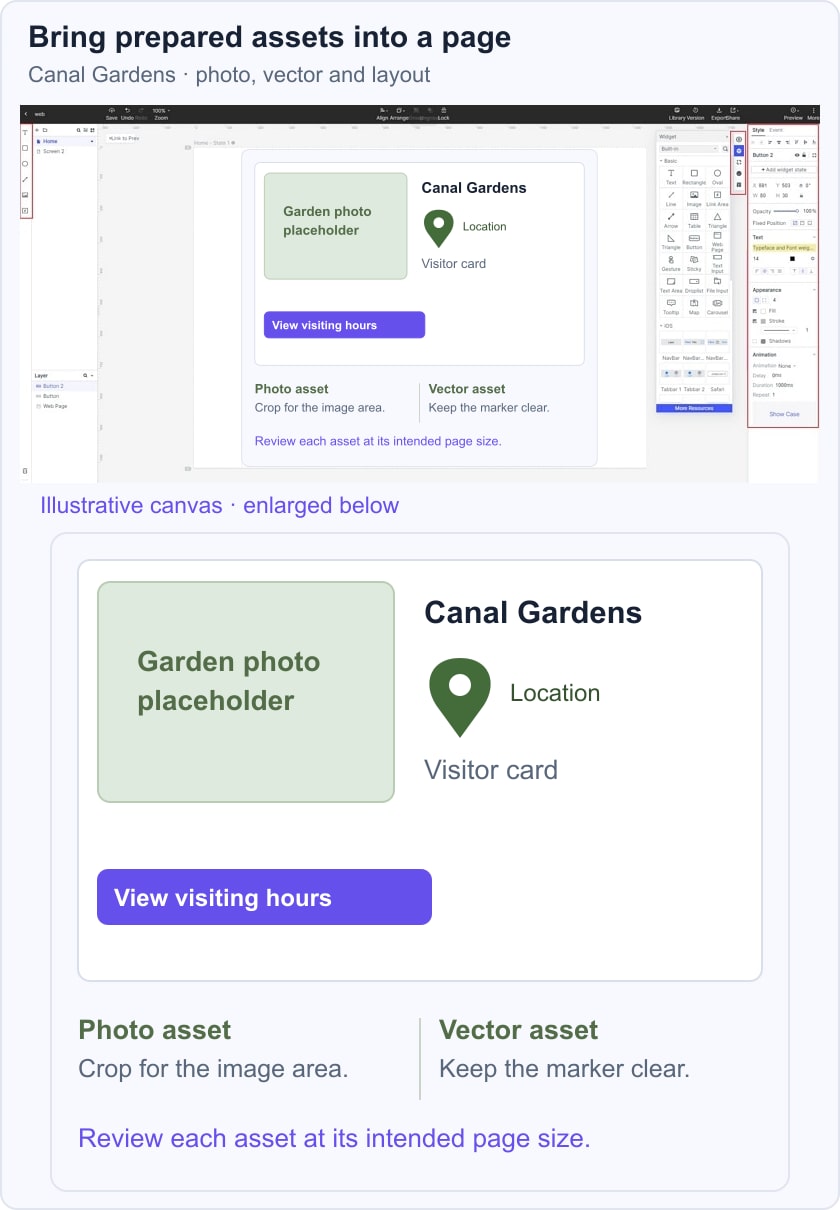
For a fictional Canal Gardens page, place a garden-photo area, a simple location marker and “View visiting hours” on one visitor card. Label the photo and vector asset roles beside the layout so the team can check their intended size and purpose. This review connects prepared assets to a page decision; it is not a demonstration of native Linux software inside Mockitt.
Inkscape: Vector Assets
Inkscape is a free, open-source vector editor, not a paid application with a temporary free trial. It can support website work through icons, diagrams and other scalable artwork. Use the official download route or your distribution’s supported package workflow, and check the version and dependencies relevant to your system.
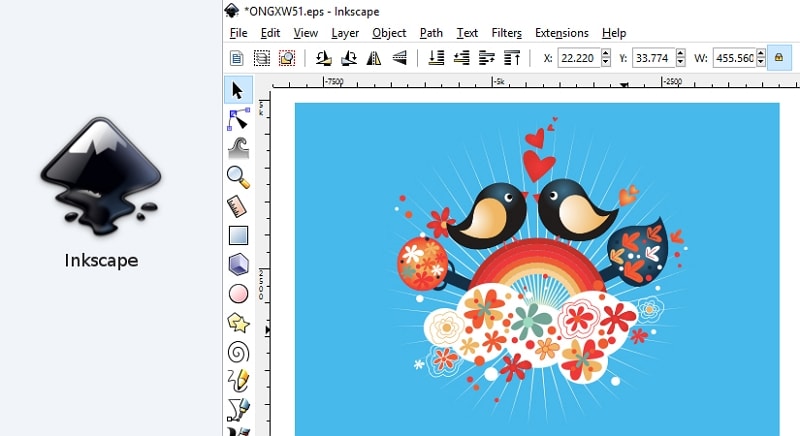
Vector paths are useful when an illustration or marker needs to stay clear at different sizes. The vector graphics guide explains that distinction. Build and name the asset deliberately, then check its exported result in the environment where it will be used rather than assuming every effect transfers identically.
Inkscape also includes bitmap tracing; its Potrace documentation describes that capability. Tracing creates paths from an image, but does not automatically produce a clean or economical icon. Inspect and simplify the result where needed. Inkscape prepares artwork; it is not a full website publishing workflow.
GIMP: Raster Image Editing
GIMP is a cross-platform image editor with GNU/Linux support. Use it for tasks such as cropping a photograph, adjusting an image or composing raster artwork for a page. The retained screenshot shows an older GIMP 2.6.6 interface, so it should not be used as a map of the current panels.
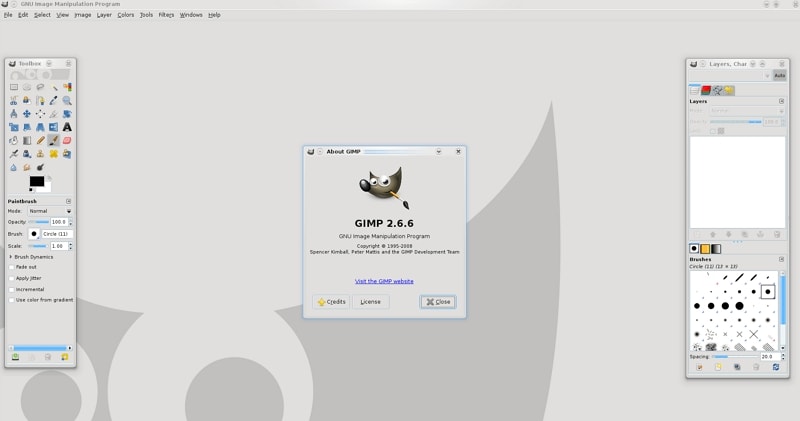
Layers and image-editing tools can help prepare the asset before it enters the design. Choose dimensions and an export format suitable for its intended use. A raster image has a fixed pixel grid, so enlarging a small source does not recover detail that was never present.
Evaluate GIMP with the actual file and editing task. Complex images and large layers can require more resources, but general claims that the application is always slow or easy are not a useful selection rule. It does not create a website’s navigation, data handling or production page structure.
darktable: Photography and RAW Processing
darktable describes itself as an open-source photography workflow application and RAW developer. Its role in a website project is preparing and organizing photographs, not editing an interactive prototype. Use it when the source images and photographic adjustments justify that workflow.
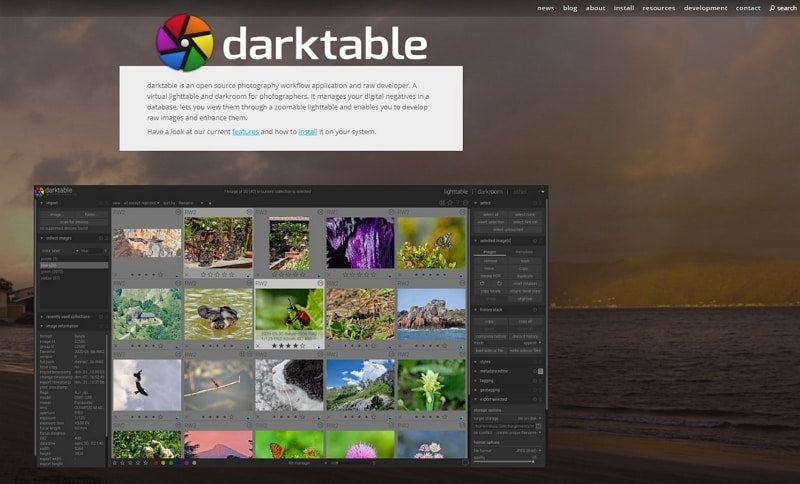
A consistent photographic treatment can help a set of site images belong together. Review the output for the intended crop and page context after developing the source. Keep the original files and the delivery images distinct so a future crop or export does not require starting from a compressed web copy.
Check support for your specific camera and any tethered-capture requirement before relying on those features. A large collection of processing modules can take time to learn; choose the operations relevant to the photographs rather than judging the tool as a general page-layout application.
Gravit Designer: A Historical Vector-Tool Entry
The retained Gravit Designer screenshot shows an earlier browser/desktop vector-design offering and its historical marketing. It is useful context for the kind of asset work discussed here, but it does not establish that the same Linux client, free plan or download remains available.
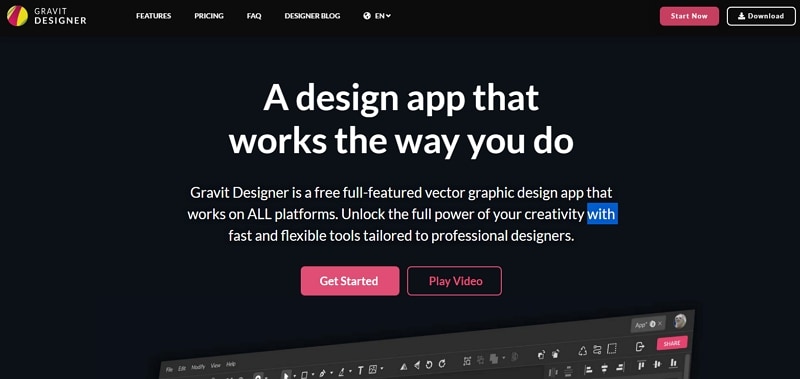
The former Corel Vector product route now leads to CorelDRAW Go. Check the current product’s requirements and file compatibility before adopting it for existing Gravit work. A changed landing page is not evidence that every earlier feature or platform is still supported.
For an established project, inventory the original design files and the formats the team needs to preserve. Try a representative file in any proposed replacement and inspect text, paths and effects. Do not choose a workflow based on an old screenshot’s promise of universal portability or free access.
Choose the Linux Workflow Around the Project
Linux distributions, hardware and package versions differ. Check the tools needed by the team, the browsers used for review, fonts and required import/export formats. The operating system alone does not guarantee speed, security, stability or a flawless website.
Keep software maintained through the appropriate update mechanism and document the important versions in the project. Test representative assets and pages on the systems that will actually consume them. A reliable workflow depends on those concrete compatibility checks, not on a blanket claim that one platform is always best.
Bring the Outputs Together
For the Canal Gardens card, prepare the photograph in an image workflow, create the marker as a vector asset and review their placement with the page content. Each tool has a specific responsibility, and the resulting website still needs implementation and browser checks.
Choose the smallest set of tools that supports those responsibilities. Keep the source assets, approved layout and handoff notes organized so another person can understand what each file is for and what still needs to be built.