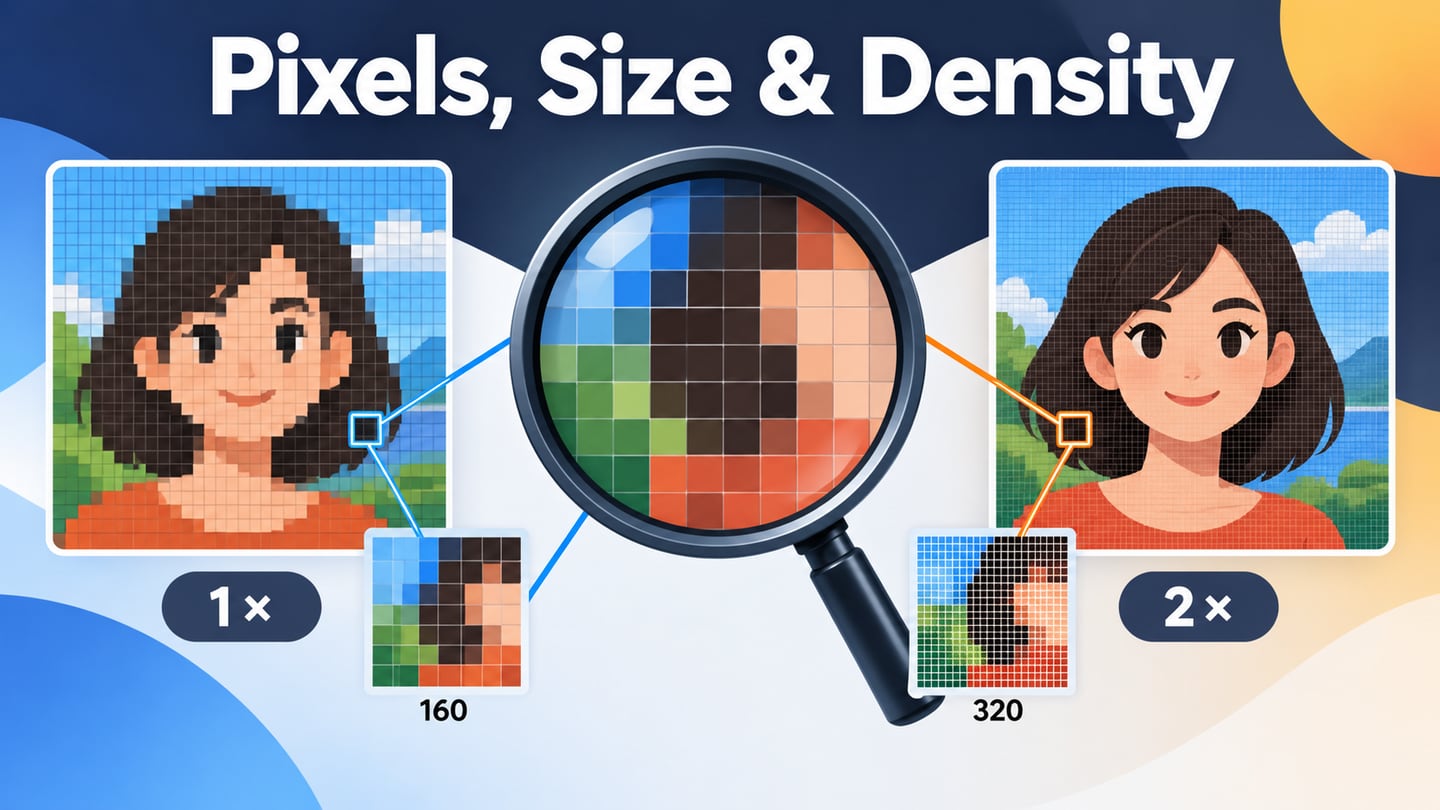
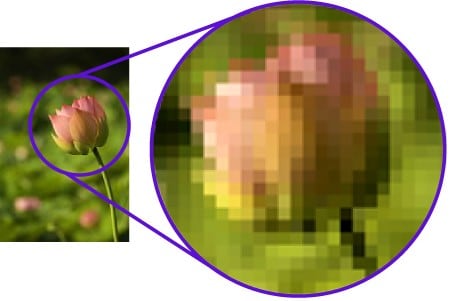
Raster graphics represent an image as a grid of pixels. They are well suited to photographs and detailed painted imagery, but the available detail is limited by the source image and how it is displayed. When you plan interface designs in Mockitt, choose the photograph, editable source and delivery asset deliberately rather than treating every image file as interchangeable.
source
Understanding Raster Graphics
Raster Graphics and Pixel Grids
The word raster has roots in scanning an image in rows, as in older television and computer displays. In digital graphics, it commonly describes an image represented by a rectangular array of samples, with values that describe color and sometimes transparency.
A bitmap is closely related terminology for pixel-based representation; it is not simply the opposite of a raster. Context matters: “bitmap” can refer generally to pixel data or specifically to a BMP file. A file extension, its compression and its editing features are separate questions from whether the visible content is raster-based.
source
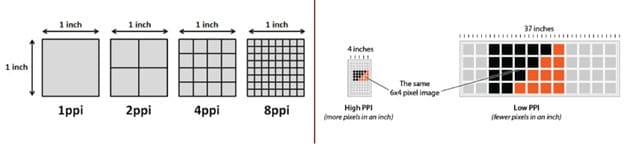
At an appropriate display size, the pixel samples can produce smooth-looking detail. Enlarging a small source may reveal blocks or softness; interpolation can smooth the transition without recovering details that were never captured. The pixelation guide explains source and display sizing. For print, consider physical output size and viewing distance; for screens, consider pixel dimensions, responsive layout and device density rather than a universal “HD is enough” rule.
Common Raster Files, Sources and Metadata
Cameras, scanners and painting tools commonly produce pixel-based content. The familiar names below do not all describe the same kind of thing: some are delivery formats, some preserve editing work, and one describes metadata. Choose according to what the next person or application must do with the file.
- JPEG/JPG: Common for photographs and lossy compression. Compare export quality against visible artifacts, especially around sharp text or edges.
- PNG: Useful when lossless reproduction or transparency is needed. A photographic PNG can be much larger than an appropriately compressed photo format.
- TIFF: Often used in imaging, print and exchange workflows. Its capabilities depend on how it is saved; it is not normally the first choice for a web page image.
- GIF: Supports a limited color palette and animation. It remains recognizable, but compare modern alternatives for photographic detail or efficient animated delivery.
- Camera RAW: A family of camera-source formats used during image processing, not one universal browser-ready format. Develop and export an appropriate delivery image.
- Exif: A specification that includes image attributes such as capture information. Exif metadata is commonly embedded in image files; it is not a separate pixel-compression choice equivalent to JPEG or PNG.
- PSD: A Photoshop working document that can preserve layers, effects and masks. Keep the editable source and export the assets needed by the website or application.
MDN’s image-format guide also covers WebP and AVIF, which can provide useful compression and transparency options for web delivery. Check the target browsers and the particular image rather than assuming one format always produces the smallest acceptable file. Adobe’s file-format overview explains why an editable PSD serves a different purpose. PDF and EPS can contain both raster and vector content, so the container name alone does not tell you how every part will scale.
Vector and Raster: The Practical Difference
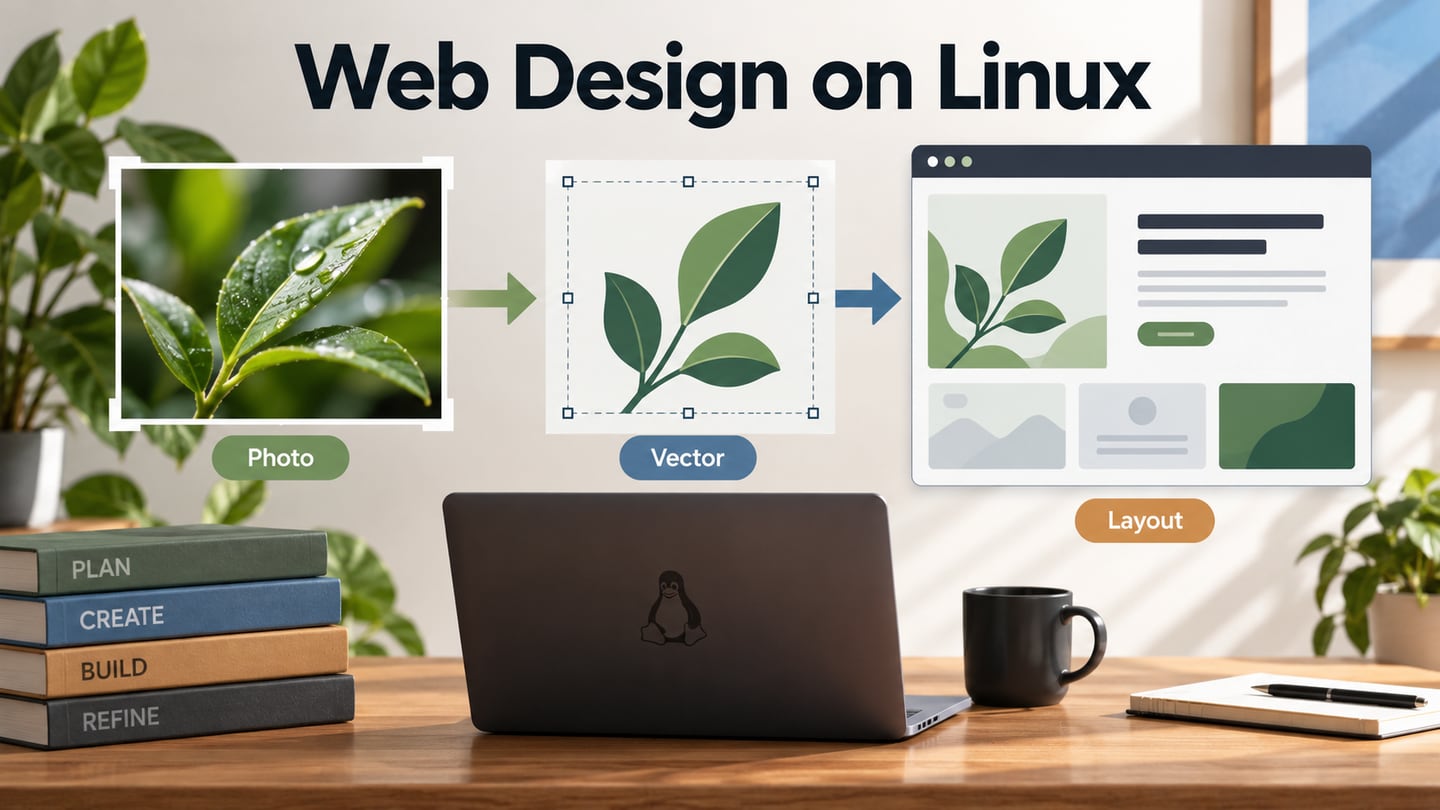
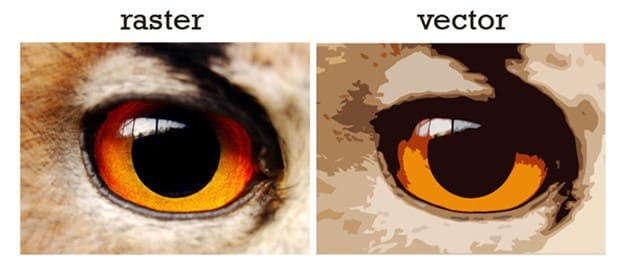
Vector graphics describe shapes with paths and related properties. Raster graphics store pixel samples. A photo and a simple icon therefore have different useful source representations, even when both eventually appear on the same pixel-based screen.
source
Vector paths can be redrawn at different sizes without enlarging a fixed pixel grid. That makes them useful for many logos and icons. However, a vector document may contain an embedded raster photograph or effects that are rasterized during export; those parts still have resolution constraints. Choose by the actual content, not just the filename.
When to Use Raster Images in a Design
Using Photos
Photography naturally captures rich variations in color, light and texture. Raster files can preserve that information in a form that image editors and browsers can process. They are useful across consumer-facing projects, but photography is one communication choice among illustration, diagrams, video and other media.
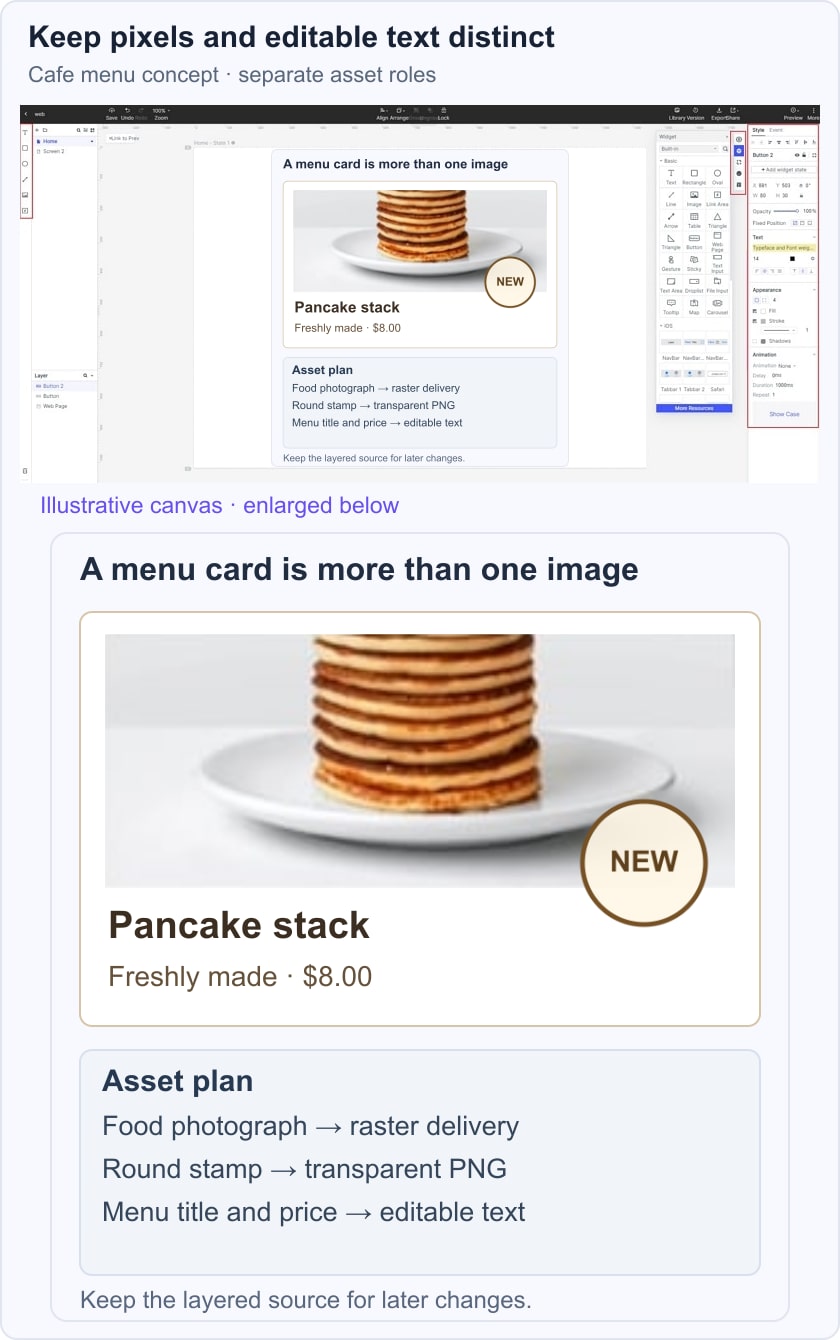
Food: A restaurant menu may need a clear photograph of a dish so a customer can judge its appearance. Keep the crop and editing faithful to the item; an attractive image should not misrepresent the portion or ingredients. Illustration can still be appropriate for a different purpose.
Travel: A location photograph can communicate terrain, atmosphere or accommodation details. Choose an image that answers the traveler’s question, and preserve the important subject when the layout changes. Vector maps and diagrams can complement the photograph.
Digital commerce: Product photographs from useful angles help communicate appearance and details that a buyer cannot inspect physically. Images complement specifications and descriptions; they do not replace information about dimensions, materials or compatibility.
Web Design
Raster photos and textures can support a website’s subject and mood. A mountain or cafe image may be an effective background, but critical text needs a stable, readable surface. Use a photograph because it communicates something, not merely to fill an empty area.
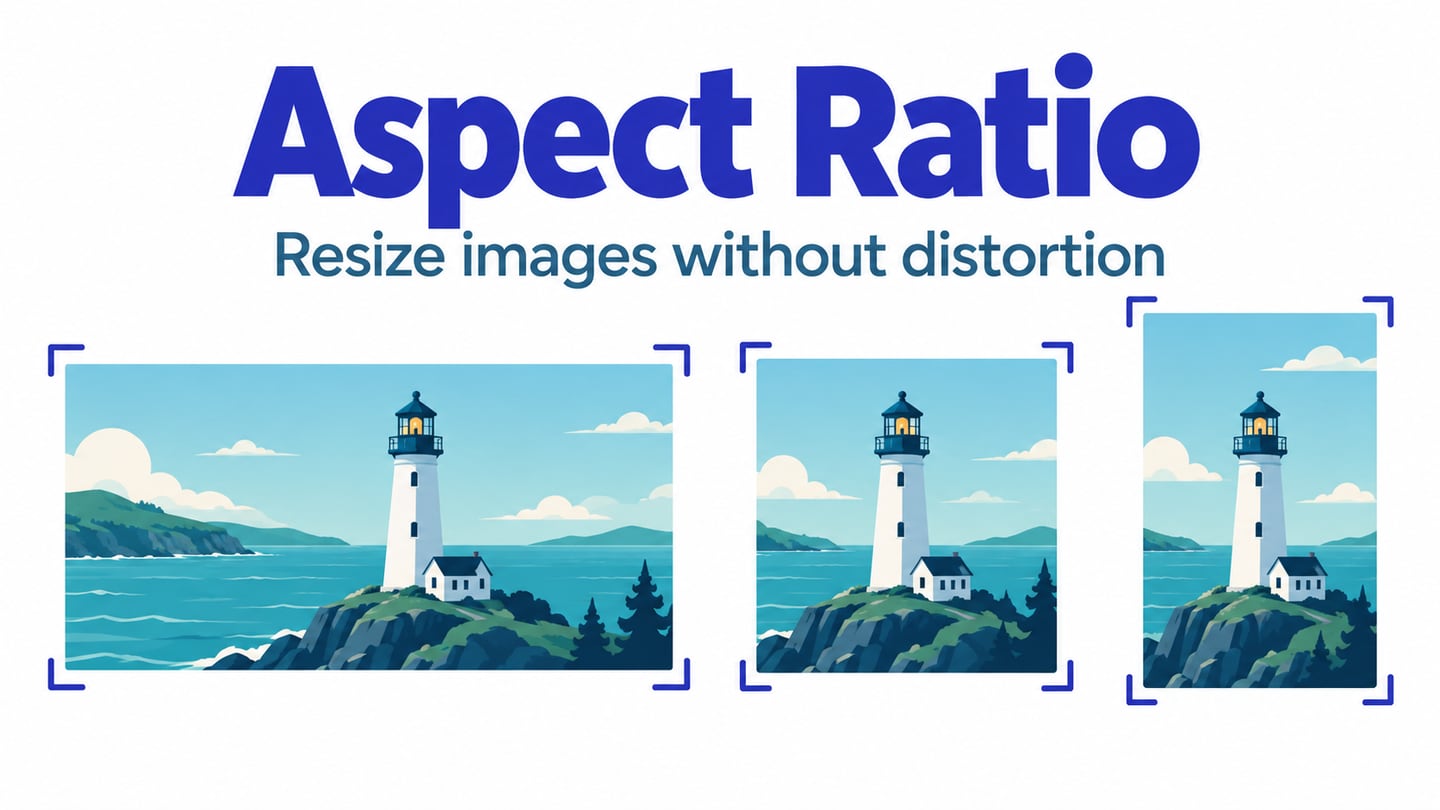
Web layouts are not reliably fixed-width. Test the intended crop and clarity at different viewport widths and device densities. Supply suitable image variants where the implementation supports them, and inspect the compressed file at its actual rendered size.
Balance visual detail with delivery cost. A large background may contain information that is lost behind a text panel or outside a mobile crop. A smaller, better-composed image can be more useful than an unnecessarily large file, but verify the result rather than promising a fixed saving.
Extensive Editing
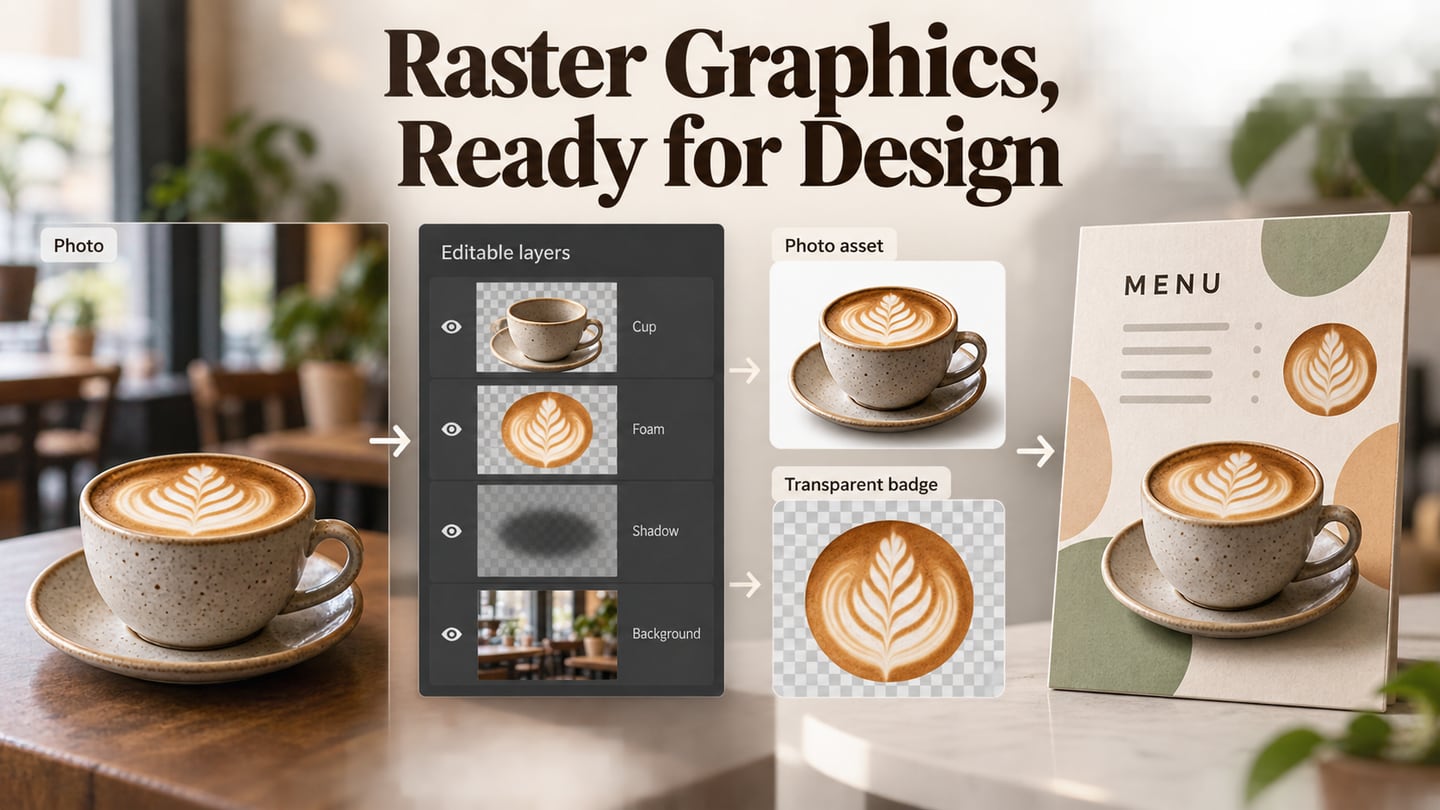
Raster editing is useful for retouching photographs, painting and manipulating pixel-level detail. Keep an editable source so that a later crop or color correction does not depend on repeatedly editing a compressed delivery image. Layers and masks can separate changes and preserve flexibility.
Blur, shadows and glows are not exclusive to raster files: vector tools and web styling can produce related effects too. The choice depends on the source, desired edit and final output. Avoid flattening a working document merely because the final webpage needs one image.
For a cafe menu card, keep the food photograph, a transparent stamp and live text as separate design elements. Export the photo and stamp for their own roles, while retaining the source document for later edits. The example below illustrates this separation; it does not claim that the prototype controls the production image pipeline.
Conclusion
Raster graphics are valuable when the content depends on photographic or painted detail. Select the delivery format, dimensions and compression together, then inspect the image in the interface where it will be used. Keep important attribution and usage rights with the asset.
A useful handoff includes both the required delivery assets and enough source information for future changes. Record which file is editable, which is intended for the browser, and how the crop should respond. That gives the next person a clearer decision than simply asking for a “high-resolution image.”