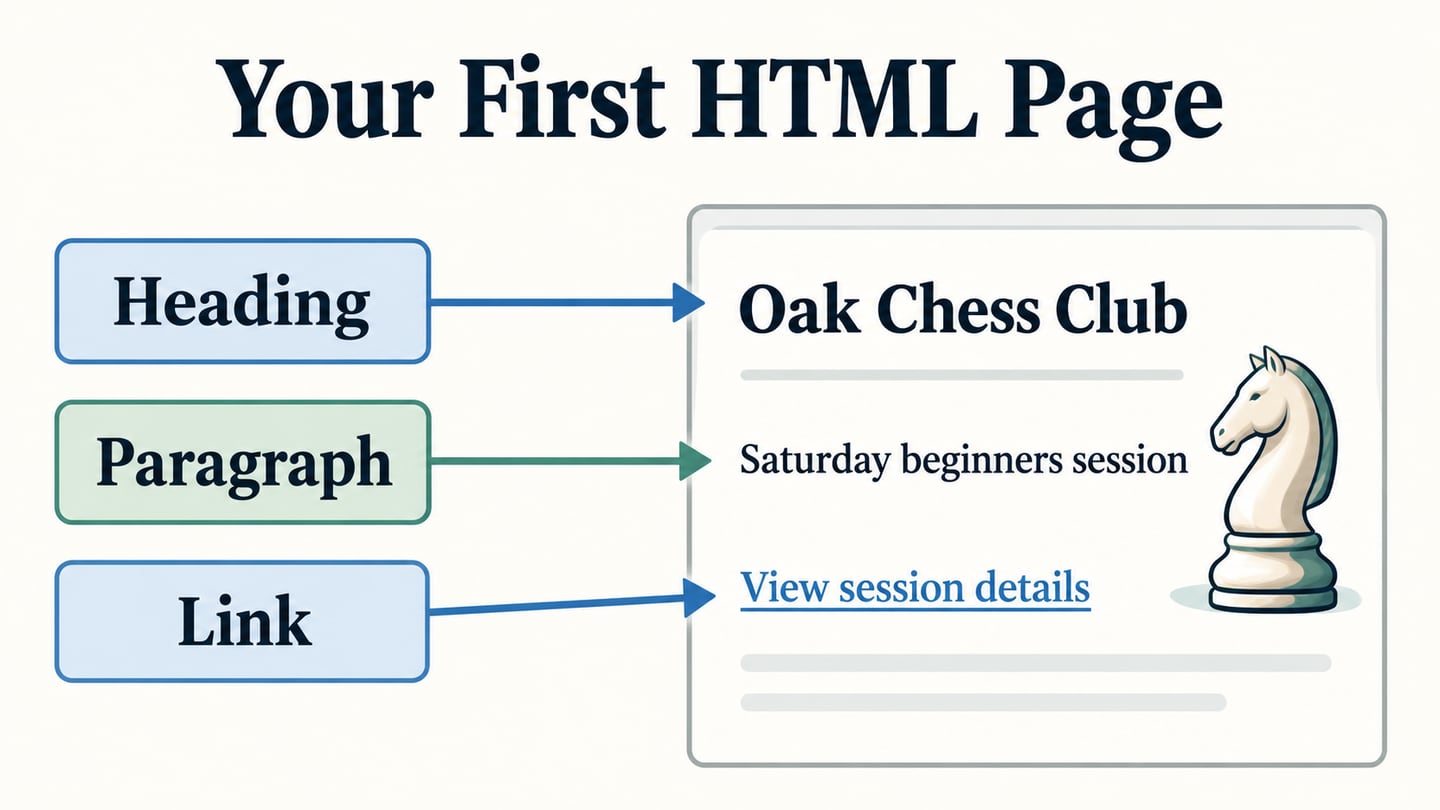
HTML describes the structure and meaning of a web page: its headings, paragraphs, lists, images and links. A browser reads that markup and displays the content. You can start with a plain-text editor and one local file; CSS can then control its appearance. This guide explains the document structure and shows how to write, save and open a complete first page.
Plan a Web Page Before Writing HTML
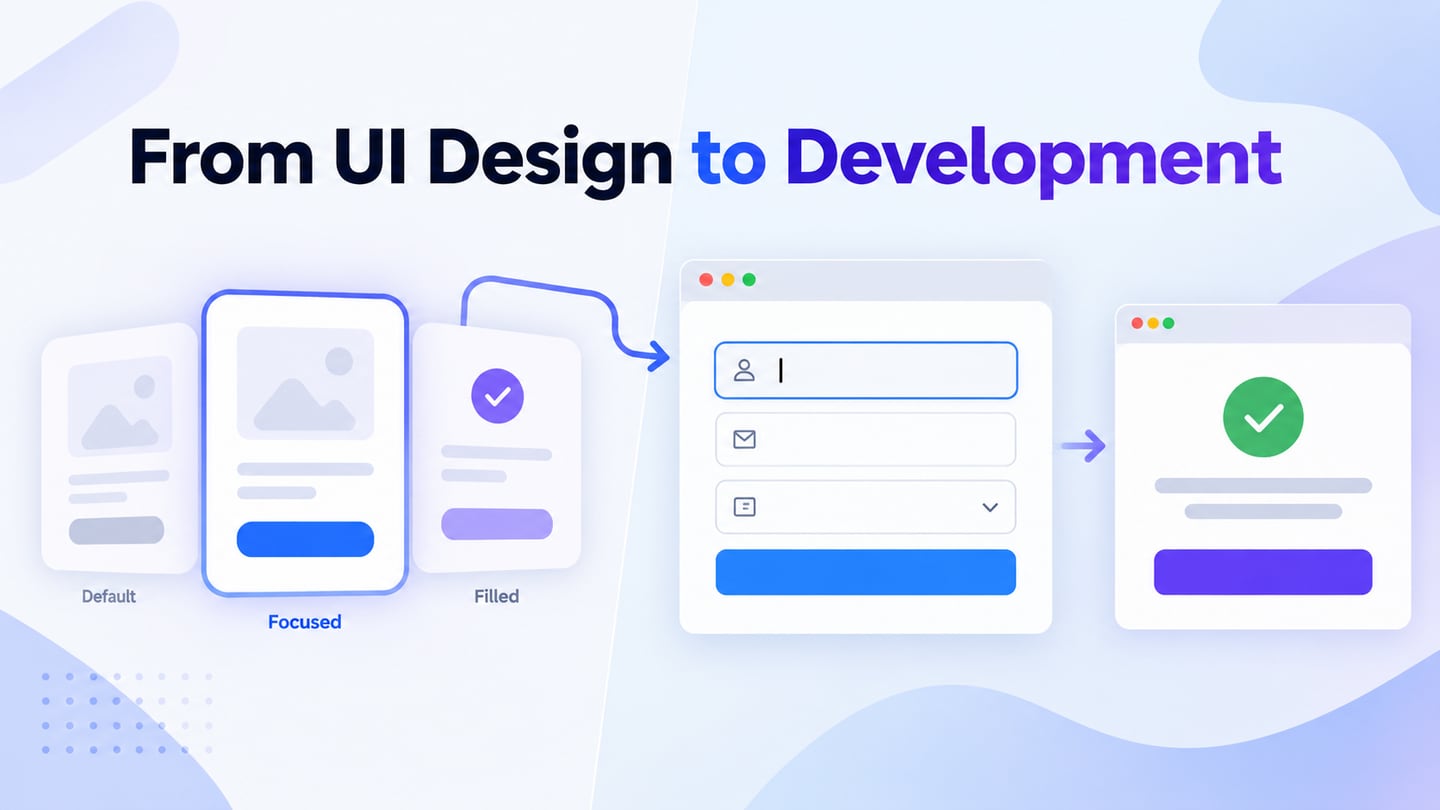
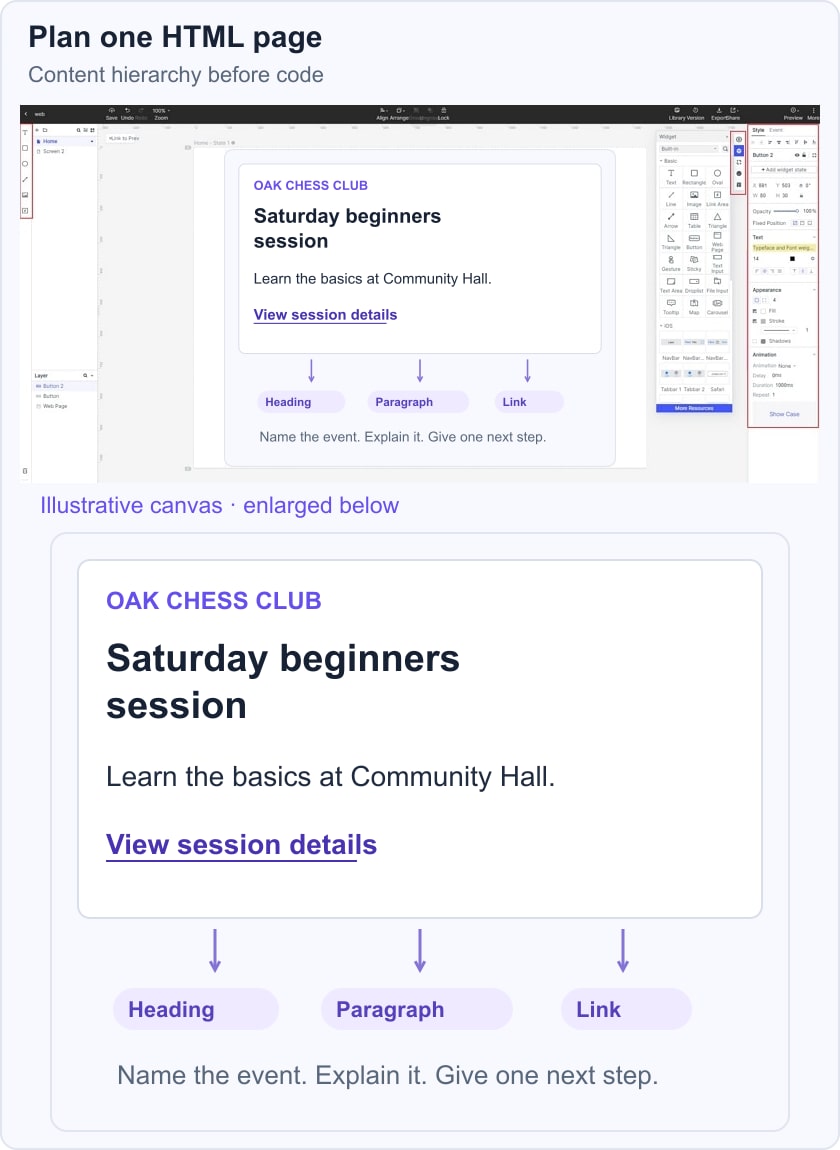
A visual draft can help you decide what the page should say before choosing tags or styles. In a Mockitt website design workspace, arrange the heading, supporting information and next action so they can be reviewed together. This is useful when the content or layout is still uncertain.
Mockitt supports visual design and prototyping. Use available templates as starting points, adapt the content, and connect screens where the review needs a destination. A prototype demonstrates the intended experience; its preview or export is not a replacement for building and checking the website HTML.
For a fictional Oak Chess Club page, begin with “Saturday beginners session,” the location “Community Hall,” and a “View session details” link. Keep the page focused on helping a visitor understand the event and find the details. The same content can later become a heading, paragraph and link in the HTML document.
1. Asset Library
Use available widgets, icons and reusable resources to assemble the page. Choose elements because they communicate the event, location or action, rather than adding decoration to fill space. Name repeated assets clearly so later edits are easier to manage.
2. Design
Arrange the content and inspect its hierarchy before adding fine visual detail. Useful design tasks include:
- Create the page layout with meaningful text and appropriate controls.
- Import supported assets when the design needs an image or existing artwork.
- Connect the intended action to a destination and use transitions only where they explain behavior.
3. Review and Presentation
Review the draft around a specific task, such as finding when and where the chess session takes place. Use the workspace options available to your account to:
- Preview the screen at a useful reading size.
- Share the design with reviewers using appropriate access permissions.
- Record unclear wording, missing information and decisions still needed for implementation.
4. Cloud Editing
An online workspace can keep the current design available for collaborative review. Confirm the supported browser and account options before relying on a particular sharing or offline workflow. The prototype review should produce a clear content decision that the coded page can follow.
What is HTML coding?
HTML is a markup language. Tags such as <h1>, <p> and <a> identify a main heading, paragraph and link. CSS controls presentation such as spacing, colors and fonts; JavaScript can add behavior. MDN’s basic HTML syntax guide explains elements, attributes and complete documents.
Understand the HTML Document Structure
The structure of HTML
A document needs more than a few visible tags. Its outer structure tells the browser which document it is reading, which language the content uses and which information belongs in the page. Start with a consistent skeleton so later content has an appropriate place.
The main parts of the example below are:
<!doctype html>: the declaration that requests modern HTML rendering.<head>: document information such as character encoding, viewport settings and the browser-tab title.<body>: the visible content, including the main heading and session details.
The <html lang="en"> element contains the head and body. Indentation makes the source easier to read, but meaning comes from the elements and their nesting. The complete example in Step 2 can be copied into a file and opened directly.
Three Design Principles to Apply with HTML
A syntactically complete document is only the beginning. Use the structure to help people read the content, interpret images and find the next step. These three considerations connect the markup to the visible page.
Readability and Typography
Use headings to describe the content hierarchy and paragraphs for ordinary text. Choose font sizes and line spacing in CSS that remain readable at the intended viewport. A browser-tab title belongs in the head; it does not replace a visible page heading. Write descriptive content for people rather than filling headings with keywords.
Imagery and Color Palette
Use images when they communicate something the text needs, and provide alternative text appropriate to their purpose. Choose foreground and background colors together so text remains readable. The UI color guidance explains how to assign consistent roles instead of relying on an attractive swatch alone. Color values belong in styling, not in the choice of HTML heading level.
Easy Navigation
Use links for navigation and labels that describe their destination. Organize sections in a logical order and provide a way to reach important content. There is no universal requirement that every task fit within three clicks; the route should be understandable and fit the task. The navigation design guide explores clearer labels and menu choices.
Three Design Tools and Their Role Before Coding
Visual design tools can help plan a page, but they serve a different purpose from the text editor used in the HTML exercise. The three tools below are useful context for separating layout and prototype decisions from the source document. Check current platform and account requirements before choosing one.
Sketch
Sketch provides a macOS design editor, vector tools, prototyping and handoff features. It can help a team work through the intended interface and share design information. Writing and testing the actual page markup remains a separate implementation task.
Adobe XD
Adobe XD is a design and prototyping tool. Adobe’s XD help page states that it is in maintenance mode, so check its availability and support before starting new work. Existing XD designs can communicate layout and interaction decisions, but XD is not the plain-text HTML editor used here.
Marvel
Marvel describes its platform in terms of wireframing, design, prototyping and handoff. A clickable mockup can make a proposed page easier to discuss before development. Evaluate the actual features you need rather than treating a visual prototype as a finished website.
Four Steps to Write and Open Basic HTML
The following exercise creates a local, self-contained HTML page. It does not require an account, server or framework. Once it works, change one piece of content at a time and reload the browser to see the result.
Step 1: Open a Plain-Text Editor
On Windows, open Notepad and start a new document. Another plain-text or code editor is also suitable. Avoid a word processor that saves formatting markup instead of a plain HTML file.
Step 2: Write the Document
Copy the complete example below. It uses one main heading, a short introduction and an in-page link whose destination is the Session details section. The link works locally because its fragment matches the section’s id.
<!doctype html>
<html lang="en">
<head>
  <meta charset="utf-8">
  <meta name="viewport" content="width=device-width, initial-scale=1">
  <title>Oak Chess Club — Saturday session</title>
</head>
<body>
  <main>
    <h1>Saturday beginners session</h1>
    <p>Join Oak Chess Club at Community Hall.</p>
    <a href="#session-details">View session details</a>
    <section id="session-details">
      <h2>Session details</h2>
      <p>Saturday, 10:00–11:30. Beginners are welcome.</p>
    </section>
  </main>
</body>
</html>
Step 3: Save the HTML File
- Choose File > Save as in the editor.
- Choose a folder you can find again. If the dialog offers a file-type choice, select All files so a text-file extension is not added automatically.
- Name the file
index.html. Check that it is not saved asindex.html.txt;.htmalso works, but use one consistent name. - Save with UTF-8 encoding so the punctuation and other characters are represented correctly.
Step 4: Open and Check the Page
- Open the saved file in a web browser, using Open with if double-clicking opens the editor. You should see the session heading, introduction, link and details.
- Follow View session details and confirm the address gains
#session-details. The page may be too short to scroll visibly, but the link still identifies its destination. Change the session time in the editor, save, and reload to confirm the update. - Use View page source or the browser’s developer tools to compare the tags with the rendered content. A local file is not yet a public website; hosting and production checks are separate next steps.