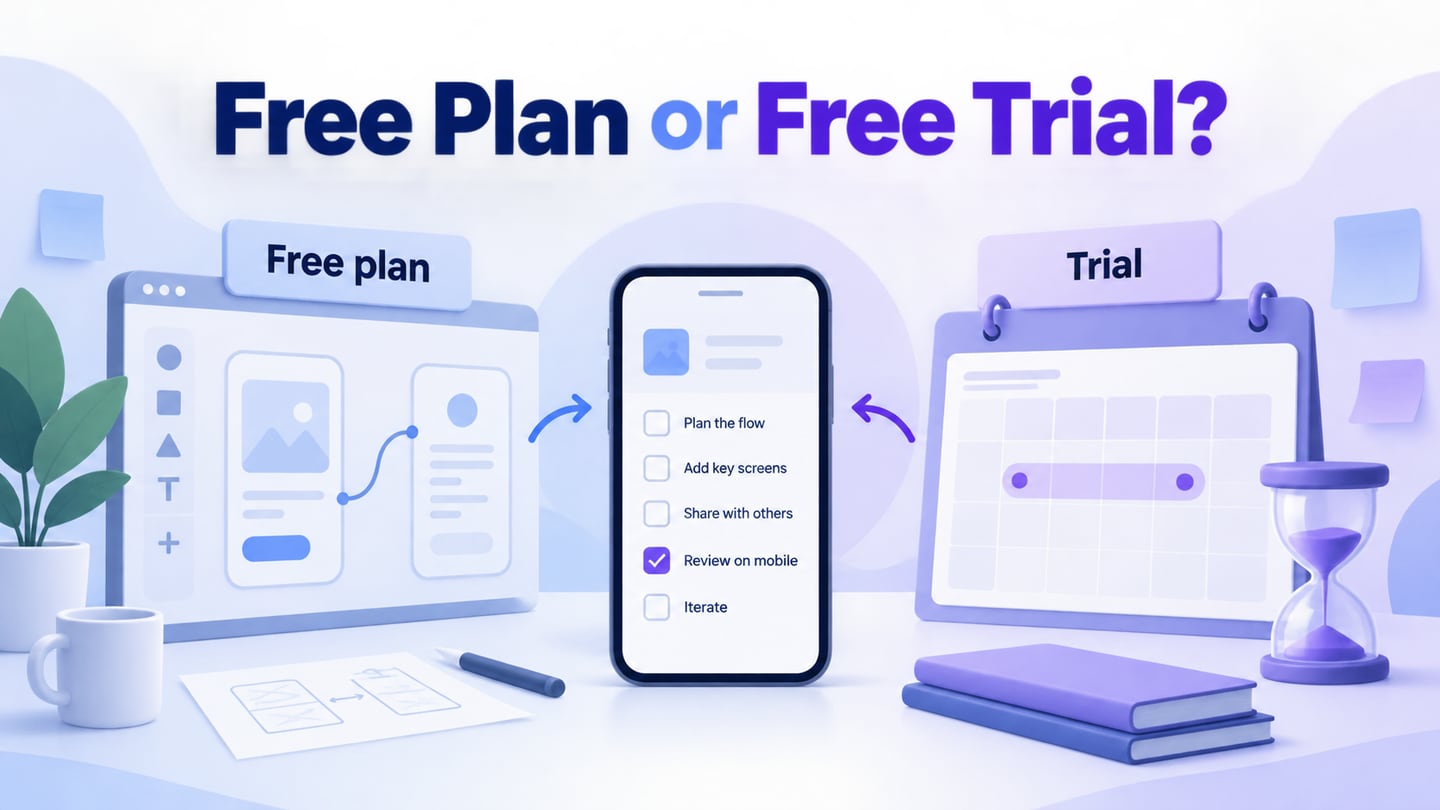
Free app prototyping tools can help you explore a mobile idea before committing to a paid workspace. First separate a continuing free plan from a time-limited trial and from a free reviewer account. They provide different kinds of access. Try the mobile walkthrough below, then compare access limits against the work and people involved.
Use one small project to check three things: can you edit the required screens, run the intended interactions, and let another person review them? A free tool that supports those steps may be sufficient for an early decision. A paid trial is also useful for evaluation, but you need a plan for the file when the trial ends.
Try a Small Mobile Prototype in Mockitt
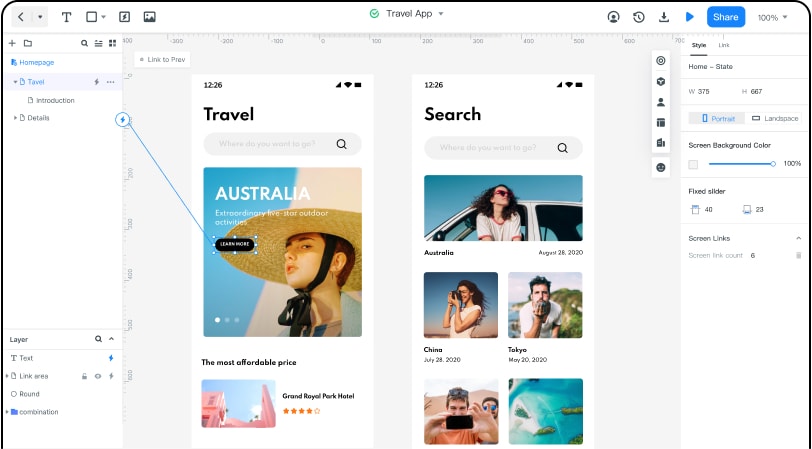
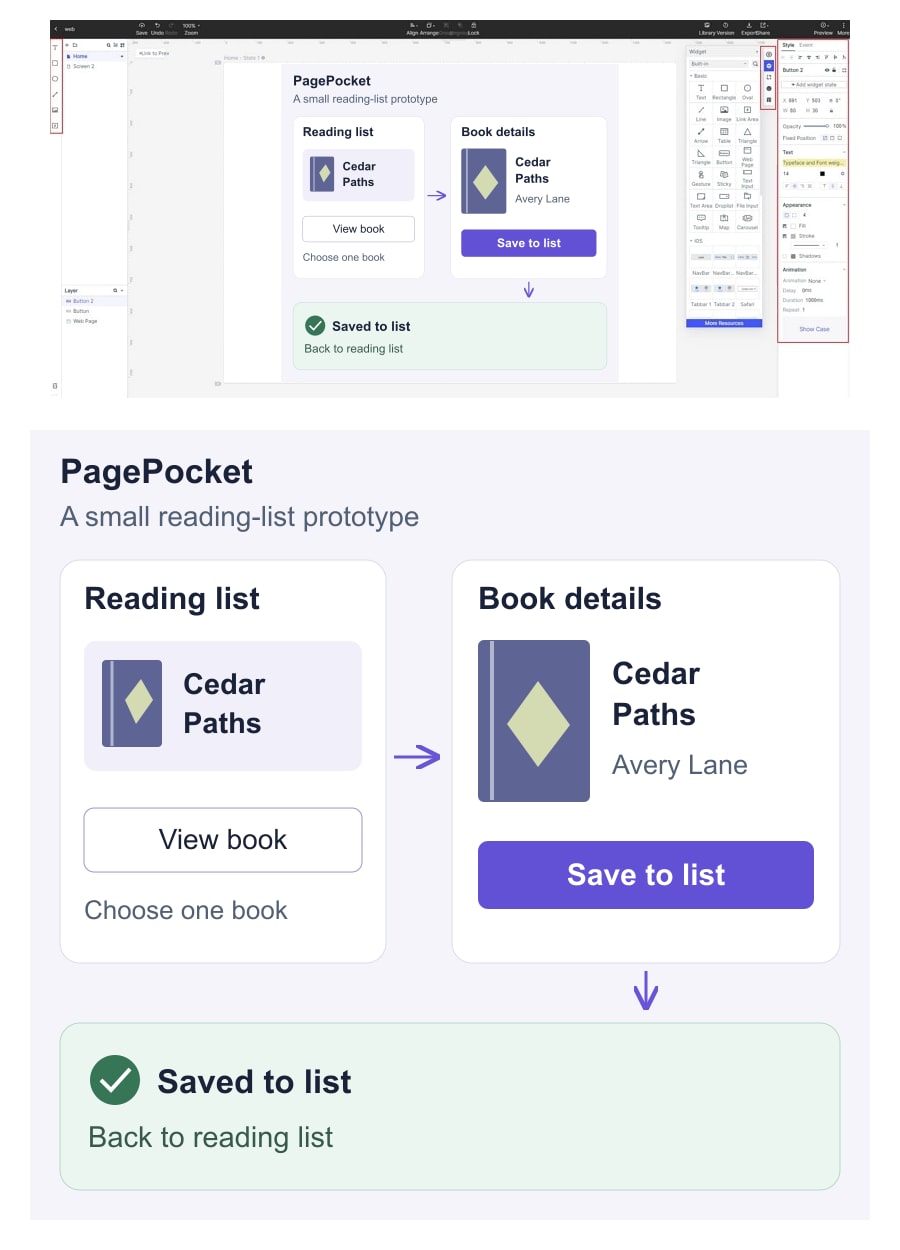
Mockitt’s mobile app prototyping workflow combines editable screens, interactions, and shared review. Start with a small reading-list app: open a book, inspect its details, and save it to a list. Use the exercise to discover which features your actual account includes instead of assuming that every advertised feature belongs to the free plan.
Asset Library
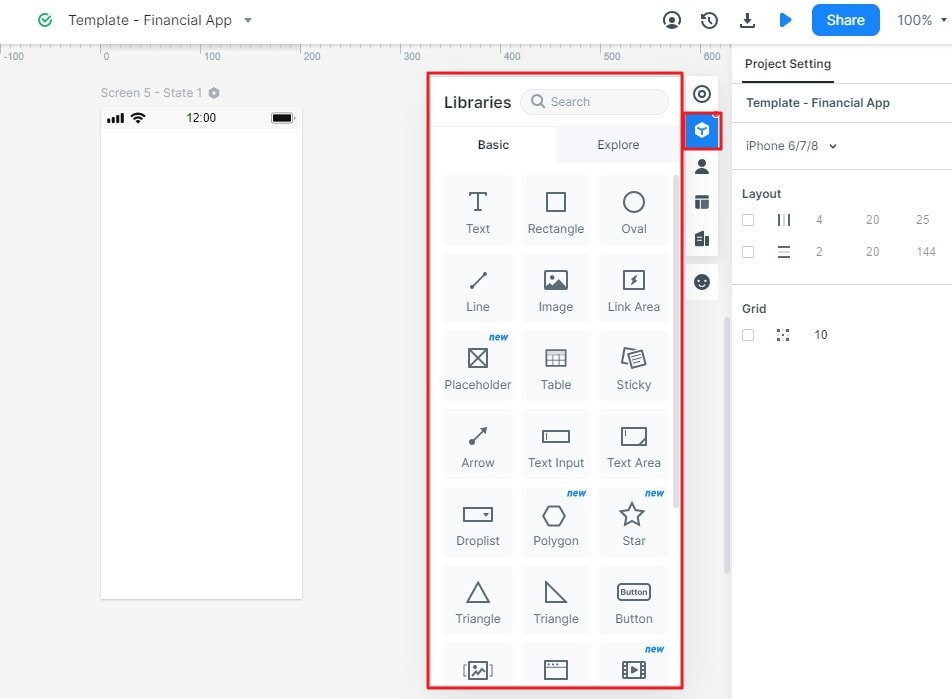
Use widgets and icons for the book card, navigation, and Save to list button. Reuse the controls that appear on several screens so the labels and spacing stay consistent.
Design
Arrange the book details and connect the Save to list action to its confirmation state. A selected phone size helps you plan the layout; it does not guarantee that the preview will fit every device.
Presentation & Review
Open the preview and check whether a reader can recognize the saved result and return to the list. The prototype shows the proposed interaction; it does not store a real book collection.
Browser editing lets you continue working in the online workspace. Before relying on it for a review, check the intended browser, account access, and any required export.
Sharing and co-editing are different permissions. Ask a reviewer to open the preview and leave the kind of feedback you need; separately check whether additional editors require a paid plan.
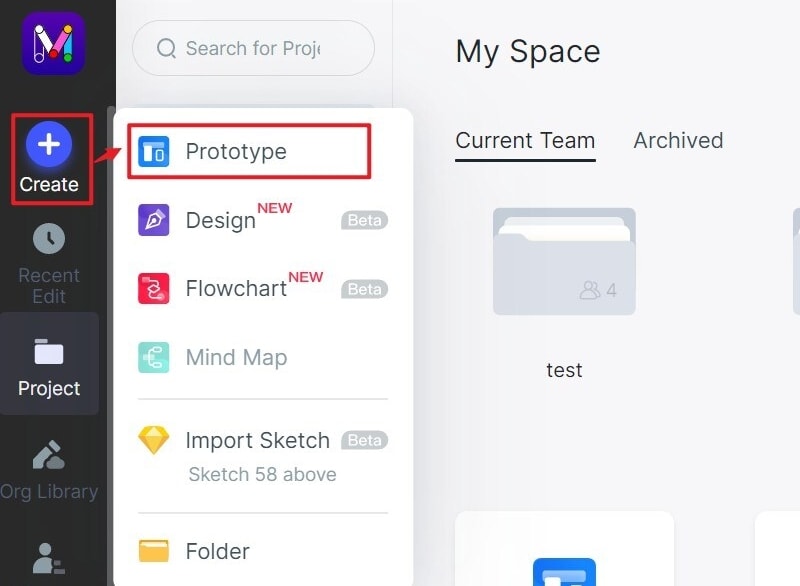
Try the following five steps to evaluate the workflow. The screenshots show an earlier Mockitt interface and illustrate project creation, screens, interactions, and preview; current menus may differ.
Step 1: Sign up and Create Mobile Projects
Open your workspace, create a prototype project, and choose a mobile canvas. Name it “PagePocket — access check” and use fictional book details. Start with a blank project unless an available template already matches the task.
Keep this first project to three screens: Reading list, Book details, and Saved to list. A small exercise makes it easier to see whether the plan supports the work you need before you commit a larger app to it.
Step 2: Add Widgets and Icons for Your Mobile App Prototypes
Add a book card, its title, and a navigation control to the mobile canvas. Keep the content editable so you can change the title or button label during the exercise.
Use the widget and icon libraries available in the editor, then edit the controls to fit the reading-list task. Save or reuse a repeated element where your workflow supports it rather than drawing a different button for each screen.
Step 3: Add Screen Links and Design Notes
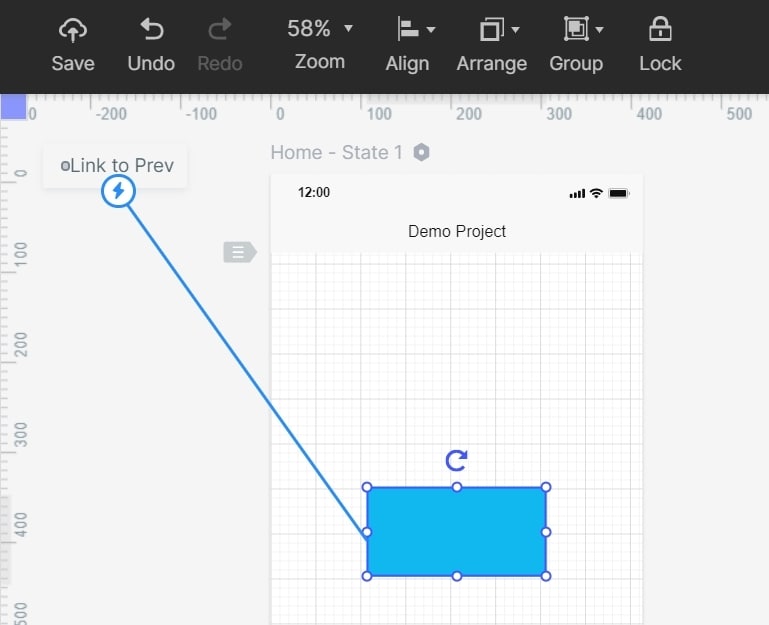
Connect the book card to Book details, and connect Save to list to the saved state. Set the trigger and destination, then add a route back to Reading list. The connector image illustrates this relationship between a control and its target.
Add a short note identifying any simulated behavior, such as the sample saved state. A reviewer should know what the design demonstrates and which actions still need implementation.
Step 4: Reuse Relevant Template Elements
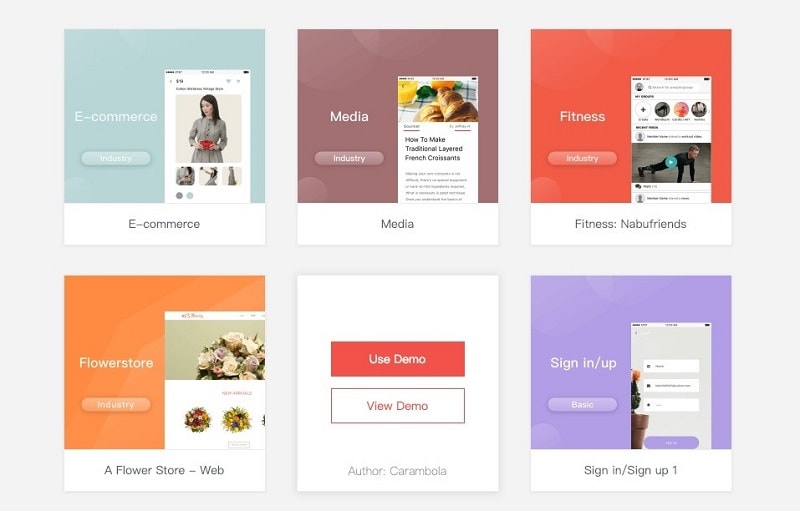
If an available template contains a useful card or navigation pattern, adapt it to the reading-list screens. Replace its sample content and remove irrelevant actions. A template saves layout work only when its structure fits the task; inspect the screens and assets available to your account.
Step 5: Preview and Share Your App Prototype
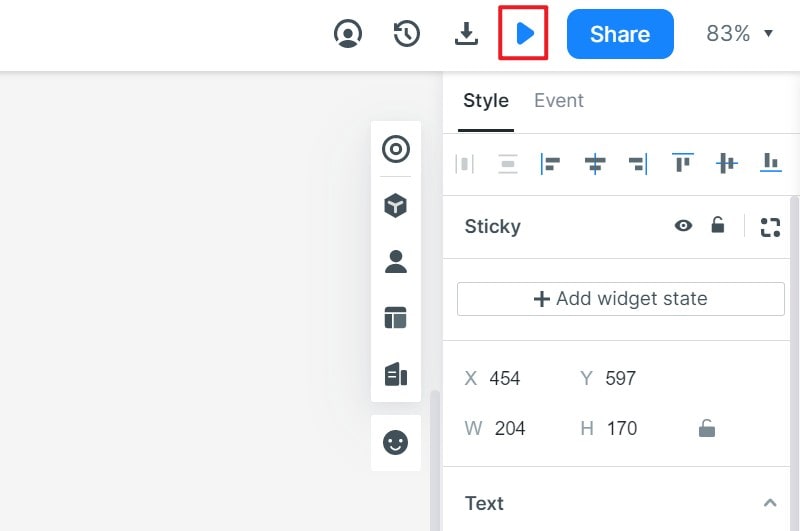
Run the preview from Reading list, open a book, save it, and return. Then use the available sharing option to invite a reviewer. Confirm that the recipient can open the intended version rather than assuming your own editor access proves it.
The Mockitt Free Plan lists one workspace and three files, providing a small starting point for ongoing practice. Check the same plan comparison for the collaboration and export options you need before extending the project. Record any restriction during this exercise, before a client needs the review link.
Free Plans, Trials, and Existing-Account Access
If you need continuing free editing, start by comparing a free plan’s limits with the size of your project. A trial can help you evaluate a paid editor, while viewer access lets someone review the design without authoring it. The options below keep these roles separate.
Figma Starter: a free plan with feature limits
Figma’s Starter plan provides free access with limits and supports unlimited drafts. It offers another starting point for exploring a mobile design and prototype without beginning a paid trial. Advanced prototyping and unlimited team files are listed under its paid Professional plan, so do not assume Starter includes every interaction or team workflow.
Use the same reading-list exercise to check the controls and sharing behavior available to your account. Draft space alone does not establish that a plan supports the collaboration or interaction detail needed for a larger project.
Adobe XD: an existing-workflow consideration
Adobe identifies XD as being in maintenance mode. If you already have access and inherited XD files, its design, prototype, and sharing workflows may still be relevant to that work. Do not treat an old free-plan description as a promise that a new team can obtain the same access today.
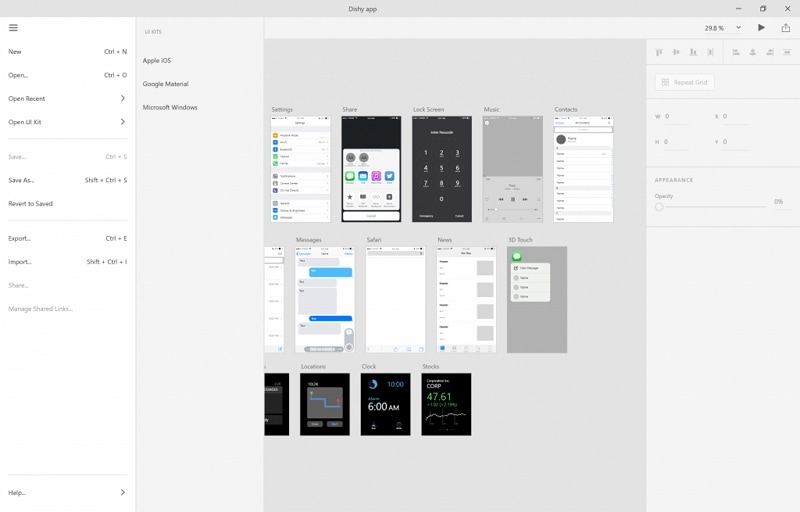
Before planning a new review around XD, confirm that the responsible person can open and edit the source file and that the intended sharing path still works. This is an existing-account check, not a recommendation to start a new free-tool rollout.
Sketch: trial authoring and free viewers
Sketch’s pricing page distinguishes a trial from paid editing and free viewing. Its Mac app is used for design and prototype authoring; the web and iOS experiences support review and preview. A free viewer is not a free editing seat.
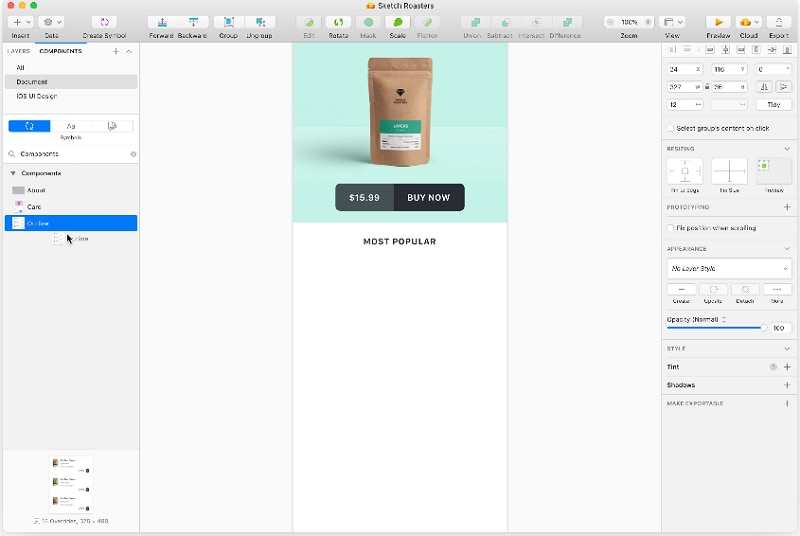
Sketch supports links, hotspots, overlays, and scrolling interactions. In the reading-list exercise, check editing in the Mac app and open the shared result as the reviewer. Keep that role difference visible when comparing costs or device requirements.
Axure RP: time-limited trial for interactive logic
Axure RP offers a free trial for evaluating its prototype editor. Its conditions, variables, dynamic panels, and form controls are relevant when the task needs more explicit behavior. That trial is not a permanent free authoring plan.
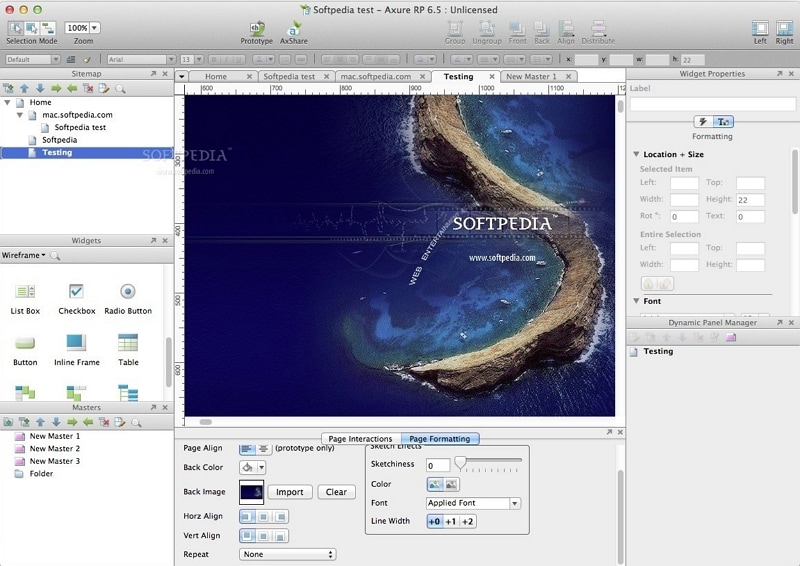
Try only the rules the review requires. For the reading-list task, a saved state and a return path may be enough; elaborate conditional logic is useful only if it answers a design question. Check how you will keep editing and sharing the project after the trial.
Balsamiq: a trial for wireframing and prototyping
Balsamiq offers a trial followed by paid plans. Its current pricing information separates editor access from reviewer participation. Free reviewer participation does not provide a permanent free editing seat.
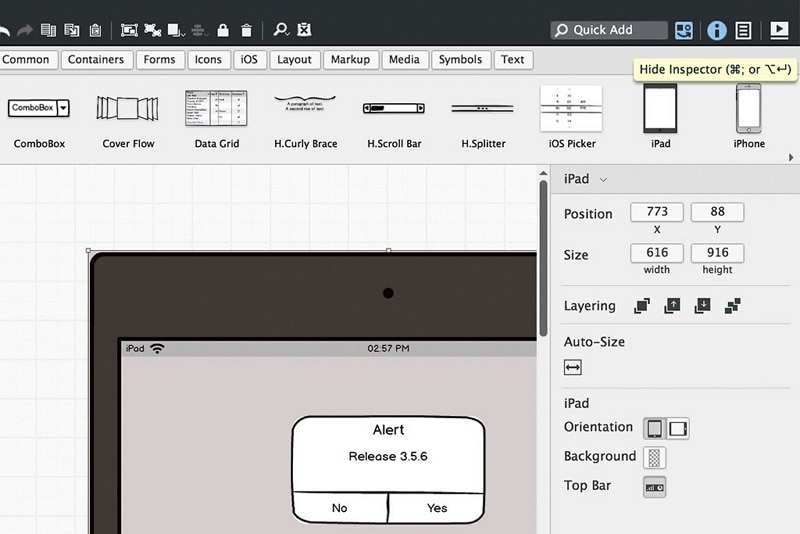
Use the trial to see whether the layout and prototype workflow suit your review. Current Balsamiq offerings include prototyping. Keep the distinction between the wireframe’s appearance and the behavior available in the chosen workflow.
How to Choose an App Prototyping Tool Within Your Budget
Choose by the work you can complete with the access you have. For each candidate, note whether access continues or expires, who may edit, how many required screens or files fit, and how another person opens the result. The small reading-list exercise gives those questions a concrete answer.
Interface
Check whether you can find the controls needed to create a screen, change text, and connect an action. Use the same three-screen task in each tool so unfamiliar terminology does not become a vague “easy” or “hard” rating.
Ease of Use
Make one correction after the first preview, such as changing Save to list to Save book. Can you update the intended controls and share the revised version without rebuilding the file? This small revision is more informative than comparing feature lists alone.
Fidelity
Match the detail to the decision. A rough interactive layout can test whether a person finds the book and understands the saved result. Add visual detail when typography, content hierarchy, or specific controls matter. The guide to choosing prototype fidelity explains that distinction.
Compatibility
Separate the device used for editing from the device used for review. A browser preview does not mean the full editor runs on a phone. Open the shared result on the intended review device and check that text, controls, and return routes remain usable.
Choose the smallest access level that supports the task and the people involved. If you need an ongoing free workspace, a paid trial alone does not meet that requirement. If a short evaluation is enough, a trial can reveal whether the tool fits before you pay. For a wider view of plan types, see the free prototyping tools comparison.