4 Powerful AI Prototype Generators That Turn Your Ideas Into Real Interfaces
In the world of UX design, ideas need to move increasingly fast, and sometimes they even have to move faster than traditional tools can keep up with. Teams cannot afford to take weeks wire-framing, iterating, and testing. They need results in days-sometimes in hours. That's where the AI prototype generator comes in.
Instead of starting from scratch, designers now get to describe an idea in natural language : “a travel booking app with search, filters, and a checkout page”, and get back a working, editable prototype. AI-powered prototyping is changing the way creative teams think, collaborate, and deliver.
The result is that designers spend less time on layout drudgery and more on high-value, creative problem solving. It also allows non-designers to participate during the early design phase, when the AI prototype generator tool lets people with limited technical skills visualize their product ideas.
- Why AI Prototype Generators Are Game-Changers
- 4 Worth Trying AI Prototype Generators
- From Concept to Click: The New AI-Driven Workflow
- Key Benefits of Using AI Prototype Generator Tools
- Prototyping AI for the Future: Meeting Expectations in Western Markets
- Conclusion
Why AI Prototype Generators Are Game-Changers
From Wireframe to Prototype in Minutes
This would entail hours of lining up boxes, defining interactions, and exporting the many different file formats required in the traditional workflow. Today, all of this can be done through a single AI prompt.
A generator of AI prototypes would use machine learning and computer vision to understand your intentions, whether it be a short, typed-out idea or even a rough sketch. These can then be turned into structured wireframes and clickable prototypes that reflect realistic layouts, typography, and even responsive behavior.
This is a shift that has come to democratize UX design. Product managers, marketers, and startup founders who had hitherto depended on design teams can now use AI-powered prototyping tools and visually validate ideas before writing any code.
Beyond Speed: Consistency and Intelligence
It makes things not only faster but also smarter. Such tools learn from established design systems so that every prototype stays in line with UX patterns and accessibility guidelines.
Advanced AI prototype generator tooling does not just "draw boxes"; it can suggest logical navigation flows, reorder sections for usability, and even recommend color palettes that fit your brand identity.
It is automation combined with intelligence that made the demand for AI-driven prototyping explode among UX teams in 2025.
4 Worth Trying AI Prototype Generators
1. Mockitt is a full-cycle AI prototype generator for professionals
Wondershare Mockitt is one among a set of new generation AI-powered tools and is a full, workflow-friendly AI prototype generator targeted at designers, developers, and product managers.
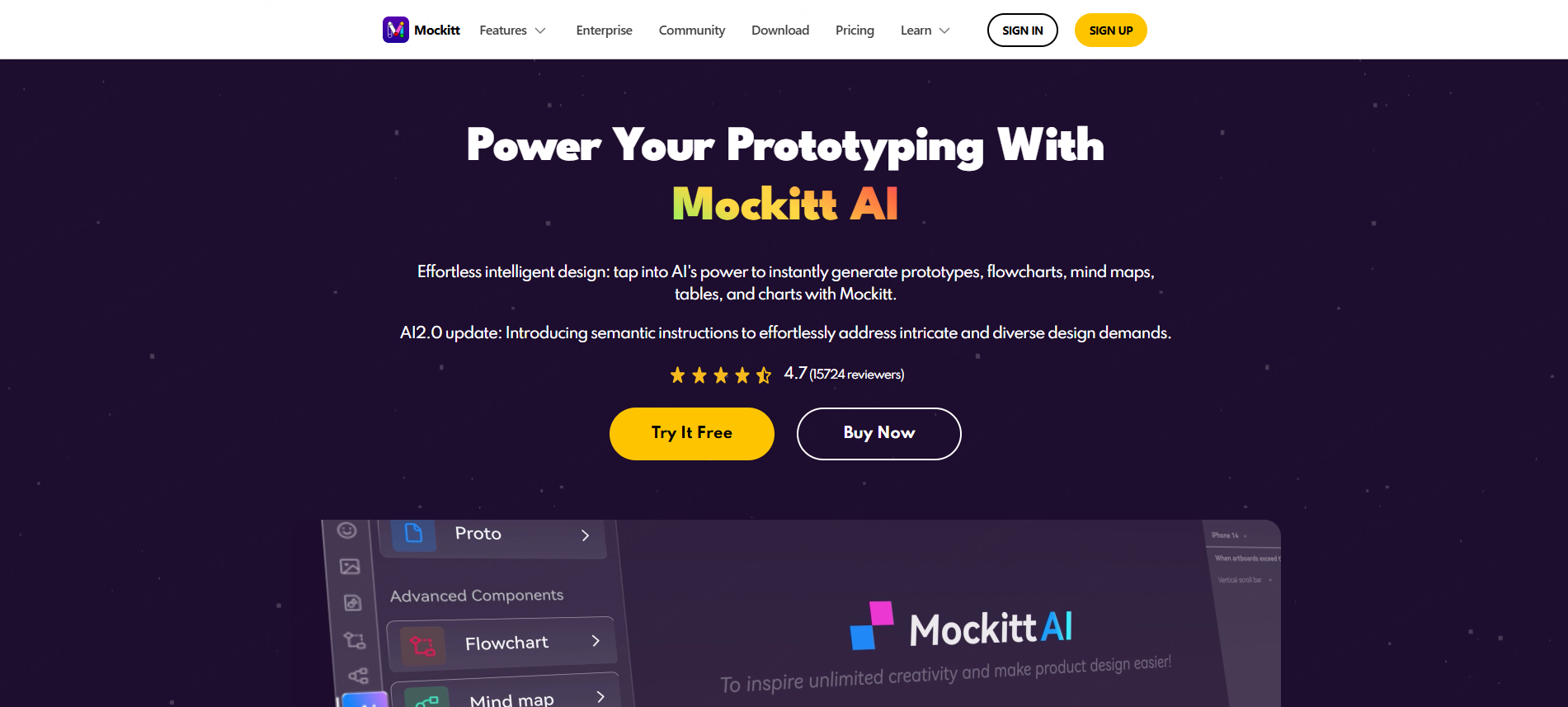
What makes Mockitt special is not simply the AI, but how that intelligence seamlessly integrates into a designer's real workflow. Let's take a closer look.
How Mockitt's AI Works
- Text-to-Prototype: You describe your idea in words, say, "a mobile app for event booking with login, explore, and checkout pages," and Mockitt creates a multi-screen prototype with logical navigation.
- Sketch Recognition: Upload a scanned paper sketch and Mockitt AI will create a structured digital wireframe.
- Smart Suggestions: AI perceives design intent and provides suggestions on applicable layouts, elements, and visual hierarchy.
Why Designers Love Mockitt
- Speed with precision: From ideation to interaction in minutes.
- Seamless collaboration: real-time co-editing, version control, and permissions for large teams.
- Data Protection and Compliance: Mockitt's platform fully complies with GDPR; thus, it guarantees privacy and provides transparency in terms of copyright.
- Integration with other tools: Works with Figma, Sketch, and developer handoff systems.
What's more, Mockitt couples this artificial intelligence, which is engaged in generating the prototype, with flexibility, as demanded by professionals. It keeps humans in the driver's seat, letting AI accelerate the heavy lifting.
2. Uizard: Converting Words & Sketches into Wireframes
Uizard is another powerful AI prototype generator that is gaining more and more momentum these days among startups and solo-founders. It's designed to interpret text prompts or even photos of hand-drawn sketches into editable wireframes.

It is fast, intuitive, and democratizes design for non-experts. In comparison, though, with a more mature AI-powered prototyping tool like Mockitt, Uizard's customizations are rather limited. It is better positioned for quick concept validations rather than full-scale product workflows.
3. Figma AI: Design Intelligence Within Your Ecosystem
AI features have been a godsend for teams deeply entrenched in the work of Figma. Everything from helping to generate layouts, organizing components, to generating sample text or icons is done through this Figma AI assistant.
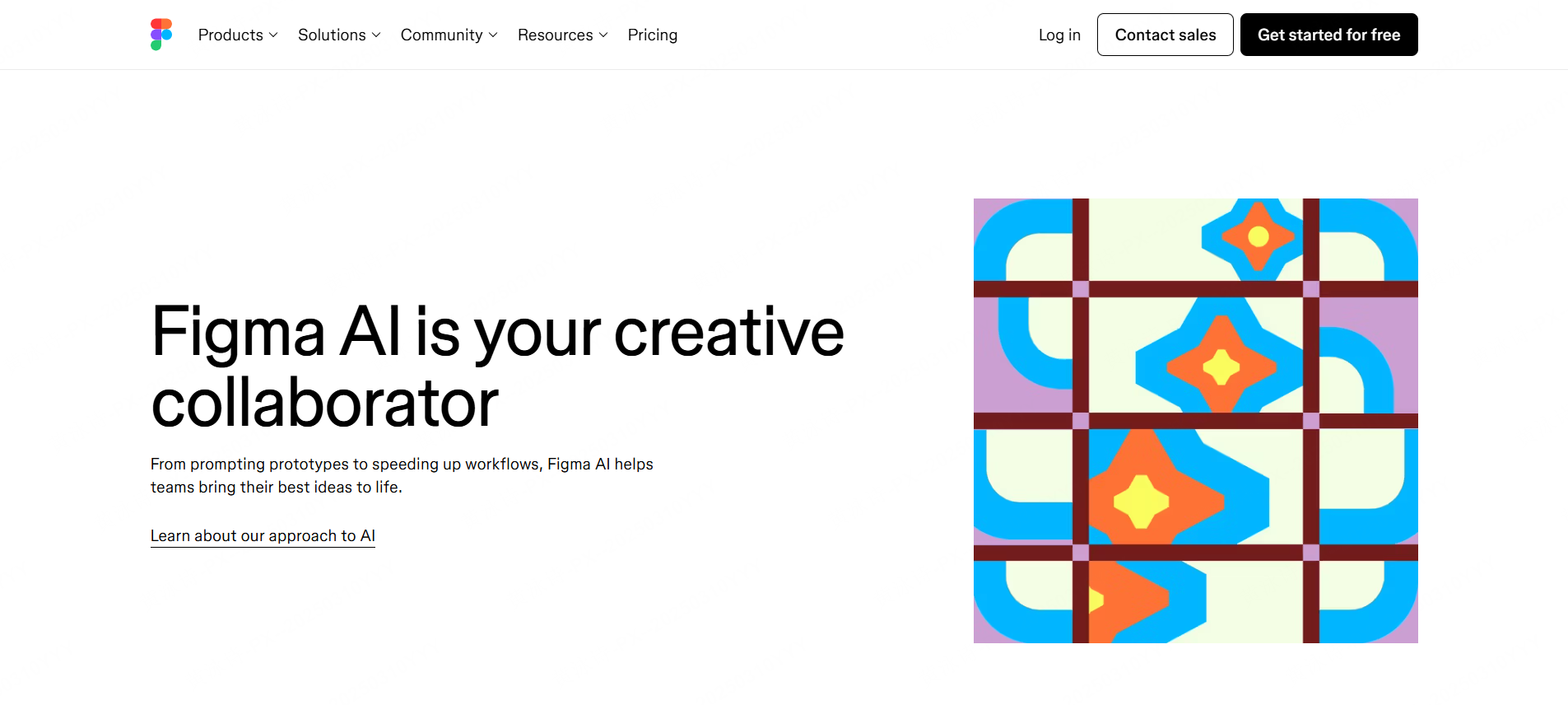
While not a standalone AI prototype generator, Figma AI extends the collaborative design capabilities of the platform. It is ideal for teams looking to improve through the use of AI and who do not want to leave their established workflow.
4. Visily - Bridging the Gap Between Sketch and Digital
Visily is all about converting these rough inputs-from the napkin sketch to the screenshot or even in-app screenshot-into clean wireframes. It is one of the more approachable AI-powered prototype design tools and is great for brainstorming sessions or early idea validation.
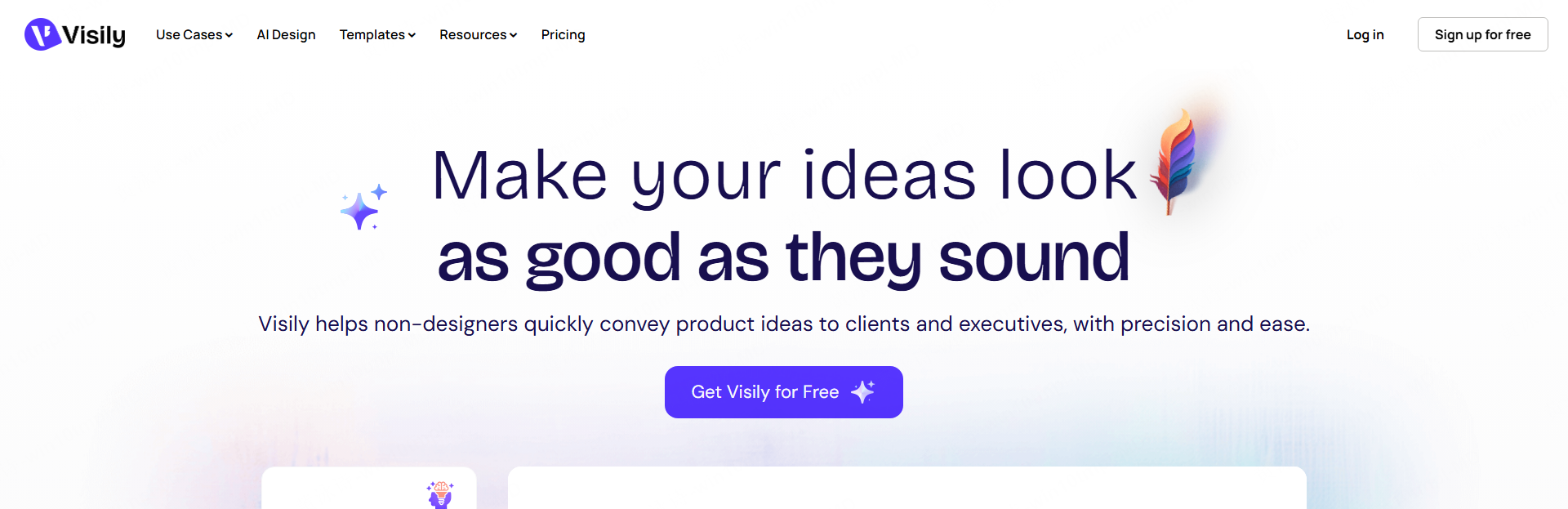
While its simplicity begets charm, advanced teams find its design depth limited. At the same time, for startups and educators alike, Visily represents a more approachable side of AI prototyping.
From Concept to Click: The New AI-Driven Workflow
Perhaps the most significant benefit of these advanced AI-powered prototype generators is how they reshape collaboration.
1. From Idea to Structure
You start with an idea, whether it's typed into Mockitt's AI input or perhaps drawn on paper; in an instant, AI interprets that intent and creates a structured interface.
2. Refining the Prototype
You'll be able to edit the screens manually, replace components, and fine-tune the interactions on your own. Besides static mockups, the best AI-powered prototype generator tools let designers stay creative while AI does the groundwork.
3. Real-time Collaboration
Mockitt is a place in the cloud where designers and developers, along with a product owner, can work in real time: give feedback, manage versions, and keep the visuals consistent.
4. Handoff and Implementation
Finally, developers export design specifications directly from the tool in order to assure a seamless transition from prototype to production-ready assets.
This workflow here showcases the future of AI prototyping tooling: a mix of automation, creativity, and collaboration.
Key Benefits of Using AI Prototype Generator Tools
1. Speed and Efficiency
With AI, teams can create testable prototypes in hours, not days. That amount of agility fuels faster MVP testing, lean validation, and rapid pivots-all crucial pieces of today's product cycles.
2. Lower Barriers for Non-Designers
Not everyone masters advanced design tools. An AI prototype generator lets anyone-marketers, developers, founders-pitch in visually with ideas.
3. Smart creativity
AI does not replace human creativity; it actually amplifies it. It removes repetitive layout tasks so designers can actually focus on interaction logic and storytelling.
4. Collaboration and Accessibility
Cloud-based AI prototyping tools allow collaboration even across time zones. For example, with Mockitt you can comment in real time, co-edit, and control permissions, fitting for hybrid teams.
5. Professional Control
The best AI prototype generators can balance automation with flexibility in that you can still fine-tune, redesign, and adapt every screen to your branding or corporate design guidelines.
Prototyping AI for the Future: Meeting Expectations in Western Markets
With AI becoming the new normal in design workflows, the benchmark set by Western teams-so predominantly European and North American-is much higher. It is not all about efficiencies; they care about compliance, compatibility of workflow, and creative control. Okay, let's break down what they require from the next generation of AI prototype generator tools, and how Mockitt already meets these needs.
- Efficiency First: Speedy yet Sure Execution
Designers would love AI to translate ideas into structured prototypes in a few minutes. Mockitt makes that happen with natural language processing and industry-specific templates. The focus is on fast iteration and MVP readiness, lowering the skill barrier to entry for entry-level contributors.
- Compliance as Core: Security and Copyright
Most Western businesses have a strong legal framework like GDPR, so they require assurance of data protection and clarity on copyright for using AI prototyping tools. It meets these standards through data processing transparency, encrypted storage, and user-owned IP policies that help the teams avoid legal and cultural risks.
- Collaboration and Compatibility: Ecosystem Integration
Modern design does not happen in isolation. A perfect AI prototype generator should fit well and integrate without breaking the workflow with Figma, Jira, and development tools. Compatibility and a team permission system make Mockitt a natural fit for enterprise-grade collaboration.
- Controlled Customization: Balancing AI with Human Precision
While AI accelerates the construction of layouts, designers still need control. Mockitt offers a complete manual editing layer, enabling the replacement of components, visual adjustments, and interactive fine-tuning-all to ensure that every design meets brand standards and professional expectations.
- Cross-Platform Stability: Multi-Device and Multilingual Support
In globally distributed teams, performance and adaptability mean everything. With its cloud-based AI prototype generator tool, Mockitt supports responsive layouts across devices, smooth real-time editing, and multilingual interfaces that are important for international UX teams.
Conclusion
The future of UX design is not a question of choosing between AI and creativity-it's about using both. This new class of AI prototype generator empowers teams to ideate, iterate, and deliver faster than ever before, without sacrificing an ounce of precision or professionalism. Out of the many options available, Mockitt stands out in finding that exact balance: intelligence without restriction, automation without compromise. Whether you are a solo creator sketching the next big idea or an enterprise team refining complex workflows, Mockitt and other AI prototyping tools are changing how ideas become interactive experiences. Because in 2025 and beyond, the distance between imagination and interface is measured not in weeks-but in minutes.
