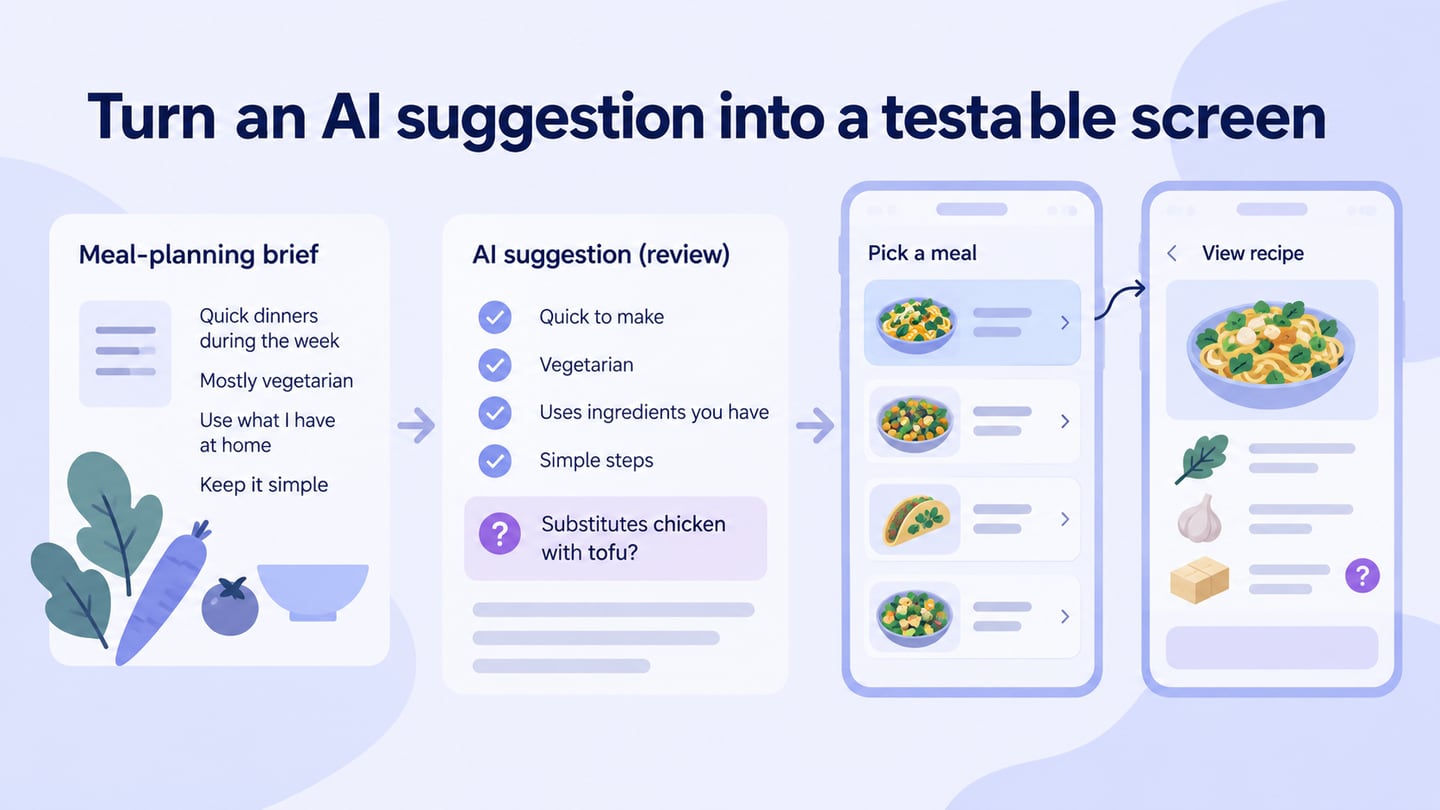
ChatGPT can help explore requirements, draft interface content, and generate code for a prototype. A visual AI prototyping workflow provides another way to turn an idea into editable screens for review. The useful question is which output you need: a written brief, a code experiment, or a shared visual prototype. Compare ten use cases, then use the Mockitt tutorial to review a concrete prototype task.
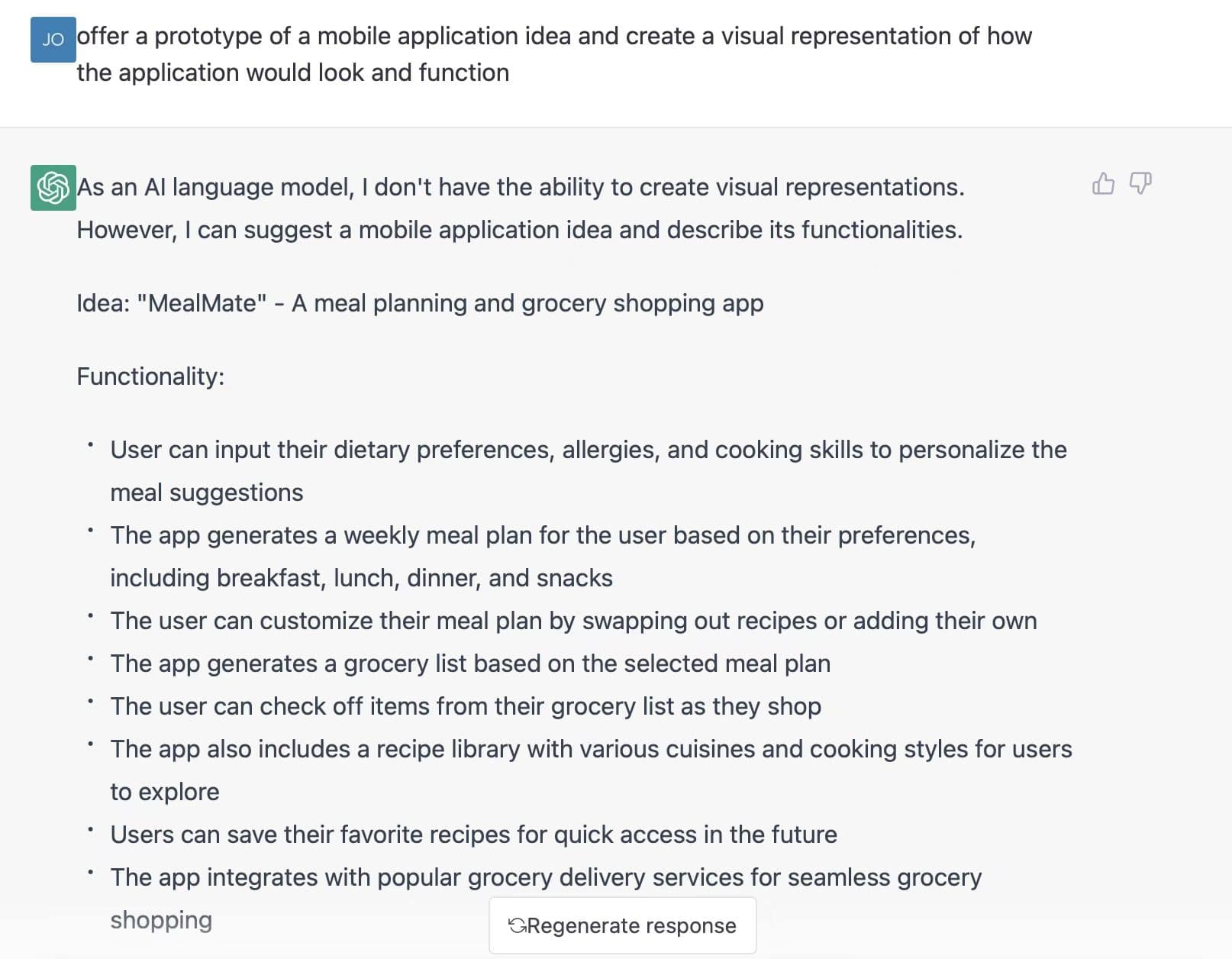
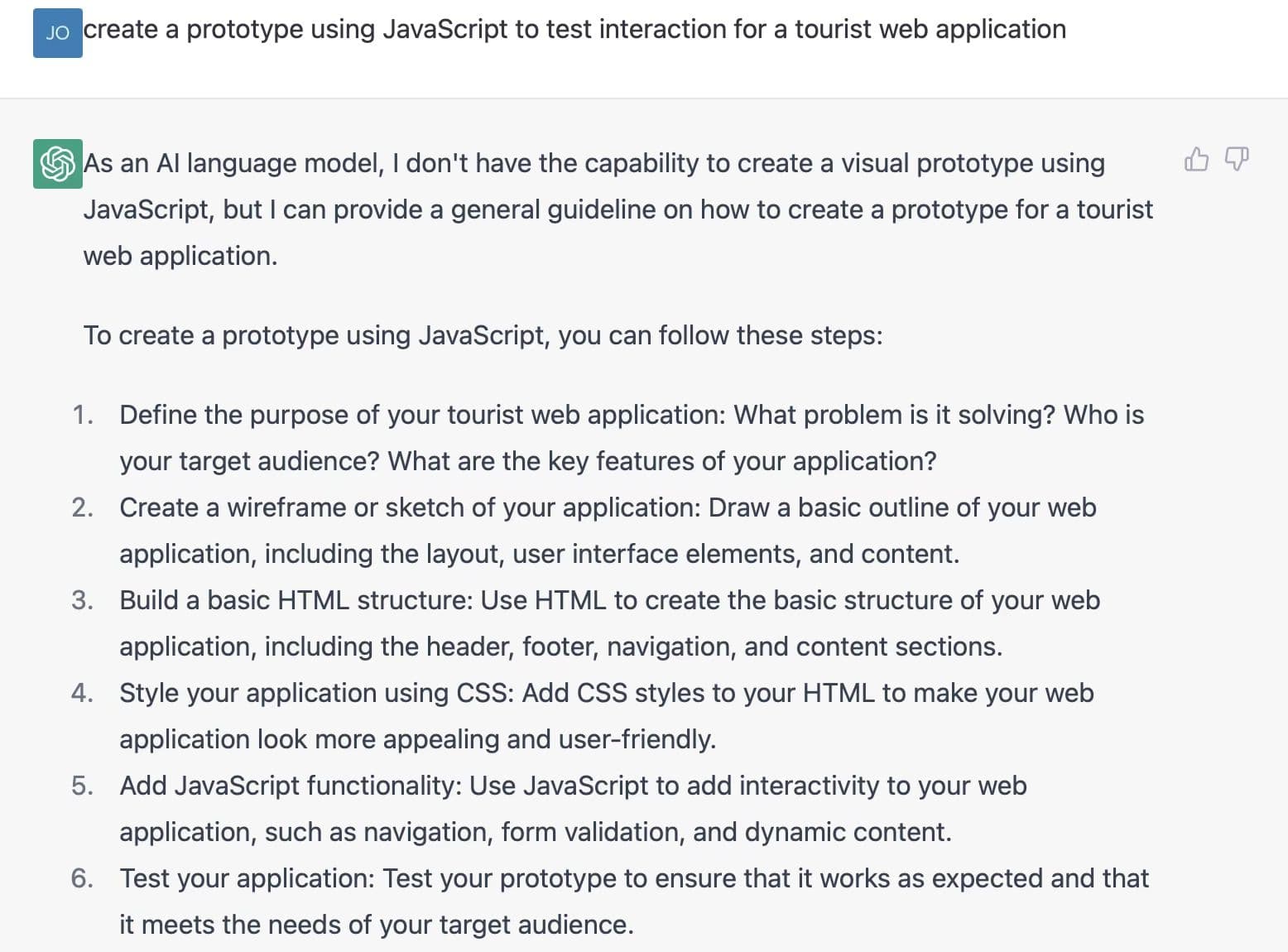
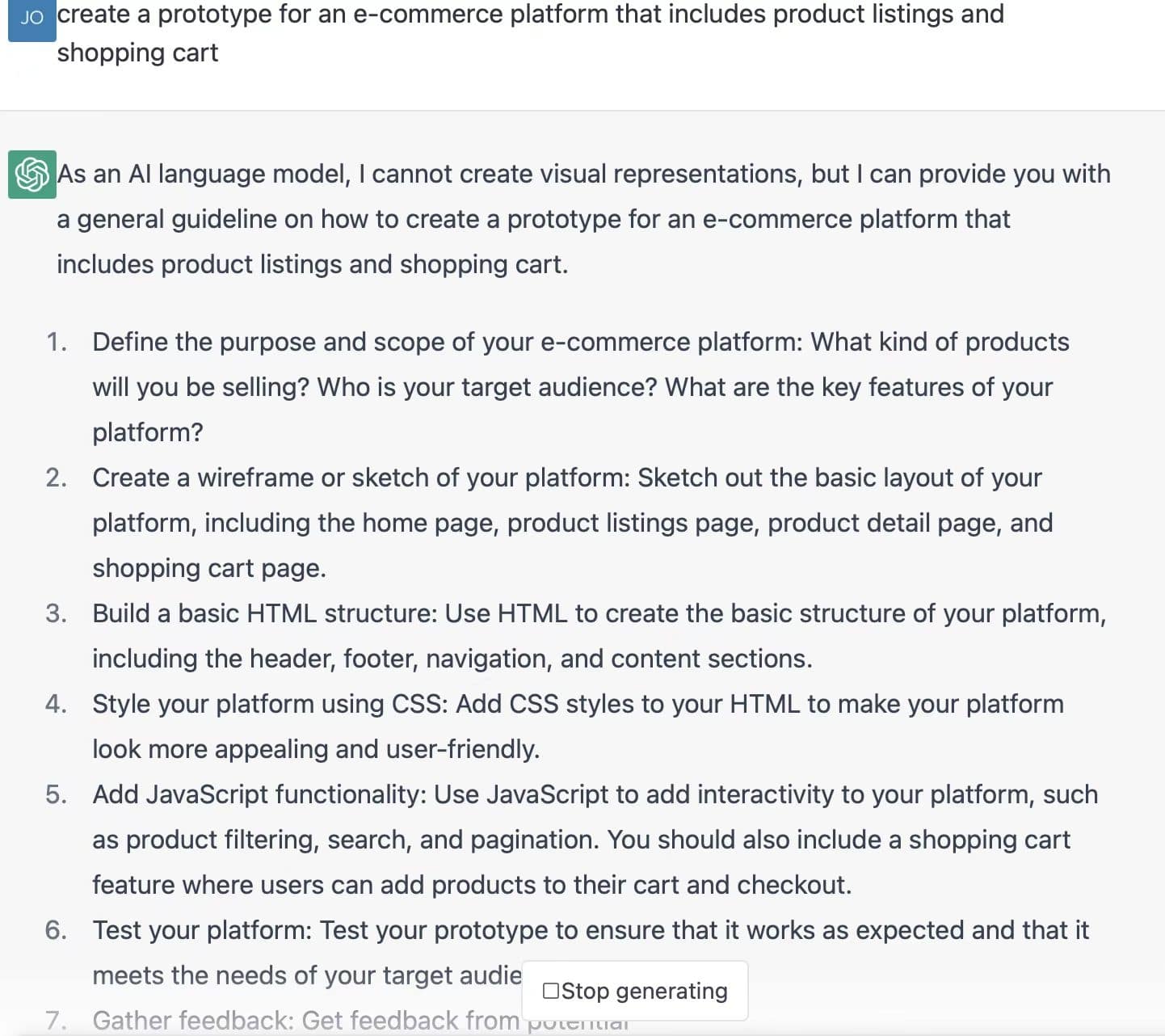
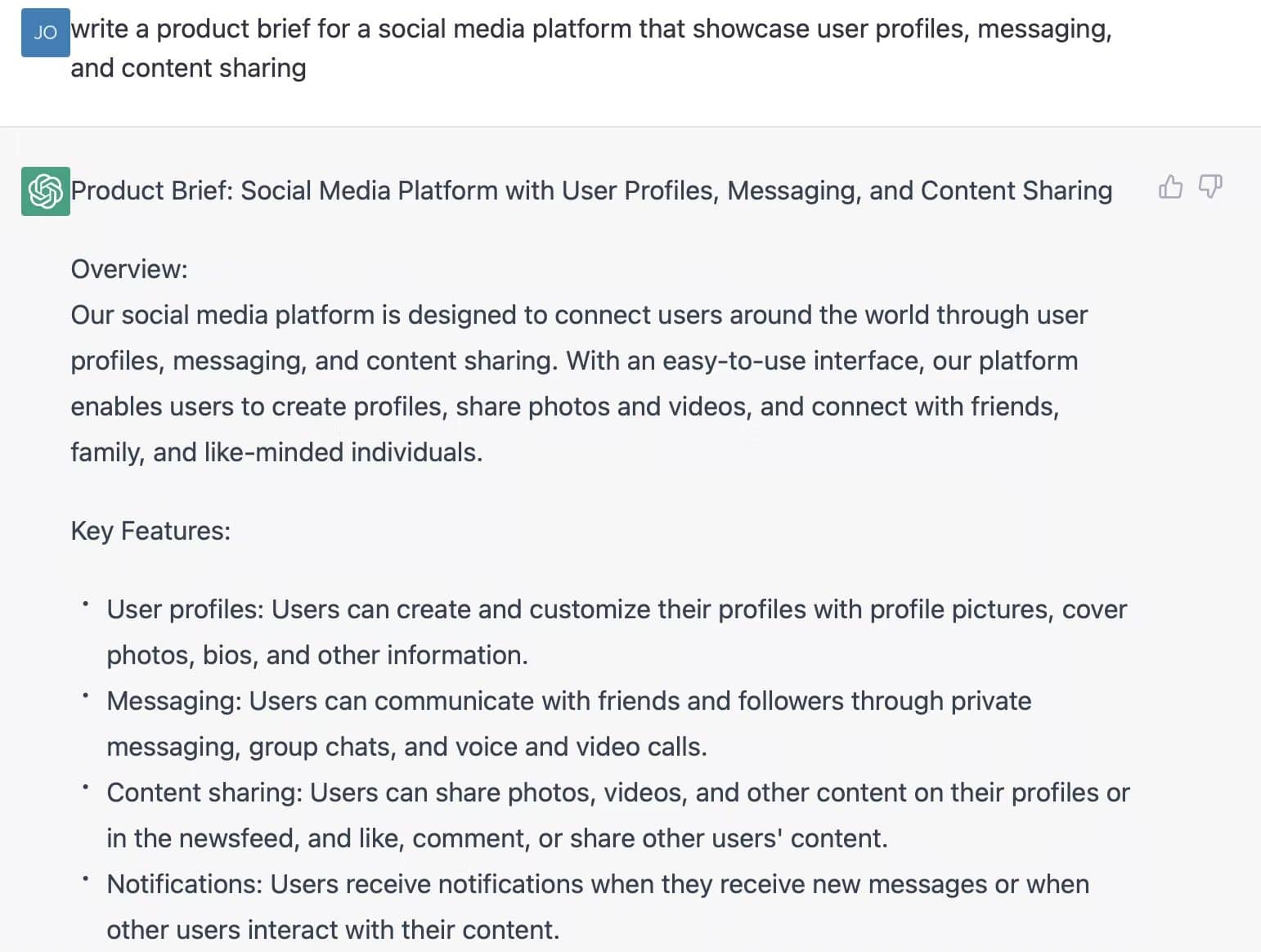
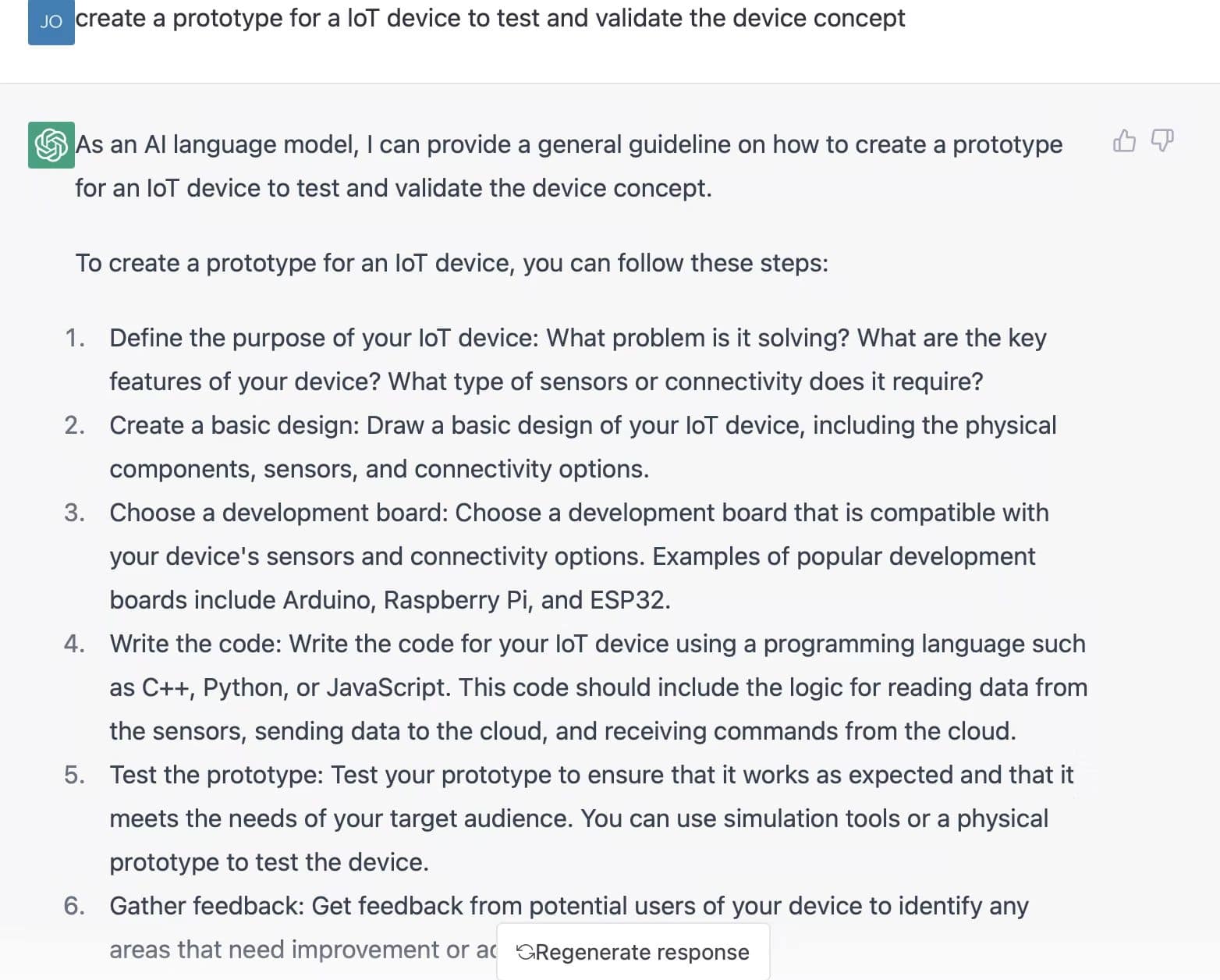
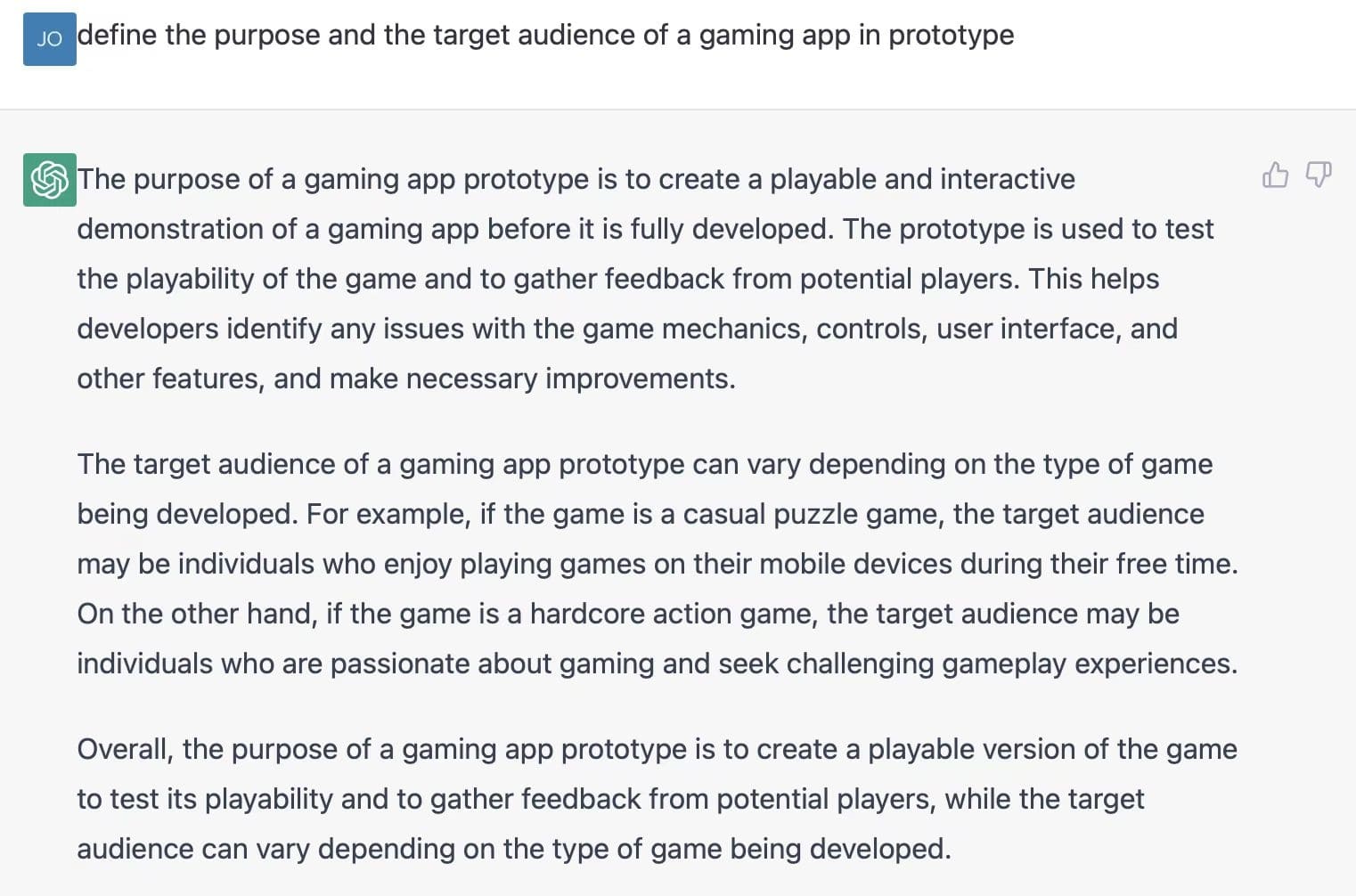
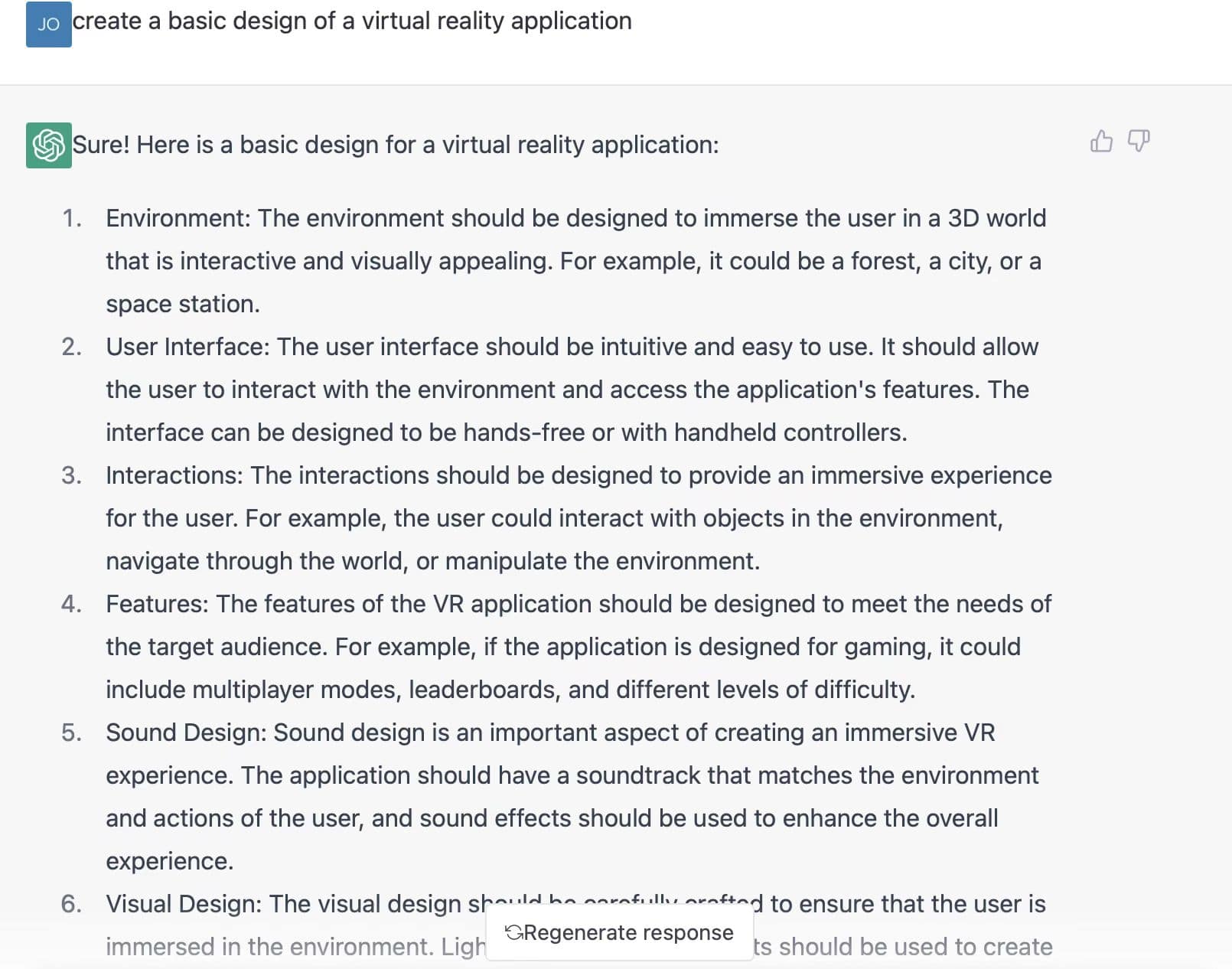
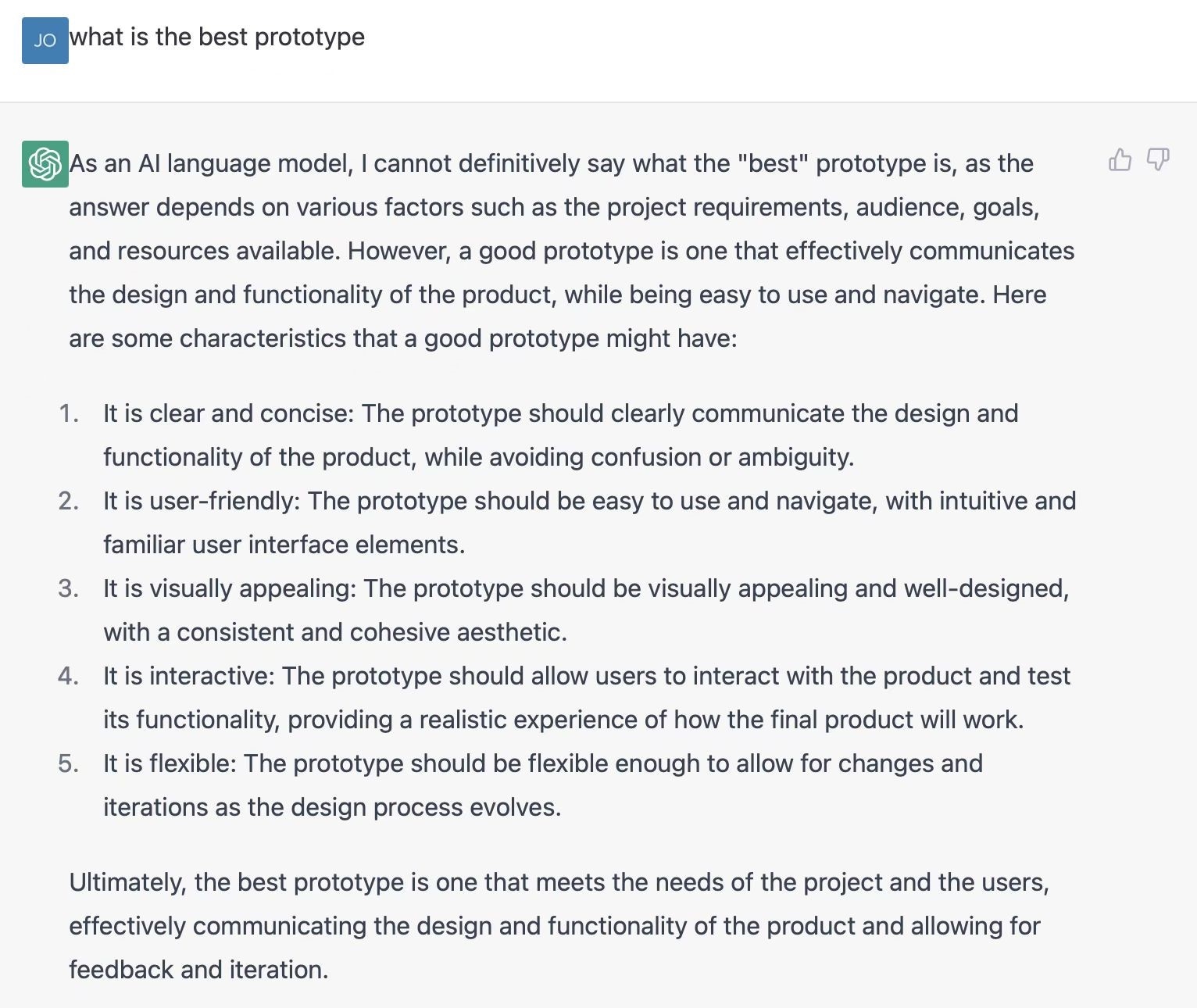
The following screenshots are historical examples of prompts and responses, not tests of the current ChatGPT interface. In particular, older responses claiming that ChatGPT cannot create visual output no longer describe all current capabilities. Use the cases as starting prompts and verify the result against your task.
1. Mobile App
For a mobile app, ask for a specific user task, required screens, and unresolved assumptions. The original meal-planning example suggests preferences, recipes, and a shopping list. Review those features before expanding the scope; an allergy-related suggestion is not a verified safety rule.
2. Web Application
For a web application, ask for a small HTML, CSS, or JavaScript experiment with named inputs and expected behavior. Inspect and test the code before use. A working preview can help evaluate a flow, but does not establish production readiness or validate the business concept by itself.
3. E-commerce Platform
For an e-commerce prototype, describe product selection, cart changes, and the checkout states to represent. Use simulated payment outcomes in the design. A generated payment integration suggestion is not evidence that a checkout is secure or ready to handle real transactions.
4. Social Media Platform
For a social platform, ask for a brief covering a defined action such as posting to a group. Include visibility, reporting, and failure states in the discussion. The original response lists common features; choose only those needed to explore the current question.
5. IoT Device
For an IoT interface, ask for the device state, the user’s intended action, and the feedback required when communication fails. The screen prototype can illustrate those states. Hardware behavior, connectivity, and device reliability need separate implementation and testing.
6. Gaming App
For a game, use prompts to clarify the player’s goal, controls, and feedback. A written outline is useful preparation, while playability needs an interactive test with representative players. Do not treat a proposed audience description as research evidence.
7. Virtual Reality Application
For a VR application, ask for a scenario and the actions a participant needs to perform. A desktop screen plan can organize the concept, but spatial comfort and controller behavior require suitable VR prototypes and device testing.
8. Augmented Reality Application
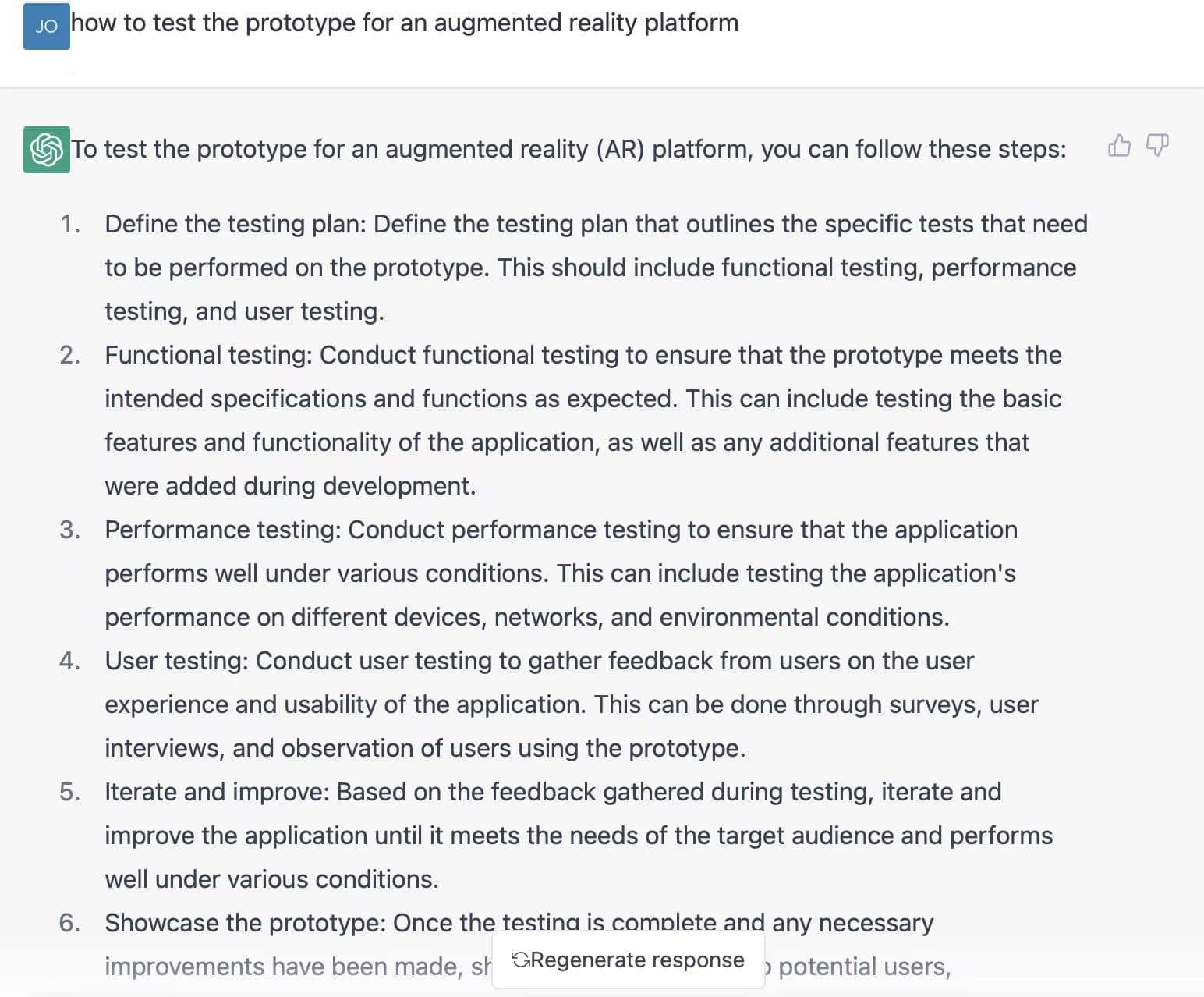
For an AR application, ask for a test plan that includes placement, tracking loss, and environmental conditions. ChatGPT can suggest questions; it does not establish that real-world tracking or interaction works.
9. Educational Application
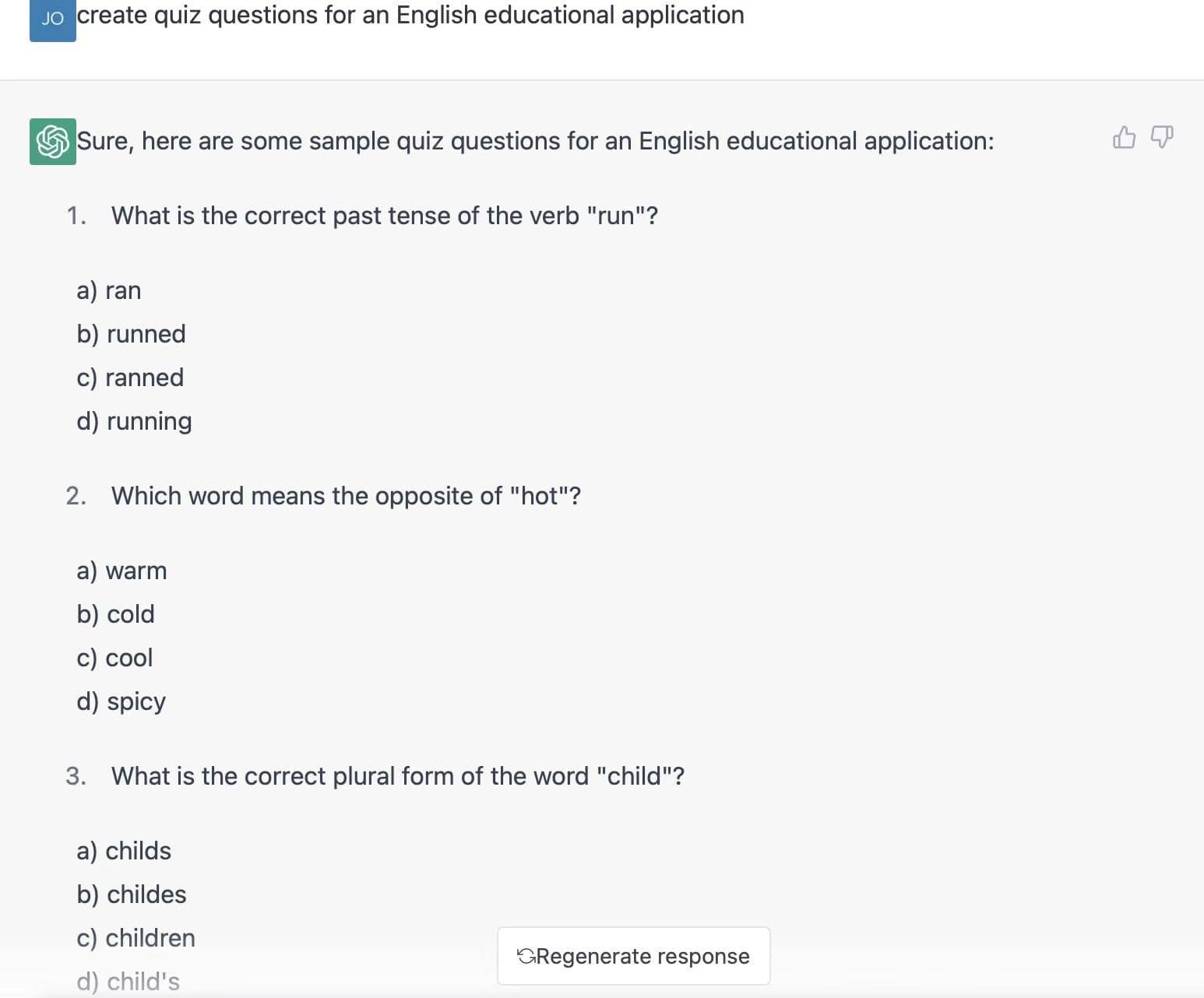
For an educational app, ask for sample lesson or quiz content aligned with a defined learning goal. Check the answers and explanations with an appropriate reviewer. Prototype both correct and incorrect responses so the feedback can be evaluated.
10. Healthcare Application
For a health-related interface, keep the prototype task explicit. The original screenshot explores fitness tracking screens; it is not a diagnostic or treatment workflow. Use fictional data, distinguish unavailable measurements from zero, and seek suitable expert review for health claims.
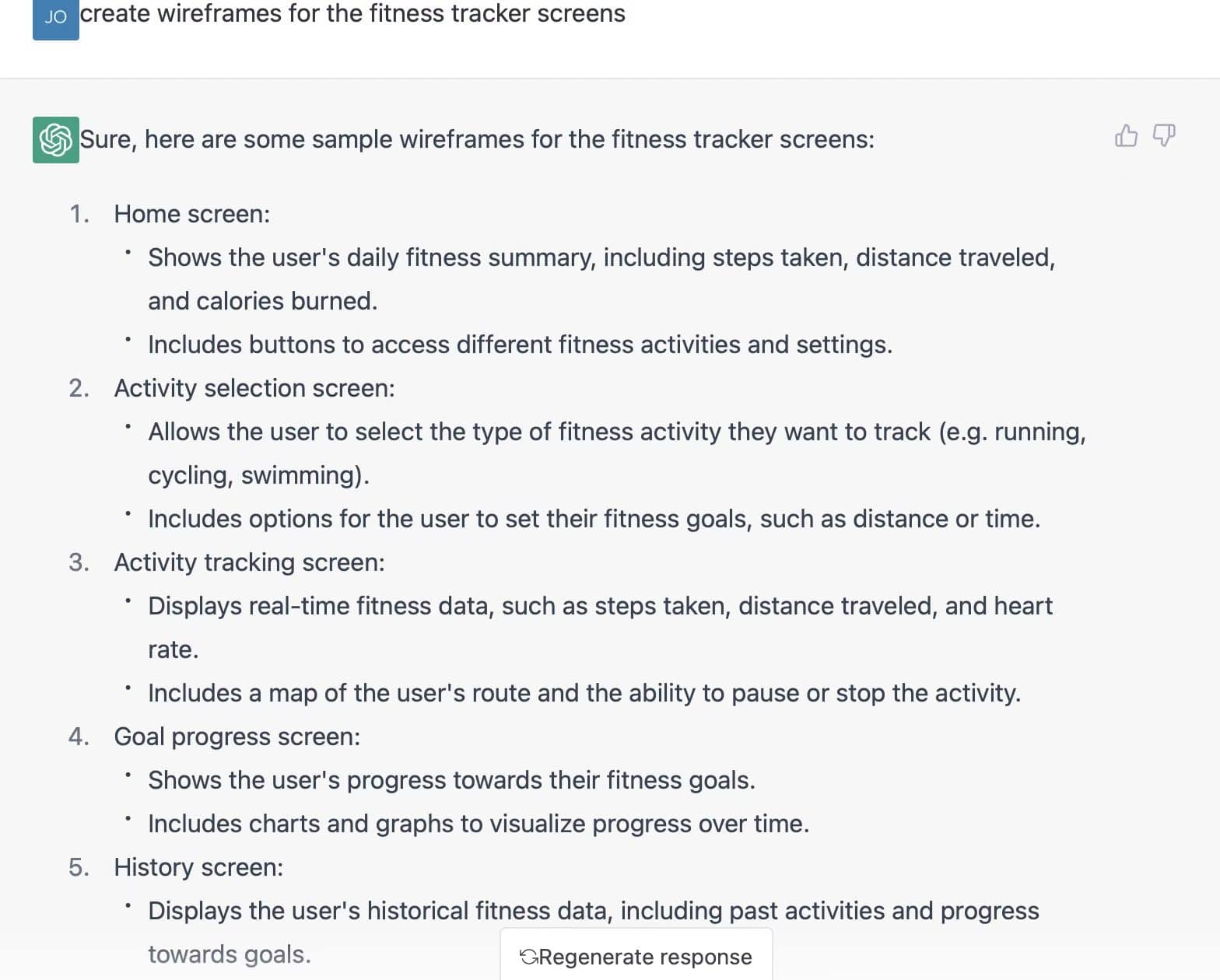
Compare the current output and editing workflow rather than assuming that every AI chat is text-only. The historical screenshots above demonstrate prompt ideas, not a current product benchmark.
Visual output and editing
ChatGPT can generate code and preview supported outputs such as HTML or React, as described in OpenAI’s code-preview documentation. A dedicated visual prototyping workspace offers direct control of screens, components, and their connections. Choose according to how the team intends to edit and review the artifact.
Interaction design
Generated code may demonstrate an interaction, while a visual prototype can connect screens and represent selected states without building the full application. In either approach, specify what happens on success, failure, cancellation, and return navigation; do not assume these are covered automatically.
Collaboration and review
Check how reviewers will open, comment on, and revise the actual artifact. A conversation, code preview, and shared visual prototype have different review workflows. The relevant comparison is whether your team can understand and maintain the result with its current access.
Accuracy and validation
Both generated output and manually assembled prototypes can contain mistakes. Trace important states to requirements and test the intended task. A polished screen, detailed response, or successful demo is not evidence that every requirement has been met.
Mockitt supports visual screen design, interaction planning, and shared prototype review in a browser-based workspace. AI-assisted generation can provide a starting draft. Review the current interface and plan before assuming that a feature shown in an archived screenshot remains available under the same name.
Features of Mockitt
The features below support preparing and reviewing a prototype. They do not replace product research, implementation, or validation:
- Arrange screens around a defined user task.
- Use an appropriate available template as a starting point.
- Customize reusable widgets for the intended content.
- Add text and visuals that explain the interface.
- Review with collaborators.
Share the prototype with the intended audience and verify its access settings. Record feedback against a screen or task so it leads to a specific revision.
- Prepare a development discussion.
Use the prototype to explain states, behavior, and unresolved requirements to developers. A handoff does not mean the application has been implemented.
- Preview the selected flow.
Inspect the paths you have represented and identify missing states before a review session.
Features of Mockitt AI
AI assistance is most useful when the brief identifies the user, task, constraints, and expected screens. Treat generated output as editable material:
- Use AI suggestions to explore alternatives and questions.
- Inspect generated interface elements and adapt them to the actual task.
- Review an AI-generated prototype for screen structure and missing states.
- Check suggested copy and sample data before including them in a review.
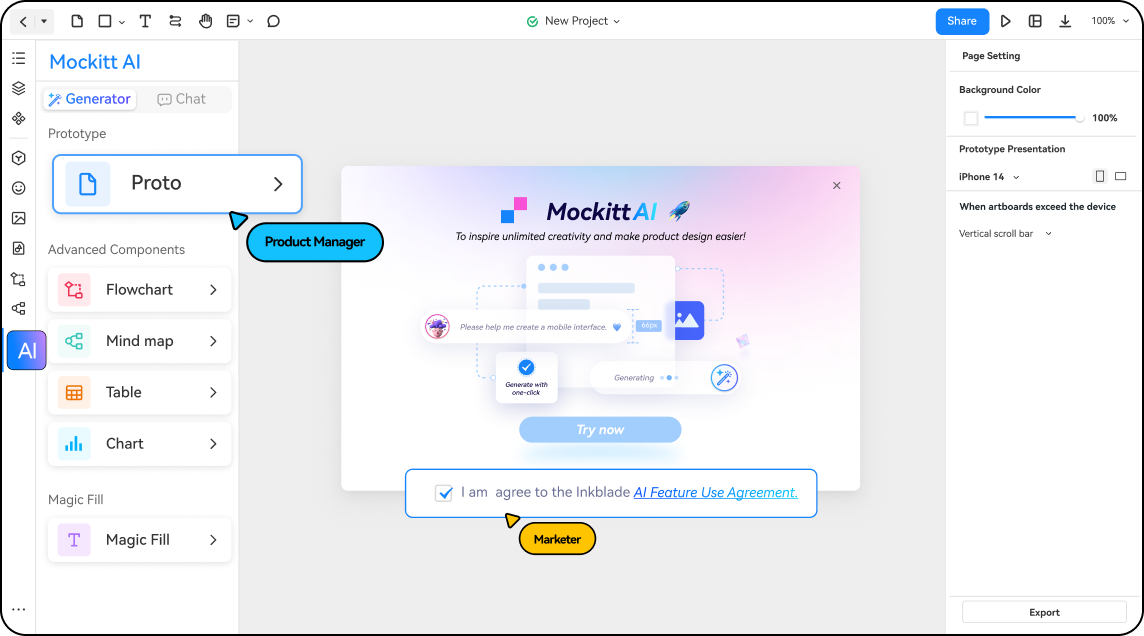
The historical AI screenshot below illustrates an earlier interface. Use the current controls and availability shown in your account rather than relying on old feature labels.
A Guide to Registering Mockitt
Open Mockitt from its current official site and use the available sign-up or login route.
Step 1: Open the current Mockitt site.
Choose the sign-up option if you need an account.
Step 2: Follow the current account-creation prompts.
Provide the requested information and complete any required verification.
Step 3: Sign in and open your workspace.
Use ChatGPT to develop the brief, then make deliberate choices while arranging the visual prototype. Keep a record of unresolved assumptions instead of silently converting them into requirements.
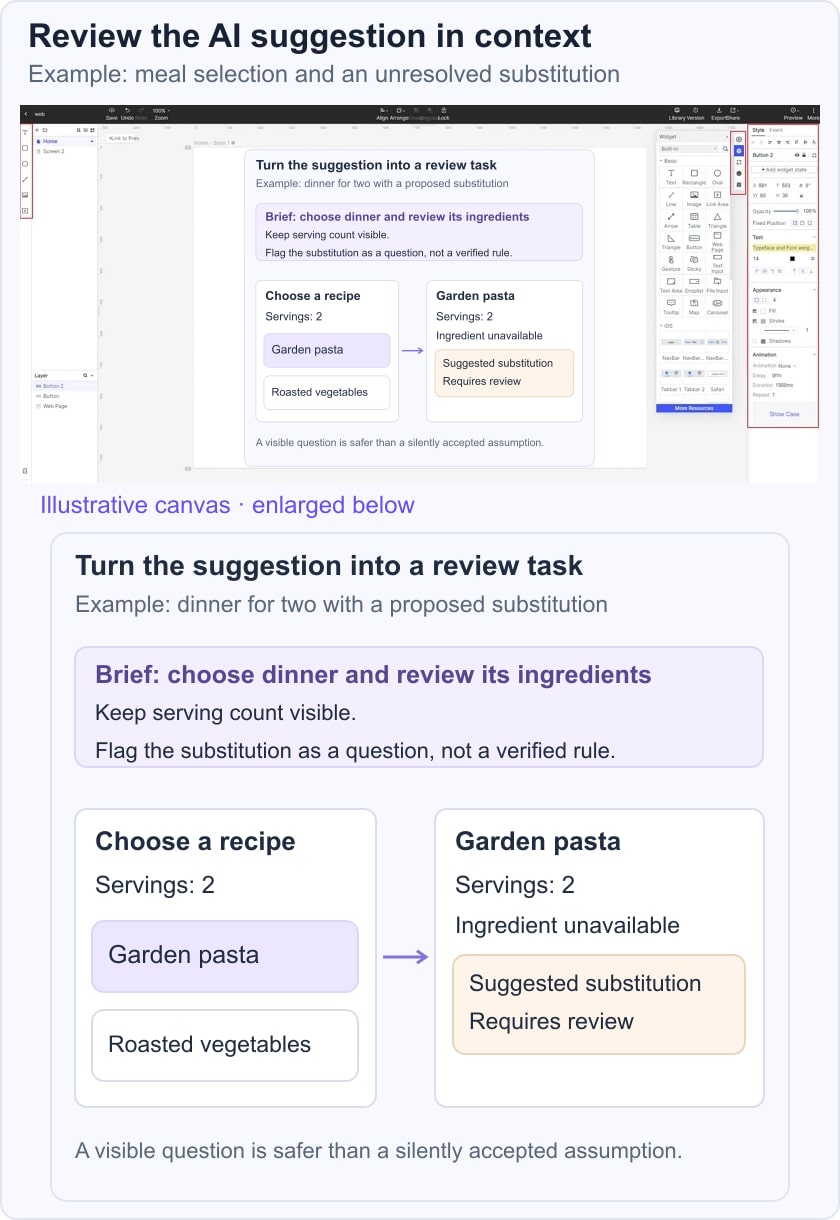
For a concrete example, use a meal-planning task. Ask for a flow that lets a person choose a dinner recipe for two, review its ingredients, and replace an unavailable ingredient. Build a recipe list and a recipe-detail screen in Mockitt. Show the selected recipe and serving count consistently; flag a suggested substitution for review rather than implying it is nutritionally or allergy-safe.
Step-by-Step Instructions for Using Mockitt
The original editor images below remain useful for explaining project creation, screens, widgets, comments, and sharing. They show earlier controls; use their current equivalents and check your account’s limits.
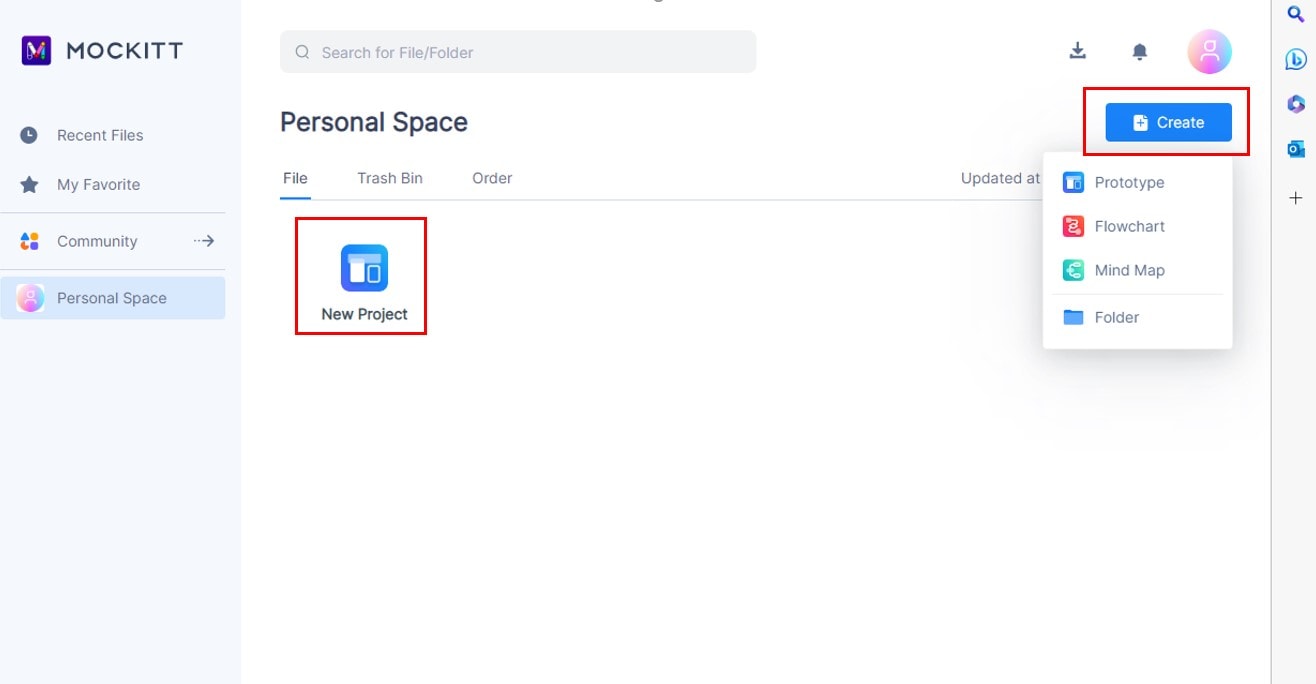
Step 1: Get Started
Create a prototype project in the current workspace and name it for the task being reviewed, such as Meal selection.
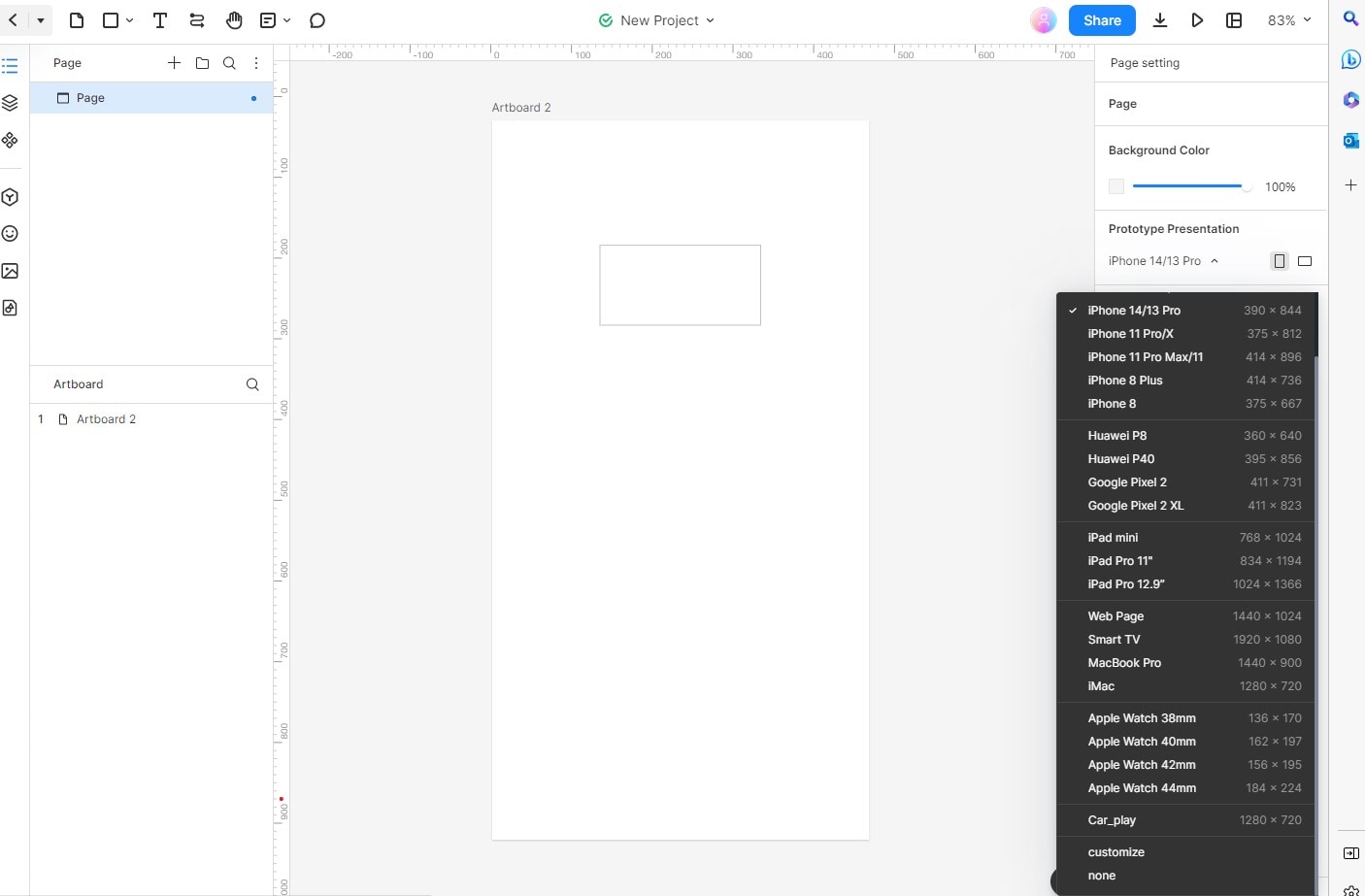
Step 2: Choose the screen size for the intended review.
Select or enter a suitable viewport size. Test the layout at the sizes your audience uses; the device presets in the screenshot are examples, not a requirement to target an old phone model.
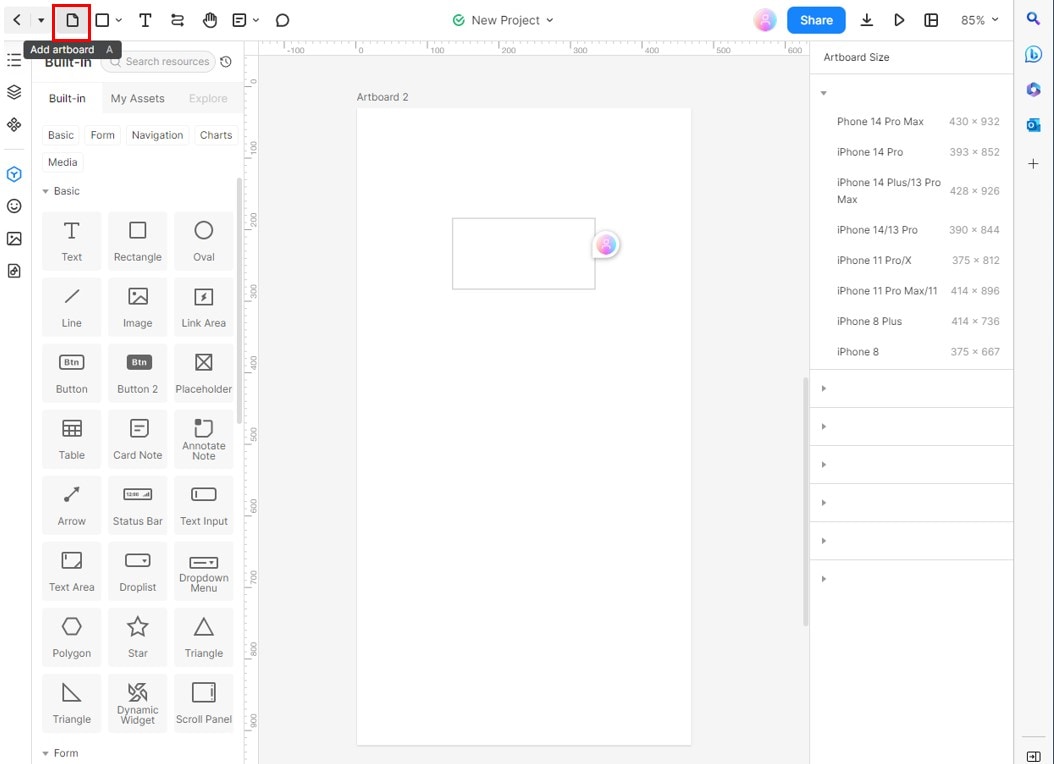
Step 3: Add the screens needed for the task.
Create artboards for the recipe list and details, plus any additional state needed to explain substitution or returning to the list. Keep scope focused rather than adding screens simply because the tool allows them.
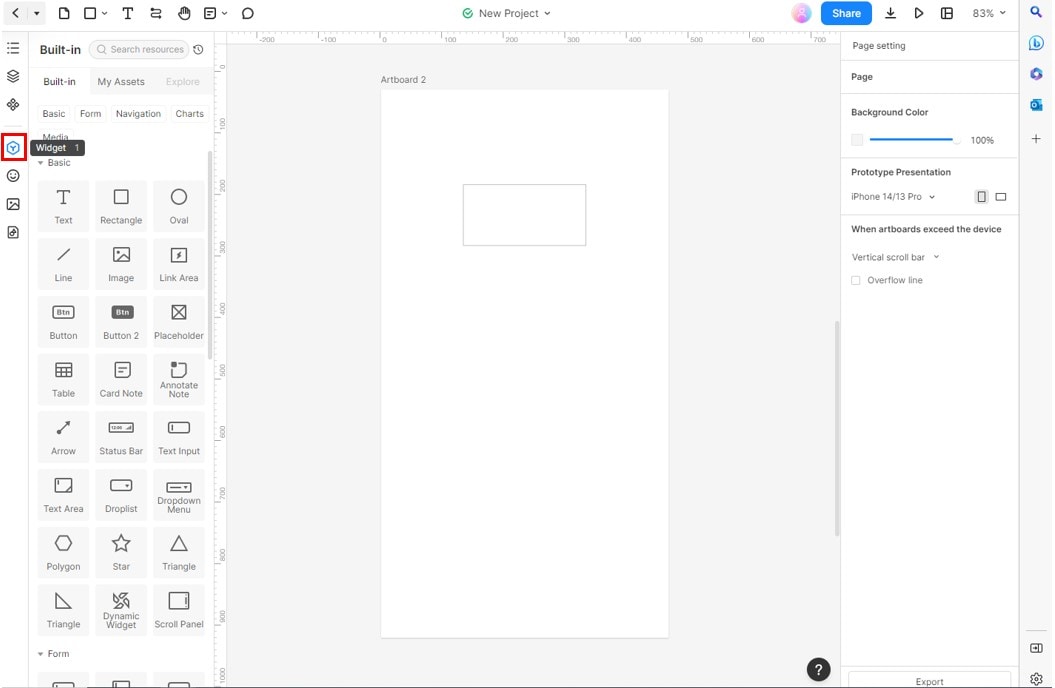
Step 4: Add and customize interface elements.
Use available widgets or reusable assets, then replace placeholder labels and content with the meal-planning example.
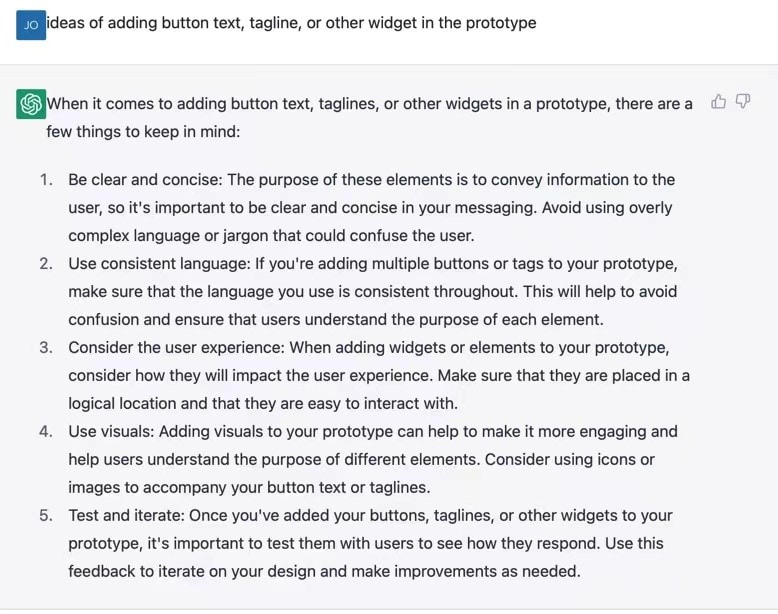
A prompt can help compare labels or missing states, but select the final text for the actual action.
For example, ask for distinct labels for opening a recipe, returning to the list, and reviewing a substitution. Avoid wording that implies an ingredient has been validated when it has only been suggested.
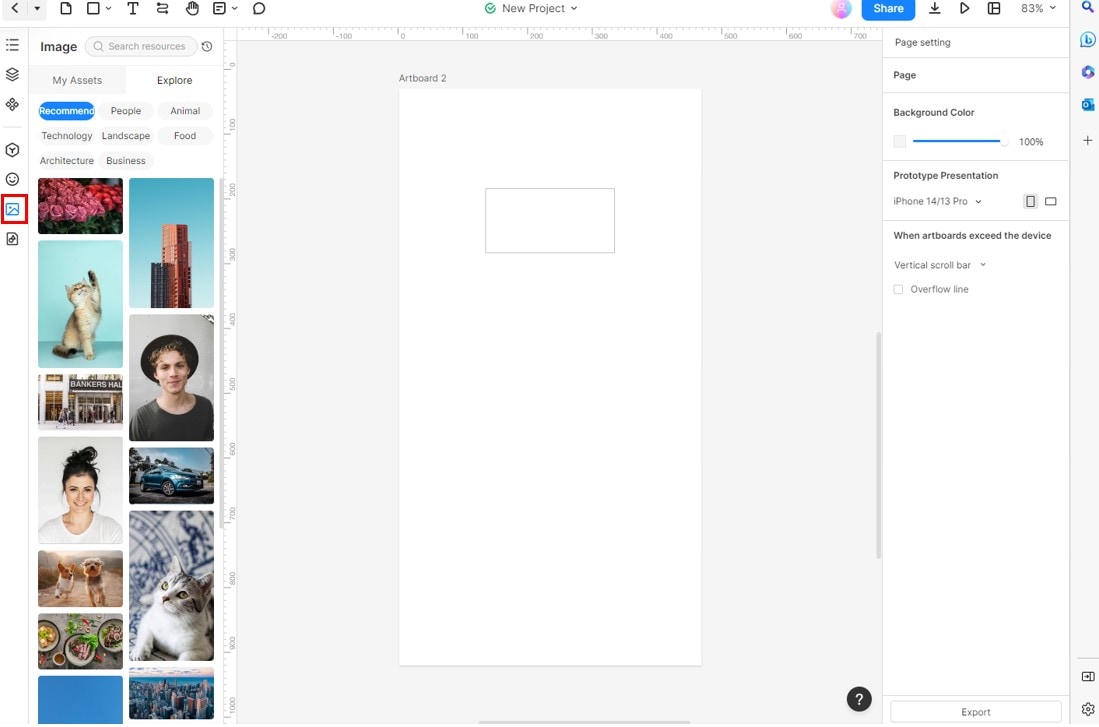
Add icons and images only where they help explain the task.
Use assets you have permission to publish. Keep image style and dimensions consistent with their purpose.
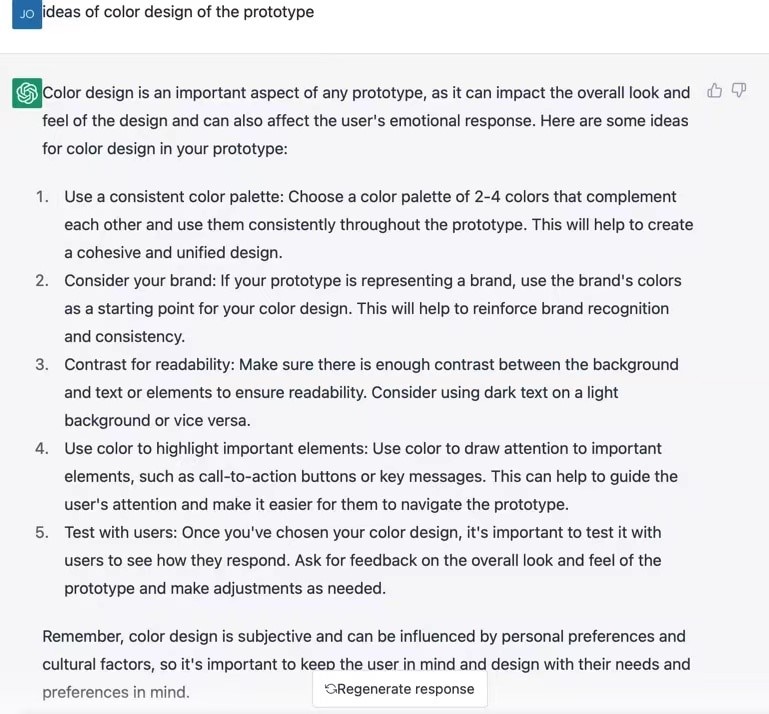
Check that important information is conveyed in text as well as color. AI palette suggestions are starting ideas; inspect the actual text/background combinations and interaction states.
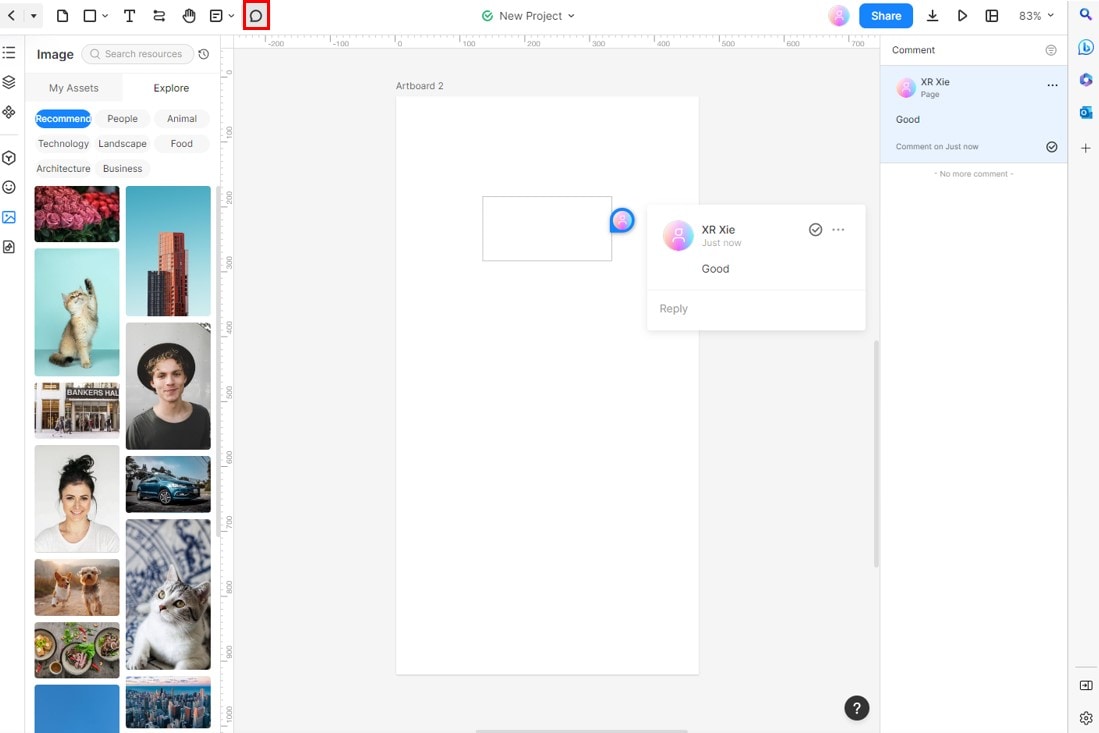
Step 5: Add review comments and connect the flow.
Attach a comment to the substitution state describing the unresolved rule. Connect the recipe selection to details and provide a return path. Ask reviewers to complete that task rather than judge the screen in isolation.
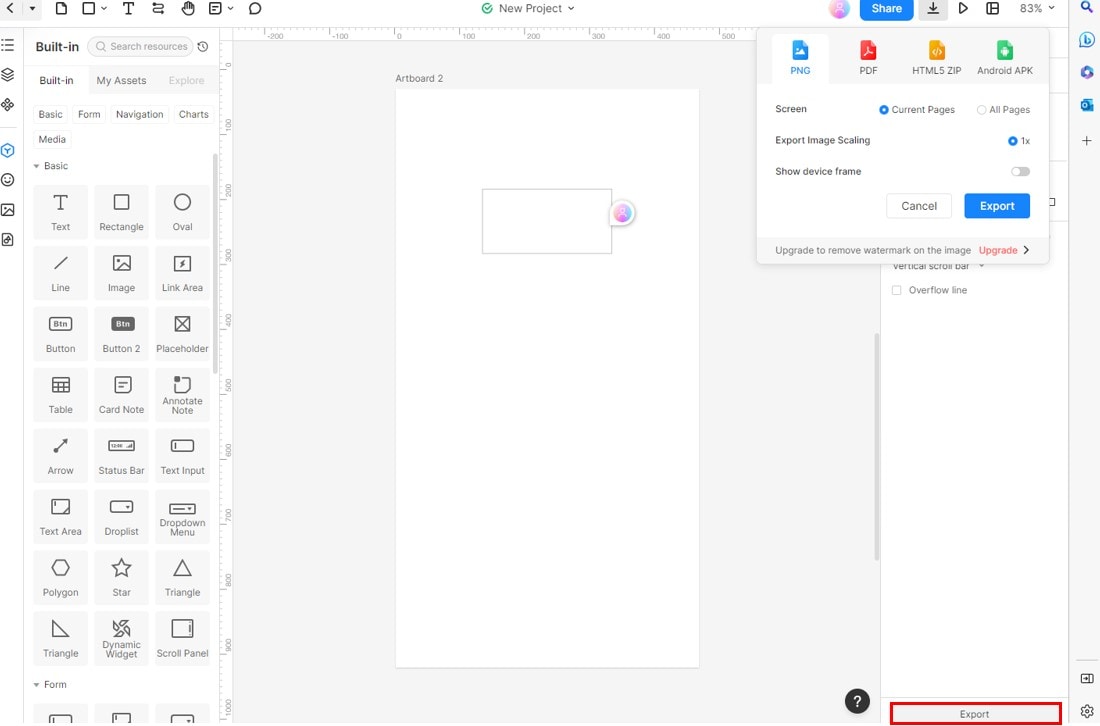
Step 6A: Export only the artifact your review needs.
Check the export formats available in your current account. The archived export screenshot is retained as interface history; it is not a promise of current HTML or APK export, and an exported prototype is not automatically a production application.
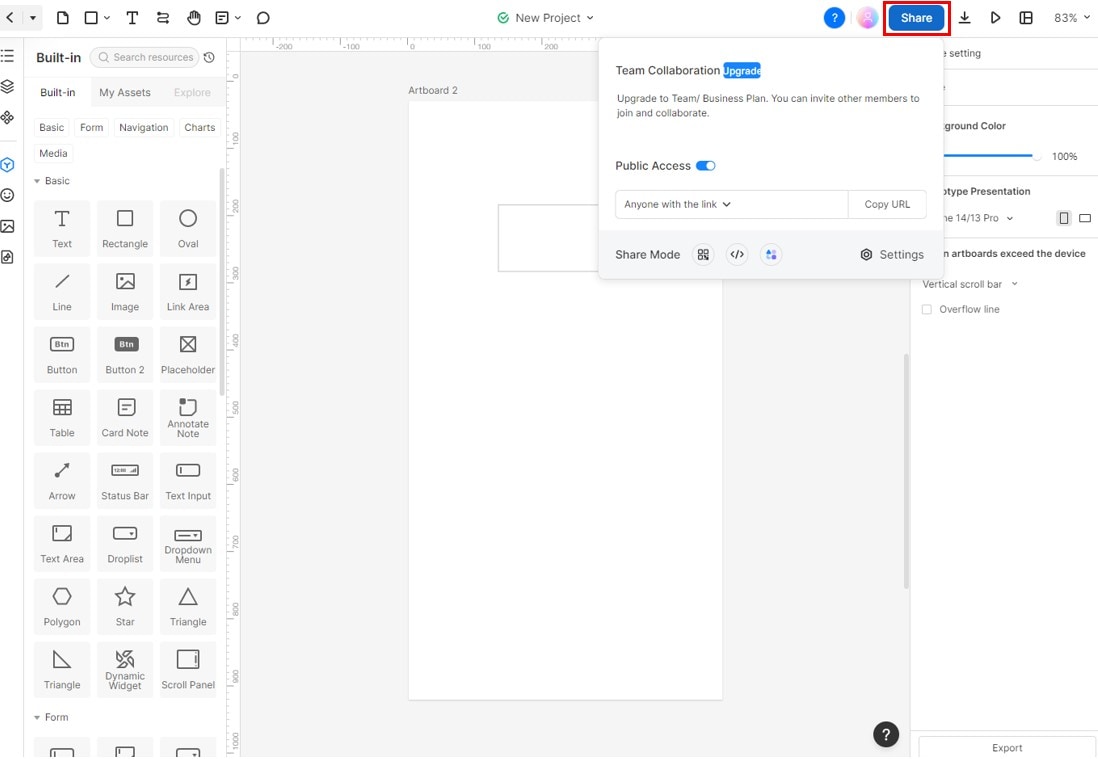
Step 6B: Share the prototype with the intended reviewers.
Set the appropriate access permissions and check whether the recipient can open and review the link. Use the current plan details for collaboration options.
Ask a reviewer to choose a recipe, inspect the ingredient change, and return to the list. Record where they hesitate or misunderstand the status. ChatGPT can suggest review questions but cannot certify the experience on behalf of real users.
Pricing
Consult the current Mockitt plans for access, collaboration, and export limits. Verify the available billing options and current limits before choosing a plan.
Choose the plan against the actual project and review needs, and check the displayed terms before purchasing.
Conclusion
ChatGPT and a visual prototype workspace can play complementary roles. Use the assistant to explore a bounded problem, then edit and test the resulting artifact through the workflow that fits the team.
Keep requirements, generated suggestions, and validated decisions distinct. A useful prototype makes the next design decision clearer; it does not remove the need to check the result.