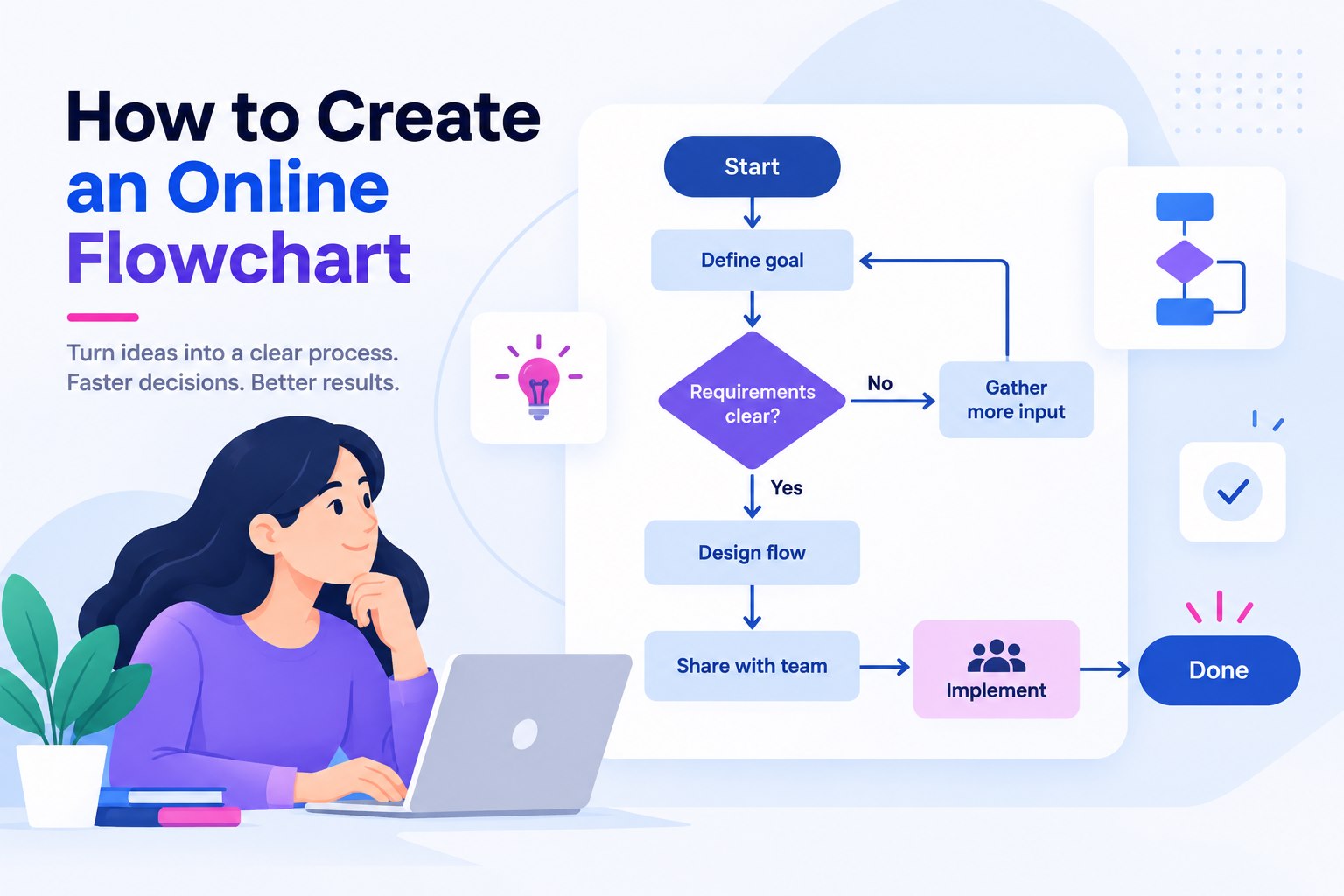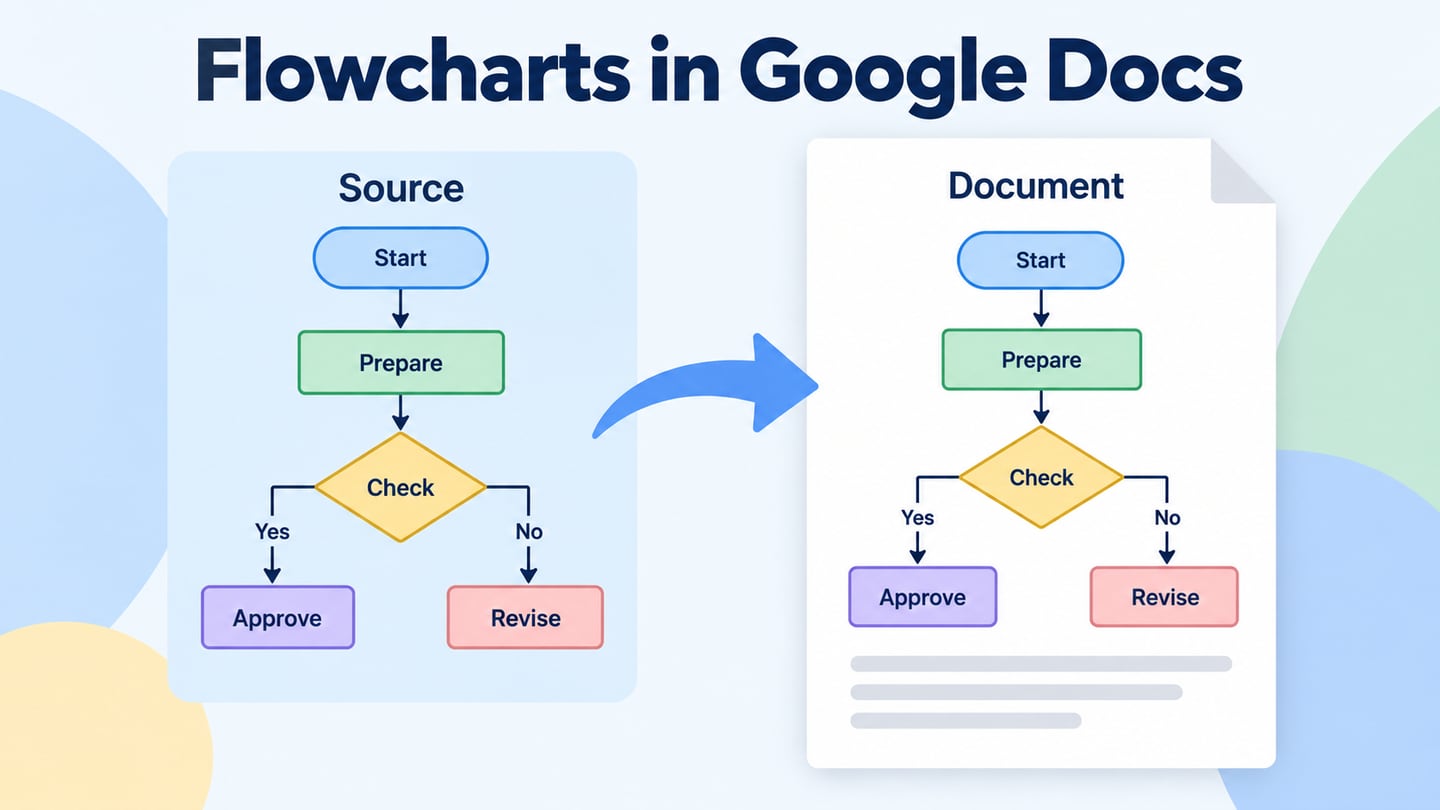
The quickest way to add a flowchart to Google Docs is to place the cursor where the diagram belongs, choose Insert > Drawing > New, draw the shapes and connectors, and select Save and close. For a diagram that will change during review, keep the editable source in a shared flowchart workspace and link the approved view from the document. That choice prevents the document copy from becoming the only version of the process.
Use Google Docs when the diagram is a small, mostly finished illustration. Use a dedicated flowchart workspace when the team needs to map a process, review each state, and keep connectors readable while the flow changes. The two tools can sit in the same workflow: agree on the process first, then place the version readers need in the brief.
Choose the editable source before drawing
A flowchart has two things to maintain: the nodes and the explanation around them. A drawing made inside Docs is convenient for a one-off handout, but its shapes are edited in that document. An inserted diagram may remain linked to the application or file that owns it, depending on how it was added. Before you draw, answer three questions:
- Who owns changes? If a product or operations team will revise the flow, give that team one editable source.
- What must reviewers see? A short document can show the approved snapshot; a working board should show states, exceptions, and ownership.
- How will the diagram be reused? A process used in a runbook, training page, and launch brief needs a source that can be updated without redrawing every copy.
This simple decision is more useful than choosing a tool by its shape library. It also keeps a Google Docs flowchart honest: the document explains the process, while the source workspace carries the changes.
Make a flowchart in Google Docs
- Open the document and add a short heading that names the process and its owner.
- Place the cursor below the heading. Select Insert > Drawing > New.
- Use one shape for the start, action, decision, and end. Keep the wording inside each shape to a verb plus an object, such as “Check request” or “Approve loan.”
- Choose the connector tool before adding arrows. Connectors make the relationship clearer than separate lines because they stay attached when a shape moves.
- Label decision exits with the condition a reviewer will use, for example “approved” and “needs information.”
- Select Save and close, then read the diagram at the document’s normal zoom. If the labels are too small, simplify the flow or keep the source in a dedicated workspace.
For a short process, five to eight nodes are usually enough for the document view. Put the exception path beside the main path instead of hiding it in a note. Readers should be able to follow the first action, the decision, and the recovery route without opening another page.
Worked example: a service request
Imagine a request that starts in a team inbox. The document version can show: Request received → Check required details → Details complete? If yes, it moves to Assign owner → Schedule work → Confirm completion. If no, it moves to Ask for missing details and returns to the check.
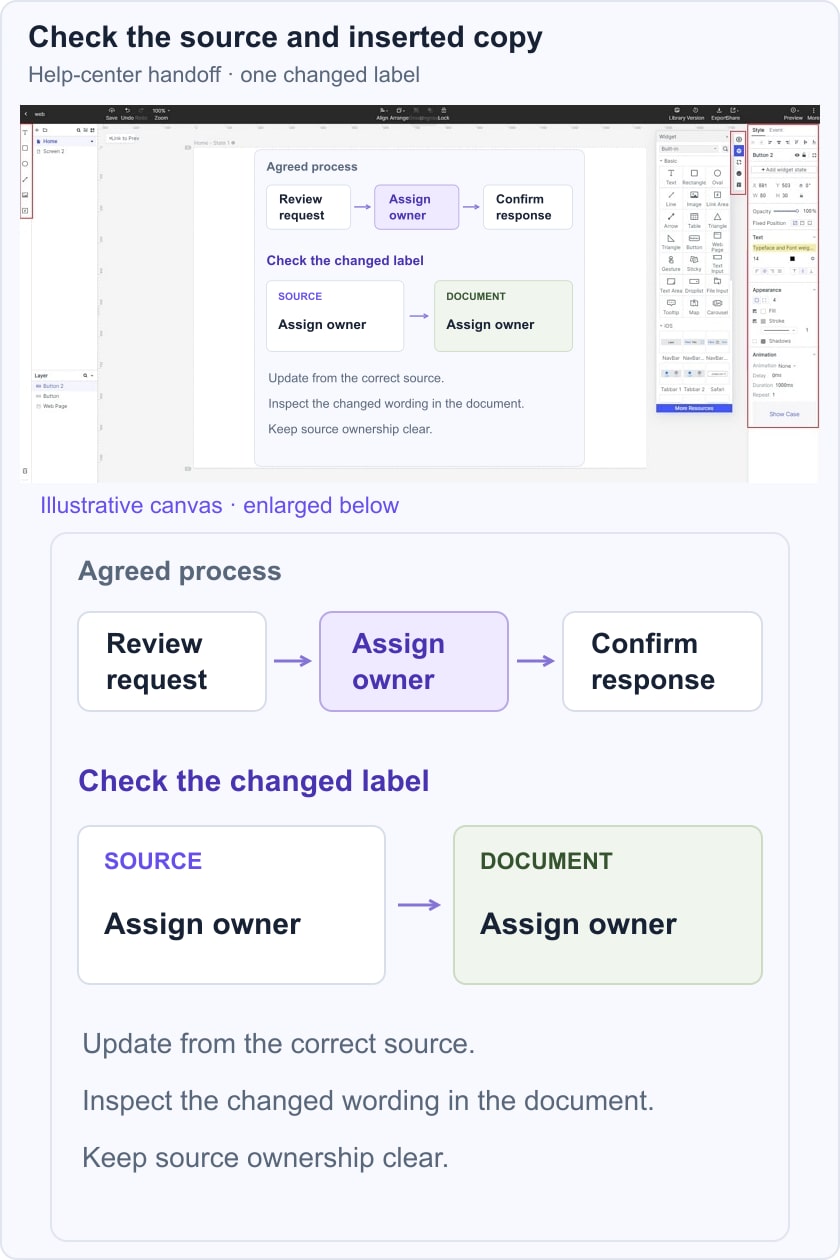
Before inserting that flow into Docs, review it in the source workspace. Ask the owner to verify who can assign the work, what happens when a request is rejected, and whether the confirmation is sent to the requester. Those questions expose missing states that a neat document diagram can conceal.
Know when Docs is no longer the right canvas
Move the working diagram to a shared flowchart canvas when any of these signals appears:
- Several people need to edit nodes and review comments at the same time.
- The process has more than one exception route or needs a visible owner for each step.
- The team is comparing alternative flows before choosing one.
- The diagram must stay readable while the surrounding document is reformatted.
In those cases, keep Google Docs as the explanation and distribution point, but maintain the process in Mockitt’s online flowchart tool. Share the reviewable source with the people who approve the flow, then insert or link the agreed view in the brief. This gives readers a stable answer while giving the team room to improve the process.
Keep the document view readable
Do not solve a crowded flow by shrinking every shape. Split a long process into a main flow and named subflows, then link the subflow from the step that starts it. Keep the document copy focused on the decision a reader needs to make. If a reader must zoom in or trace a line across the page, the source belongs in a larger canvas and the document should carry a simpler summary.
When you update the source, check the document again at its normal reading size. Confirm that the title, labels, and exception note still match the current process. A short “updated on” note and an owner name make it easier for someone to report a stale diagram instead of silently using it.
A five-minute review before sharing
- Can a new reader identify the start and end?
- Does every decision have a labeled exit?
- Is the exception or recovery path visible?
- Does the document state where future edits belong?
- Can the owner update the source without redrawing every published copy?
If the answer to the last question is no, move the editable source before the flow becomes part of a larger process library. A Google Docs drawing is useful when it is the right view of the process; it should not accidentally become the process itself.